
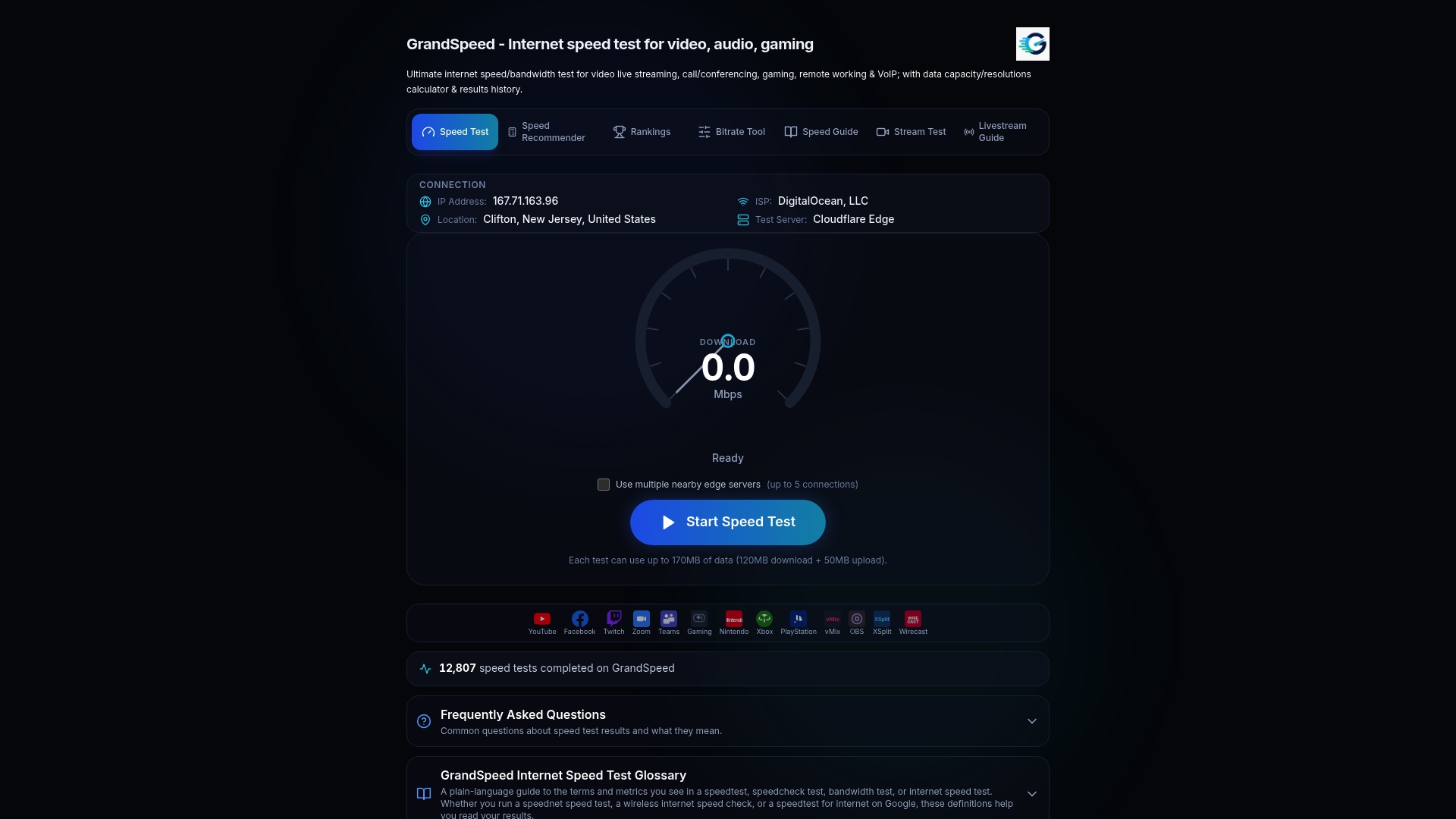
The best speed test for gaming is one that reports more than download Mbps: it should show latency, jitter, packet loss and how your connection behaves under load (bufferbloat). GrandSpeed's speed test measures download and upload speed, latency, jitter, packet loss, bufferbloat and DNS resolution time in a browser on a phone, tablet or laptop, and keeps a history of your results so you can compare before and after a fix. Below, we compare the main options, explain what each number means for a match, and show how to run a test that reflects what you feel in game.
TL;DR
- Pick a test that reports ping, jitter, packet loss and latency under load. A plain download number can look great while your game stutters.
- For most online games, HP's gaming guide puts the target at 5 to 10 Mbps down with ping under 50 ms, and under 30 ms for competitive play.
- Speed tests that only measure raw throughput can hide bufferbloat, the latency spike that happens when someone uploads or downloads while you play.
- Test on Ethernet first, then Wi-Fi, at a few times of day, and save every result.
- GrandSpeed covers all of these metrics in one test and stores your history, which makes it our pick for gamers who also stream.
Table of Contents
- Why a gaming speed test is different from a plain speed test
- What to look for in the best speed test for gaming
- The main options compared
- What counts as a good result
- How to run a gaming speed test that means something
- When the speed test looks good but the game still lags
- If you stream your gameplay
- Our perspective
- Run your gaming test now
- FAQ
- Sources
Why a gaming speed test is different from a plain speed test
Most online games use very little bandwidth. HP's guide notes that most titles use less than 1 Mbps during active play. What decides whether a match feels smooth is how quickly and how consistently your packets travel, not how many fit through the pipe per second.
Five numbers matter:
- Download speed: how fast data reaches you. It matters for game downloads, patches and cloud gaming.
- Upload speed: how fast data leaves you. It matters for voice chat and above all for streaming your gameplay.
- Ping (latency): the round trip time to a server, in milliseconds. Lower is better.
- Jitter: how much that ping varies from one moment to the next. A steady 40 ms often plays better than a ping that swings between 15 and 90 ms.
- Packet loss: the share of data that never arrives and has to be resent. Even small amounts show up as rubber-banding or skipped actions.
A sixth idea ties them together: bufferbloat. This is the extra delay your router or modem adds when the line is busy, because it queues packets instead of dropping them. XDA Developers describes a connection that tests at 900 Mbps down yet sees latency jump from 20 ms to 300 to 1,000 ms during a large upload. A test that never loads the line will never show you that.
What to look for in the best speed test for gaming
Use this short checklist when you compare tools:
- Latency and jitter reported separately. One ping figure is not enough.
- Packet loss. It should be a number, not a hidden pass or fail.
- Latency under load. This is the bufferbloat check, and it is the one most basic tests skip.
- Upload that is measured properly. Gamers who stream or chat need it.
- A saved history. One test is a snapshot. A record shows patterns, such as evening slowdowns.
- Works on the device you actually play on. That includes phones for mobile gaming and Wi-Fi checks.
The main options compared
No single page is the whole story, but the tools differ in what they put in front of you. The table summarizes what each one reports, based on its own description and on MakeUseOf's August 2026 review.
| Tool | What it reports | Best used for |
|---|---|---|
| GrandSpeed | Download, upload, latency, jitter, packet loss, bufferbloat, DNS resolution time, saved history, and the maximum livestream resolution your speeds support | One test that covers gaming, voice chat and streaming your play |
| Ookla Speedtest | Download, upload and ping, with a large choice of servers | A quick baseline of your plan speed |
| Waveform bufferbloat test | A letter grade for latency under load | Checking bufferbloat alone |
| BufferSpeed | Latency under load, jitter and packet loss | Exposing bufferbloat |
| PacketProbe | WebRTC-based measurements with presets for gaming, VoIP, video calls and streaming | Comparing against gaming ping bands |
GrandSpeed: our pick for gamers who also stream
We built GrandSpeed to measure the real-world conditions that basic tools leave out. In one run it reports speed, latency, jitter, packet loss, bufferbloat and DNS resolution time. That means the same test answers "is my plan fast enough?" and "why do I spike in ranked?". The results history lets you see whether a router change, a cable swap or a new ISP actually improved things.
If you stream your gameplay, the same platform checks whether your upload can carry the resolution you want. It works out the maximum livestream or broadcast video resolution your tested speeds support. The Livestream Upload Speed Monitor is there for watching your upload and stability while you broadcast to Twitch, YouTube or Facebook with OBS, vMix, XSplit or Wirecast.
Ookla Speedtest: the familiar baseline
MakeUseOf calls Ookla's Speedtest the industry-standard baseline: it measures download, upload and ping in about 30 seconds, against thousands of selectable servers. It is a good way to confirm you receive the speed you pay for. On its own it does not tell you what happens to your ping when the line is busy.
Waveform and BufferSpeed: bufferbloat specialists
The Waveform test gives a letter grade for latency under load, and XDA Developers recommends it as the next step after a normal speed test. MakeUseOf describes BufferSpeed as a tool that measures latency under load, jitter and packet loss to expose bufferbloat. Both focus on one problem. GrandSpeed folds that check in alongside the rest of your numbers, so you do not need a separate page for each.
PacketProbe: gaming presets
PacketProbe uses WebRTC-based measurements and offers presets for gaming, VoIP, video calls and streaming. MakeUseOf reports that its benchmarks treat under 50 ms as excellent for gaming, 50 to 100 ms as playable, and over 150 ms as noticeable input delay.

What counts as a good result
Treat these as practical targets, not guarantees. Games differ, and so do servers.
| Metric | Comfortable for most games | Competitive play |
|---|---|---|
| Download | 5 to 10 Mbps per HP's guide | Higher if you download big patches or use cloud gaming |
| Ping | Under 50 ms | Under 30 ms |
| Jitter | Low and steady, ideally well under 30 ms | As low as you can get it |
| Packet loss | Close to 0% | 0% |
Ping and download figures come from HP's gaming guide. The Reviews.com gamer's guide gives practical targets of roughly 40 to 60 ms ping, jitter under about 30 ms and packet loss under 1 to 2% for smooth play. Upload matters more if you stream or use voice chat, which is where you need to size your connection for the broadcast as well as the game.
Cloud gaming raises the download bar. Reviews.com lists about 10 to 15 Mbps for 720p at 60 frames per second, 20 to 25 Mbps for 1080p60, and around 35 to 45 Mbps for 4K60. Our own cloud gaming bandwidth guide goes deeper, and the household bandwidth calculator shows how much speed a whole home needs when several people are online at once. For a closer look at ping specifically, see how to get under 20 ms ping for gaming.

How to run a gaming speed test that means something
A test is only as useful as the conditions you run it in. Follow these steps.
1. Start wired
Plug your PC or console into the router with Ethernet and close everything else that uses the network. A research team studying speed test best practices found that for plans above 50 Mbps, testing over Wi-Fi often underestimates speed, especially on fast plans. A wired result gives you the cleanest baseline. Then run our Wi-Fi vs Ethernet comparison to see how much your wireless setup costs you.
2. Run the full test and read all the numbers
Open GrandSpeed and run the test. Do not stop at download. Write down ping, jitter, packet loss, upload and the bufferbloat result. Because the results are saved to your history, you can come back and compare.
3. Check under load
This is the step that finds the hidden lag. Start a large upload or download on another device, then repeat the test. If latency jumps sharply, you have bufferbloat. The usual fix is smart queue management (SQM) on the router, which XDA notes deliberately trades a little peak throughput for much better responsiveness and needs a fast router processor on fast connections. Our 20 minute bufferbloat fix for gamers walks through testing, enabling SQM and proving the result, and this guide to finding bufferbloat covers the methods for home and power users.
4. Repeat at different times
Run the test in the afternoon and again during the evening peak when you normally play. The researchers behind that TPRC study also suggest recording latency to the test server and running two different tools in succession, taking the better result, to avoid blaming your ISP for a bottleneck elsewhere. Two GrandSpeed runs a few minutes apart, plus your saved history, give you the same cross-check.
5. Test the way you play
If you play on a phone or over cellular, run the test on that device. GrandSpeed works in any modern browser on a phone, tablet or laptop, over Wi-Fi or cellular. If you use 5G home internet, see how to measure 5G home internet for gaming.
When the speed test looks good but the game still lags
This is the most common complaint, and the cause is rarely your plan speed. Work through it in this order:
- Bufferbloat. XDA's Ty Sherback argues the real culprit in most modern home networks is not bandwidth but queuing. He measured an upload-induced latency increase of more than 150 ms, enough to make online games unplayable.
- Wi-Fi. Interference and distance add jitter. Move to Ethernet for a test and compare.
- Jitter and packet loss. A fast line with unstable timing still feels bad. Look at the two numbers, not just the average ping.
- Other people on your network. Streaming, backups and cloud uploads all fill the line. Repeat the test while they run.
- Your ISP and route. If numbers are bad on Ethernet at all hours, the problem is upstream. Our guide to choosing the best ISP for gaming lists tests to run, and GrandSpeed's rankings and the Internet/ISP Speed Recommender help you match a plan to your needs.
For a full breakdown of the figures behind these steps, read Under 30 ms ping, 15 to 50 Mbps: fix gaming lag.
If you stream your gameplay
Gaming and streaming pull in opposite directions. The game wants low, steady latency. The broadcast wants sustained upload. When both run at once on one connection, any weakness shows quickly: dropped frames in the stream, or lag spikes in the match.
The Video bitrate planner and the OBS bitrate calculator help you choose a bitrate that fits your tested upload speed, so the stream does not crowd out your game traffic. During a live session, the Livestream Upload Speed Monitor shows how your upload holds up. The Video Streaming Quality Test shows the highest resolution your speeds support.
Our perspective
Gamers are told to chase a bigger download number, and then they lose a match to a lag spike that no download number predicted. A connection is a set of behaviors: how fast it carries data, how steadily, and how it holds up when the household is busy.
That is why we built GrandSpeed around jitter, packet loss, bufferbloat and DNS time next to speed, and why we keep your history. One reading tells you little. A series of readings, taken on Ethernet and Wi-Fi, at quiet and busy hours, tells you what to change.
If you play and stream, the question grows: can this line carry both? That is why the same platform estimates the livestream resolution your speeds support. We want you to leave a test knowing what to do next, not just holding a number.
Peter D
Run your gaming test now
Open GrandSpeed, plug in with Ethernet, and run the test. You will get your speed, latency, jitter, packet loss, bufferbloat and DNS resolution time in one pass, saved to your history so that every change you make can be measured. Our Internet Speed Guide explains how to read the full results page.
FAQ
What is the best speed test for gaming?
Choose one that reports ping, jitter, packet loss and latency under load as well as download and upload. GrandSpeed measures all of these, plus DNS resolution time, and saves your history. A tool that reports only download speed cannot show the lag spikes that ruin matches.
What ping is good for gaming?
For most online games, HP's guide says ping under 50 ms is enough, and under 30 ms for competitive play. Keep jitter low as well, because a ping that swings widely feels worse than a slightly higher steady one.
How many Mbps do I need for gaming?
HP's guide puts most online games at 5 to 10 Mbps download, since active play uses under 1 Mbps. You need more for big game downloads, cloud gaming or streaming your play, where upload speed also matters. Use the household bandwidth calculator to size it for everyone at home.
Why does my speed test look fine but my game lags?
The usual cause is latency that rises when the line is busy, known as bufferbloat, or unstable Wi-Fi. XDA Developers explains that standard tests measure ideal-condition sprints. Run a test with bufferbloat results on Ethernet, then repeat it while another device uploads.
Should I test on Wi-Fi or Ethernet?
Test both, starting with Ethernet for a clean baseline. Research on test methods found Wi-Fi can understate speed on fast plans. Comparing the two shows how much your wireless setup costs you.
Sources
- 4 free tools that find what's wrong with your internet in minutes (MakeUseOf)
- Network speed tests hide real problems, so do this instead (XDA Developers)
- What Is the Best Internet Speed for Online Gaming? (HP)
- A Gamer's Guide to Internet Speed (Reviews.com)
- Best Practices for Collecting Speed Test Data (TPRC study)