

Under 20 milliseconds is excellent, 20 to 50ms is very good, 50 to 100ms is still playable, and anything past 100ms starts causing visible lag in most competitive games. If your number is high, the fastest fix is usually the simplest: plug your console or PC straight into the router with an Ethernet cable, which routinely cuts ping and kills the jitter Wi-Fi introduces.
TL;DR:
Plugging into the router with an Ethernet cable can significantly reduce ping and jitter caused by Wi-Fi interference and signal instability.
A steady ping under 20 milliseconds is ideal for competitive FPS games, while jitter over 50 milliseconds worsens lag even at lower overall ping.
Running sustained ping tests and traceroutes at different times helps identify whether delays originate inside your home or upstream with your ISP.
Bufferbloat and background downloads are common invisible sources of high latency, which QoS and firmware updates can effectively mitigate.
Cross-platform play highlights the importance of wired setups, as PC players typically have lower latency and more control than console players relying on Wi-Fi connections.
Table of Contents
-
What Is Ping in Gaming? Latency, Jitter, and Packet Loss Explained
-
How Do You Run a Ping Test for Gamers That Actually Means Something?
-
Advanced Diagnostics: Traceroute, VPNs, and When to Call Your ISP
-
Run a Full Diagnostic and See Exactly Where Your Ping Stands
What Is Ping in Gaming? Latency, Jitter, and Packet Loss Explained
Ping is the round-trip time, measured in milliseconds, for a data packet to travel from your device to the game server and back. It’s what most game clients display as a number in the corner of your screen, and it’s the single most-watched stat in competitive play.
Two other terms matter just as much, and they’re where most players get confused:
-
Latency is often used interchangeably with ping, though technically latency can refer to one-way delay while ping measures the round trip.
-
Jitter is the variation between consecutive ping measurements. A connection that swings between 30ms and 90ms feels worse than one that sits steady at 60ms, even though the average looks similar, and it’s what causes rubber-banding where your character snaps backward.
-
Packet loss happens when data packets never arrive at all. Even a small percentage of loss can cause freezes, teleporting enemies, or shots that simply don’t register.
Getting these three straight is the first step to reading any ping vs. latency vs. jitter breakdown correctly, and it changes how you troubleshoot. A high ping problem and a high jitter problem call for different fixes.
What Is a Good Ping for Gaming by Game Type?
The numbers you should aim for depend heavily on what you’re playing. A shooter punishes latency in a way a strategy game never will.
-
Under 20ms: excellent, the range competitive FPS players chase for tournaments and ranked play.
-
20 to 50ms: very good, comfortable for shooters, fighting games, and most ranked matchmaking.
-
50 to 100ms: playable for MOBAs, MMOs, and racing games, though FPS titles will start to feel a step behind.
-
Over 100ms: problematic across nearly every genre, with visible input delay and desync.
These bands reflect widely used playability guidance across network diagnostics resources. Fast-paced shooters like a battle royale or tactical FPS need low, steady ping because hit registration happens in tight windows measured in milliseconds. An MMO or turn-based strategy title tolerates more slack because the action isn’t frame-perfect. A steady 70ms often plays better than a ping that jumps between 20ms and 80ms, because jitter degrades the experience more than a moderately higher but consistent number.
How Do You Run a Ping Test for Gamers That Actually Means Something?
A single ping test tells you almost nothing on its own. What matters is a repeatable sequence that isolates where the delay lives.
-
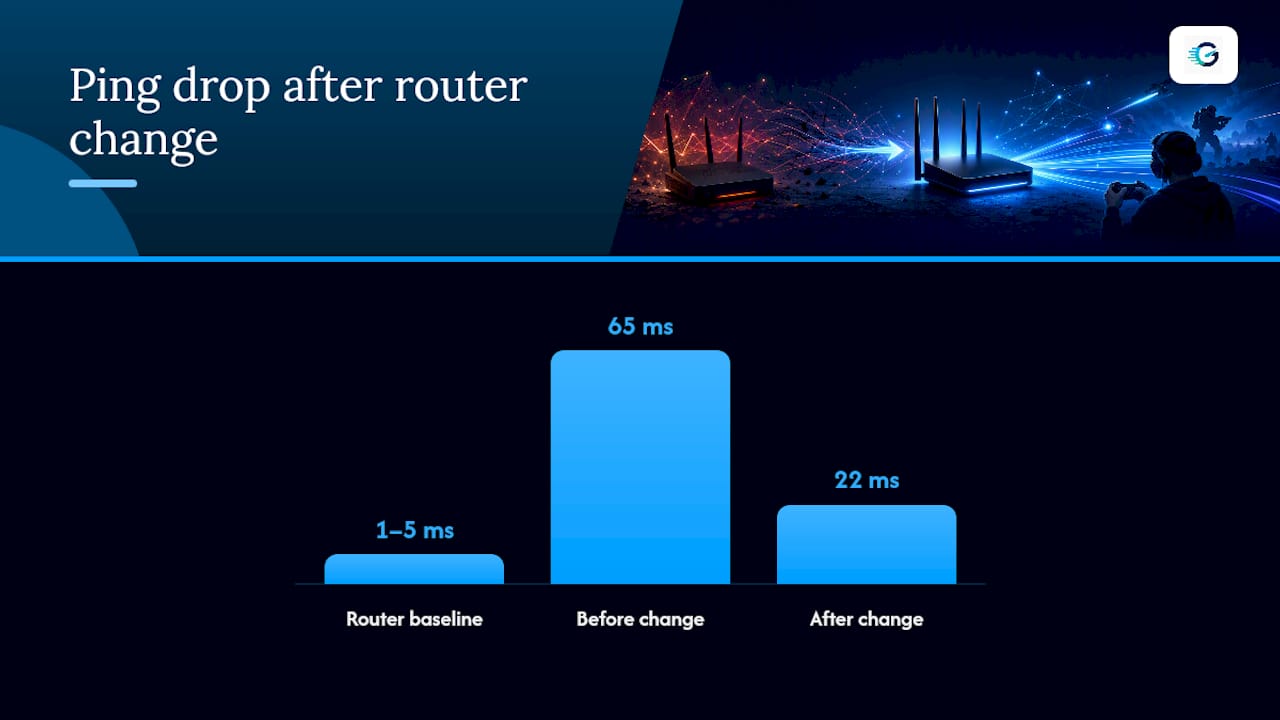
Ping your router first. This establishes your local baseline, typically 1 to 5ms on a healthy home network.
-
Ping the game server or a nearby public server. Compare this number against your router’s baseline to see how much delay your ISP and the internet path add.
-
Run sustained samples, not a single ping. Fifty to a hundred pings over several minutes reveal min, average, and max values plus jitter, which a one-off test hides completely.
-
Watch for spikes tied to load. Start a large download or a 4K stream mid-test to see whether your connection holds steady or falls apart, a pattern that points to bufferbloat.
-
Run traceroute or WinMTR when a single hop looks suspicious. This shows exactly which point in the path introduces delay or packet loss, which tells you whether the problem is inside your house or somewhere upstream with your ISP.
Test at different times of day, especially during evening peak hours, since congestion patterns shift by neighborhood and provider.
Pro Tip: Save your results every time you test. A number means nothing in isolation, but a history that shows ping dropping from 65ms to 22ms after a router change is proof your fix actually worked.
Common Causes of High Ping and Jitter
Latency problems come from three different layers, and mixing them up wastes time.
-
Home network issues: Wi-Fi interference from neighboring networks, distance from the router, an aging router that can’t handle modern traffic, and bufferbloat, where an overloaded connection queues data and creates massive spikes under load.
-
Device-level issues: background uploads, cloud backups, OS updates downloading silently, or a game launcher patching in the background while you’re trying to play.
-
Network and ISP issues: inefficient routing or peering problems between your ISP and the game server’s network, plus the simple physical distance between you and that server.
Bufferbloat deserves special attention because it’s invisible until your connection is under load. Your ping might look fine when idle and spike to 300ms the moment someone else in the house starts a video call.
Practical Quick Fixes to Reduce Ping for Gaming Right Now
Work through these roughly in order. Each one addresses a different layer of the problem, and most players see meaningful improvement after the first three.
-
Switch to Ethernet. This is the highest-leverage change available, cutting ping and largely eliminating Wi-Fi jitter in one move.
-
Close background apps and pause updates. Streaming services, cloud sync, and Windows Update all compete for the same bandwidth your game needs.
-
Pick the nearest server. Physical distance adds real, unavoidable delay, so manually selecting the closest region in-game beats letting matchmaking decide.
-
Try Cloudflare or Google DNS. This mostly speeds up matchmaking and connection setup rather than in-match ping, but it’s a fast, free change worth making.
-
Enable QoS or SQM on your router. Smart queue management fixes the worst bufferbloat spikes that no other single tweak touches.
-
Update router firmware and set device priority. Newer firmware plus prioritizing your gaming device in QoS settings reduces jitter during household congestion.
-
Cap bandwidth to about 90% of your measured speed. Setting QoS just under your real throughput, rather than your plan’s advertised number, prevents the queue buildup that causes bufferbloat.
If Ethernet genuinely isn’t possible, use 5GHz or 6GHz Wi-Fi over 2.4GHz, keep the router as close as you reasonably can, and consider a MoCA or powerline adapter as a wired alternative that doesn’t require running cable through walls.
Pro Tip: Disabling Energy Efficient Ethernet and Interrupt Moderation on your network adapter is a small tweak, but it’s the kind of thing that shaves off the inconsistent spikes competitive players notice and casual players never think to check.
Advanced Diagnostics: Traceroute, VPNs, and When to Call Your ISP
Once the easy fixes are exhausted, traceroute becomes your best tool. A healthy path shows delay increasing gradually hop by hop. A problem path shows one hop where the time jumps sharply, or where packets start disappearing entirely. That jump usually marks a peering or transit issue between networks, not something in your home.
-
Look for a single hop with a disproportionate latency jump compared to the hops before and after it.
-
Note repeated timeouts or packet loss at the same hop across multiple traceroute runs, which rules out a one-off fluke.
-
Save the raw traceroute output along with timestamps for whenever you escalate the issue.
A VPN can sometimes help if your ISP is routing traffic inefficiently to a specific game server, but in most cases it adds latency rather than removing it. Test with and without one before committing to it as a permanent fix.
When you do contact your ISP, bring sustained test logs, traceroute results, and the specific times of day the problem occurs. Set realistic expectations. They can fix routing issues on their own network, but they can’t fix congestion on the game publisher’s servers.
Console vs. PC: How Ping Expectations Differ
Console and PC gamers chase the same low numbers, but the platforms get there differently. Consoles almost always connect over Wi-Fi by default, since not every living room setup makes running an Ethernet cable to the TV practical. That single default is why so many console players live with 40 to 60ms jitter spikes that a wired PC gamer in the next room never sees.
PC gamers tend to have more granular control. Network adapter settings, router QoS rules, and background process management are all easier to tune on a computer than through a console’s limited network menu. A PC player troubleshooting high ping can disable specific adapter features or kill a background updater mid-game. A console player is often limited to basic network settings and a wired versus wireless toggle.
Crossplay has also changed the calculus. When console and PC players share the same lobby, a console player on Wi-Fi is now competing against PC players who plugged in and tuned their router, and the ping gap between them shows up directly in gameplay. This is one reason competitive console players increasingly invest in wired setups and dedicated gaming routers that used to be considered PC-only gear.
The baseline good-ping targets don’t change between platforms. What changes is how much friction stands between a player and hitting those targets, and PC setups typically have fewer obstacles in the way.
Why Measurement Beats Guesswork in Ping Troubleshooting
Most players change one setting, feel like the game plays better, and move on without proof. That’s guesswork, not diagnosis. A measurement-first approach, testing before a change and after it, is the only way to know whether a fix actually worked or whether that match just happened to go well.
Tracking more than raw ping matters too. Jitter and packet loss often explain frustration that a clean average ping number hides completely, and bufferbloat only shows up when you test under load. Re-test after any router change, during peak evening hours, and before contacting your ISP so you have real data to hand them. A tool like GrandSpeed, which stores test history and reports on latency, jitter, packet loss, and bufferbloat together, turns that habit into something you can actually compare over time instead of relying on memory.
— Peter D
Run a Full Diagnostic and See Exactly Where Your Ping Stands
GrandSpeed is the alternative to guessing at fixes and hoping they worked. Instead of changing a setting and crossing your fingers, you get a real before-and-after number for latency, jitter, packet loss, and bufferbloat in one test.

The platform also flags the maximum stream or broadcast resolution your connection supports, useful if you’re streaming your gameplay while trying to keep ping low for yourself. Run a baseline test now, save the result, then re-test after each change (Ethernet, QoS, a firmware update) to see what actually moved the needle. Head to the stream test to measure your full connection profile and start building a real history instead of a guess.
Sources
For deeper troubleshooting, review the ping vs. latency vs. jitter breakdown, GrandSpeed’s speed guide on diagnosing ISP and home-network issues, and the cable vs. fiber comparison if an upgrade is on the table.