
Casual play runs fine with a moderate download speed and ping under 50 ms. Competitive shooters want higher download speeds and ping under 30 ms. Streamers need 10 to 20+ Mbps upload, and cloud gaming demands 15 to 50 Mbps of steady, low jitter bandwidth. Run a real test before you touch your plan or your router.
TL;DR:
- Using Ethernet cables instead of Wi-Fi significantly reduces lag, jitter, and packet loss, especially when paired with a quality router.
- For competitive gaming, maintaining ping under 30 ms and jitter below 10 ms is crucial, while upload bandwidth of at least 10 Mbps benefits streamers.
- Peak congestion hours can cause increased ping and packet loss, making manual tests and traffic management essential for stable gameplay.
- Upgrading your internet plan is beneficial mainly when multiple household users compete for bandwidth, not to reduce latency caused by routing issues.
- Running comprehensive connection tests with tools like GrandSpeed helps identify the real causes of lag and guides effective troubleshooting steps.
Table of Contents
- What internet speed for gaming fits your play style?
- Why do ping and jitter matter more than raw speed?
- What connection type and hardware actually reduce lag?
- How do you test and fix a laggy connection?
- When should you actually upgrade your internet plan?
- How GrandSpeed maps directly to these fixes
- How does network congestion mess with your game?
- What does QoS actually do for your gaming traffic?
- Why does server location change your ping so much?
- What usually causes gaming-specific speed problems?
- The priority order that actually works
- Run your own gaming connection test with GrandSpeed
- Sources
What internet speed for gaming fits your play style?
The right numbers depend entirely on what you're doing online, not some universal benchmark. A retiree playing solitaire-adjacent mobile games and a Valorant ranked grinder have wildly different needs, even though both technically "play online games."
Here's how the ranges break down by player type:
- Casual gamers (single-player online modes, party games, turn-based titles): 5–25 Mbps download, around 3 Mbps upload, ping under 50 ms. This covers most people comfortably, and it lines up with the FCC's baseline guidance of roughly 4 Mbps minimum for responsive online activity.
- Competitive FPS and ranked players (Valorant, Counter-Strike, Apex Legends): 25–50 Mbps download, 5+ Mbps upload, ping under 30 ms. At this level, milliseconds matter more than megabits.
- Streamers: upload is the bottleneck. Plan on 6–10 Mbps upload for 720p60 streaming and 10–20+ Mbps for 1080p60, with headroom above your actual bitrate so encoding spikes don't tank your stream.
- Cloud gaming (GeForce NOW, Xbox Cloud Gaming): 15–50 Mbps download depending on resolution, ping under 30 ms, and jitter that stays rock steady. Cloud platforms stream a live video feed of your gameplay back to you, so any wobble in bandwidth shows up as visible artifacts, not just a stutter.
Notice the pattern: as you move from casual to competitive to cloud, latency tolerance shrinks even as bandwidth needs grow. That's the real story behind internet speed for gaming recommendations, and it's why chasing a bigger number on your plan sometimes solves nothing.
Why do ping and jitter matter more than raw speed?
Ping, or latency, measures how long it takes a data packet to travel from your device to a game server and back, in milliseconds. Jitter measures how much that ping value fluctuates from one packet to the next. Packet loss tracks the percentage of data packets that never arrive at all. All three affect how gaming feels in ways a download speed number can't capture.
By the numbers: Ping under 20 ms is excellent, 20 to 50 ms is good for nearly every genre, 50 to 100 ms is acceptable for casual and turn-based play, and anything past 100 ms starts to feel sluggish in fast-paced games. Jitter above 10 ms and packet loss above 1% commonly cause visible stutter in multiplayer sessions.
Here's the part most people miss: bandwidth is often not the cause of perceived lag at all. A 500 Mbps connection with bad routing to the game server will feel worse than a 25 Mbps connection with a clean path. Doubling your download speed does nothing for a routing problem or a congested local Wi-Fi channel.
Think about the difference in practice. At 15 ms ping, your shot registers almost the instant you click. At 80 ms, there's a noticeable half-beat delay in a twitch shooter, even though downloads and streaming still work perfectly fine.
What connection type and hardware actually reduce lag?
Access technology sets your floor for latency before any router setting comes into play. Ranked roughly best to worst for gaming: fiber, cable, DSL, fixed wireless (including most 5G home internet), and satellite, which carries the highest latency of the group due to signal travel distance.
Inside the home, the wiring matters just as much as the plan you bought:
- Use Ethernet wherever the setup allows it. A wired connection typically adds only a couple of milliseconds inside your home and delivers far lower jitter and packet loss than Wi-Fi under load.
- If Wi-Fi is your only option, look for Wi-Fi 6, 6E, or 7, and manually set your device to the 5 GHz or 6 GHz band rather than 2.4 GHz.
- Pick a router with regular firmware updates, built-in Quality of Service controls, and ideally a gaming acceleration or priority mode.
- Can't run Ethernet across the house? MoCA adapters (using existing coax) or powerline adapters both beat Wi-Fi for stability in most homes.
- Cat5e handles gigabit speeds fine for most setups; upgrade to Cat6 only if you're running multi-gig internet or long cable runs.
Pro Tip: If you're troubleshooting lag, plug in directly and retest before changing anything else. If the problem disappears over Ethernet, your Wi-Fi setup is the culprit, not your ISP.
How do you test and fix a laggy connection?
Guessing wastes time. Testing tells you exactly what's broken, so run these three checks before you touch your router settings or call your ISP.
- Raw speed test: check download and upload against what you're paying for, wired and then over Wi-Fi, so you can isolate whether the problem is your plan or your home network.
- Ping test to your actual game server: a generic speed test ping doesn't tell you much. Ping the region your game connects to, or use in-game network diagnostics if available.
- Jitter and packet loss test: run this at the time of day you actually game, since evening congestion looks very different from a 10 a.m. test.
Once you have real numbers, work through fixes in this order: wire the device directly, close any background downloads or cloud backups eating your upload, restart the router and modem, update router firmware and network drivers, try a different DNS provider, then enable QoS to prioritize game traffic over everything else on the network.
Pro Tip: If problems only show up at specific hours, that's congestion, not a broken connection. Save a few test results with timestamps before you call support. Repeated tests at different times reveal patterns a single snapshot never will.
If none of that closes the gap, escalate to your ISP with logs showing dates, times, wired versus wireless results, and ping to specific servers. Vague complaints get vague answers; data gets a technician dispatched.
When should you actually upgrade your internet plan?
Add up peak simultaneous usage before you pay for more speed you don't need. A 4K stream running in another room needs roughly 25 Mbps, a 1080p stream needs 5–10 Mbps, and active gaming itself typically uses well under 5 Mbps during play, since most multiplayer traffic is lightweight compared to video.
That total is your real target plan size.
- Upgrading helps when multiple people compete for bandwidth at once, or when large downloads and updates choke everything else.
- Upgrading does nothing for latency caused by bad routing, distant servers, or a P2P host with a poor connection.
- Frequent large game downloads or platform updates favor unlimited plans over data-capped ones.
- Streamers should prioritize upload symmetry or a plan with genuinely high upload, not just a bigger download number.
How GrandSpeed maps directly to these fixes
Every metric covered so far, ping, jitter, packet loss, download and upload speed, has a corresponding test on GrandSpeed. The platform also measures bufferbloat and DNS resolution times, and estimates the maximum streaming resolution your current connection can sustain.
- Test history: run tests across a few days, including your peak gaming hours, to spot time-of-day congestion instead of guessing from one lucky (or unlucky) result.
- Bufferbloat check: high latency that appears only under load usually traces back to bufferbloat, which smart queue management or updated router firmware can fix.
- Capacity calculator: add up your household's streaming, gaming, and work-from-home needs to size a plan instead of guessing.
Save your results before contacting your ISP. A logged history beats a one-off complaint every time.
How does network congestion mess with your game?
Congestion happens when too much traffic competes for the same limited pipe, whether that's your home network during peak evening hours or your ISP's local infrastructure during a neighborhood traffic spike. The symptom is usually intermittent: fine at 2 p.m., unplayable at 8 p.m.
Inside your home, the fix is straightforward. Pause console and PC updates before you start a session, ask roommates to hold off on 4K streams during ranked matches, and move smart home devices off your primary Wi-Fi network if your router supports a guest network. QoS settings help here too, since they let gaming traffic jump the line ahead of a background download.
Congestion on your ISP's side is harder to control directly, but it's not invisible. It shows up as speed and ping that degrade at consistent hours, and it's exactly the pattern a saved test history reveals. If your 9 p.m. ping is consistently double your 9 a.m. ping, that's neighborhood-level congestion, and it's worth reporting to your provider with timestamps attached. Some ISPs also offer higher-tier plans with less contended local infrastructure, which can help in dense apartment buildings where dozens of households share the same node.
What does QoS actually do for your gaming traffic?
Quality of Service settings let your router decide which traffic gets priority when bandwidth is tight. Without QoS, a household laptop backing up to the cloud competes equally with your game client for every available packet slot, and your ping suffers for it.
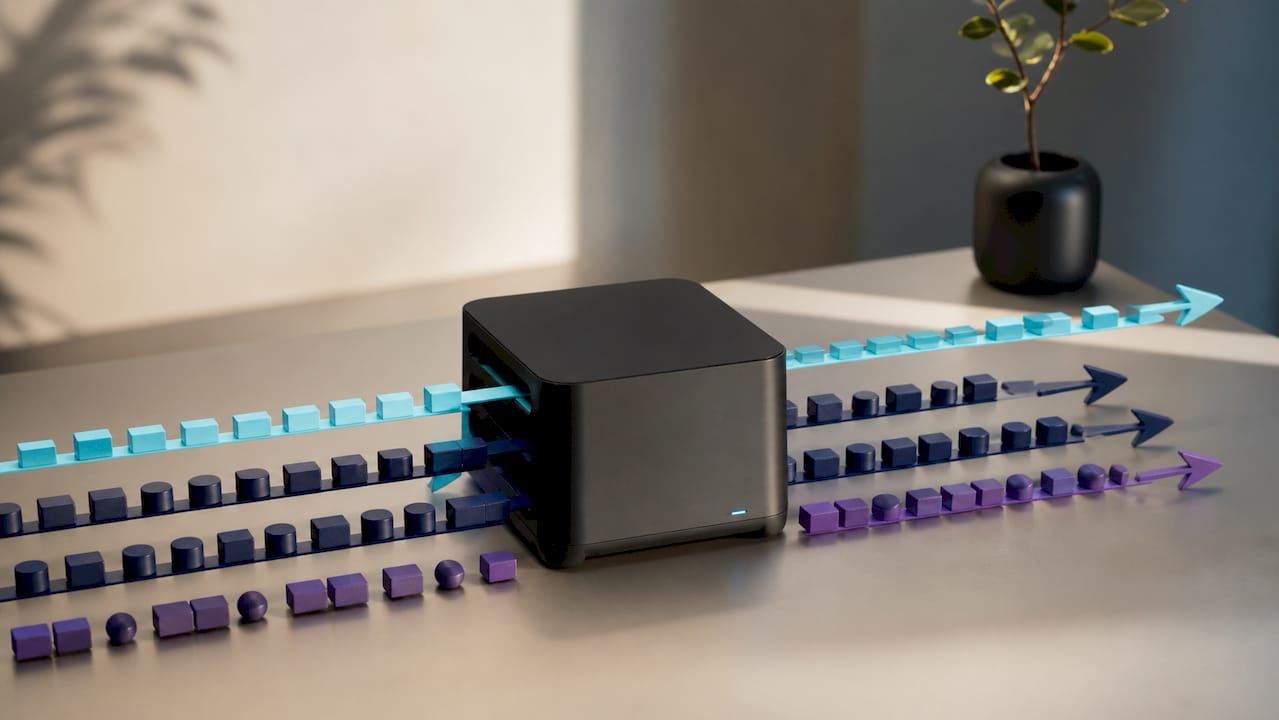
Most modern gaming routers include a QoS mode, sometimes labeled "gaming priority" or "adaptive QoS," that automatically detects game traffic by port or protocol and pushes it ahead of lower-priority data like downloads or streaming buffers. Set it up once and it keeps working in the background without you touching it again. Some routers let you set device-level priority manually instead, which works well in a household where one gaming PC or console needs guaranteed priority over everything else.
QoS won't manufacture bandwidth that doesn't exist, and it can't fix latency caused by your ISP's routing. What it does well is stop your own household from lagging itself out during shared peak hours, which is often the easiest and cheapest fix available before you consider a plan upgrade.
Why does server location change your ping so much?
Every millisecond of ping roughly corresponds to physical distance and the number of network hops your data takes. A player connecting to a server 500 miles away will almost always see lower ping than one connecting 3,000 miles away, all else being equal, because the signal simply has less distance to travel.
Most competitive games let you select or are automatically matched to a regional server, and picking the closest one available makes a measurable difference. A player on the East Coast connecting to a West Coast server might see 70 to 90 ms of added latency compared to a local East Coast server, purely from geography.
Peer-to-peer game sessions complicate this further. When a game uses P2P networking instead of dedicated servers, your experience depends on the host's connection and location, not just your own. If lag shows up specifically in certain lobbies but not others, the host's connection or distance is the likely cause, not your ISP. This is worth checking before you spend an evening troubleshooting a problem that isn't yours to fix.
What usually causes gaming-specific speed problems?
Most gaming lag traces back to a short list of repeat offenders, and they're rarely the internet plan itself. Background downloads and automatic game updates are the most common culprit, silently eating upload and download bandwidth mid-session. Console and PC platforms both auto-update by default, often during evening hours when you're most likely to be playing.
Wi-Fi interference ranks second. Microwaves, neighboring networks on the same channel, and even Bluetooth devices can degrade a 2.4 GHz signal enough to spike jitter without dropping your overall speed test number. Outdated router firmware is a quieter cause, since older firmware sometimes lacks the QoS refinements and bufferbloat mitigation that newer versions include.
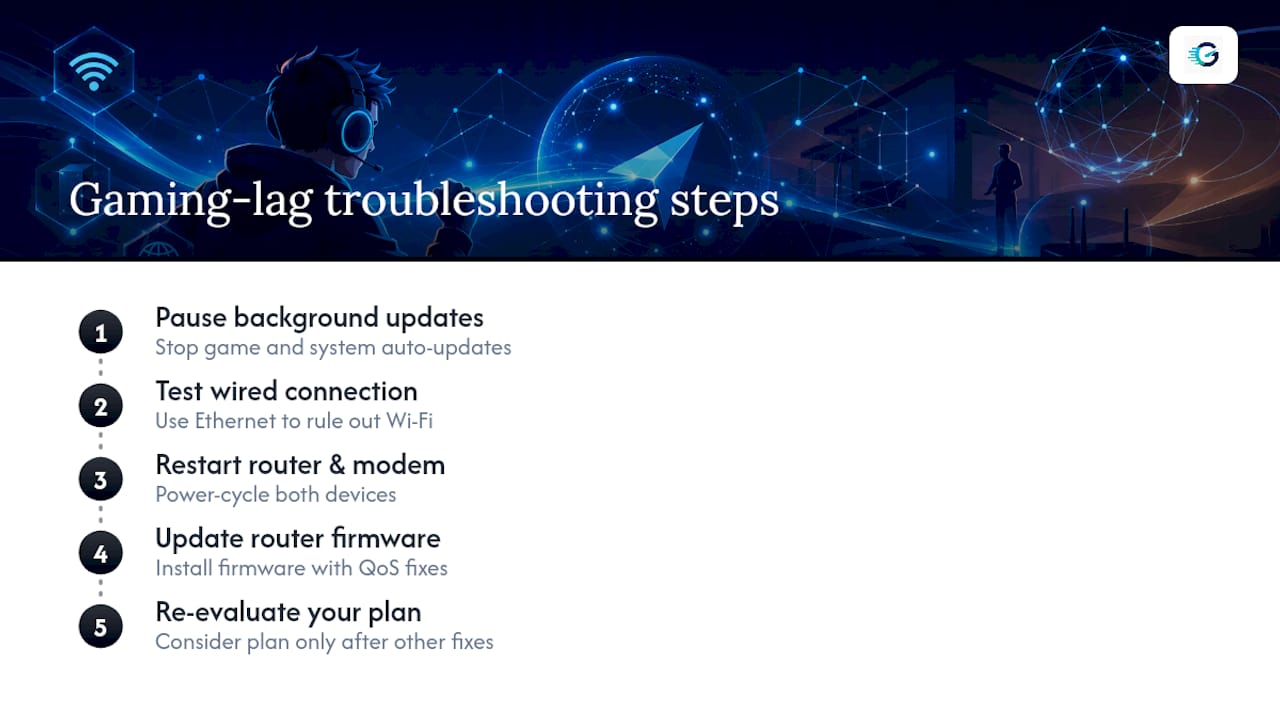
Work through fixes in this order: check for and pause background updates, switch to a wired connection to rule out Wi-Fi, restart your router and modem, update firmware, and only then consider whether your actual plan is undersized for your household. Skipping straight to "call the ISP and demand a faster plan" is the single most common wasted troubleshooting step, since it addresses a bandwidth problem that usually isn't the real one.
The priority order that actually works
Test first, wire second, cut contention third, upgrade last. Skip a step and you'll spend money solving the wrong problem. Run the numbers, then iterate from there.
— Peter D
Run your own gaming connection test with GrandSpeed
Reading about ping targets only gets you so far. Grandspeed gives you the direct measurement tools to see where your own connection actually stands, right now, in your browser, with no download required. The speed test checks download, upload, ping, jitter, packet loss, and bufferbloat in one pass, so you're not stitching together results from three different tools.

If you stream while you play, the stream test shows the maximum resolution your upload can actually sustain, and the bitrate calculator helps you set your encoder correctly instead of guessing at a number you saw in a forum post. Save your results before you contact your ISP. A history of timestamped tests showing exactly when your ping spikes gets a support call resolved far faster than a one-line complaint. Run a test now and see where your connection actually stands.
Sources
- What Is the Best Internet Speed for Online Gaming? | HP® Tech Takes
- How much speed do I need for online gaming?
- Highspeedinternet