
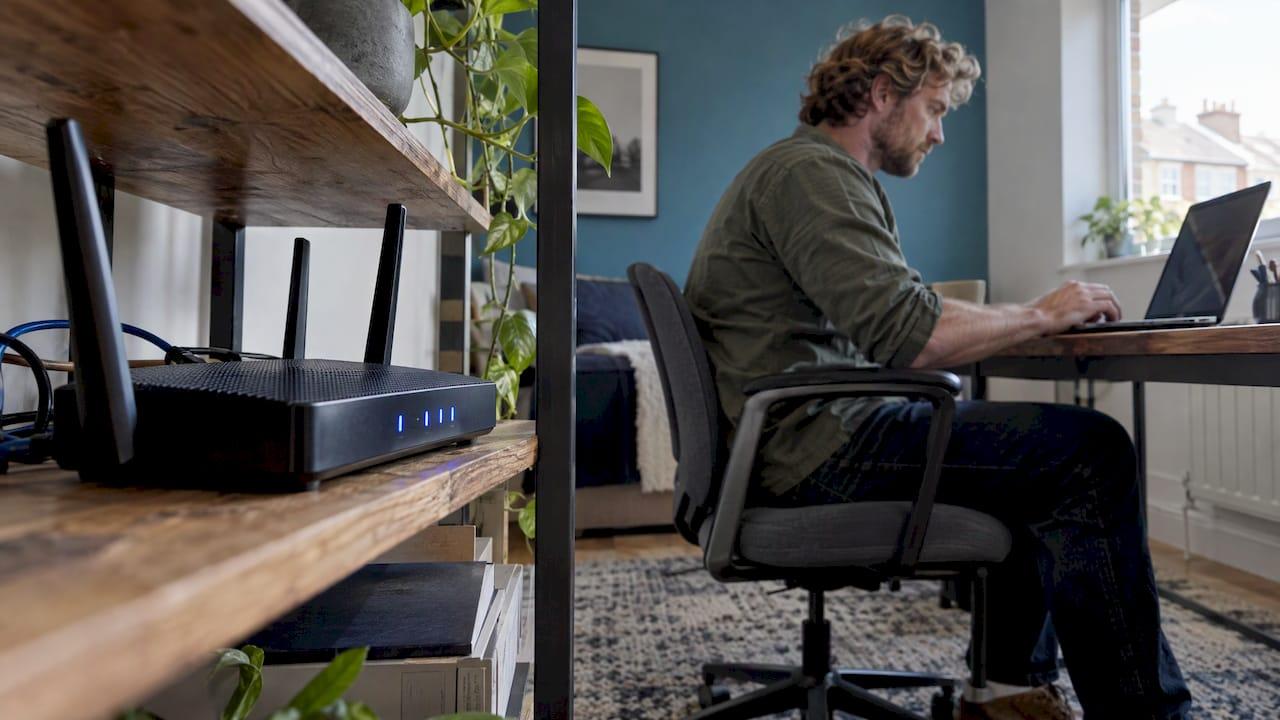
QoS (quality of service) helps a Zoom call only when your own network is congested, for example when a cloud backup, a game download or someone else's stream fills your upload link and your voice starts to stutter. Zoom's own documentation says its adaptive technology can deliver a good experience without a QoS strategy, so the smart order is to measure first, then prioritize, then measure again. We built GrandSpeed's speed test around exactly that loop: it reports latency, jitter, packet loss and bufferbloat, the numbers that tell you whether QoS has anything to fix.
TL;DR
- QoS tells your router which packets go first when the link is full. It does nothing on a link that is not congested.
- Zoom's example scheme marks audio as DSCP 46 (EF) and video and screen sharing as DSCP 40 (CS5). Marking only helps where your own network honors it.
- On a home router, use the built-in video-call or application-category priority if there is one, or SQM/CAKE if bufferbloat is the cause.
- Zoom's typical targets are latency up to 150 ms, jitter up to 40 ms and packet loss up to 2%. Test before and after any change.
Table of Contents
- What QoS does for a Zoom call
- Know your numbers first
- How much bandwidth a Zoom call needs
- How to prioritize Zoom traffic
- What to do when calls still lag after QoS
- If you stream as well as call
- Our view
- Test your connection for calls
- FAQ
- Sources
What QoS does for a Zoom call
A video call is a steady stream of small packets that must arrive on time. A file download is the opposite: it takes every bit of capacity it can get and does not care if a packet is a few milliseconds late. When both share one connection and the link fills up, the router queues packets, and your call's packets wait in the same line as the download's.
QoS changes the line. It classifies traffic and lets the router send real-time packets first. Zoom's Technical Library describes QoS/DSCP as a way to classify packets so network equipment can prioritize real-time Zoom traffic during congestion.
Three things follow from that:
- QoS manages who waits during congestion. It does not add speed. A 10 Mbps line is still 10 Mbps.
- It matters most on the link where the queue forms, which is usually your router's connection to your internet provider, in the upload direction.
- If nothing else is using the connection and the call is still bad, the cause is elsewhere: Wi-Fi signal, a VPN, a weak provider route or your device.
Know your numbers first
Zoom shows its own measurements during and after a call. Its guide to meeting and phone statistics defines the three that matter:
- Latency: the time between a packet being sent and received. Zoom's typical recommendation is 150 ms or less.
- Jitter: the variation in packet arrival times. The typical recommendation is 40 ms or less.
- Packet loss: data that never reaches its destination. The typical recommendation is 2% or less.
Why these and not just megabits? Bandwidth is capacity. These three describe timing and reliability, which is what a live call actually feels. A line can post a great download number and still deliver choppy audio.
The usual culprit behind that mismatch is bufferbloat: when a saturated link makes packets wait in an oversized buffer, delay rises even though nominal bandwidth is fine. APNIC's 2024 write-up on unbloating the buffers shows a test where ping climbed from a few milliseconds to nearly 300 ms under load. Zoom's recommended round-trip delay for Zoom Phone is no more than 300 ms, and conversation feels awkward well before that.
How to read a before-and-after test
Run GrandSpeed twice on the device you take calls on:
- Once while the connection is idle. Note latency, jitter and packet loss.
- Once while something heavy is running, such as a large upload or a game update, the situation in which your calls usually break.
If latency and jitter jump in the second run, you have a congestion problem and QoS or SQM is the right tool. If the numbers are bad even when idle, QoS will not fix it: look at Wi-Fi, cabling or your provider. GrandSpeed keeps a history of your results, so you can compare a run before a change with a run after it instead of trusting memory.
How much bandwidth a Zoom call needs
Zoom calls are lighter than many people expect, which is why a plan upgrade is often the wrong fix. Zoom says each Zoom Phone call uses 60 to 100 Kbps. Video is heavier. NetForecast's study of videoconferencing, built on more than 152 hours of collected data, reports Zoom's average measured use at 1.0 Mbps down and 0.4 Mbps up, with the 95th percentile at 2.1 Mbps down and 1.0 Mbps up. Its general recommendation for one user is 5 Mbps down and 3 Mbps up, which leaves headroom for everything else in the home.

The upload side is where homes get caught. Many connections have far less upload than download, so one cloud backup can swallow all of it. If you want to size a plan for a household, the household bandwidth calculator adds up simultaneous users, and our article on why 5 Mbps still gets choppy explains the gap between a plan's headline number and call quality. Data caps are a separate question, covered in video call data usage.
How to prioritize Zoom traffic
Step 1: Understand DSCP marking
DSCP (Differentiated Services Code Point) is a small label written into each packet's header. Routers that are set up to read it can queue the packet accordingly. Zoom's guide on DSCP marking gives an example four-class scheme:
| Traffic | Marking | DSCP value |
|---|---|---|
| Audio | EF | 46 |
| Video and screen sharing | CS5 | 40 |
| Signaling | CS3 | 24 |
| Transactional data | AF31 | 26 |
| Everything else | DF (best effort) | 0 |
The logic is that voice is the most delay-sensitive, so it goes first, then video. For a plain-language walkthrough of how QoS classifies Zoom traffic and how these values fit together on a business network, see this guide on QoS and voice priority on a network.
Step 2: Mark at the right place
There is a catch that trips up many admins. Zoom explains that turning on marking in the web portal or through Group Policy marks only the outbound packets from the Zoom app. Network devices may not honor those markings, and internet transit may strip them. Zoom's Phone documentation adds that markings are typically not preserved once traffic leaves your network for the public internet, where traffic is generally best effort.
What that means in practice: QoS is a tool for your side of the connection. It decides what leaves your router first and what waits. It cannot force priority across the open internet.
For inbound traffic, Zoom recommends marking at external firewalls and routers where possible, so both directions get consistent priority inside your network.
Step 3: Pick the simplest rule your router offers
On a home or small-office router, you usually do not need to type DSCP values at all. Look for these, in order of simplicity:
- A video-call or application-category setting. Some consumer routers have one. Linksys, for example, says supported MX4000-series models can prioritize Zoom or Microsoft Teams video calls through a Video Calls setting in its app, and that device-based priority and video-call priority cannot run at the same time.
- Device priority. Put the laptop or room system you use for calls at the top. This works when the competing traffic comes from other devices.
- Manual rules on a business router. Match the DSCP classes above, and avoid rules based on port numbers when a category rule exists, since ports can change.
- Smart queue management (SQM). If your tests show latency spiking under load, SQM with a modern algorithm such as CAKE attacks the cause directly. We cover it in CAKE QoS explained and the 20 minute bufferbloat fix.
For a broader view of the settings and targets that matter across video traffic, our guide to QoS for streaming goes further. If your team runs Microsoft Teams too, the Teams bandwidth check applies the same method.
Step 4: Set your shaping rate honestly
SQM and most QoS features work by shaping traffic slightly below your real line speed, so the queue forms in your router, where you control it, instead of in the provider's equipment. Use a measured upload figure, not the advertised one. A GrandSpeed run gives you the real number to start from.
Step 5: Retest under load
Repeat the loaded test from earlier. You are looking for latency and jitter that stay near their idle values while the link is busy. Then place a real Zoom call with a download running and check Zoom's statistics.
What to do when calls still lag after QoS
QoS covers one cause. If the problem survives, work through the rest.
Check the VPN. Zoom warns that VPNs can reduce call quality, add latency and consume substantial VPN bandwidth, and recommends split-tunneling Zoom traffic outside the company VPN. This is the most common cause for remote workers.
Avoid inspecting Zoom media. On managed networks, Zoom advises against deep packet inspection or proxying of its media, and says distributed routing can reduce bottlenecks.
Look at the Wi-Fi. Weak signal produces jitter and loss that no router queue can repair. Move closer to the access point or use Ethernet for important calls, then test again.
Be careful with bandwidth caps. Zoom's subnet-based Limit Network Bandwidth setting applies to Zoom video meetings, not Zoom Phone voice calls, and can lower frame rate and resolution. Zoom notes it usually adapts to available bandwidth on its own.
Check the packet loss. If the loss figure is high even when idle, see acceptable packet loss limits. For a structured diagnosis, fix video call lag in 15 minutes walks through causes in order.

If you stream as well as call
Creators often run a Zoom interview while an OBS stream is live. That puts two real-time flows on one upload link, and without priority they fight each other. Check your upload stability with the Livestream Upload Speed Monitor, and use the video bitrate planner to set a stream bitrate that leaves room for the call. Why protocol choice matters here is covered in UDP vs TCP for streaming.
Our view
Most people reach for QoS because a call went bad once, and they configure a router blindly. We think the order should be reversed. Measure latency, jitter, packet loss and bufferbloat first, under load, because a plain download number hides exactly the problems that wreck a call.
That is why GrandSpeed reports those metrics together and keeps your history. You can see whether a router change moved the numbers that matter, and you can see it on a phone, tablet or laptop over Wi-Fi or cellular.
QoS is a good tool when the evidence points at congestion on your own link. With a before-and-after test in hand, you know that, and you know when the setting is working.
Peter D
Test your connection for calls
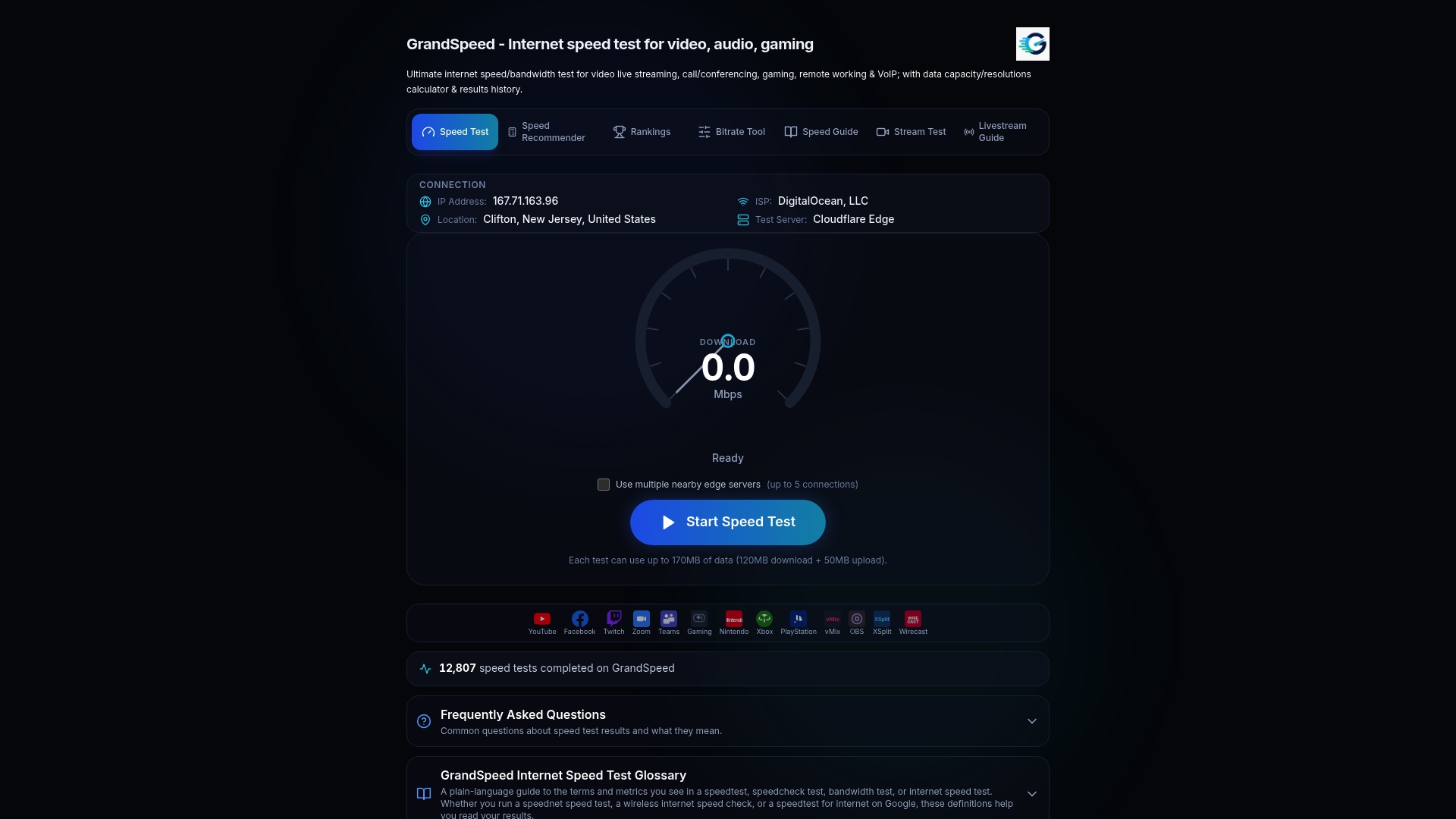
GrandSpeed's speed test measures download and upload speed along with latency, jitter, packet loss, bufferbloat and DNS resolution time, and it saves a history of results so you can compare runs before and after a QoS change. Run it idle, run it loaded, change one setting, run it again.
If you also want to know how much speed your household needs, the Internet/ISP Speed Recommender is the next stop.
FAQ
Do I need QoS for Zoom calls?
Not always. Zoom's adaptive technology can give a good experience without a QoS strategy. QoS pays off when your link is shared and gets congested, such as a busy office or a home with heavy uploads. A test under load tells you which case you are in.
What DSCP value should I use for Zoom?
Zoom's example scheme uses EF (46) for audio, CS5 (40) for video and screen sharing, CS3 (24) for signaling, AF31 (26) for transactional data and DF (0) for best effort. Apply them on routers and firewalls you control, in both directions where possible.
Does QoS work across the internet?
No. Markings are generally not preserved once traffic leaves your network for the public internet. QoS shapes what happens on your own equipment, which is usually where the congestion that hurts calls forms.
What latency, jitter and packet loss are good for Zoom?
Zoom's typical recommendations are latency of 150 ms or less, jitter of 40 ms or less and packet loss of 2% or less. You can see these in Zoom's meeting statistics and measure them in a GrandSpeed test.
How much bandwidth does a Zoom call need?
NetForecast measured an average of 1.0 Mbps down and 0.4 Mbps up for Zoom, with 2.1 Mbps down and 1.0 Mbps up at the 95th percentile. Leave headroom beyond that for other devices, especially on upload.
Sources
- Using DSCP Marking with Zoom, Zoom Technical Library
- Configuring Network Components for Zoom, Zoom Technical Library
- Bandwidth Control Settings, Zoom Technical Library
- Network Configuration, Zoom Phone Bluepaper
- Implementing Quality of Service for Zoom Phone
- Accessing meeting and phone statistics, Zoom Support
- Internet Connection Requirements for Effective Videoconferencing, NetForecast
- Unbloating the buffers, APNIC Blog
- How to configure the Priority settings, Linksys Support