
QoS (quality of service) tells your router which traffic goes first when the connection is crowded. For streaming and video calls, that means live video and voice get through on time while a download or a cloud backup waits its turn. It helps most when your link is congested, and it works best when you measure the connection first, set it up second and re-test third.
TL;DR
- QoS prioritizes real-time traffic (calls, live video) over bulk traffic when your connection is busy. It does not add speed.
- Aim for latency of 150 ms or less, jitter of 40 ms or less and packet loss of 2% or less for video calls, per Zoom's published guidance.
- On a home router, the most useful form is smart queue management (SQM), which fights bufferbloat. Set it to about 90% of your measured speed.
- For livestreams, set your encoder bitrate to about 75% of upload speed so there is headroom.
- Always test before and after. A QoS change you cannot measure is a guess.
Table of Contents
- What QoS actually does for streaming and video calls
- The numbers to aim for
- Measure first: find out what your connection really does
- How to set up QoS on a router or managed network
- Smart queue management: the home-friendly form of QoS
- QoS for video conferencing
- QoS for livestreaming
- How to prove that QoS helped
- Test your connection before you tune it
- FAQ
- Sources
What QoS actually does for streaming and video calls
Every home or office connection has a bottleneck, usually the link to your internet provider. When more traffic arrives than the link can carry, packets queue up. A queue is harmless for a file download, which only cares about the final result. It is damaging for a video call, where a packet that arrives 400 ms late is as useless as one that never arrived.
QoS is the set of rules that decides who waits. Cisco's video QoS guidance notes that policies can optimize transport to meet network SLAs, and recommends priority (low-latency) queuing for video traffic. In plain terms: video goes to the front of the line.
Two things are worth understanding before you change any setting.
QoS only matters when there is congestion. If your link is idle, every packet leaves immediately and priorities change nothing. The payoff comes when your partner starts a 4K stream, a laptop begins a system update and you are mid-meeting.
Video is more fragile than voice. Cisco points out that, unlike voice, video conferencing is highly sensitive to packet loss because lost interframes can wreck the reconstruction of the picture. A short loss burst that a phone call shrugs off can freeze a video for a second.

Streaming a movie versus streaming live
These are different problems. Watching Netflix or YouTube uses a buffer: the player downloads ahead, so a brief stall rarely shows. Live video and conferencing cannot buffer much, because that would add delay to a conversation. The IETF's RFC 9317 on streaming media relays BITAG's finding that buffering delay in the network can degrade the experience, including video conferencing. That excess queuing delay is what QoS and SQM are designed to cut.
The numbers to aim for
Before tuning, know the targets. Vendors publish them, and they are consistent enough to use as a checklist.
| Metric | Video call target | Source |
|---|---|---|
| Latency | 150 ms or less | Zoom |
| Jitter | 40 ms or less | Zoom |
| Packet loss | 2% or less | Zoom |
| Managed-network SLA (2018) | Latency 150 to 300 ms, jitter 10 to 50 ms, loss 0.5% or less | Cisco |
| Voice (Zoom Phone) | Round trip of 300 ms or less, minimal loss | Zoom Phone QoS |
The two columns differ because they answer different questions. Zoom's figures are what its client tolerates before you notice problems. Cisco's are targets for engineers designing a network that carries video for many users. For a home setup, treat Zoom's numbers as your pass mark and Cisco's tighter loss figure as a stretch goal.
Why averages can mislead
A test that reports one average latency can hide the spikes that wreck a call. BITAG explains that conferencing apps use jitter buffers, which makes them sensitive to the worst-case, infrequent latency spikes no matter how large your connection is. It also says the 98th or 99th percentile of working latency is a better predictor of user experience than the mean or median. This is why a 500 Mbps plan can still give you a choppy call: capacity and responsiveness are separate things.
Measure first: find out what your connection really does
QoS is a fix for a specific problem, so identify the problem. A plain speed test shows download and upload only. You also need latency, jitter, packet loss and latency under load (bufferbloat).
Run the GrandSpeed speed test on the device you actually use, ideally while the household is busy, and write down:
- Download and upload speed.
- Idle latency and jitter.
- Packet loss.
- Bufferbloat, meaning how much latency rises when the link is loaded.
If idle latency is fine but it climbs sharply under load, you have a queuing problem and QoS or SQM is the right tool. If speeds, latency and loss are all poor even when the network is quiet, the cause is probably Wi-Fi signal, the line or the provider, and no queue rule will fully fix that. Moving to a wired connection is the quickest way to tell the two apart.
GrandSpeed keeps a history of your results, so you can compare a Tuesday-night test with a Sunday-morning one and see whether congestion follows a pattern. For a streaming-specific check, the Video Streaming Quality Test shows which resolutions your connection can sustain.
How to set up QoS on a router or managed network
There are two broad approaches, and which one you use depends on your equipment.
Approach one: mark and prioritize (DSCP). Applications or devices tag their packets with a DSCP value, and the network treats tagged traffic preferentially. This is the standard in offices and schools. Microsoft's Teams guidance describes it: use client DSCP marking or port-based tagging with router ACLs, configure clients and network devices, then validate the markings end to end. In that guide, Teams uses values such as 34 for video and 46 for audio, with port-based ACLs separating real-time streams from less sensitive traffic. Google recommends assigning the Expedited Forwarding (EF) class to RTP and RTCP traffic so Meet gets low delay and jitter.

Approach two: shape the queue (SQM). Instead of tagging, the router controls the queue at your internet link so it never builds up. This is what most home users need.
A practical sequence for a managed network
- Inventory what must be protected: meeting apps, a live encoder, VoIP phones.
- Decide the marking scheme and apply it on the clients where the app supports it, or on the router by port.
- Configure every switch, router and firewall along the path to trust and honor the markings. Cisco stresses that QoS is end to end and must be checked on every component along the media path. One device that resets the markings undoes the rest.
- Capture or test traffic to confirm the markings arrive intact.
- Re-run your measurements under load and compare with your baseline.
A practical sequence for a home router
- Run the speed test several times and note your real download and upload speeds.
- Open your router's QoS or SQM page (OpenWrt, many GL.iNet models and some consumer routers include it).
- Enter download and upload limits of about 90% of the measured peak. This is OpenWrt's recommendation, found in its SQM guide. The slight shortfall moves the queue from your provider's equipment into your router, where it can be managed.
- Pick a queue algorithm. OpenWrt calls Cake the preferred choice because it is excellent at reducing bufferbloat.
- Save, then load the connection (start a big download) while running a latency test.
For a gamer-oriented walkthrough of the same steps, see our 20-minute bufferbloat fix.
Smart queue management: the home-friendly form of QoS
OpenWrt describes SQM as an integrated system that combines traffic shaping, active queue management, scheduling, rate limiting and QoS prioritization. That is a useful way to see how the pieces differ:
- Prioritization decides which packets go first.
- Traffic shaping and rate limiting cap flow to a speed just under the bottleneck, so queues form where you control them.
- Scheduling shares the link fairly among devices and flows.
- Active queue management drops or marks packets early to keep delay low.
Because SQM does several of these at once, you rarely need to write per-app rules at home. Set it, test it, and leave it.
Matching SQM to your connection
SQM does real work on the router, so it suits some connections better than others. GL.iNet's documentation says it is resource-intensive and works best on low-bandwidth or congested networks, and that on very fast links it can reduce peak throughput. The company's own bufferbloat guidance makes a similar point for high-speed, stable connections. The practical reading:
- On a modest or shared connection (cable, DSL, fixed wireless, cellular), SQM is a strong fit. It is where bufferbloat is worst.
- On a fast fiber line that already tests clean under load, you may not need it. Test first, and enable it only if latency rises under load.
- Check that your router's processor can handle your line speed with SQM on. If it cannot, you will see throughput drop in your tests.
That is why the measure, change, measure loop matters more than any single setting.
QoS for video conferencing
Meetings are the most common reason people look into QoS, and bandwidth is rarely the real cause. A call needs only a few megabits, but it needs them consistently. If you want the numbers app by app, our guide to video conferencing bandwidth explains why 5 Mbps can still get choppy, and the Teams bandwidth guide covers what IT teams should verify.
A short checklist for a better call:
- Use a wire if you can. Wi-Fi interference creates the jitter and loss that QoS cannot repair.
- Apply markings where the platform supports them. Teams and Meet both publish DSCP guidance, as above.
- Turn on SQM at home if your tests show latency climbing when others use the connection.
- Check the app's own stats. Zoom shows latency, jitter and loss during a meeting, and the thresholds it lists are the ones to compare against.
On carrier networks, Zoom documents a different route to the same goal: 5G network slicing can place Zoom traffic in a dedicated real-time slice with its own bandwidth, jitter and latency parameters. That is a carrier and enterprise feature, not something you configure at home, but it shows the principle is the same: protect real-time traffic from everything else.
QoS for livestreaming
A live stream is the opposite of a download. Your upload has to deliver a steady bitrate for hours, and a single stall can drop frames or disconnect you. Two habits matter more than any queue rule.
Leave upload headroom
OBS's troubleshooting guide suggests a good starting point of setting your bitrate to 75% of your total upload speed. If your tested upload is 12 Mbps, that means a total stream of about 9 Mbps, video and audio together. The rest absorbs fluctuations and other devices on the network. Our streaming upload calculator guide explains why 20 Mbps is never all yours to use, and the best internet for streaming article covers how much headroom to target.
To pick the number itself, use the video bitrate calculator, or read our Twitch bitrate settings for 720p, 1080p and 2K. If you stream chess or other games, a chess streaming platform for streamers shows the same principle in practice: a lighter, steadier stream beats a heavy one that drops frames.
Watch for software that fights you
OBS also warns that networking software, such as VPN clients and bundled network optimization tools like Killer NIC software, can cause instability or deprioritize streaming traffic, which leads to dropped frames. If your stream stutters, disable these one at a time and retest before touching router QoS.
Monitor during the stream
A one-off test before you go live tells you little about hour three. The GrandSpeed livestream upload monitor tracks upload stability so you can see whether a dip lines up with the moment your viewers saw buffering. For lower delay on top of stability, see our low latency streaming guide, and for how much data a session consumes, streaming data usage.
How to prove that QoS helped
Treat any QoS change as an experiment.
- Baseline. Test with the network idle, then with a heavy download running. Record latency, jitter, loss and bufferbloat.
- Change one thing. Enable SQM or apply the DSCP rules, not both at once.
- Repeat the same two tests. Idle results should stay roughly the same. Loaded latency should fall.
- Check throughput. With a shaper at 90% of line speed you will give up a little peak speed. If it drops far more than that, your router may be the limit.
- Test the real use. Join a call or start a stream while someone else downloads. The proof is in the experience, not only the chart.
For gaming the same logic applies: a lower loaded latency is what you want, and a smaller peak download is a fair trade.
Our perspective on QoS
Most people ask for more bandwidth when the thing they need is more consistency. We built GrandSpeed because a single download number hides almost everything that makes a call freeze or a stream stall. Jitter, packet loss, bufferbloat and DNS times are the measurements that explain why a fast plan still feels slow.
That is also why we think QoS should start with a test, not a setting. A rule tuned without a baseline is a guess, and a guess that you cannot undo is how people end up throttling their own connection. Measure under load, change one thing, measure again, and keep the history so you can see what changed.
For streamers the point is sharper. Upload is the scarce resource, and headroom is what keeps a stream alive when the network gets busy. We designed our streaming tests and bitrate tools to turn your measured speeds into a concrete resolution and bitrate, so QoS becomes the finishing touch rather than the first thing you reach for.
Peter D
Test your connection before you tune it
GrandSpeed measures what QoS is meant to improve: latency, jitter, packet loss and bufferbloat, alongside download and upload speed. Run the speed test on the device you stream or take calls from, then use the results to decide whether you need QoS at all.
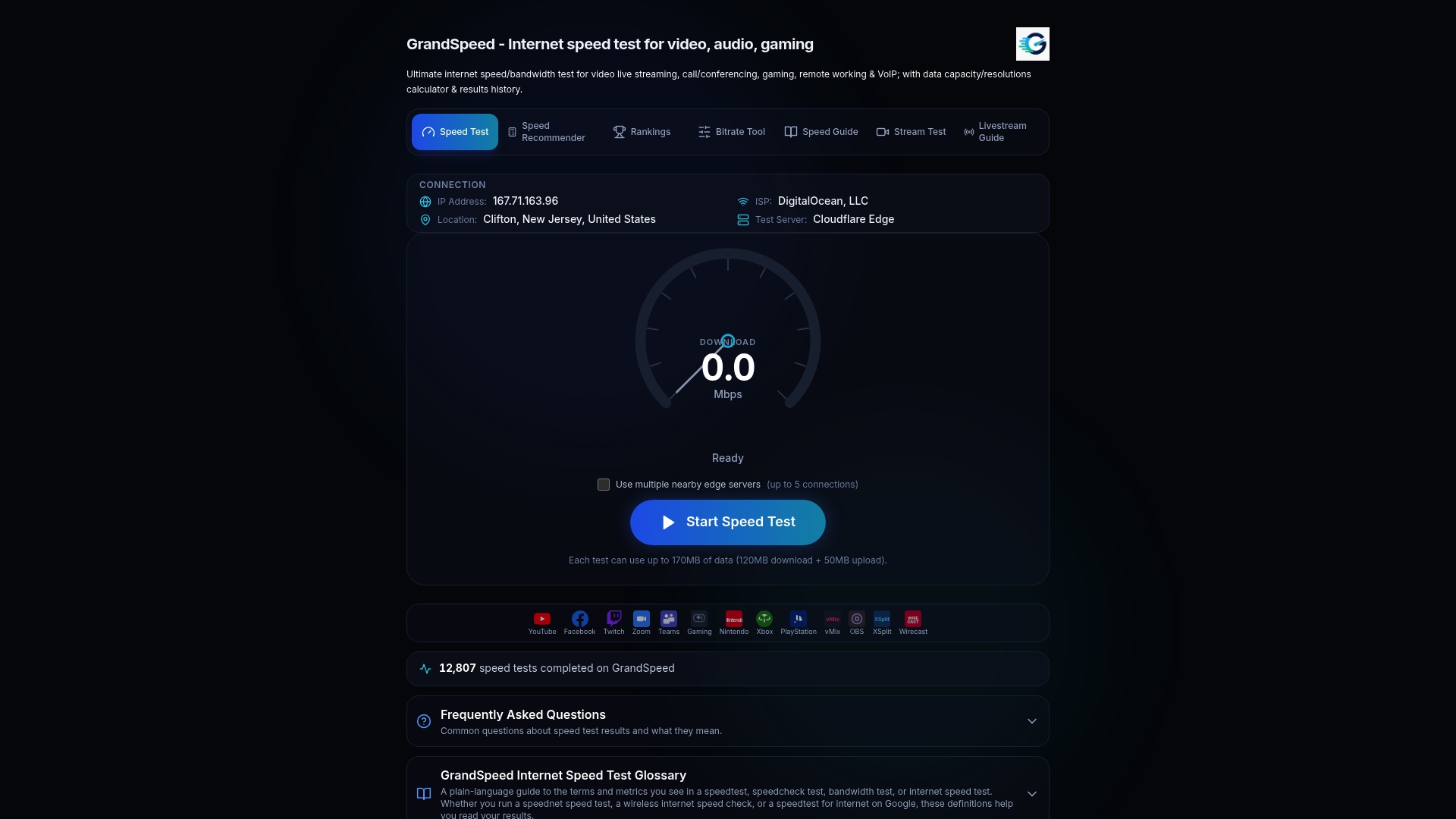
If you stream, the Video Streaming Quality Test shows the highest resolution your tested speeds can support, and the Internet/ISP Speed Recommender helps you judge what plan your use really needs. Your test history stays available, so you can compare before and after any change.
FAQ
How do I enable QoS in my network?
On a home router, open the QoS or SQM page, enter download and upload limits of about 90% of your measured speeds, and choose an algorithm such as Cake if offered. On a managed network, apply DSCP markings on clients or by port and make sure every device along the path honors them. Then re-test under load to confirm the change helped.
Is QoS good or bad for gaming?
It is good when it lowers latency under load, which is what SQM does by controlling the queue. The trade-off is a small loss of peak throughput, and on fast, clean connections it may not be needed. Test your latency with a download running, with QoS off and on, and keep it only if the loaded results improve.
What are the different types of QoS?
The main tools are prioritization (who goes first), traffic shaping and rate limiting (capping flow to a controlled rate), scheduling (sharing the link fairly) and active queue management (keeping queues short). SQM bundles these into one system. In business networks, DSCP marking is the common way to label traffic for priority handling.
How much of my upload should a livestream use?
OBS suggests starting with a bitrate at 75% of your total upload speed. That leaves room for audio, protocol overhead and other devices. Confirm it holds over a long session with a monitor rather than a single test.
Sources
- Video Quality of Service (QOS) Tutorial, Cisco
- Accessing meeting and phone statistics, Zoom
- Implementing Quality of Service for Zoom Phone, Zoom
- Using network slicing with Zoom meetings and phone calls, Zoom
- RFC 9317: Operational Considerations for Streaming Media
- BITAG: Latency Explained
- Implement Quality of Service in Microsoft Teams
- Meet QoS best practices, Google Workspace Help
- SQM (Smart Queue Management), OpenWrt
- SQM, GL.iNet Router Docs 4
- How to Reduce Bufferbloat with SQM on GL.iNet Routers
- Stream Connection Troubleshooting, OBS