

Video call lag is rarely a download speed problem. It usually comes from unstable delivery of small packets (latency, jitter and packet loss), a crowded Wi-Fi link, a thin upload, a VPN, or a device running out of CPU. The fastest fix is to measure those things instead of guessing, then change one variable at a time. Our speed test reports all of them in one run, so you can see which one is off before you touch a setting.
TL;DR
- Lag on a fast plan points to latency, jitter, packet loss or upload, not to a lack of download speed.
- Run a test while the problem is happening, then repeat it on Ethernet. If Ethernet is smooth, Wi-Fi is your cause.
- Quit heavy apps, turn off your VPN for a test, and check the call platform's status page before deeper changes.
- Move to 5 GHz Wi-Fi or a cable, and keep other uploads and cloud backups off during calls.
- Retest after every change so you know which one actually worked.
Table of Contents
- Why a call lags when the plan is fast
- Step 1: Test during the lag, not before it
- Step 2: Match the symptom to the likely cause
- Step 3: Check the platform before you tear apart your setup
- Step 4: Run the Ethernet comparison
- Step 5: Fix the Wi-Fi
- Step 6: Free up upload and cut bufferbloat
- Step 7: Check the VPN, then the device
- Step 8: Know when it is your provider
- Livestreaming and recorded broadcasts
- What we think about call lag
- Test your connection for calls
- FAQ
- Sources
Why a call lags when the plan is fast
A streaming video can buffer ahead. A live call cannot, because the other person is speaking right now. Any wobble in the connection shows up instantly as a freeze, a robotic voice or audio that trails the picture.
Three measurements decide how a call feels:
- Latency is the time a packet takes to travel to the other side and back, in milliseconds.
- Jitter is how much that latency changes from one packet to the next.
- Packet loss is the share of packets that never arrive.
Cisco's Webex troubleshooting report names packet loss, latency and jitter as the three main factors in call quality. It also explains why even small loss hurts video: with 1% packet loss, a missing key frame can force the decoder to discard the frames that depend on it, so the picture freezes until the next key frame arrives.
Jitter acts like loss, too. Receiving apps hold arriving packets in a short jitter buffer so they can play them in order. Packets that arrive too late for that buffer are dropped and counted as lost, according to the same Cisco report. So a connection can post a great download number and still deliver a choppy call.
That is why a plain speed number does not settle the question. A plan of 500 Mbps and a plan of 50 Mbps can both handle a call. What separates a smooth call from a stuttering one is how steady the connection is.
Step 1: Test during the lag, not before it
Problems that come and go need a test taken while they are happening. A test at 7 a.m. on a quiet network tells you little about a 2 p.m. call when three people in your home are streaming.
Open the speed test on the device you use for calls and read these results:
- Upload speed. In a call you are a sender as well as a receiver. Your camera stream goes up, and many people leave it unchecked because they only look at download. Our video bandwidth guide explains why 5 Mbps can still feel choppy.
- Latency. A common target for calls is under 150 ms, which is the figure our VoIP latency guide uses. Lower is better, and a wired link is usually lower than Wi-Fi.
- Jitter. You want it low and steady. Our VoIP jitter guide shows quick fixes and how to confirm them.
- Packet loss. Anything above zero on a sustained test deserves attention. Our packet loss guide walks through five quick tests.
- Bufferbloat. This is the spike in latency that appears when your connection is busy uploading or downloading. It is a classic cause of calls that go bad the moment someone starts a large transfer.
GrandSpeed measures all of these, plus DNS resolution time, and keeps a history of your results. That history helps with intermittent lag: you can compare a bad afternoon with a good morning rather than relying on memory.
For a platform-specific read, the video call test checks your readiness for Zoom, Teams and Meet.
Step 2: Match the symptom to the likely cause
Before changing anything, look at what the call actually does. Different symptoms point to different layers.
| What you see or hear | Most likely cause | First check |
|---|---|---|
| Robotic or garbled voice | Jitter or packet loss | Test jitter and loss, not just speed |
| Video freezes but audio is fine | Weak upload or a busy CPU | Upload result, Task Manager or Activity Monitor |
| Delay and people talking over each other | High latency, often a VPN route | Latency with the VPN off |
| Everyone sees only you as poor | Problem on your side | Your Wi-Fi, CPU, camera and upload |
| Only one person looks bad to everybody | Problem on that person's side | Ask them to test |
| One device fails while others are fine | Device, app or VPN settings | Compare devices on the same Wi-Fi |
This mapping follows a call-quality diagnosis guide from IR, which groups problems into network, Wi-Fi, device and platform. Google's Meet troubleshooting guidance makes the same sender-versus-receiver point: if every viewer sees one participant poorly, the cause is probably on the sender's side.
The table is a starting point. The next steps confirm it.
Step 3: Check the platform before you tear apart your setup
If Zoom, Teams, Meet or Webex is having an incident, nothing you change at home will help. Open the platform's status page first. It takes thirty seconds, and the IR guide above recommends doing it before deeper local troubleshooting.
Also confirm the call app and your audio and camera drivers are up to date. A loose headset connection or an old driver explains more "mystery" audio trouble than you might expect.
If you use Teams, our walkthrough on stopping Teams call lag covers jitter and loss diagnosis for that app. For Meet, see what to do when Google Meet is choppy.
Step 4: Run the Ethernet comparison
This one test separates Wi-Fi problems from everything else. Plug the same laptop into the router with an Ethernet cable, stay in the same room, use the same call app, and run the same test and a short call.
- Smooth on Ethernet, laggy on Wi-Fi: Wi-Fi is the cause. Go to Step 5.
- Laggy on both: the cause is more likely the device, a VPN, router settings, your internet provider's connection, or the call app. Go to Steps 6 and 7.
The pattern is described by idarb.com's Ethernet versus Wi-Fi tests, which also notes that when one device or one VPN setup keeps failing while others work, the fault is in the configuration rather than "the internet". Google's help page for Meet also recommends using wired Ethernet when available, and a university network help page notes that a cable gives lower latency and jitter than Wi-Fi.
If you cannot run a cable to your desk, a wired link only to test is still worth it. It tells you where to spend your effort.

Step 5: Fix the Wi-Fi
When the Ethernet test points at Wi-Fi, work through these in order and retest after each.
- Move closer. Walls and distance add jitter. Test in the same room as the router to see the best case.
- Use 5 GHz. Google advises preferring 5 GHz over the busier 2.4 GHz band for Meet. The Ulm page adds the trade-off: 5 GHz is faster but has shorter range through walls, so sit close to the router or add an access point.
- Change the 2.4 GHz channel. If you must use 2.4 GHz, a new channel search in the router settings can find a less crowded channel, as the same page explains.
- Reduce neighbors' interference. Apartment buildings are crowded with networks. Our Wi-Fi interference guide gives five quick moves and tests to confirm each.
- Restart the router. Old sessions and overheated hardware cause odd latency spikes. Reboot it, wait two minutes, and test again.
Change one thing, run the test, and write down the result. The test history makes this easy, and it stops you from layering three changes and not knowing which helped.
Step 6: Free up upload and cut bufferbloat
A call needs steady upload more than a big number. If someone is syncing photos, uploading a video or running a cloud backup, your call packets queue behind that traffic. The result is a latency spike during the busy moment.
Try this:
- Pause cloud backups, large uploads and game downloads on every device for the length of the call.
- Run the test again with those paused. If latency and jitter drop, you have found a bufferbloat or upload-saturation problem.
- Lower your video resolution in the call app. A 720p stream needs less upload than 1080p, and per-person needs vary by app.
Google's help page also says some routers' quality-of-service (QoS) settings, combined with Meet's own prioritization, can hurt quality, and suggests temporarily disabling QoS for Meet traffic. If you have QoS switched on, test with it off.
For a sense of the limits of your plan, the Internet/ISP Speed Recommender shows what speeds your use needs.
Step 7: Check the VPN, then the device
VPN. A VPN adds a detour and some overhead, so latency rises. Google's guidance is to turn the VPN off briefly and reconnect. If quality improves, finish the call without it, and if your employer requires it, ask IT whether call traffic can bypass the tunnel. Our guide to testing VPN bandwidth shows how to compare results with it on and off.
Device. Open Task Manager on Windows or Activity Monitor on a Mac during a call. If the CPU or memory is near the limit, the video freezes even on a perfect network. Close browser tabs, screen recorders and games. Older laptops often struggle with many participants and background blur, so turn those off before blaming the connection.
Compare devices too. If your phone is smooth on the same Wi-Fi while the laptop stutters, you are looking at the laptop, not the network.
Step 8: Know when it is your provider
If you have tried Ethernet, closed everything, turned off the VPN and still see loss or high jitter in your tests, the problem is likely upstream. Keep a few results taken at different times of day. A history showing the problem at the same hours is far more useful when you contact your internet provider than saying "my calls lag".
Livestreaming and recorded broadcasts
If you stream on YouTube, Facebook or Twitch with OBS, vMix, XSplit or Wirecast, the same rules apply, with a larger upload stake. Instability that is a nuisance in a call becomes dropped frames in a stream. Our livestream upload monitor tracks your upload and stability while you stream, and the bitrate planner helps you choose a bitrate that fits it.
A note on numbers. Targets differ by app and by use. Check your own results against the platform's published network requirements rather than a universal figure.
What we think about call lag
Most people reach for the wrong number. They see 500 Mbps on a plan page, see a frozen face on screen, and conclude the provider is lying. Usually, neither is true. The plan is fast, but the call is being broken by something the headline figure never measures: a jittery Wi-Fi link, a queue in the router, or a busy upload.
That is why we built GrandSpeed to look beyond download and upload. It measures latency, jitter, packet loss, bufferbloat and DNS resolution, and it keeps your history, so you can see a pattern instead of guessing. A call has to be live, which makes stability the thing that matters.
Our advice is simple: test while the problem is happening, change one thing, and test again. When the numbers move, you have your fix.
Peter D
Test your connection for calls
GrandSpeed is built for exactly this problem. Run the Video Call Test for Zoom, Teams and Meet readiness, or open the main speed test to see download, upload, latency, jitter, packet loss and bufferbloat together. It works in any modern browser on a phone, tablet or laptop, over Wi-Fi or cellular.
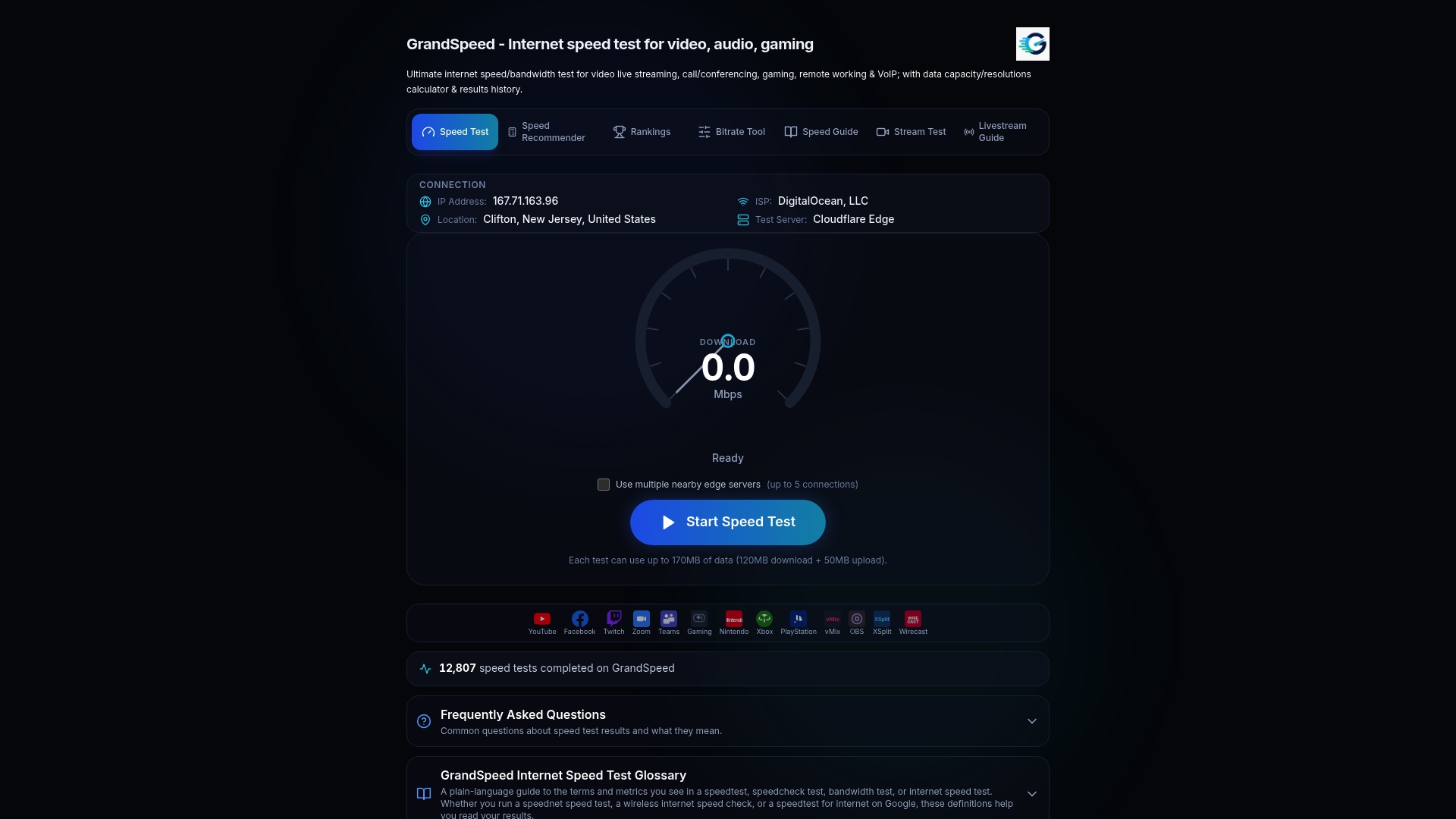
Run it once on Wi-Fi and once on Ethernet, and keep the results in your history. That comparison will tell you more than another hour of changing settings.
FAQ
Why is my video call lagging when my internet is fast?
Because speed is not the same as stability. Calls depend on low latency, low jitter and almost no packet loss, and they need a steady upload. A connection can have a high download number and still deliver packets unevenly, which shows up as freezing or robotic audio.
How do I fix lag on a FaceTime or phone video call?
Start with the connection: move closer to the router or switch to 5 GHz Wi-Fi, and pause downloads and backups on other devices. Then close other apps on the phone and update the app. Run a test on the phone's browser to see whether latency and jitter are the problem, and compare Wi-Fi with cellular.
Will a faster plan fix video call lag?
Only if your upload is too small for the call or your connection is saturated. If your tests show high jitter or packet loss, a bigger plan does not change that. Fix the Wi-Fi, bufferbloat or VPN first, then use the speed recommender to check what your use requires.
Should I turn off my video to reduce lag?
It helps, because video is the heaviest part of a call. Lowering the resolution is a good middle step. If turning video off makes a clear difference, your upload or device is the limit, so test those next.
Sources
- Troubleshooting Audio and Video Quality Using Webex Control Hub (Cisco)
- Troubleshoot video & audio quality in a meeting (Google Meet Help)
- Troubleshoot Meet network, audio, & video issues (Google Workspace)
- Help with network problems (Universität Ulm)
- Is it me, or the platform? A field guide to diagnosing call quality issues (IR)
- Ethernet vs Wi-Fi for Video Calls: Quick Tests (idarb.com)