

When Zoom says your connection is unstable, it's not judging your download speed. It's reacting to real-time audio problems, specifically round-trip latency above 5 seconds or repeated heavy packet loss on the audio stream. Fix that fast by restarting your modem and router, switching to Ethernet if you're on Wi-Fi, closing bandwidth-hungry apps, and relaunching (or reinstalling) Zoom. Most cases clear up with those four moves before you ever need to touch a router setting.
TL;DR:
- Restarting your modem and router or switching to Ethernet can often fix Zoom's audio instability caused by routing or jitter issues within minutes.
- Latency above 150 ms, jitter over 40 ms, or packet loss exceeding 2% significantly increase the risk of choppy audio during calls.
- Troubleshooting should include measuring multi-metric network data and testing with VPNs or hotspots to pinpoint whether the problem lies with your device, ISP routing, or Zoom itself.
- Advanced steps like updating network drivers or disabling QoS features on routers can resolve micro-congestion that causes inconsistent audio quality.
- Escalate to your ISP or Zoom support only after confirming routing or peering problems through logs, traceroutes, and multi-metric tests over multiple calls.
Table of Contents
- Why Zoom Says the Connection Is Unstable
- What Should I Try First When Zoom Keeps Disconnecting?
- How Do You Actually Diagnose a Choppy Zoom Call?
- Advanced Fixes: Router, Adapter, and Routing Workarounds
- When Should You Contact Your ISP or Zoom Support?
- A Practical Order of Operations
- Run the Right Test Before You Escalate Anything
- Sources
- FAQ
Why Zoom Says the Connection Is Unstable
Zoom's warning fires when the audio stream specifically breaks down, not when your overall bandwidth drops. The trigger conditions include round-trip time (RTT) over 5 seconds, sustained heavy packet loss, or average loss above 70% detected on three separate checks during the call, according to Zoom's own documentation on network stability indicators. That's a narrow, specific trigger, and it explains a common complaint: "My internet is fine, why is Zoom glitchy?"
The honest answer is that Zoom's real-time audio engine is more sensitive to tiny disruptions than a video app like Netflix, which can buffer around a hiccup. A one-second audio gap that Zoom flags as instability might never show up on a basic speed test at all, according to one independent analysis of the warning behavior.
Common real-world causes stack up in a few categories:
- Routing and peering issues: your ISP's path to Zoom's data center gets congested somewhere between you and the destination, not at your router.
- Jitter spikes: the timing between packets varies wildly even when average speed looks fine, which scrambles real-time audio.
- Local device drag: outdated network drivers, an overloaded CPU, or an adapter setting quietly throttling packets.
- Client differences: the desktop app, the web client, and mobile apps each handle network hiccups differently, so the same Wi-Fi can behave inconsistently across them.
What Should I Try First When Zoom Keeps Disconnecting?
Work through these in order. Each step takes under two minutes, and most people find their fix in the first three.
- Stop video and screen share. Video and shared screens eat bandwidth that audio needs. If a call turns choppy, killing your video feed first often restores clear audio immediately.
- Check Zoom's network indicator. Click the signal icon in the top corner of the meeting window. Colored bars indicate your video uplink health; a pop-up warning is audio-specific. Knowing which one you're looking at saves time.
- Restart your modem and router. Unplug both for 30 seconds. This clears stuck routing tables and resets any temporary congestion on your ISP's side of the connection.
- Switch to wired Ethernet. Wi-Fi introduces jitter that Ethernet mostly avoids. If you can plug in even for one important call, do it.
- Try a phone hotspot for five minutes. If the call suddenly stabilizes on cellular data, that's strong evidence the problem sits with your home ISP's routing, not your device.
- Close background apps. Cloud backups, game updates, and other video tabs all compete for the same upload pipe Zoom needs for audio.
- Update or reinstall Zoom. Corrupted client files cause inconsistent behavior. Zoom's CleanZoom tool fully removes old installs when a standard reinstall doesn't help.
Pro Tip: If switching to a hotspot or a VPN fixes the problem and staying on your regular Wi-Fi doesn't, write that down. It's the single most useful clue you can hand to your ISP or Zoom support later, because it points straight at routing rather than your home network.
How Do You Actually Diagnose a Choppy Zoom Call?
A basic speed test tells you almost nothing useful here. What matters is measuring latency, jitter, and packet loss together, since those three numbers predict choppy audio and frozen video far better than raw megabits per second, according to Zoom's own troubleshooting guidance.
Zoom recommends staying at or below these thresholds for a stable meeting, per community-documented guidance on latency benchmarks:
| Metric | Target for a stable call |
|---|---|
| Round-trip latency (RTT) | 150 ms or less |
| Jitter | 40 ms or less |
| Packet loss | 2% or less |
Compare that to the audio-warning trigger itself: RTT past 5 seconds or repeatedly heavy loss. There's a wide gap between "not ideal" (above 150 ms) and "Zoom will actually warn you" (multiple seconds of lag), which is why calls can feel slightly off long before the pop-up ever appears.
To gather real evidence, turn on Zoom's Autosave QoS Stats feature through the Network Connectivity Tool. This saves tpstat log files locally that record per-meeting audio, video, and screen-share latency, jitter, and packet loss automatically, according to Zoom's documentation on autosaved QoS logs. You can also open a live meeting's statistics window mid-call and screenshot the numbers directly. Note the timestamp every time, and pair it with a multi-metric network test exported around the same window.
Advanced Fixes: Router, Adapter, and Routing Workarounds
Some routers ship with a "video conferencing" optimization feature, present in certain Google Nest setups, that has caused reported micro-congestion during Zoom calls. Community reports show that disabling this setting, or simply toggling cloud connectivity features off and back on to flush stale routing tables, resolved persistent instability for several users, according to a Zoom community troubleshooting thread.
On Windows machines, try these deeper adjustments:
- Disable the QoS Packet Scheduler on your Wi-Fi adapter (Network Adapter properties, uncheck the box). This has fixed application-specific instability in some cases where every other app runs fine.
- Update your network adapter drivers directly from the manufacturer, not just through Windows Update.
- Power-cycle your router after any setting change to force fresh routing table entries.
If switching to a VPN or the Zoom web client eliminates the problem entirely, that's a strong signal the issue lives in ISP routing or peering, not your hardware. A VPN routes traffic through a different path, often reaching a different Zoom data center altogether. Run traceroute (or tracert on Windows) and netstat during both a failing call and a VPN-fixed call, then compare the remote IPs, according to community-documented VPN and data center evidence. The web client alone can also serve as a temporary stopgap while you sort out the desktop app.
Pro Tip: Keep a simple log: date, which fix you tried, whether it helped. Three weeks of that notebook is worth more to a support technician than any single bad call.
When Should You Contact Your ISP or Zoom Support?
Escalate once you've seen the problem repeat across multiple calls, especially if a hotspot or VPN consistently fixes it while your regular connection doesn't. That pattern points to routing, not your equipment, and it's worth a real support ticket instead of another reboot.
Bring this evidence with you:
- Exported tpstat QoS logs from the affected meetings
- Screenshots of in-meeting statistics showing jitter and packet loss numbers
- Multi-metric test results with timestamps matching the failed calls
- Traceroute and netstat output from both a failing session and a working one (VPN or hotspot)
Ask your ISP specifically to investigate routing or peering for the remote IPs and UDP flows tied to Zoom's data centers, not just "check my connection." That specificity is what gets a ticket actually escalated past tier-one support.
A Practical Order of Operations
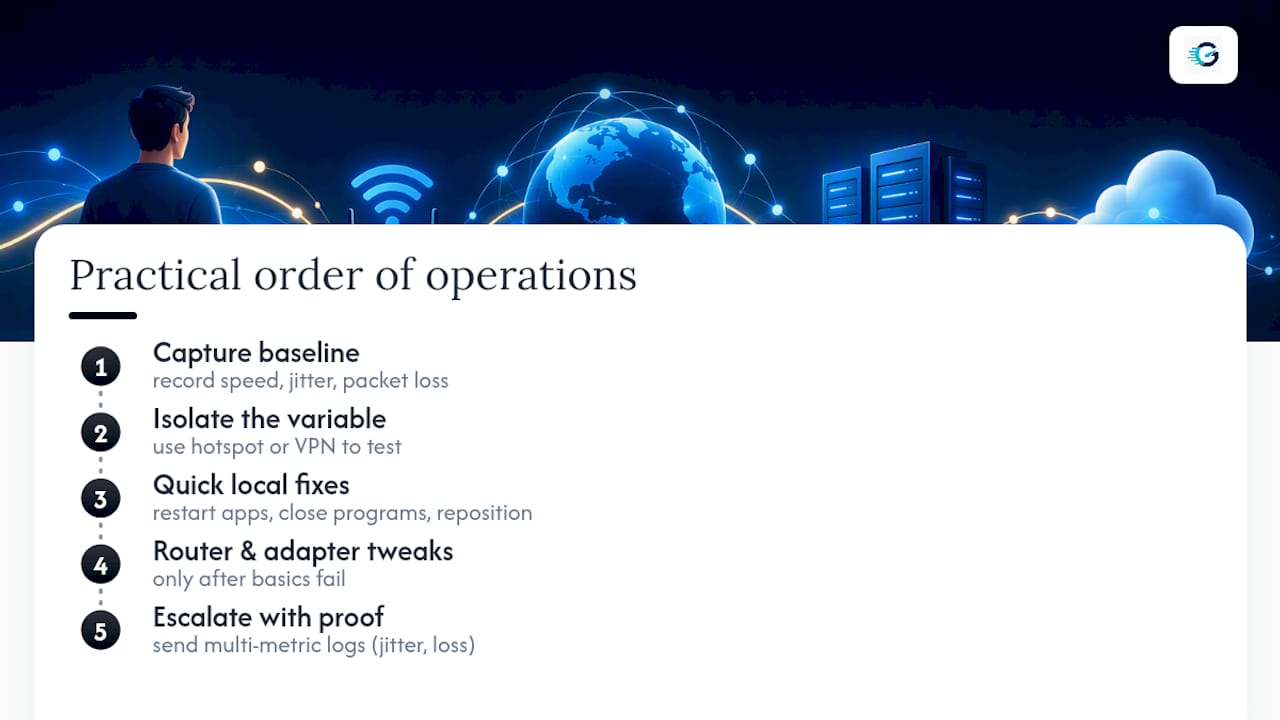
Work this sequence and you'll waste far less time than jumping straight to router settings. Collect evidence first, isolate the variable second, fix what you can locally third, and only escalate once you have proof.
Start by capturing baseline numbers before you change anything, since "it feels better now" without data is nearly worthless to a support technician. Then isolate: try a hotspot or VPN to see if the problem follows you or stays behind. Quick fixes come next, followed by the router and adapter tweaks if the basics don't hold. Multi-metric testing matters more than most people assume here, because jitter and packet loss expose problems a plain speed number hides completely, and test history lets you prove a pattern rather than describe a feeling. Avoid declaring your ISP or Zoom "at fault" without logs in hand. Vague blame gets vague responses; specific evidence gets specific fixes.
— Peter D
Run the Right Test Before You Escalate Anything
There are tools that give you the exact numbers a Zoom ticket actually needs, instead of just a download number that tells nobody anything useful. Run the Speed Test to capture latency, jitter, packet loss, and bufferbloat in one pass, or use the Video Streaming Quality Test for a conferencing-specific read on RTT and loss under real streaming conditions.

Save the result, note the timestamp, and attach it directly to your ISP or Zoom support ticket alongside your tpstat logs. That combination, jitter and packet loss numbers plus a saved history showing the pattern over multiple calls, is what turns a vague complaint into a case someone can actually act on. If you're unsure what speed tier your household even needs for reliable video calls, the Internet/ISP Speed Recommender gives you a straight answer based on how many people and devices you're running. Run a test now, before your next important call, not after it drops.
FAQ
Why Is Zoom So Laggy Even With Good Internet?
A fast download speed doesn't measure jitter, packet loss, or latency, which are the metrics that actually cause laggy audio and video. Your connection can be very fast and still stutter on Zoom if packets arrive out of order or get dropped along the route to Zoom's data center.
How Do I Fix Zoom Connection Issues Quickly?
Start by stopping your video and screen share, since audio alone needs far less bandwidth and often clears up immediately. Then restart your modem and router, switch to Ethernet if possible, and update or reinstall the Zoom app if the problem persists.
Why Is My Zoom Glitchy on Only Some Calls?
Zoom's audio engine is highly sensitive to brief network disruptions that other apps smooth over with buffering, so intermittent routing congestion shows up as glitchy Zoom calls before it shows up anywhere else. If a hotspot or VPN fixes it, the issue usually sits with your ISP's routing rather than your Wi-Fi.
Why Do I Keep Getting an Unstable Internet Connection Warning?
This specific warning means Zoom's audio stream detected round-trip latency over 5 seconds or repeated heavy packet loss, according to Zoom's own trigger documentation. Running a multi-metric test through Grandspeed's Speed Test shows whether your jitter and packet loss numbers are actually within Zoom's recommended range before you blame your provider.