

For most live streams, a good bitrate is 2,500 to 4,000 Kbps at 720p30, 4,500 to 6,000 Kbps at 1080p30, and 6,000 to 9,000 Kbps at 1080p60. Your upload speed then needs to be well above that number. Platforms and encoders add their own rules: constant bitrate (CBR), a 2-second keyframe interval, and a cap that depends on where you stream. This guide gives you the chart, the upload math, the encoder settings and the reasons a stream buffers even on a fast plan.
TL;DR
- Start with a chart range for your resolution and frame rate: Restream's baseline is 2,500 to 4,000 Kbps for 720p30, 4,500 to 6,000 Kbps for 1080p30 and 6,000 to 9,000 Kbps for 1080p60.
- Keep your stream bitrate at about 50 to 70% of your stable upload speed. Peak speed from a single test is not the number to plan around.
- Use CBR and a 2-second keyframe interval for RTMP ingest on YouTube, Twitch and Facebook.
- Twitch tops out around 6,000 Kbps for most streamers. YouTube allows far more, and Facebook Live allows up to 15,000 Kbps.
- Test jitter, packet loss and stability, not only download and upload speed, before you go live.
Table of Contents
- What bitrate actually is
- Streaming bitrate chart for 720p, 1080p and 4K
- Platform limits: Twitch, YouTube and Facebook Live
- How much upload speed you need for your bitrate
- RTMP bitrate control: CBR, keyframes and encoder settings
- Why a stream buffers or drops frames on a fast connection
- Perspective: bitrate is a connection problem first
- Check your connection before you pick a bitrate
- Streaming bitrate settings to copy
- FAQ
- Sources
What bitrate actually is
Bitrate is the amount of data your video and audio use every second, measured in kilobits per second (Kbps) or megabits per second (Mbps). A higher bitrate carries more detail, which generally means better quality. A lower one forces the encoder to compress harder, and you see pixelation, blur and compression artifacts, as Cloudinary's bitrate guide explains.
The trade-off is bandwidth. Dolby OptiView notes that raising bitrate increases the data you process and send, which reduces the bandwidth left over and raises the odds of latency problems. It also warns against mixing up MBps (megabytes per second) and Mbps (megabits per second). One byte is eight bits, so a 6 Mbps stream is only 0.75 megabytes per second.
Three things push the bitrate you need up or down:
- Resolution. 1080p has more than twice the pixels of 720p, and 4K has four times the pixels of 1080p, so each step up needs proportionally more data, according to StreamerSize.
- Frame rate. Going from 30 to 60 fps roughly doubles the frames per second, and those frames need extra bitrate to stay sharp.
- Motion. A fast first-person shooter needs the top of the range, or a step down in resolution. A talking-head stream looks clean on much less.
Streaming bitrate chart for 720p, 1080p and 4K
Use this as a starting point, then adjust for your platform and your connection. The H.264 ranges come from Restream's encoder guidance. The 4K row is platform-dependent, so it points to YouTube's own figures.
| Resolution and frame rate | Typical H.264 video bitrate | Notes |
|---|---|---|
| 720p at 30 fps | 2,500 to 4,000 Kbps | Good for talking heads and slower content |
| 1080p at 30 fps | 4,500 to 6,000 Kbps | The most common target for Twitch |
| 1080p at 60 fps | 6,000 to 9,000 Kbps | Use the upper end for fast games |
| 4K (2160p) | Set by the platform | YouTube recommends 50 Mbps for 4K at 60 fps |
YouTube publishes its own numbers for encoder setup. Its live encoder settings page recommends 17 Mbps of H.264 for 1080p at 60 fps (with a 12 Mbps minimum) and 50 Mbps for 4K at 60 fps. Google Cloud's Live Stream API best practices list 8 Mbps of H.264 for 720p at 25 or 30 fps, 15 Mbps for 720p at 50 or 60 fps and 20 Mbps for 1080p at 50 or 60 fps. They also list lower H.265 values for the same resolutions: 7.2, 13.5 and 15 Mbps.
These ranges differ because they answer different questions. Restream's chart gives what works on most live platforms. YouTube and Google Cloud give what their systems will use to produce the best-looking output. Pick the range your upload connection can hold with room to spare, not the highest number you can find.

Streaming 4K without a giant bitrate
Newer codecs change the math. If you are weighing 4K, our piece on 4K streaming bitrate with AV1 and per-title encoding shows how a 15 to 25 Mbps connection can be enough for viewing. For sending a 4K stream, check which codecs your platform accepts. YouTube's RTMP and RTMPS ingest supports H.264, H.265 (HEVC) and AV1, with frame rates up to 60 fps.
Platform limits: Twitch, YouTube and Facebook Live
The platform you send to sets a ceiling and a few encoder rules.
Twitch. Restream says Twitch's main limit is 6,000 Kbps, and its recommended settings include H.264 (x264), AAC-LC audio at 96 Kbps (maximum 160 Kbps) and a 2-second keyframe interval. Twitch's 4K option is listed as a beta. Our Twitch bitrate settings guide walks through 720p, 1080p and 2K presets.
YouTube. YouTube recommends CBR encoding and a keyframe frequency of 2 seconds, never more than 4. Its recommended bitrate ranges depend on the ingestion codec, resolution and frame rate, so the right number changes as you change any of the three. YouTube gives you the most room of the three platforms, which is why you will see 1080p60 targets well above Twitch's cap.
Facebook Live. Restream's Facebook settings list a 15,000 Kbps maximum bitrate, up to 1080p at 60 fps, strict CBR and a recommended 2-second keyframe interval, with 4 seconds as the limit. Our Facebook Live bitrate guide covers 720p and 1080p in detail.

If you stream to several services at once, remember that each outbound feed multiplies your upload need. We cover that in our multi-streaming guide.
How much upload speed you need for your bitrate
This is where most streams fail. The bitrate you choose must fit inside your upload speed with room left over, because upload speeds fluctuate and your stream is not the only thing using the connection.
Several sources give a rule of thumb, and they agree on the idea more than on the exact figure:
- Livepush recommends keeping your bitrate at or below about 70% of your measured upload. For 1080p30 at 4,500 to 6,000 Kbps, that means at least 8.5 Mbps of stable upload.
- Dacast suggests keeping total outgoing bitrate at 50 to 70% of stable upload. With a reliable 10 Mbps, that means a total stream (video, audio and overhead) of about 5 to 7 Mbps.
- Vimeo's upload guide lists a recommended upload of 10.1 Mbps or higher for 1080p30 and 25.1 Mbps or higher for 1080p60.
- BroadbandNow puts 1080p at 60 fps in the 6 to 12 Mbps range and notes that Twitch itself recommends 6 Mbps of upload for that setting.
We use a simple version: aim for 1.5 times your total stream bitrate in stable upload, and more if other devices share the connection. Our 1.5x headroom presets put this into three copy-ready settings.
A worked example
Upstream's capacity formula is a clean way to do the math: add video and audio bitrate, multiply by the number of outbound feeds, then multiply by a headroom factor. For one 1080p60 feed with 6 Mbps of video and 128 Kbps of audio, with 1.5 times headroom:
(6 + 0.128) × 1 × 1.5 ≈ 9.19 Mbps
So you want roughly 9.2 Mbps of stable upload, not the 6 Mbps on the bitrate line. Add a second feed and the same math gives about 18.4 Mbps.
A quick way to run these numbers yourself is our video bitrate planner. For a longer walkthrough of the same idea, see how to calculate upload for streaming.
Mobile and 5G connections
Cellular upload varies more than wired upload, so the headroom matters more. If you stream over 5G, read what 5G upload you need for streaming and test at the place and time you will broadcast.
RTMP bitrate control: CBR, keyframes and encoder settings
RTMP ingest is where the bitrate you picked becomes the bitrate you send. A few settings decide whether it holds.
Use CBR for live ingest
Constant bitrate (CBR) keeps a single target bitrate for the whole stream, which keeps bandwidth needs predictable. Variable bitrate (VBR) adjusts to scene complexity, which can squeeze slightly more quality out of each bit, as Resi's bitrate glossary describes. For live ingest, YouTube specifies CBR, and Restream's encoder guidance asks for strict CBR.
Under the hood, rate control is the loop that decides how many bits the encoder spends by adjusting quantization, as Forasoft explains. That is why CBR keeps the output steady on busy and quiet scenes alike. With VBR, a burst of fast action can spike your bitrate past what your connection can carry, and you get dropped frames.
Set the keyframe interval to 2 seconds
YouTube recommends a keyframe frequency of 2 seconds and says not to exceed 4. Restream's Twitch and Facebook settings use the same 2-second interval. Platforms rely on keyframes as sync points when they cut your stream into segments for viewers, so a long or unpredictable interval causes problems downstream.
Know your encoder's rate-control options
If you stream with OBS and an NVIDIA encoder, the OBS NVENC options reference lists the rate-control parameters: an average bitrate in bits per second and a VBV buffer size. It also says the maximum bitrate setting is used for VBR and ignored in CBR mode. In plain terms, in CBR you set one bitrate and leave the maximum alone.
Leave room below your platform's ceiling
BlazingCDN's RTMP settings article suggests sizing CBR to about 75% of sustained upload, with a fixed 2-second keyframe interval and AAC-LC audio at 128 to 160 kbps. That lines up with the 50 to 70% guidance above. Pick one rule and stay under it.
Our video encoder guide covers how to choose between software and hardware encoders.
Why a stream buffers or drops frames on a fast connection
A plan that advertises a high number can still produce a bad stream. Speed tests report a peak, and streaming needs consistency. Livepush lists warning signs that your connection is not stable enough: speeds that vary by more than 30% between tests, intermittent ping spikes above 100 ms, and packet loss above 0.5% on any test.
The viewing side has its own limits. RFC 9317 explains that smooth playback requires matching the media sending rate to how fast the client consumes it, so the buffer neither underruns nor overruns. Research on adaptive streaming found that when a player picks a bitrate above the network's capacity, the buffer drains and playback eventually freezes. Adaptive bitrate (ABR) ladders exist to prevent that, by offering viewers several renditions to switch between. You are the sender, so your job is to keep the source feed steady.
When a platform says your average bitrate is too high, or you see dropped frames, work through this list:
- Lower your bitrate by 10 to 20% and test again.
- Switch from VBR to CBR.
- Set the keyframe interval to 2 seconds.
- Move to a wired connection, or move closer to your router.
- Pause other uploads, cloud backups and video calls on the network.
- Check latency, jitter and packet loss, not only upload speed.
Our guide to fixing OBS dropped frames turns this into five quick tests. If your speeds never match your plan, the speed guide on why you are not getting what you paid for helps you narrow it down.
If you also publish video for ad-supported placements, bitrate is a separate question from format. For that side, see YouTube instream ad length.
Perspective: bitrate is a connection problem first
Most bitrate advice starts with the encoder. We start with the connection. A chart can tell you that 1080p60 works well at 6,000 to 9,000 Kbps, but it cannot tell you whether your line will hold that number for two hours.
That is why we built GrandSpeed to measure more than download and upload. Jitter, packet loss, bufferbloat and DNS resolution time decide whether a stream stays smooth, and a single peak speed hides all of them. When a streamer tells us their stream drops frames despite a fast plan, the cause is usually instability, not a missing megabit.
Our approach is to test, pick a bitrate with real headroom, then monitor during the stream. The result is a setting you can trust, not one that works only in the first five minutes.
Peter D
Check your connection before you pick a bitrate
Run the GrandSpeed speed test to see your download, upload, latency, jitter, packet loss and bufferbloat in one pass. Then use the Video Streaming Quality Test to see the maximum stream resolution your tested speeds support. It works on any modern browser, on Wi-Fi or cellular.
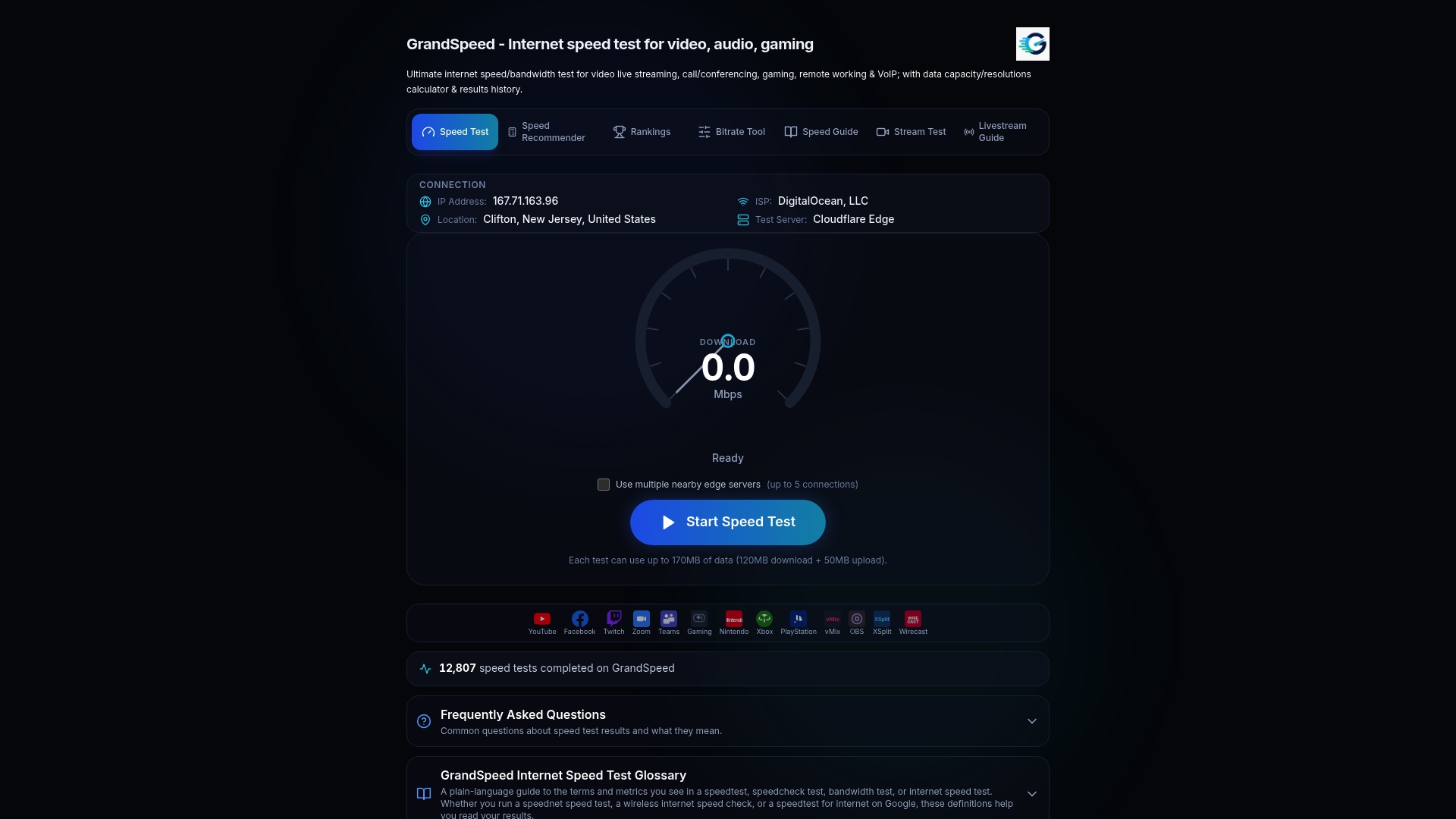
While you are live, the livestream upload speed monitor shows whether your upload holds steady under your bitrate. If you are shopping for a plan, the Internet/ISP Speed Recommender suggests the speed tier your streaming setup needs, and our guide to the best internet for streaming explains the latency and headroom targets behind it.
Streaming bitrate settings to copy
These starting points assume a wired connection and CBR with a 2-second keyframe interval. Adjust after a test stream.
| Goal | Video bitrate | Stable upload to aim for |
|---|---|---|
| 720p30, talking or slow content | 3,000 to 4,000 Kbps | About 6 Mbps |
| 1080p30, general streaming | 4,500 to 6,000 Kbps | About 9 Mbps |
| 1080p60, fast games (Twitch) | Up to 6,000 Kbps | About 9 Mbps |
| 1080p60, fast games (YouTube) | 6,000 to 9,000 Kbps | About 13.5 Mbps |
The upload column is the video bitrate times 1.5, rounded. Add your audio bitrate and any extra feeds on top. Data caps matter too: the guide to streaming data usage shows how to estimate gigabytes per hour from your bitrate.
FAQ
What is a good bitrate for live streaming?
For 1080p at 30 fps, 4,500 to 6,000 Kbps is a common range, and 1080p at 60 fps usually sits at 6,000 to 9,000 Kbps. 720p at 30 fps works at 2,500 to 4,000 Kbps. Twitch caps most streamers near 6,000 Kbps, so choose within that limit if you stream there.
How much upload speed do I need for a 6,000 Kbps stream?
Plan for about 9 Mbps of stable upload. That is the 6 Mbps video bitrate plus 50% headroom, before audio. Sources suggest keeping your stream at 50 to 70% of upload, which puts a 6 Mbps stream at roughly 8.5 to 12 Mbps of upload. Test at the time of day you plan to stream.
Should I use CBR or VBR for streaming?
Use CBR for live RTMP ingest. YouTube's live encoder guidance specifies CBR, and Restream's settings ask for strict CBR. It keeps the bitrate constant, so a burst of fast action does not push your upload past its limit and cause dropped frames.
What keyframe interval should I use?
Set it to 2 seconds. YouTube recommends 2 seconds and says not to exceed 4, and Facebook Live uses the same recommendation. Platforms use keyframes to cut your stream into segments for viewers.
Why does my stream buffer when my speed test looks fast?
A speed test shows a peak. Streaming depends on steady throughput, low jitter and almost no packet loss. Run several tests, look at jitter and packet loss as well as upload, and lower your bitrate if the results swing from run to run.
Sources
- Choose live encoder settings, bitrates and resolutions (YouTube Help)
- Best practices for the Live Stream API (Google Cloud)
- Best settings for your streaming software (Restream Help Center)
- Bitrate Explained: A Complete Guide for Beginners (Cloudinary)
- What is Stream Bitrate? (Dolby OptiView)
- Best Streaming Bitrate by Resolution (StreamerSize)
- How Much Upload Speed Do You Need to Live Stream? (Livepush)
- What is Video Bitrate? (Dacast)
- Upload Speed for Streaming: What Speed Do You Need? (Vimeo)
- What Upload Speeds Do I Need to Stream? (BroadbandNow)
- Upload Speed for Streaming: Bitrate Settings + Calculator (Upstream)
- What is bitrate and why it matters for video? (Resi)
- Rate Control: CBR, VBR, CRF, ABR, Capped CRF (Forasoft)
- Advanced NVENC Options (OBS Project)
- RTMP Encoder Settings: Bitrate, Keyframes and Ingest URLs (BlazingCDN)
- RFC 9317: Operational Considerations for Streaming Media