
Bitrate determines how much video data you send per second; resolution sets how many pixels those bits must describe. Neither one "wins" on its own. Bitrate powers quality within whatever pixel ceiling resolution sets, so the practical rule is simple: pick your target resolution and frame rate first, match bitrate to the recommended range for that combination, then confirm your upload connection can sustain it with headroom to spare.
TL;DR:
- Using 1080p at 60fps requires at least 6,000 to 9,000 kbps for a clean stream, while 30fps can function within 3,500 to 6,000 kbps.
- Matching bitrate to resolution and frame rate is crucial; a low bitrate on high resolution causes compression artifacts and blurry images.
- Viewing device size and distance impact perceived quality; higher resolution benefits larger screens but is less noticeable on small screens or close-up views.
- Streaming at a higher resolution without increasing bitrate results in poorer quality than lower resolutions with proper bitrate allocation.
- Always test your sustained upload speed with tools like Grandspeed before setting encoder parameters to prevent dropped frames and buffering issues.
Table of Contents
- Bitrate vs Resolution Streaming: What Bitrate Controls
- What Resolution Actually Controls (and What It Can't Fix)
- How Bitrate and Resolution Interact in Practice
- Bitrate Ranges by Resolution and Platform Limits
- CBR vs VBR vs ABR: Which Encoding Mode Should You Use?
- How to Pick Your Bitrate: A Step-by-Step Workflow
- Common Streaming Artifacts and How to Fix Them
- Copy-Ready Encoder Presets for Common Streaming Priorities
- What I've Learned Watching Streamers Get This Wrong
- Test Your Connection Before You Touch Your Encoder
- Sources
- FAQ
Bitrate vs Resolution Streaming: What Bitrate Controls
Bitrate is the amount of data your encoder pushes out every second, measured in kilobits or megabits per second (kbps/Mbps). Think of it as the budget your stream has to describe motion, color, and fine detail. A higher bitrate means more data available to preserve texture in a fast-moving game scene or the subtle shading on a face during a talking-head stream. A lower bitrate forces the encoder to throw information away, and that's where blocky patches and smeared motion trails come from.
The relationship between bitrate and file size is direct: double the bitrate and you roughly double the data flowing through your upload connection every second. That's why bitrate isn't just a quality dial. It's a bandwidth commitment your internet connection has to honor for the entire length of the broadcast, not just for a few seconds.
Here's what bitrate actually governs in a live stream:
- How much fine detail survives compression, from skin texture to jersey numbers on a fast break
- How cleanly the encoder handles motion without smearing or introducing blocky artifacts
- How much sustained upload bandwidth your connection needs to keep the stream stable
- How large your file grows if you're recording locally for VOD upload later
A live broadcast needs that upload bandwidth sustained for hours, not just in a short burst. Running a stream test before you commit to a bitrate tells you whether your connection can actually hold that number for the duration of your stream, not just survive a ten-second speed check.
What Resolution Actually Controls (and What It Can't Fix)
Resolution is a pixel count. A 1080p frame contains 1,920 by 1,080 pixels, about 2.07 million total. A 4K frame holds roughly 8.3 million pixels, four times as many. Resolution sets the "canvas size" your bitrate has to paint, and that ceiling matters more than people expect: more pixels demand more data to describe them at the same visual quality, because there's simply more surface area for the encoder to fill with accurate information.
Viewing distance and screen size change how much of that resolution a viewer actually perceives depending on their device, which underscores the importance of device-aware video playback considerations. Someone watching your stream on a phone screen from a foot away will struggle to tell 1080p from 4K. Someone on a 55 inch television will notice the difference immediately, especially in scenes with fine detail like foliage, crowd shots, or small on screen text.
Here's the part that trips up a lot of new streamers:
- Broadcasting at 4K with a bitrate suited for 1080p does not produce a sharper image. It produces a blurrier, more compressed 4K image.
- Upscaling a 720p source to fill a 1080p canvas doesn't add detail back. It just stretches existing pixels.
- A viewer's device can only display what the bitrate actually delivered, regardless of the resolution label on the stream.
- Higher resolution without matching bitrate often looks worse than a lower resolution stream that's properly fed.
Resolution without enough bitrate to fill it is like printing a photo at poster size from a low resolution phone snapshot. The poster is bigger. The image is not better.
How Bitrate and Resolution Interact in Practice
Picture resolution as a bucket and bitrate as the water you pour into it. A bigger bucket (higher resolution) needs more water (higher bitrate) just to reach the same fill level a smaller bucket hits easily. Pour the same amount of water into a bigger bucket and it just looks emptier. That's precisely what happens when someone jumps from 1080p to 4K without raising their bitrate to match.
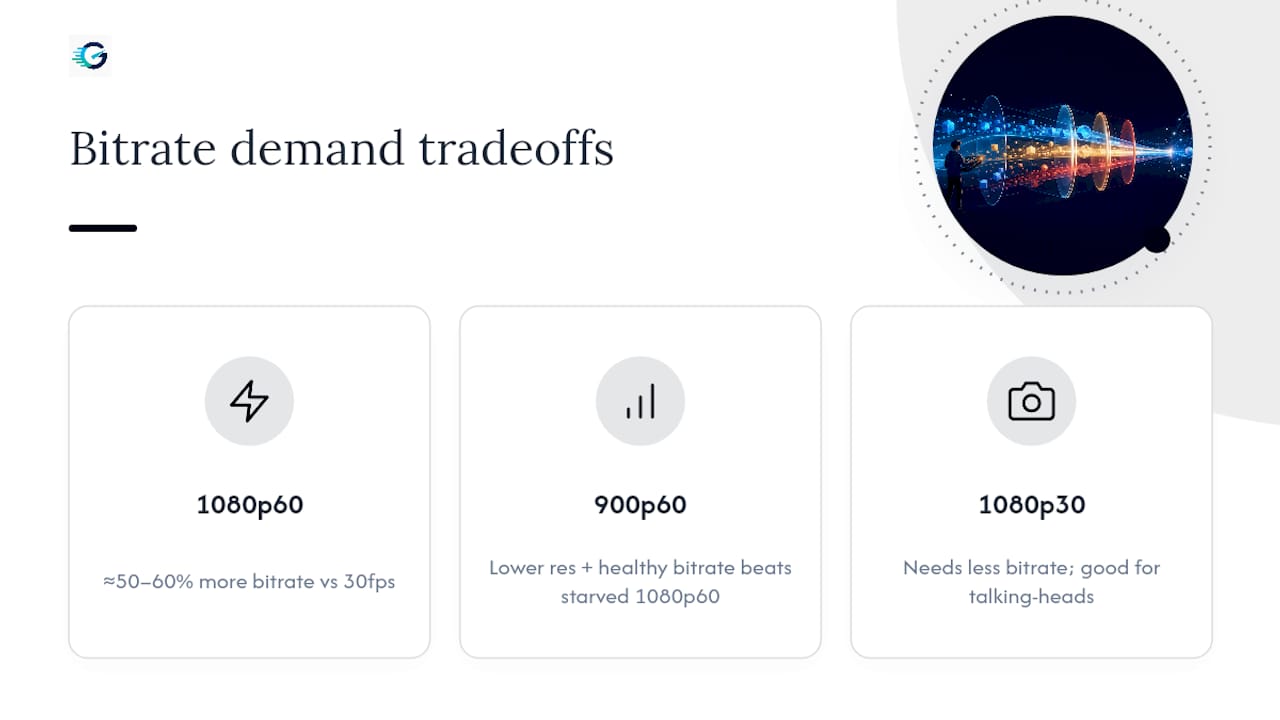
Frame rate adds a second multiplier on top of resolution. Moving from 30fps to 60fps roughly demands 50 to 60 percent more bitrate to hold the same visual quality, since the encoder now has to describe twice as many frames per second, and each new frame carries fresh motion data that has to be compressed. A 1080p60 stream and a 1080p30 stream are not the same bucket at different fill levels. They're genuinely different buckets.
This is where the smartest tradeoff decisions get made. High-motion content, competitive gaming, sports, anything with fast camera pans, needs meaningfully more bitrate to look clean at any given resolution than a talking-head podcast or a slow-paced strategy game. If your upload connection can't support 1080p60 at a proper bitrate, dropping to 900p60 or even 720p60 with a healthy bitrate almost always looks better than a starved 1080p60 stream fighting for every kilobit.
Pro Tip: If your connection is borderline, prioritize frame rate over resolution for fast-paced games and drop resolution over frame rate for anything talking-head or slow-paced. Motion smoothness reads as "quality" to viewers faster than pixel count does.
Bitrate Ranges by Resolution and Platform Limits
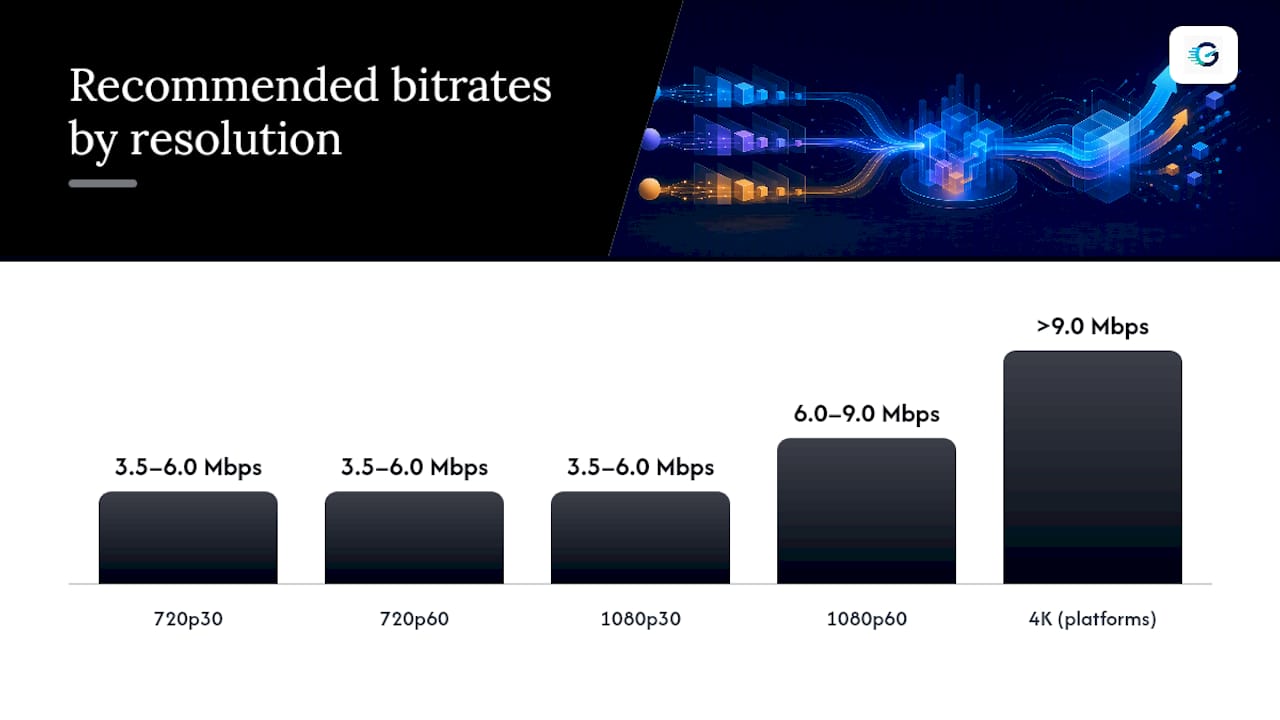
Recommended live bitrates climb quickly once you factor in frame rate. A 1080p60 stream typically needs 6,000 to 9,000 kbps to look clean, while 1080p30 usually gets by on 3,500 to 6,000 kbps. That's a meaningful gap for the same resolution, driven entirely by the doubled frame count.
| Resolution / FPS | Recommended bitrate | Common use case |
|---|---|---|
| 720p30 | 3,500–6,000 kbps | Bandwidth-limited connections, low-motion content |
| 720p60 | 3,500–6,000 kbps | Fast-paced gaming on limited upload |
| 1080p30 | 3,500–6,000 kbps | Talking-head, podcasts, strategy games |
| 1080p60 | 6,000–9,000 kbps | Competitive gaming, sports, high-motion content |
Platform ingest caps matter as much as your own preferences here. Twitch enforces a hard cap around 6,000 kbps for most streamers, which is why competitive streamers on Twitch often run 1080p60 at the very top of that range rather than the higher end other platforms tolerate. YouTube Live generally accepts a wider band and higher ceilings for 4K broadcasts, while Facebook and TikTok publish their own more conservative guidance, so checking each platform's current documentation before you lock in encoder settings avoids a rejected stream or dropped frames mid broadcast.
Codec choice changes the math too. H.265 and AV1 squeeze more visual quality out of the same bitrate than older H.264 encoding, but most platforms still re-encode incoming streams to their own delivery targets. Pushing bitrate far beyond what a platform will actually deliver to viewers mostly just burns your upload bandwidth for no visible gain.
CBR vs VBR vs ABR: Which Encoding Mode Should You Use?
These three modes decide how your encoder distributes bitrate over time, and picking the wrong one is a common source of stream instability.
- CBR (Constant Bitrate) holds output at a fixed number the entire stream, which is exactly what live ingest servers expect. It's the standard recommendation for live streaming because it avoids sudden spikes that can overwhelm a platform's ingest limits or your own upload connection.
- VBR (Variable Bitrate) lets the encoder spend more data on complex scenes and less on simple ones, which is more efficient for recorded video. It's the better choice for VOD uploads and local recordings where a burst in bitrate won't crash a live connection.
- ABR (Adaptive Bitrate) isn't an encoder setting so much as a delivery strategy: the platform encodes multiple renditions at different bitrates and automatically serves each viewer the version their bandwidth and device can handle, switching in real time if their connection changes.
For live streaming, set your encoder to CBR and let the platform's own infrastructure handle any adaptive delivery to viewers on the other end. Reserve VBR for anything you're exporting or uploading after the fact, where a temporary spike in file size costs you nothing but drive space.
How to Pick Your Bitrate: A Step-by-Step Workflow
Skip the guesswork. This is the order that actually prevents dropped frames on stream night.
- Build in headroom. A safe target is roughly 1.5 times your total stream bitrate relative to your measured sustained upload. If your encoder is pushing 6,000 kbps, you want at least 9,000 kbps of measured upload capacity to absorb network jitter without dropping frames.
- Pick resolution and FPS, then match bitrate to the ranges above. The Grandspeed converts your measured upload speed directly into a safe target and flags the maximum resolution your connection can realistically support.
- Check encoder settings beyond bitrate: keyframe interval (2 seconds is standard for most platforms), CBR mode for live, and an encoder preset that your CPU or GPU can sustain without dropping frames. Grandspeed's encoder settings guide walks through preset tradeoffs in more detail.
- Record a short test broadcast at your chosen settings before going live for real, and watch for dropped frames or encoding lag in your software's stats overlay.
Pro Tip: Test your upload speed at the same time of day you actually stream. Evening upload speeds on residential connections often run lower than a midday test, especially on shared cable networks.
Common Streaming Artifacts and How to Fix Them
Most visual complaints trace back to one of three causes, and matching the symptom to the cause saves you from randomly changing settings.
- Blocky pixelation in fast motion almost always means your bitrate is too low for your resolution and frame rate combination. Drop resolution or FPS, or raise bitrate if your connection allows it.
- Banding (visible stripes in gradients like skies or lighting effects) points to bitrate starvation in low-motion scenes, often fixable by switching encoder preset or nudging bitrate up slightly.
- Buffering and freezing on the viewer's end usually means your sustained upload can't hold your set bitrate. Check for packet loss and jitter, not just raw speed.
- Audio desync paired with dropped frames often signals CPU overload from an encoder preset that's too demanding for your hardware.
If a wired Ethernet connection and a lower encoder preset don't resolve buffering, the problem often sits upstream with your ISP rather than your settings, and that's when it's worth escalating to your provider or checking for bufferbloat and packet loss rather than tweaking encoder values further.
Copy-Ready Encoder Presets for Common Streaming Priorities
These three starting points cover most creator situations. Adjust up or down based on your own upload test results.
- High-quality 1080p60 for competitive gaming or sports commentary: target 7,500 kbps CBR, H.264 or H.265 if your platform and viewers support it, 2 second keyframe interval, medium-to-fast encoder preset depending on CPU headroom.
- Balanced 1080p30 for mixed audiences and general content: target 4,500 kbps CBR, standard H.264 profile, works well on connections that can't sustain the 1080p60 headroom requirement.
- Bandwidth-conservative 720p60 for fast-paced games on limited upload, or a slower talking-head 720p30 for podcasts: target 4,000 kbps CBR for the 60fps version, or as low as 2,000 kbps for low-motion 30fps talking-head content.
Hardware encoders (NVENC, AMD's equivalents) free up CPU for game performance but can trail slightly behind software encoding in raw efficiency per kilobit. For most streamers, that tradeoff is worth it.
What I've Learned Watching Streamers Get This Wrong
The single most common mistake isn't picking the wrong bitrate number. It's testing peak speed once and assuming that number holds for a three-hour broadcast. Wi-Fi instability is the quiet killer here: a connection that looks fine on a quick check can degrade the moment a phone starts a cloud backup or a neighbor's network congestion spikes.
Sustained upload, measured under realistic load, matters more than any peak figure a provider advertises. Streamers who build in real headroom, rather than maxing out their measured ceiling, rarely have dropped-frame nights. The ones chasing the highest bitrate their connection can technically hit are usually the same ones troubleshooting buffering complaints mid-stream.
— Peter D
Test Your Connection Before You Touch Your Encoder
Grandspeed is the tool creators reach for before they touch a single encoder setting, because guessing at a bitrate number costs you a broken stream, not just a bad guess. Run the comprehensive stream test to see your sustained upload speed, jitter, and packet loss under real conditions, then feed those numbers straight into the video bitrate calculator to get a safe target bitrate and the maximum resolution your connection actually supports.

Both tools work in any modern browser on phone, tablet, or laptop, across Wi-Fi and cellular, so you can test from the same setup you'll actually stream on. If you're planning a multi-camera production, the full livestreaming guide walks through connection requirements for more complex setups. Run your test at Grandspeed before your next broadcast and set your encoder from real numbers instead of a guess.
Sources
- What is Stream Bitrate? | Dolby OptiView
- Bitrate vs resolution guide | Cloudinary
- How Does Bitrate Affect Video Quality? A Complete Guide | Castr
- Bitrate vs. Resolution: 4 Key Differences and Their Role in Video Streaming 2026 Update | AntMedia
FAQ
Is 20,000 kbps bitrate good for 1080p?
That's well beyond what most platforms need for 1080p and far above Twitch's ingest cap, so it gets re-encoded down anyway. Stick to 6,000 to 9,000 kbps for 1080p60 or 3,500 to 6,000 kbps for 1080p30 instead.
Is high-bitrate 1080p better than low-bitrate 4K?
Yes, in almost every real-world case. A properly fed 1080p stream at 6,000 to 9,000 kbps will look sharper and cleaner than a 4K stream starved below the bitrate its pixel count actually needs.
Is 6,000 kbps bitrate enough for 1080p?
It's solid for 1080p30 and sits right at the low end for 1080p60 on Twitch, which caps most streamers at 6,000 kbps. For fast-motion 1080p60 content, aim toward the higher end of the 6,000 to 9,000 kbps range where your platform allows it.
How much bitrate do I need for 1920x1080?
It depends on frame rate: 3,500 to 6,000 kbps for 1080p30, and 6,000 to 9,000 kbps for 1080p60. Confirm your sustained upload speed with a stream test before locking in either number.
Does higher resolution always mean better stream quality?
No. Resolution only sets the pixel ceiling; without a matching bitrate, higher resolution often looks worse than a properly fed lower resolution stream.