
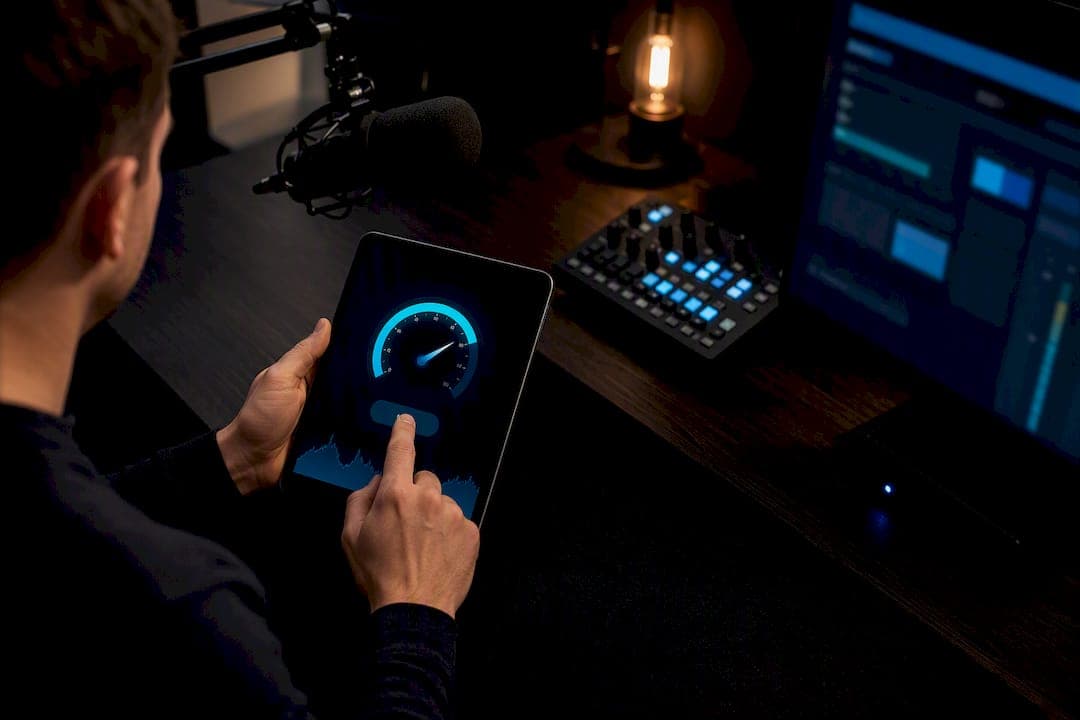
GrandSpeed's stream test runs that check in your browser and estimates the maximum live resolution your connection can carry right now.
TL;DR:
- RTT should stay below 80 milliseconds, jitter under 30 milliseconds, and packet loss below 1 percent for stable live streaming.
- Running at least two to three minutes of repeated, sustained tests during peak and off-peak hours provides accurate assessments of connection capacity.
- Fix bufferbloat issues before adjusting encoder settings, as queue delays can mask true network performance.
- Prioritize stability over maximum bitrate to avoid drops during peak usage times, and log multiple test results for reliable streaming setup decisions.
Table of Contents
- Which Network Metrics Determine Your Streaming Capacity
- How to Run a Test That Reflects Your Real Streaming Capacity
- Turning Your Numbers Into Encoder Bitrate and Resolution
- What to Fix First When Your Test Results Are Unstable
- Why Stability Beats Maximum Quality
- Run Your Own Test Before Your Next Broadcast
- Sources
- FAQ
Which Network Metrics Determine Your Streaming Capacity
Your ISP's advertised upload speed is a ceiling, not a promise. What actually caps your live stream is sustained goodput, the throughput your connection holds for minutes at a time under real load. A connection rated for 25 Mbps upload might only sustain 18 Mbps once you account for Wi-Fi overhead, background traffic, and how your router handles multiple flows. Engineering guidance from Red5 on bandwidth versus latency makes this distinction bluntly: measure the goodput your application actually gets, not the number on your bill, and always build in a margin.
Round-trip time (RTT), jitter, and packet loss shape whether your stream feels responsive or falls apart under interaction. RTT is the round-trip delay between your encoder and the server; jitter is how much that delay swings from one packet to the next. High jitter causes frames to arrive out of rhythm, which forces buffering even when average bandwidth looks fine. Packet loss above roughly 1% starts producing visible artifacts and dropped frames, especially at higher bitrates where each packet carries more picture data.
Bufferbloat is the quiet killer of accurate testing. When your router queues too much data before sending it, a speed test can report healthy bandwidth while real latency spikes into the hundreds of milliseconds, because everything is sitting in a queue instead of moving. This is also why the bandwidth-delay product, the math connecting your bandwidth to your RTT, matters for sizing how much data your encoder can safely have in flight before it needs acknowledgment.
Use these as working thresholds when you read your own results:
- Sustained upload goodput: at or above your target encoder bitrate, plus headroom
- RTT: under 80 milliseconds for low-latency interactive streaming, more tolerance for one-way broadcast
- Jitter: under 30 milliseconds for smooth interactive video
- Packet loss: under 1%, ideally under 0.5% for competitive or interactive use
- Headroom reserved: 15 to 30% of measured goodput, unused, as a buffer against fluctuation
Pro Tip: If your bufferbloat grade comes back poor, fix that before you touch your encoder settings. A congested queue will sabotage every other number on the test.
How to Run a Test That Reflects Your Real Streaming Capacity
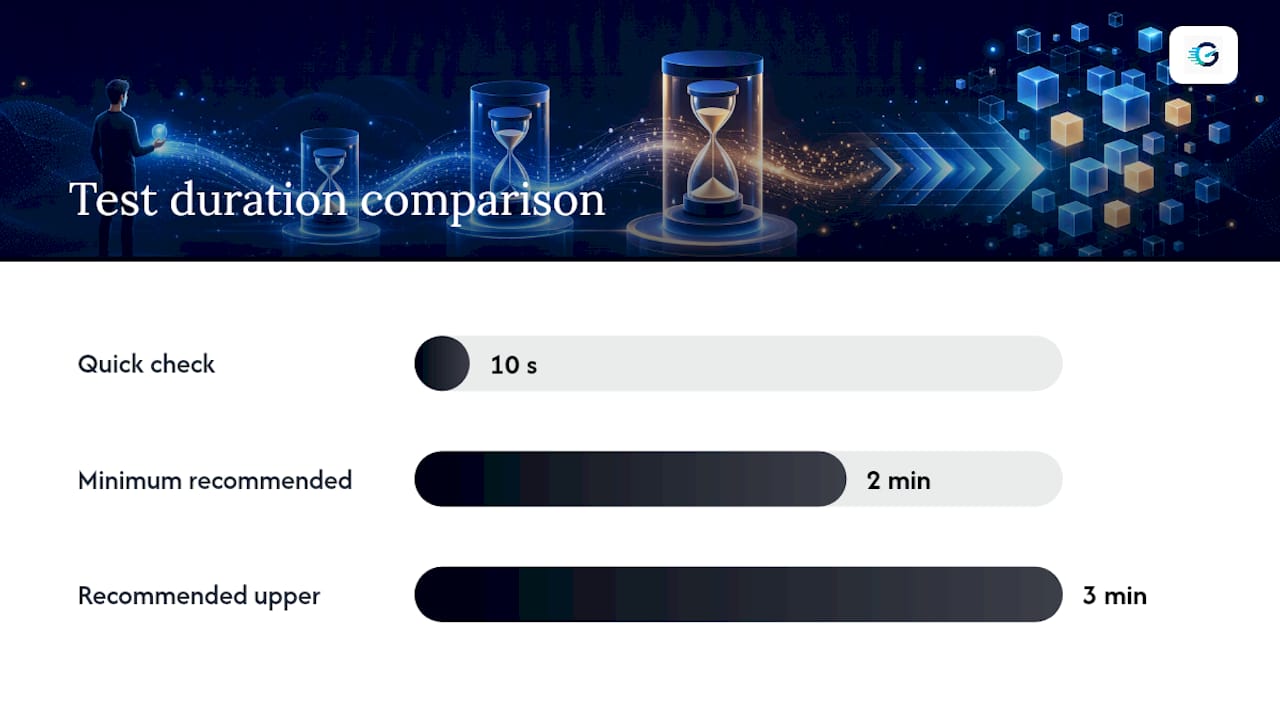
A single 10-second speed test tells you almost nothing about live-streaming readiness. Networks behave differently under sustained load than they do in a quick burst, and research on frame-level bandwidth estimation backs this up directly: the Camel paper on frame-level bandwidth estimation found that single-snapshot measurements routinely miss undershooting that only shows up when you sample bandwidth at the frame level over time, achieving close to 98.9% estimation accuracy by doing exactly that. Sustained, repeated testing is not optional if you want numbers you can trust.
Here is a testing routine that produces usable data:
- Pick the actual time slots you stream, not just whenever you happen to check.
- Close background uploads, cloud backups, and any device syncing large files.
- Run a sustained upload test for at least two to three minutes rather than a quick check.
- Repeat the test at both peak hours (typically evening) and off-peak hours.
- Record sustained goodput, minimum and median RTT, jitter, packet loss, bufferbloat grade, and the time of day for each run.
The reason single tests mislead is tied to how transport protocols behave when they are not constantly saturated. Research on BBR's limitations in live-streaming scenarios shows the BBR congestion-control algorithm can misjudge available bandwidth during application-limited phases, when your encoder isn't pushing enough data to reveal the connection's true ceiling. That is exactly the condition a short speed test creates. A sustained, repeated test forces the connection to reveal its actual steady-state capacity rather than a flattering guess.
Pro Tip: Simulate real conditions by running a large download on another device while you test. If your numbers barely move, your connection has real headroom. If they collapse, that's your Wi-Fi contention showing up before your first live broadcast does. Save each test run to your history so you can spot degrading trends over weeks, not just react to a single bad night. GrandSpeed logs this automatically and estimates the max supported live resolution from each run.
Turning Your Numbers Into Encoder Bitrate and Resolution
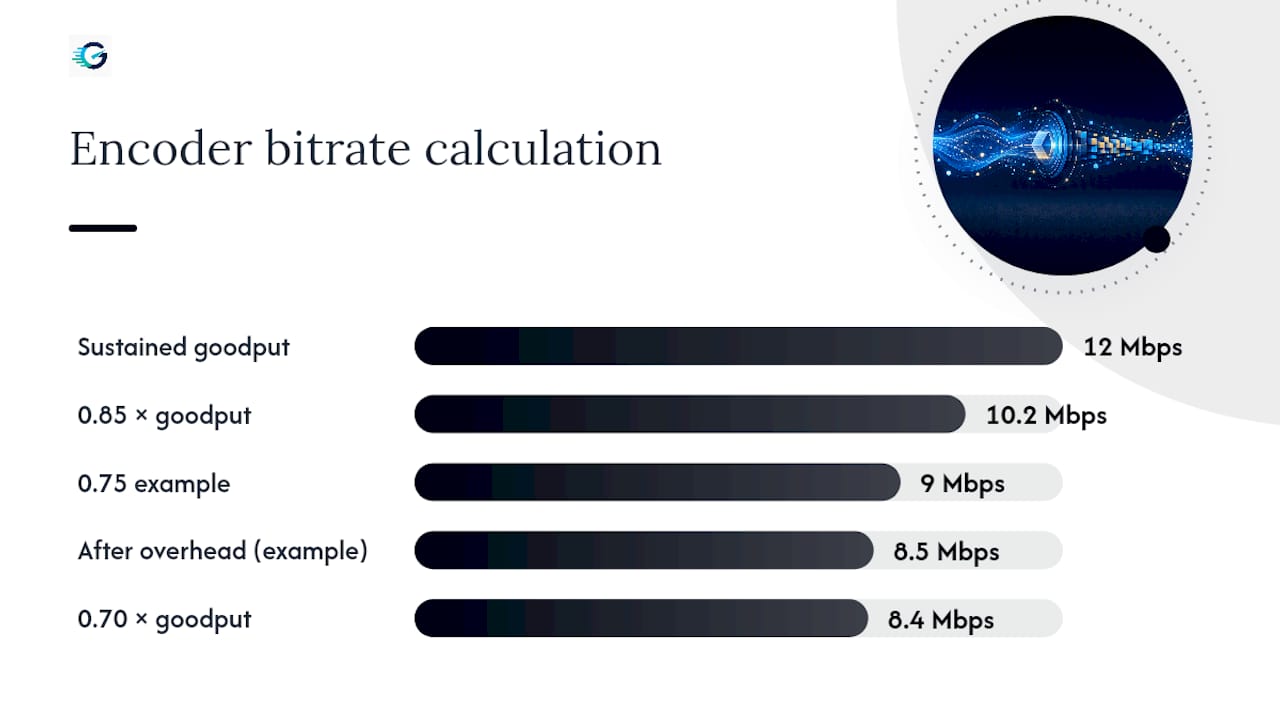
The formula is simple: recommended encoder bitrate equals sustained upload goodput multiplied by 0.70 to 0.85, minus a small allowance for protocol and codec overhead. If your sustained goodput measures 12 Mbps, multiplying by 0.75 gives 9 Mbps, and after overhead you land close to 8.5 Mbps for encoder output. That number, not your advertised plan speed, is what should go into your encoder's bitrate field.
Platform guidance gives you the resolution and frame-rate ranges to match that bitrate against. YouTube's recommended ingestion bitrates and consumer-facing benchmarks from Xfinity's upload speed guidance line up closely:
RTT, jitter, and loss change how you spend that bitrate budget, not just the size of it. Interactive streams, think co-streaming, live Q&A, or cloud gaming, need low RTT more than they need high resolution, so drop resolution before you sacrifice responsiveness. One-way broadcast tolerates more latency, letting you favor higher bitrate and resolution over milliseconds.
- If loss climbs above 1%, cut bitrate before you touch resolution.
- If RTT is high but stable, resolution can stay put; the delay is structural, not a bandwidth problem.
- If jitter spikes intermittently, lowering frame rate often stabilizes delivery faster than lowering bitrate.
- If your bandwidth-delay product is small, keep buffers modest, oversized buffers just add delay without adding stability.
The Video Bitrate Calculator on GrandSpeed runs this math for you once you plug in a test result.
What to Fix First When Your Test Results Are Unstable
Start local before you blame your ISP. Wired Ethernet eliminates Wi-Fi contention outright, and isolating your streaming device from other heavy uploads (cloud backups, game downloads, a second person on a video call) often resolves instability by itself. Limiting Windows Update's background bandwidth is a five-minute fix that catches more streamers off guard than it should, since updates can silently claim upload capacity mid-broadcast.
On the encoder side, set constant bitrate (CBR) rather than variable, since CBR keeps your stream predictable even when scene complexity changes. Tune your keyframe interval to match your platform's recommendation, usually two seconds, and set a hard bitrate cap so momentary spikes in encoding demand can't blow past what your connection can carry.
If local fixes don't help, look at the network path. Switching your ingest or edge server, when your platform allows it, can route around a congested node closer to your location. Test at your actual streaming time. A congestion pattern that only appears at 8 p.m. is invisible in a morning speed test, and the Streamhub troubleshooting guide documents this exact peak-hour bottleneck as one of the most common causes of dropped frames streamers misattribute to their own setup.
- Undershooting or unstable frame delivery, even with good average bandwidth, often points to application-limited sending, the same phenomenon BBR misjudges. Frame-level probing tools or scheduled test runs during idle periods can reveal the real ceiling.
- If congestion persists after ruling out your own network, pull your test logs and take them to your ISP directly; specific numbers get a faster response than a vague complaint.
Pro Tip: Keep a saved test log from a clean, low-traffic period as your baseline. When something breaks mid-stream, comparing against that baseline tells you in seconds whether the problem is new or something you've been quietly living with.
Why Stability Beats Maximum Quality
Chasing the highest bitrate your connection can theoretically handle is the most common mistake I see streamers make, and it's almost always the wrong instinct. A connection that tests at 20 Mbps upload during a quiet Tuesday morning is not the same connection at 8 p.m. on a Friday when every device in the house is competing for the same pipe. Setting your bitrate against a best-case number guarantees you'll hit your worst case eventually, usually during your biggest broadcast of the month.
The fix is procedural, not technical. Log your test results over multiple sessions, and compare peak-hour readings against off-peak ones before you conclude you need a plan upgrade. Half the "bad internet" problems streamers report turn out to be local congestion or an unwired device, not an ISP shortfall. Consistency at a slightly lower bitrate reads as professional. Instability at a higher one reads as broken, no matter how good your camera setup is.
— Peter D
Run Your Own Test Before Your Next Broadcast
Everything above depends on numbers specific to your connection, not general advice from a forum post. GrandSpeed's stream test measures sustained upload, RTT, jitter, and packet loss right in your browser, logs the run to your history, and estimates the maximum live resolution your current connection supports. No plugin, no app install, just a browser tab and a few minutes.

Once you have a result, run it through the Video Bitrate Calculator to get a specific encoder bitrate and resolution pairing instead of guessing at platform defaults. If you're planning a bigger production setup, the multi-camera livestreaming guide walks through how to apply these same principles across multiple encoders and sources. Test now at Grandspeed, save the result, and check it again before your next big stream.
Sources
For deeper technical background, see the Camel frame-level bandwidth paper, BBR limitations research, YouTube's bitrate guidance, Twitch's broadcast health guide, and GrandSpeed's own optimization guide.
- Camel: Frame-Level Bandwidth Estimation for Low-Latency Live Streaming under Video Bitrate Undershooting
- YouTube recommended bitrates
- Upload speed for streaming guidance (Xfinity)
FAQ
How Much Upload Speed Do I Need to Stream?
It depends on your target resolution: roughly 4 to 8 Mbps sustained upload for 720p30, and 12 to 16 Mbps for 1080p60, per Xfinity's upload guidance. Always test your sustained goodput rather than trusting your plan's advertised number.
What RTT Is Too High for Live Streaming?
Under 80 milliseconds works well for interactive, low-latency streaming; one-way broadcast tolerates more. High RTT that stays stable is usually a structural distance issue, not something bitrate adjustments can fix.
Why Does My Stream Drop Frames Even Though My Speed Test Looks Fine?
This usually means your connection is application-limited, sending less data than your true bandwidth ceiling, which single-snapshot speed tests can misread entirely, a pattern documented in BBR live-streaming research. Running a sustained test on GrandSpeed's stream test at your actual streaming time usually reveals the real bottleneck.
How Much Headroom Should I Leave Below My Measured Upload Speed?
That margin absorbs jitter, background traffic, and peak-hour congestion without pushing your stream into instability.
Can I Trust a Single Speed Test to Set My Bitrate?
No, a single test can miss undershooting and application-limited phases that only appear under sustained load. Test at multiple times, including your actual streaming hours, and log results with a tool like GrandSpeed's stream test before finalizing your bitrate.