
For most streamers, the right Twitch bitrate is 6,000 kbps for 1080p60, 4,500 kbps for 1080p30 or 720p60, and 3,000 kbps for 720p30, all with CBR and a 2-second keyframe interval. These numbers come from Twitch's Broadcasting Guidelines. The harder part is knowing whether your connection can hold them. A bitrate your upload line can't sustain gives you dropped frames, viewer buffering and lag, no matter how good the number looks in OBS.
This guide gives you the settings, explains why they are what they are, and shows how to test your upload so you can pick a bitrate with confidence.
TL;DR
- Use CBR rate control, a 2-second keyframe interval and AAC audio at 96 kbps.
- Starting points: 6,000 kbps for 1080p60, 4,500 kbps for 1080p30 or 720p60, 3,000 kbps for 720p30.
- Keep your bitrate at roughly 75% of your measured upload speed or lower, so gameplay and voice chat keep their share.
- If frames drop, lower the bitrate by a few hundred kbps before you change anything else.
- Test upload speed, jitter and packet loss, not just a headline Mbps number, before you go live.
Table of Contents
- Twitch bitrate settings by resolution and frame rate
- Twitch encoder settings that go with your bitrate
- How much upload speed do you need for Twitch?
- Test before you pick a bitrate
- Fixing dropped frames and stream lag
- Our perspective: pick the bitrate your connection can hold
- Try it on your own connection
- Choosing between stability and sharpness
- FAQ
- Sources
Twitch bitrate settings by resolution and frame rate
Twitch publishes recommended profiles for standard single-stream broadcasting. Here is how they line up, based on the Broadcasting Guidelines and the single-stream H.264 profiles that StreamVi's Twitch documentation lists:
| Resolution | Frame rate | Video bitrate | Rate control | Keyframe interval |
|---|---|---|---|---|
| 1920×1080 | 60 fps | 6,000 kbps | CBR | 2 seconds |
| 1920×1080 | 30 fps | 4,500 kbps | CBR | 2 seconds |
| 1280×720 | 60 fps | 4,500 kbps | CBR | 2 seconds |
| 1280×720 | 30 fps | 3,000 kbps | CBR | 2 seconds |
Twitch's own page also says higher bitrate improves quality only up to a point. Pushing past the recommended number for your resolution mostly eats bandwidth without a visible gain, and it raises the odds that a viewer on a weaker connection buffers.
Best Twitch bitrate for 1080p
For 1080p at 60 or 50 fps, Twitch lists 6,000 kbps with CBR and a 2-second keyframe interval. For NVIDIA NVENC it lists the Quality preset with two B-frames. For 1080p at 25 or 30 fps the number drops to 4,500 kbps with the same CBR and keyframe rules.
If you play fast-paced games, 1080p60 is the profile that matters. If you mostly stream slower games, talk shows or art, 1080p30 at 4,500 kbps saves upload and looks clean.
Best Twitch bitrate for 720p
At 720p, use 3,000 kbps for 30 fps and 4,500 kbps for 60 fps. Don't treat 720p as a downgrade. It is often the smarter choice. A sharp 720p60 stream at a stable bitrate beats a blocky 1080p60 stream that starves for bits.
NVIDIA points out that high-motion games such as racing titles and first-person shooters are harder to compress and can look blocky. Its broadcasting guide notes that reducing the resolution can improve how moving images look at a fixed bitrate. So if you are capped at 6,000 kbps and your shooter looks muddy at 1080p60, try 720p60 before you chase a higher bitrate.

Can you go above 6,000 kbps?
People often ask whether 6,000 is too high, or whether 8,000 or 10,000 is allowed. Twitch's standard guidance tops out at 6,000 kbps for 1080p60. A third-party summary on StreamVi reports 8,000 kbps as a partner maximum and 6,000 kbps for other broadcasters, and it warns that stability is better when you stay under those limits. It is not an official Twitch rule, so check your dashboard and Twitch's help pages before you rely on it.
For 1440p, Twitch's 2K streaming page tells streamers to set a minimum maximum-streaming-bandwidth of 14,000 kbps in OBS (Settings > Stream). Twitch's Enhanced Broadcasting sends several versions of your stream at once, with video renditions ranging from about 6 Mbps for 1080p AVC down to 200 kbps for 160p. More renditions mean more total upload, so don't turn it on without checking your headroom.
In short: 6,000 kbps is not too high for 1080p60. It is the standard. Going beyond it is a niche decision that needs both eligibility and a rock-solid upload line.

Twitch encoder settings that go with your bitrate
Bitrate is one setting among several. These are the others that most affect whether your stream looks and behaves well.
Rate control: CBR
Use constant bitrate. Twitch recommends it because it sends a predictable amount of data every second, which is what ingest servers and viewers' players expect. VBR can spike well above your target, and Twitch's Guide to Broadcast Health says that while an average around 3,500 kbps is fine, spikes up to 4,500 kbps can cause viewers to buffer.
Keyframe interval: 2 seconds
Set the keyframe interval to 2 seconds. A longer interval slows how fast viewers can join or recover from a glitch. A shorter one wastes bits that your picture could use.
Encoder and profile
You have two main choices:
- Hardware encoder (NVENC on NVIDIA cards): Twitch lists the Quality preset with two B-frames. It keeps your CPU free for the game, which matters on a single-PC setup.
- Software encoder (x264): Twitch's x264 entries use presets from veryfast to medium with the Main or High profile. Slower presets look better but cost more CPU.
If you play demanding games on one PC, hardware encoding is usually the better trade. Our guide to fixing OBS dropped frames covers what to check if the encoder itself is overloaded.
Audio: AAC at 96 kbps
Twitch's guidelines list AAC-LC audio, stereo or mono, with 96 kbps recommended for maximum compatibility and 160 kbps as the AAC maximum. Any sampling frequency is accepted for AAC. For most streams, 96 kbps is plenty. Spend your bits on video.
How much upload speed do you need for Twitch?
The bitrate you set must fit inside the upload speed you actually have, with room to spare. Advice from several sources lands in the same neighborhood:
- NVIDIA recommends using about 75% of your measured upload speed for streaming so games and other applications keep some bandwidth.
- OBSBot's Twitch settings guide says a 6,000 kbps video stream also needs audio and network overhead, and offers about 10 Mbps of sustained usable upload as a practical planning target, not a guarantee.
- AT&T's Twitch speed guidance says professional 1080p60 broadcasting should have at least 12 Mbps of upload and suggests reserving 30 to 40% overhead for usage spikes. That is practical advice, not a Twitch limit.
Here is a simple way to turn that into a number. Take your sustained upload speed, not the best moment of a single test, and multiply by 0.75. That is your ceiling for total stream bandwidth, video plus audio.
| Measured sustained upload | 75% ceiling | Sensible Twitch target |
|---|---|---|
| 5 Mbps | 3.75 Mbps | 720p30 at 3,000 kbps |
| 8 Mbps | 6 Mbps | 1080p30 or 720p60 at 4,500 kbps |
| 12 Mbps | 9 Mbps | 1080p60 at 6,000 kbps with headroom |
| 20 Mbps | 15 Mbps | 1080p60 at 6,000 kbps, or an Enhanced Broadcasting setup |
The table is our own arithmetic from the 75% rule, not an official Twitch requirement. If other people in your home use the connection while you stream, subtract their usage first. Our streaming upload calculator guide explains why 20 Mbps of advertised upload is never entirely yours.
Test before you pick a bitrate
A single speed test tells you a peak. Streaming needs consistency. Three things decide whether your bitrate holds:
- Upload speed over time. Does it stay near the same number for several minutes?
- Jitter and packet loss. These make frames arrive late or not at all, even when the Mbps figure looks fine.
- Bufferbloat. When your upload is saturated, latency can spike and everything else on your network suffers.
Run the GrandSpeed speed test to see upload, latency, jitter, packet loss and bufferbloat in one pass. For a streaming-specific read, the livestream upload monitor shows how your connection behaves under a broadcast-style load, and the video bitrate calculator helps you turn that result into a resolution and bitrate. If your upload keeps swinging, read why upload speed fluctuates and how to stabilize it.
Test at the time of day you actually stream. Evening congestion on shared cable networks can lower your upload compared with a morning test.
Fixing dropped frames and stream lag
Twitch's Guide to Broadcast Health says dropped frames can come from not enough upload capacity or from problems on your local network. Its advice is to choose the best ingest server and lower your bitrate until frames stop dropping.
Twitch also notes that streaming close to your connection's maximum can add delay even when the bitrate graph looks flat, and it recommends lowering bitrate by 200 to 500 kbps. In practice, work through it in this order:
- Lower the bitrate by 500 kbps and watch OBS's dropped frames counter for a few minutes.
- Switch to wired Ethernet if you are on Wi-Fi. Wi-Fi interference is a common source of jitter.
- Pick a closer ingest server in your Twitch settings.
- Pause other uploads: cloud backups, game updates and other devices on the network.
- Check your PC load. Overlays, browser sources and capture add-ons all take resources, and it is worth knowing which overlay features cost FPS before you stack them on a scene.
If viewers complain of lag and your encoder is fine, our walkthrough on fixing Twitch stream lag goes through the network side. Slow upload at the source is its own topic: see why your upload speed may be so slow.
Our perspective: pick the bitrate your connection can hold
We see the same mistake all the time. A streamer reads that 1080p60 needs 6,000 kbps, sets it, and then wonders why the stream stutters at 9 p.m. The setting was correct. The connection could not carry it consistently.
Our view is that bitrate is a result, not a starting point. Start with what your line sustains over a few minutes, apply a headroom rule, and only then choose a resolution and frame rate. A clean 720p60 at 4,500 kbps is a better broadcast than a 1080p60 that drops frames every few minutes. Viewers forgive lower resolution much faster than they forgive buffering.
That is why we built GrandSpeed to measure more than download and upload. Jitter, packet loss and bufferbloat are often the real reason a stream falls apart on a plan that looks fast on paper. Check them before you blame your encoder, and recheck when your setup changes, such as a new router, a new ISP plan or a second PC on the network. Our bitrate versus resolution presets and the 1.5x headroom rule are a good place to start if you want ready-made profiles.
— Peter D
Try it on your own connection
GrandSpeed is built for exactly this decision. It measures upload, latency, jitter, packet loss, bufferbloat and DNS resolution time, keeps a history of your results, and shows the highest livestream resolution your tested speeds can support. It works in any modern browser on a laptop, tablet or phone. Run the Video Streaming Quality Test before your next broadcast and compare it with the table above.
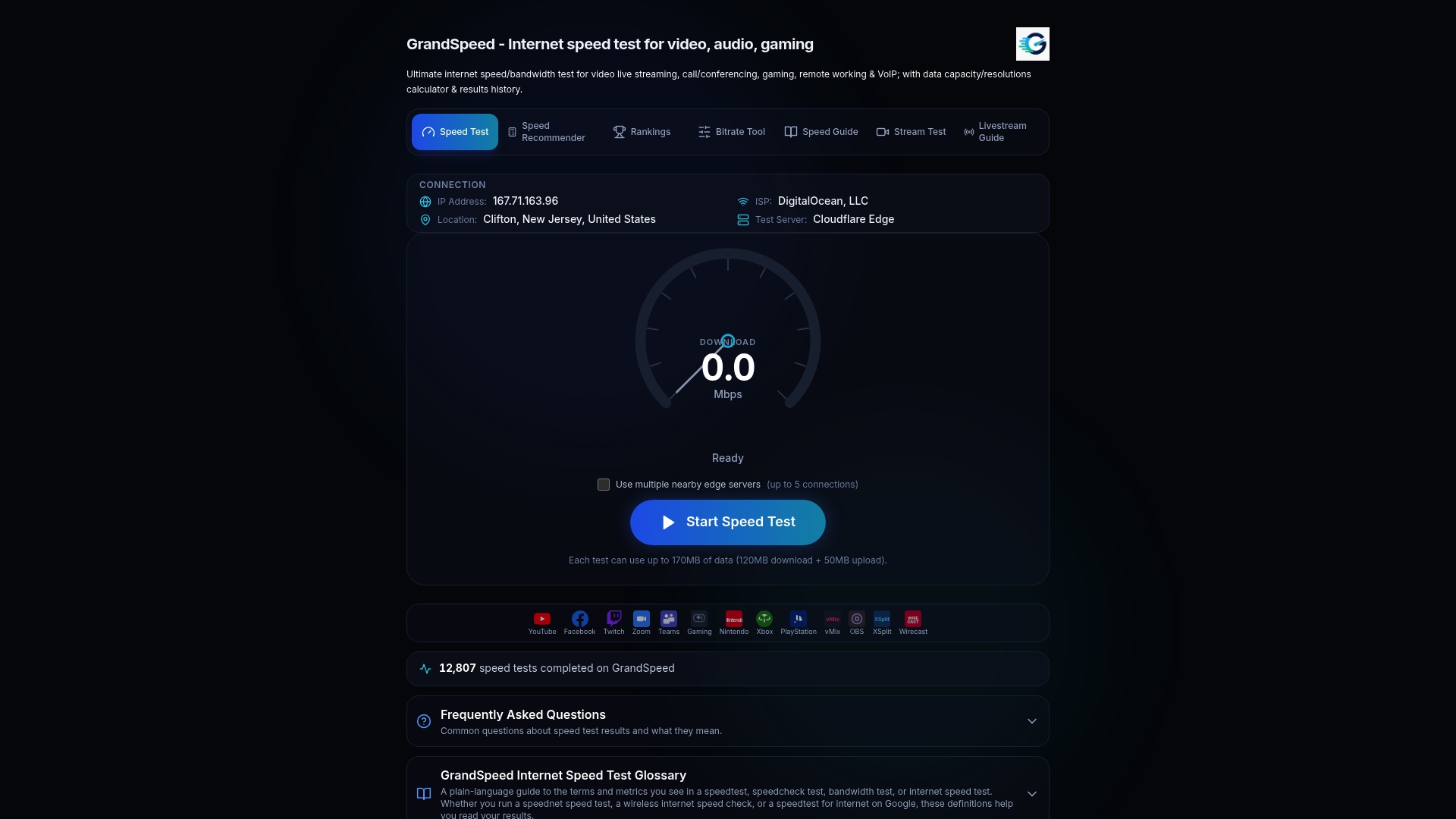
If you are still shopping for a plan, the Internet/ISP Speed Recommender can suggest what upload tier suits the stream quality you want. For broader setups, such as sending to several platforms or adding cameras, see our multi-streaming guide.
Choosing between stability and sharpness
When your numbers are close, use this order of priorities:
- Stability first. A steady stream at 4,500 kbps beats an unstable one at 6,000.
- Frame rate second. For action games, 60 fps usually matters more to viewers than extra pixels.
- Resolution third. Drop to 720p before you accept constant dropped frames.
- Bitrate last. Raise it only after the three above are solid and your headroom is confirmed by a test.
Also remember your audience. Not every viewer can pull a 6,000 kbps stream. Twitch's Enhanced Broadcasting page notes that the platform otherwise does not offer adaptive bitrate from your own encode, which is part of why a moderate bitrate often serves mobile viewers better. Partners and some others may receive transcoding options, so check what your channel has under its own settings.
FAQ
What should I set my bitrate to on Twitch?
Use 6,000 kbps for 1080p60, 4,500 kbps for 1080p30 or 720p60, and 3,000 kbps for 720p30, with CBR and a 2-second keyframe interval. If your upload is limited, choose the profile that stays under about 75% of your measured sustained upload speed. Lower it by 200 to 500 kbps if frames drop.
Is 6,000 bitrate too high for Twitch?
No. It is the recommended value for 1080p at 60 fps in Twitch's guidelines. It is too high only if your upload line can't sustain it with headroom, in which case you should drop to 4,500 kbps or 720p60.
Can I stream at 8,000 or 10,000 bitrate on Twitch?
Twitch's standard recommendations stop at 6,000 kbps. A third-party summary reports 8,000 kbps as a partner maximum, though that is not an official rule, and 2K streaming has its own requirements on Twitch's help page. Check your account's eligibility, and test your upload first, because higher bitrates make buffering more likely for viewers.
How much upload speed do I need for Twitch?
For 1080p60 at 6,000 kbps, plan for roughly 10 to 12 Mbps of sustained upload. That follows the guidance from OBSBot and AT&T, which treat it as a practical target. Plan for less only if you drop to 720p or 30 fps.
Sources
- Twitch Broadcasting Guidelines
- Twitch Enhanced Broadcasting with Multiple Encodes
- Twitch Guide to Broadcast Health
- Twitch 2K Streaming
- NVIDIA NVENC OBS Broadcasting Guide
- OBSBot: Best OBS Settings for Twitch
- AT&T: What is a good internet speed for streaming on Twitch?
- StreamVi Twitch documentation
- StreamVi Twitch parameters