
For a reliable Facebook Live stream, send H.264 video at a constant bitrate (CBR) of 3,000 to 6,000 kbps for 1080p at 30 fps, or 1,500 to 4,000 kbps for 720p at 30 fps, with 128 kbps AAC audio and a 2-second keyframe interval. Those numbers come from Meta's own live video specifications and the practical ranges streamers use around them. The catch is your upload speed: the best bitrate is the highest one your connection can hold steadily, not the highest one Facebook allows.
TL;DR
- 1080p at 30 fps: 3,000 to 6,000 kbps. 1080p at 60 fps: 4,500 to 9,000 kbps.
- 720p at 60 fps: 2,250 to 6,000 kbps. For 720p at 30 fps, 1,500 to 4,000 kbps is a practical range.
- Use CBR, H.264, AAC audio at 128 kbps and a keyframe every 2 seconds (never more than 4).
- Your upload speed should be at least 1.5 to 2 times your total bitrate, so test it before you go live.
- Blurry or buffering streams usually mean the bitrate is too low for the motion, or too high for your upload.
Table of Contents
- Facebook Live bitrate by resolution
- The other Facebook Live streaming settings that matter
- Setting it up in OBS Studio
- How much upload speed you need
- Why your Facebook Live looks blurry or buffers
- Our perspective: bitrate is a budget, not a target
- Check your connection before you go live
- A pre-stream checklist
- FAQ
- Sources
Facebook Live bitrate by resolution
Meta publishes a table of resolution and bitrate recommendations for live video. The two most-used rows are 1080p and 720p:
| Resolution and frame rate | Video bitrate range | Notes |
|---|---|---|
| 1080p at 60 fps (1920x1080) | 4,500 to 9,000 kbps | H.264 Level 4.2 |
| 1080p at 30 fps (1920x1080) | 3,000 to 6,000 kbps | H.264 Level 4.1 |
| 720p at 60 fps (1280x720) | 2,250 to 6,000 kbps | Good for fast motion on tighter uploads |
| 720p at 30 fps (1280x720) | 1,500 to 4,000 kbps (practical range) | Safest choice on weak connections |
| 480p and 360p | Lower ranges, starting around 600 kbps | Emergency fallback only |
The 1080p and 720p60 rows match Meta's Business Help Center page. For 720p at 30 fps, the Facebook Live ranges compiled by MyStreamSetup give 1,500 to 4,000 kbps, and Meta's resolution table spans a wide window below that. Treat the middle of each range as your starting point and move up only after a clean test stream.
Meta also lists a ceiling on overall bitrate. Per the same MyStreamSetup summary, the maximum recommended total is 15 Mbps, but you will almost never need anything close to it.
What most people should pick
If you are unsure, start with 1080p at 30 fps and 4,500 kbps. StreamHouse suggests 4,500 to 6,000 kbps for 1080p30 and 3,000 to 4,000 kbps for 720p30 as a safe default, and drops to 720p30 when upload speed is tight. That fits what we see in practice: a talking-head show, a church service or a Q&A looks excellent at 720p30 and 3,500 kbps, and costs your connection far less than a 1080p60 feed.
Choose 60 fps only for fast motion such as gameplay, sports or dance. For a mostly static scene, extra frames just consume bitrate that would be better spent on sharpness.
The other Facebook Live streaming settings that matter
Bitrate is only one line of the encoder setup. Meta's specifications list the rest, and getting them wrong causes more trouble than a slightly low bitrate.
- Rate control: CBR. Meta's advanced video settings call for constant bitrate encoding. StreamHouse explains why: variable bitrate can spike on busy scenes, outrun your upload speed and cause buffering.
- Keyframe interval: 2 seconds. Meta recommends 2 seconds and says not to exceed 4. Leaving this on "auto" is a common cause of quality warnings.
- Video codec: H.264. Level 4.1 covers up to 1080p at 30 fps; Level 4.2 is for 1080p at 60 fps.
- Audio: AAC-LC, stereo, 44.1 or 48 kHz. The bitrate is 128 kbps preferred, 256 kbps at most.
- Protocol: RTMPS. Facebook expects a secure connection. Pixel aspect ratio should be square and scanning progressive.
- Maximum length: 8 hours per live video, per Meta's page.
All of these are on Meta's live video specifications page, which is the first place to look when something changes.
Setting it up in OBS Studio
In OBS, the key step is leaving Simple output mode. JMVStream notes that the Advanced mode is needed to reach options such as the keyframe interval, which Simple mode hides.
- Open Settings > Output and switch Output Mode to Advanced.
- On the Streaming tab, choose an H.264 encoder (x264 or your GPU's hardware encoder).
- Set Rate Control to CBR.
- Enter your video bitrate, for example 4,500 for 1080p30.
- Set Keyframe Interval to 2.
- Under Audio, set the track bitrate to 128.
- Under Video, set base and output resolution (1920x1080 or 1280x720) and a common FPS value of 30 or 60.
- Paste your stream key from Facebook's Live Producer.
One trap: Facebook issues a new stream key for each live session, so OBS will fail to connect if you reuse an old one, as JMVStream points out. If you want a persistent key for a recurring show, check Live Producer's options before you schedule.
For events where a failed stream is not an option, such as conferences, sports and product launches, a crew handling live event streaming production takes the encoder and network setup off your plate.
How much upload speed you need
The bitrate you pick has to fit inside your upload speed with room to spare. Streamlabs stresses that upload is the limiting factor and that your settings should never exceed what the connection can actually deliver, or you will drop frames.

Our rule of thumb is simple: your sustained upload speed should be 1.5 to 2 times your total bitrate (video plus audio). Other devices on your network eat into that headroom, as our streaming upload calculator guide explains.
Here is what that means in practice:
| Target | Total bitrate (video + 128 kbps audio) | Upload speed to aim for |
|---|---|---|
| 720p30 | about 3.6 Mbps at 3,500 kbps video | 5.5 to 7.5 Mbps |
| 1080p30 | about 4.6 Mbps at 4,500 kbps video | 7 to 9.5 Mbps |
| 1080p60 | about 6.6 Mbps at 6,500 kbps video | 10 to 13 Mbps |
These are our own arithmetic from the 1.5 to 2 times rule, not Facebook requirements. If your plan advertises 20 Mbps up, do not assume all of it is yours, as we cover in why 20 Mbps isn't all yours to stream.
Test the right things, not just the headline number
A single upload figure does not tell you whether a stream will hold. Jitter, packet loss and bufferbloat (latency that balloons when your upload is saturated) are what cause dropped frames in OBS. Run the GrandSpeed speed test from the same device or network you will stream from, and watch upload, jitter and packet loss together. Then check the livestream monitor to see how your connection holds up over time rather than for a few seconds.
If the numbers look low for what you pay for, our guide to why upload speed is so slow covers the usual causes and fixes. To turn your result into a bitrate, the video bitrate calculator does the math.
Why your Facebook Live looks blurry or buffers
The two complaints have opposite causes, so diagnose before you change settings.
Blurry or blocky video
This usually means the bitrate is too low for the resolution and motion. A 1080p picture at 1,500 kbps will smear on any movement. Either raise the bitrate within Meta's range, or drop to 720p so the same bits cover fewer pixels. Speedify's write-up also ties blur to low upload bitrate. Check that your scene is not being scaled in OBS, and that you are not on a 480p fallback.
Buffering, stutter and quality warnings
Buffering tends to appear when bitrate, codec, resolution or other parameters go beyond Facebook's specifications, according to 5centsCDN's troubleshooting guide, which recommends following the platform's CBR and keyframe guidance. Check these in order:
- Keyframe interval is exactly 2 seconds. StreamHouse notes late or irregular keyframes can delay video starts and trigger warnings.
- Rate control is CBR, not VBR.
- Bitrate sits comfortably under your measured upload.
- Connection: use Ethernet instead of Wi-Fi where possible, and pause cloud backups and other uploads.
- Encoder load: if OBS reports dropped frames from rendering or encoding, lower the output resolution or switch encoders.
If OBS shows dropped frames, our five-test OBS dropped frames checklist walks through them quickly.
Should you exceed the maximum?
It is tempting to push 6,000 kbps at 1080p30 because "more is better." Facebook's enforcement is not always consistent, and Dacast's engineers observe that 1080p at 30 fps is a more dependable target than 60 fps for stability. We agree: staying inside the published range gives you the same result every time, and that matters more than a theoretical gain. One OBS user also reported a 4,000 kbps cap on video bitrate for Facebook Live, another reason to test a short private stream first.
Our perspective: bitrate is a budget, not a target
Most bitrate advice reads like a menu: pick 1080p, type 6,000, go live. At GrandSpeed we look at it differently, because we spend our time measuring what happens on real connections.
A stream does not fail because someone chose 5,000 instead of 4,500 kbps. It fails because the connection had no headroom: another device started syncing photos, the Wi-Fi signal dipped, or latency under load jumped because of bufferbloat. The advertised upload speed on a plan is a ceiling you rarely get for an hour straight.

So we suggest working backwards. Measure your upload, jitter and packet loss. Apply the 1.5 to 2 times headroom rule. Pick the resolution and frame rate that fit inside the result, with CBR and a 2-second keyframe. Then run a 5-minute private test live and watch the stream health. A clean 720p30 will beat a stuttering 1080p60 in front of every audience, and viewers on mobile data will often never see the difference.
For more on this thinking, see our guide to the 1.5x headroom rule and copy-ready presets.
— Peter D
Check your connection before you go live
GrandSpeed measures the things that decide whether a Facebook Live holds up: upload speed, latency, jitter, packet loss, bufferbloat and DNS time, all in your browser on a phone, tablet or laptop. It also works out the maximum live stream resolution your tested speeds can support, so you do not have to guess between 720p and 1080p.
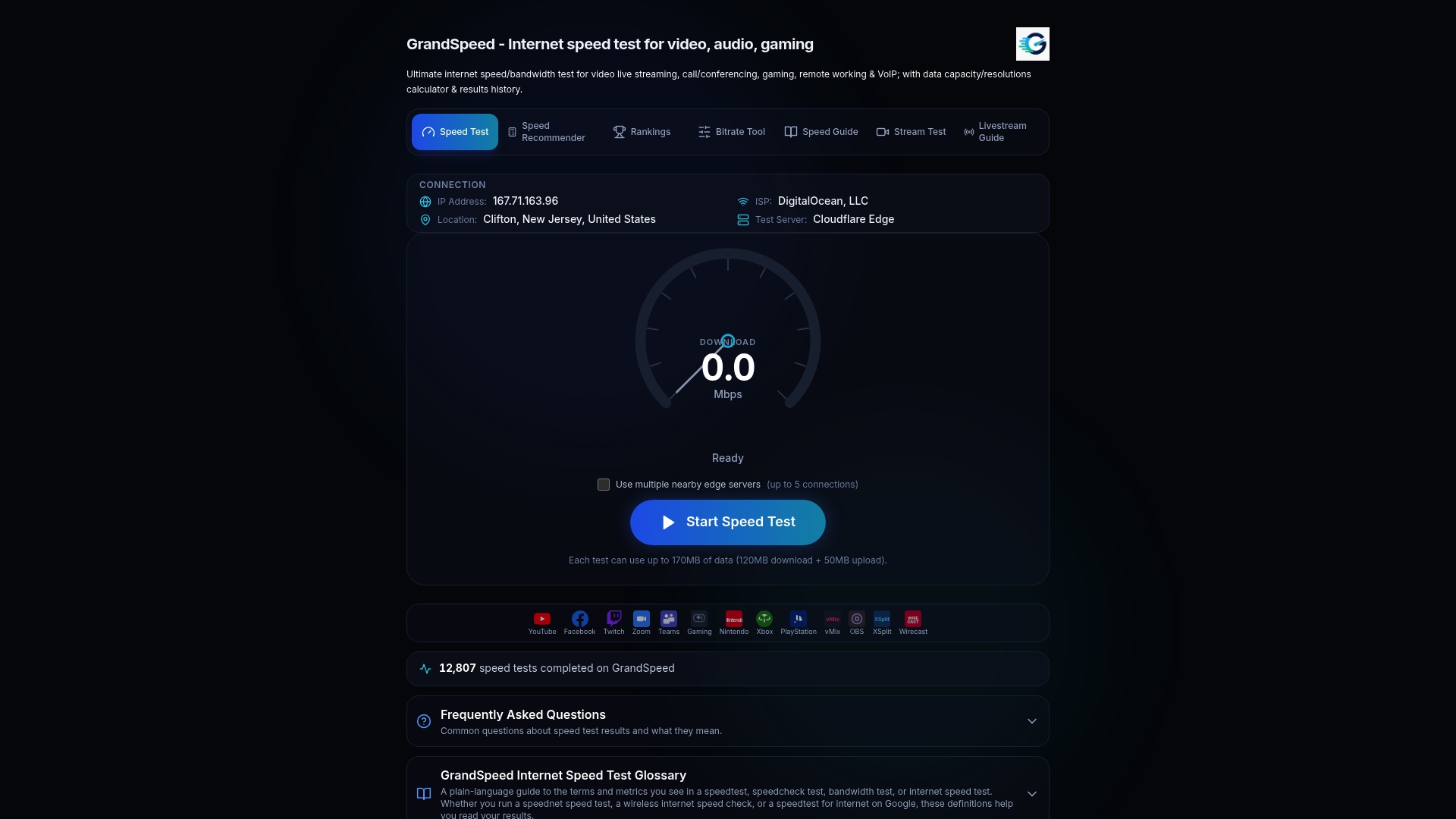
Run the speed test, check the Video Streaming Quality Test, and then plug the result into the video bitrate planner. The tools are free to use, and your test history lets you compare Wi-Fi and cable or morning and evening before the broadcast that counts.
A pre-stream checklist
- Test upload, jitter and packet loss from the streaming device, wired if you can.
- Choose 720p30 or 1080p30 unless you truly need 60 fps.
- Set CBR, H.264, keyframe 2 seconds, AAC 128 kbps.
- Pick a bitrate inside Meta's range that leaves 1.5 to 2 times headroom.
- Paste a fresh stream key for this session.
- Go live privately for a few minutes and watch stream health and dropped frames.
- Keep a fallback ready: a lower bitrate preset you can switch to without restarting.
Because platform requirements evolve, recheck Meta's live video specifications now and then, especially if a stream that used to work starts showing warnings. For a broader view of network needs, our guide to the best internet for streaming and our livestreaming guide go deeper.
FAQ
What is the best bitrate for Facebook Live?
For most streams, 4,500 kbps at 1080p and 30 fps, or 3,000 to 3,500 kbps at 720p and 30 fps. Both sit inside Meta's recommended ranges. Choose the higher end only if your tested upload speed has 1.5 to 2 times headroom over the total bitrate.
What bitrate should I use for Facebook Live 1080p?
Meta recommends 3,000 to 6,000 kbps for 1080p at 30 fps and 4,500 to 9,000 kbps for 1080p at 60 fps. Use H.264 (Level 4.1 for 30 fps, 4.2 for 60 fps), CBR and a 2-second keyframe interval. If you are unsure, start at the lower-middle of the range.
What bitrate should I use for Facebook Live 720p?
For 720p at 30 fps, a practical range is 1,500 to 4,000 kbps. For 720p at 60 fps, Meta lists 2,250 to 6,000 kbps. 720p is the better choice when your upload is under about 8 Mbps or when viewers are mostly on phones.
Why is my Facebook Live low quality?
The most common causes are a bitrate too low for the resolution, a keyframe interval that is not 2 seconds, VBR instead of CBR, or an upload connection that cannot sustain your bitrate. Test upload, jitter and packet loss, then adjust one setting at a time. Dropping to 720p30 often fixes it immediately.
Can I stream above Facebook's maximum bitrate?
You can try, but it is not recommended. Meta's ranges exist to keep streams compatible and stable, and going over can cause buffering or quality warnings. You are better off staying inside the range and improving the encoder and network setup.
Sources
- Specifications for Live Video on Facebook, Meta Business Help Center
- Facebook Live settings: bitrate and resolution ranges, MyStreamSetup
- Facebook Live Settings: Bitrate, Resolution and Keyframes, StreamHouse
- Why is my Facebook Multistream platform experiencing buffering issues, 5centsCDN
- Live no Facebook pelo OBS Studio, JMVStream
- What is a Good Upload Speed for Live Streaming, Streamlabs
- Facebook Live Blurry? Speedify
- As melhores definições de estúdio OBS, Dacast
- Streaming Solo to Facebook From OBS Studio