
Jitter is the variation in how long data packets take to reach you. It is not how slow your connection is. It is how uneven the delay is from one packet to the next. MDN's glossary calls it packet delay variation. A steady 50 ms delay produces almost no jitter. A delay that swings between 20 ms and 120 ms produces a lot, and that is what makes calls choppy, games stutter and live streams hiccup.
If you want to see your own number now, run a speed test that reports jitter and then come back to read what it means.
TL;DR
- Jitter is the change in delay between packets, measured in milliseconds. Latency (ping) is the delay itself.
- Under about 30 ms is the commonly cited target for voice and video calls. Above 40 to 50 ms, call quality usually suffers.
- The usual causes are congestion, bufferbloat, Wi-Fi interference, weak equipment and badly set QoS.
- A wired connection, a router with smart queue management and less competing traffic fix most home cases.
- Test during the problem, not at 3 a.m. Jitter often shows up only when the network is busy.
Table of Contents
- What jitter means on an internet connection
- Jitter vs latency vs ping
- What is a good jitter number?
- What causes jitter
- How jitter affects what you do
- How to test your jitter
- How to reduce jitter
- Perspective
- Test your connection for jitter
- FAQ
- Sources
What jitter means on an internet connection
Every piece of data you send or receive is chopped into packets. Each packet takes a certain time to cross the network. Ideally they arrive evenly spaced, like cars on an empty highway at a steady speed. In practice some are held in a queue, some take a different route, and the spacing becomes irregular.
Cisco's guide to jitter in packet voice networks describes it as the variation in the delay of received packets: a steady stream at the sender becomes lumpy at the receiver. That "lumpiness" is the plain-language meaning of jitter.
You may also see it called packet delay variation, delay variation or, in Ethernet standards, frame delay variation. For everyday internet use they mean the same thing: how inconsistent the timing is.
Why it matters more for live traffic
A file download does not care if packet 40 arrives a little later than packet 39. The software reassembles the file and you only notice the total time. A phone call, a multiplayer game or a live video feed is different: the data is used the moment it arrives. If a voice packet shows up late, the audio has already moved on, and you hear a gap, a robotic glitch or a dropped word.
That is why a connection can pass a basic speed test with flying colors and still feel broken on a video call. Speed tells you how much data fits through per second. Jitter tells you how reliably the timing holds.
Jitter vs latency vs ping
These three terms get mixed up constantly, so here is the clean split.
- Latency is the time it takes data to travel across a network. AWS defines it as the delay in transfer, and describes jitter as the variation of that delay over time.
- Ping is the common test for measuring latency. It sends a small message to a server and times the round trip. Gamers use "ping" and "latency" almost interchangeably.
- Jitter is how much those latency readings change from one packet to the next.
| Measure | What it tells you | Typical unit | Example |
|---|---|---|---|
| Latency / ping | How long a packet takes | ms | 40 ms round trip |
| Jitter | How much that time varies | ms | 4 ms of variation |
| Packet loss | How many packets never arrive | % | 0.5% lost |
| Bandwidth | How much data per second fits | Mbps | 300 Mbps down |
So "jitter vs ping" is not a contest. Ping is the average delay, jitter is the instability. You can have low ping and high jitter (fast but erratic) or high ping and low jitter (slow but steady). Satellite links are the classic example of the second case: the delay is long, but if it is consistent, calls can be workable.
A worked example
Say five consecutive pings come back at 20, 22, 21, 60 and 20 ms. The average is 28.6 ms, which looks fine. But the gaps between neighboring readings are 2, 1, 39 and 40 ms, so the average change is 20.5 ms. That is high jitter hiding behind an acceptable ping. One spike like the 60 ms reading is a lost word in a call or a rubber-banding moment in a shooter.

Different tools calculate jitter slightly differently (some average the gaps between consecutive packets, some smooth the value over time), so compare numbers from the same tool rather than across tools. Our guide to what jitter numbers in speed tests mean explains the readings you will see.
What is a good jitter number?
There is no single legal threshold, but the vendors and carriers that publish guidance land in the same neighborhood.
- Under 30 ms: the usual target. Cisco's Meraki documentation cites Cisco's QoS design guidance of 30 ms or less for voice, along with one-way delay of 150 ms or less and packet loss of 1% or less.
- Above 40 ms: the same Meraki page says jitter in excess of 40 ms can cause severe degradation in call quality.
- 30 to 50 ms: Virgin Media O2's glossary says users start noticing problems in real-time activities in this band, and that anything above 50 ms is generally considered bad.
Acceptable jitter by activity
Zoom's blog gives application-specific thresholds that are a handy rule of thumb:
| Activity | Target jitter |
|---|---|
| VoIP calls | Under 30 ms |
| Video calls | Under 30 to 50 ms |
| Streaming media | Under 100 ms |
| General data transfer | Under 100 ms |
Vonage's support documentation agrees that voice jitter should not exceed 30 ms for the highest quality.
For online gaming, no single number is universal because it depends on the game and its netcode. As a practical goal, aim for the same under-30 ms range, and lower is better in fast competitive titles.

Why Netflix tolerates more than a phone call
On-demand video is mostly one-way, and the player can fill a large buffer ahead of what you are watching. How-To Geek notes that services like Netflix or Disney+ are less affected for exactly this reason. Two-way, real-time traffic like calls and games has no such cushion, and a live stream you are sending is closer to a call than to watching a movie.
What causes jitter
Jitter is not one fault. It is a symptom of packets being treated unevenly somewhere along the path. Auvik lists the core culprits as congestion and bottlenecks, faulty or worn network equipment, wireless interference and improper QoS settings that delay latency-sensitive packets. Cisco's voice guide similarly points to congestion at router interfaces or in a carrier network.
Here is how those show up at home.
Congestion on your own line
The most common cause. Someone uploads a big video, a console downloads a 60 GB update, a cloud backup kicks in, and your call packets queue behind all of it. The delay of each packet depends on how full the queue happens to be at that moment, which is jitter by definition.
Bufferbloat
Routers and modems hold packets in buffers when a link is saturated. When those buffers are oversized, packets sit in line for hundreds of milliseconds, and the delay swings as the queue fills and drains. If your ping jumps from 20 ms to several hundred whenever the connection is loaded, bufferbloat is the likely cause. Our 20-minute bufferbloat fix walks through testing for it and enabling smart queue management on your router.
Wi-Fi interference and weak signal
Wi-Fi is shared airtime. Neighbors' networks, microwave ovens, thick walls and distance all force retransmissions, and each retransmission adds uneven delay. This is why a laptop on Wi-Fi in the far bedroom can show far more jitter than a desktop plugged into the router.
Old or overloaded equipment
Budget routers with weak processors struggle when many devices and fast speeds hit them at once. Packets get processed unevenly. Worn or low-grade switches can do the same.
Poor QoS configuration
Quality of Service rules are meant to let voice and game packets jump the queue. Set wrong, they can do the opposite, or delay the very traffic you meant to protect. Our guide on router QoS for gaming covers sensible settings, and QoS for streaming does the same for streamers.
Problems beyond your home
Sometimes the fault is the ISP's network, a congested peering point or a distant server. The tell is that jitter stays high on a wired connection with nothing else running, and that it is worse at certain hours, typically evenings.
How jitter affects what you do
- Voice and video calls: clipped words, robotic voices, frozen faces, people talking over each other. Apps compensate with a jitter buffer, but buffering adds delay, so very high jitter turns into noticeable lag.
- Online gaming: rubber-banding, hits that do not register, characters that teleport. The pattern is erratic rather than consistently laggy.
- Live streaming: dropped frames in OBS, a stream that stutters for viewers, or a platform warning that the connection is unstable. If you broadcast, our livestream upload monitor tracks upload stability over time instead of giving you one snapshot.
- Watching video: rarely a problem, thanks to buffering.
How to test your jitter
A single test can mislead, so use a method.
- Test on a wired connection first. Plug a computer into the router with Ethernet. This gives you a baseline without Wi-Fi in the picture.
- Run a test that reports jitter. A plain download/upload test will not. Use a tool that also shows latency, jitter, packet loss and bufferbloat, such as the GrandSpeed speed test.
- Repeat at the time the problem happens. If calls break up at 8 p.m., test at 8 p.m. Jitter that appears only under load points at congestion or bufferbloat.
- Repeat on Wi-Fi. Compare in the room where you actually work or play. A big gap between wired and wireless numbers points at Wi-Fi.
- Pause everything else. Then test again with a big upload running on purpose. If jitter jumps, your queueing needs fixing.
- Keep a record. Saved results over days show whether the problem is constant or tied to certain hours, which is exactly what an ISP support agent will ask.
How to reduce jitter
Start with the cheap fixes and work down.
- Use Ethernet for the device that matters (work PC, console, streaming rig).
- Reduce competing traffic during calls, games and streams: pause cloud backups and big updates, or schedule them overnight.
- Enable smart queue management (SQM) if your router supports it, such as CAKE or fq_codel, and set it slightly below your real line speed so your router, not the modem, controls the queue.
- Improve Wi-Fi: move closer, pick a less crowded channel, use the 5 GHz or 6 GHz band, or add a mesh node.
- Set QoS carefully so voice and game traffic get priority.
- Restart and update the router and modem, and replace gear that struggles under load.
- Talk to your ISP with your test history if jitter stays high on a wired connection with nothing else running.
Vonage's guidance lines up with this list: wired connections, more bandwidth, QoS for voice traffic, jitter buffers and a stable ISP. On the application side, MDN explains that WebRTC-style apps use a jitter buffer that stores packets briefly and releases them at a steady rate, which is why your calls often survive small amounts of jitter without you noticing.
For a longer walkthrough, see how to reduce jitter at home and work. If your trouble is specifically phone calls, five quick VoIP jitter fixes is the shorter route.
Perspective
Most people judge their internet by one number: megabits per second. We think that is why so many people with fast plans still have bad calls and laggy games. Speed is capacity. Jitter, latency, packet loss and bufferbloat describe quality, and real-time use depends on quality.
That is the reason we built GrandSpeed to report jitter, packet loss, bufferbloat and DNS time alongside download and upload speed, and to translate the results into what you actually do: streaming, conferencing, gaming, VoIP or broadcasting. A number only helps when it answers a question like "can I stream at 1080p without drops?"
Our advice is to test the way you use the connection. Run it at the busy hour, on the device you use, and keep the history. Patterns are far more convincing, and far more fixable, than a single reading.
Peter D
Test your connection for jitter
GrandSpeed measures download and upload speed together with latency, jitter, packet loss, bufferbloat and DNS resolution time, in any modern browser on a phone, tablet or laptop, over Wi-Fi or cellular. Results are saved to a history so you can see whether jitter changes through the day.
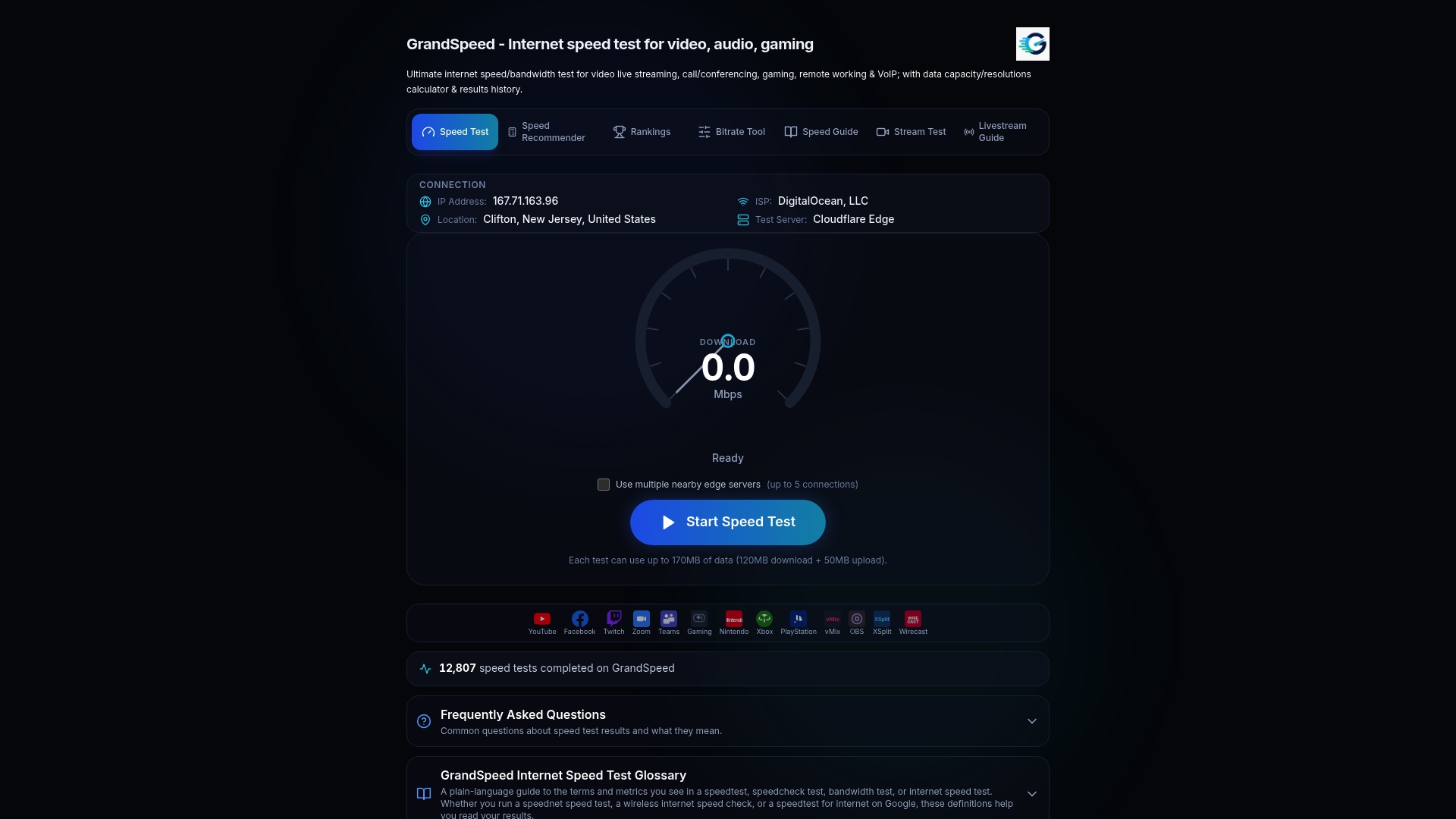
Start with the GrandSpeed speed test. If you stream, the Video Streaming Quality Test shows what your connection supports, and the Internet/ISP Speed Recommender helps you judge whether your plan fits your use.
FAQ
Is 10 ms of jitter good?
Yes. Under 10 ms is excellent, and anything under about 30 ms is the commonly cited target for voice and video calls, as in the guidance from Cisco Meraki. At 10 ms you should not notice it in calls or games.
Is jitter the same as ping?
No. Ping measures how long a packet takes to make a round trip. Jitter measures how much that time changes between packets. You can have a low ping and still suffer from high jitter, which is why both numbers are worth checking.
Can jitter be zero?
In practice, not on the internet. Some variation always exists as packets share links with other traffic. The aim is to keep it low enough that apps never notice, which for most calls and games means staying below roughly 30 ms.
Does a faster internet plan fix jitter?
Only if congestion on your own line is the cause, for example when a household regularly maxes out the plan. When the cause is bufferbloat, Wi-Fi interference or an overloaded router, extra speed does little, and queue management or Ethernet works better. Our Internet/ISP Speed Recommender can help you size a plan to your use.
Why is my jitter high only at night?
Evening is when households and neighborhoods use the most bandwidth, so shared links and your own router queue are busiest. If wired jitter is fine in the morning and poor in the evening, save the results and send them to your ISP.
Sources
- Jitter - Glossary | MDN
- Understanding Jitter in Packet Voice Networks | Cisco
- What is Latency? | AWS
- What is Jitter? | Cisco Meraki documentation
- What is Jitter and How Much is too Much? | Virgin Media O2
- What is jitter on a speed test and how do you fix it? | Zoom
- How Does Jitter Impact Voice Calls | Vonage API Support
- What Is Jitter, and How Does It Affect Your Internet | How-To Geek
- Jitter vs Latency: What's Killing Your Network Performance? | Auvik