

If your VoIP jitter runs under 20 to 30 milliseconds one way, your call quality is almost certainly fine and the problem lies elsewhere. Above that range, jitter starts degrading audio, and you need to run a wired test with a jitter-capable tool, then check RTCP jitter and packet loss side by side before touching any hardware.
TL;DR:
- VoIP jitter under 20 milliseconds is ideal, but anything above 30 milliseconds often causes noticeable call quality issues and requires targeted troubleshooting.
- Common causes of jitter include network congestion, Wi-Fi contention, routing inconsistency, and overloaded hardware, with wired Ethernet and QoS improvements providing effective fixes.
- Testing should involve measuring jitter, packet loss, and latency during peak hours, using tools like Wireshark and speed tests that match RTP traffic characteristics.
- Jitter becomes problematic mainly when steady above 40 milliseconds, with 80 to 150 milliseconds causing regular artifacts, and over 150 milliseconds making calls nearly unusable.
- Persistent jitter issues on wired connections point to network problems, while device-specific spikes suggest endpoint or server overloads; evidence collection and trend monitoring are crucial for resolution.
Table of Contents
- What Is VoIP Jitter and How Does It Differ From Latency?
- What Is an Acceptable Jitter Level for VoIP?
- How Do You Measure and Test for Jitter?
- What Causes Jitter on a VoIP Network?
- What Fixes Actually Reduce VoIP Jitter?
- How Should You Monitor Jitter Over Time?
- How Grandspeed's Tests Help Diagnose Jitter Issues
- When Does Jitter Point to the Network vs. the Endpoint?
- Run a Jitter Test Before You Call Your ISP
- Sources
- FAQ
What Is VoIP Jitter and How Does It Differ From Latency?
Jitter is the variation in how long packets take to arrive, not the delay itself. Engineers call this interarrival jitter, or IPDV (IP packet delay variation), and it's what Real-time Transport Protocol (RTP) timestamps are built to expose. If packet one arrives 20 milliseconds after it was sent and packet two arrives 45 milliseconds after, that 25 millisecond swing is jitter. It doesn't matter that both packets technically made it.
Every VoIP endpoint uses a jitter buffer, sometimes called a playout buffer, to smooth this out. The buffer holds incoming packets briefly and releases them at a steady pace, converting uneven arrivals into a consistent stream your ear can process. A deeper buffer absorbs more variation, but it also adds delay, since packets sit longer before playback. Push the buffer too deep, and you trade jitter problems for latency problems. Set it too shallow, and packets that arrive late get discarded, which sounds identical to packet loss even though nothing was actually dropped on the wire.
That distinction matters for diagnosis. Latency is a steady, predictable delay, like a half-second satellite lag, and it makes conversation feel sluggish but not broken. Packet loss means data never arrived at all, which produces gaps, robotic artifacts, or dropped syllables. Jitter, meanwhile, causes choppy, warbled audio, echo-like effects, or words that seem to stutter, even when total throughput looks healthy on a basic speed check.
What Is an Acceptable Jitter Level for VoIP?
Most VoIP engineering guidance treats jitter under 20 milliseconds as comfortable and under 30 milliseconds as generally acceptable for business VoIP. Once you cross into a moderate millisecond range, callers usually notice choppiness or occasional warble, and above a high millisecond range, calls tend to become genuinely hard to use.
These aren't arbitrary numbers. The ITU-T G.114 recommendation puts one-way latency under 150 milliseconds as the outer limit for acceptable voice quality, and jitter eats into that same budget since your jitter buffer adds delay to compensate. Industry guidelines like Austelco's G634 specification treat IPDV objectives around 50 milliseconds as a formal performance target for certain service classes, with tighter figures expected on the access link itself.
A rough field reference looks like this:
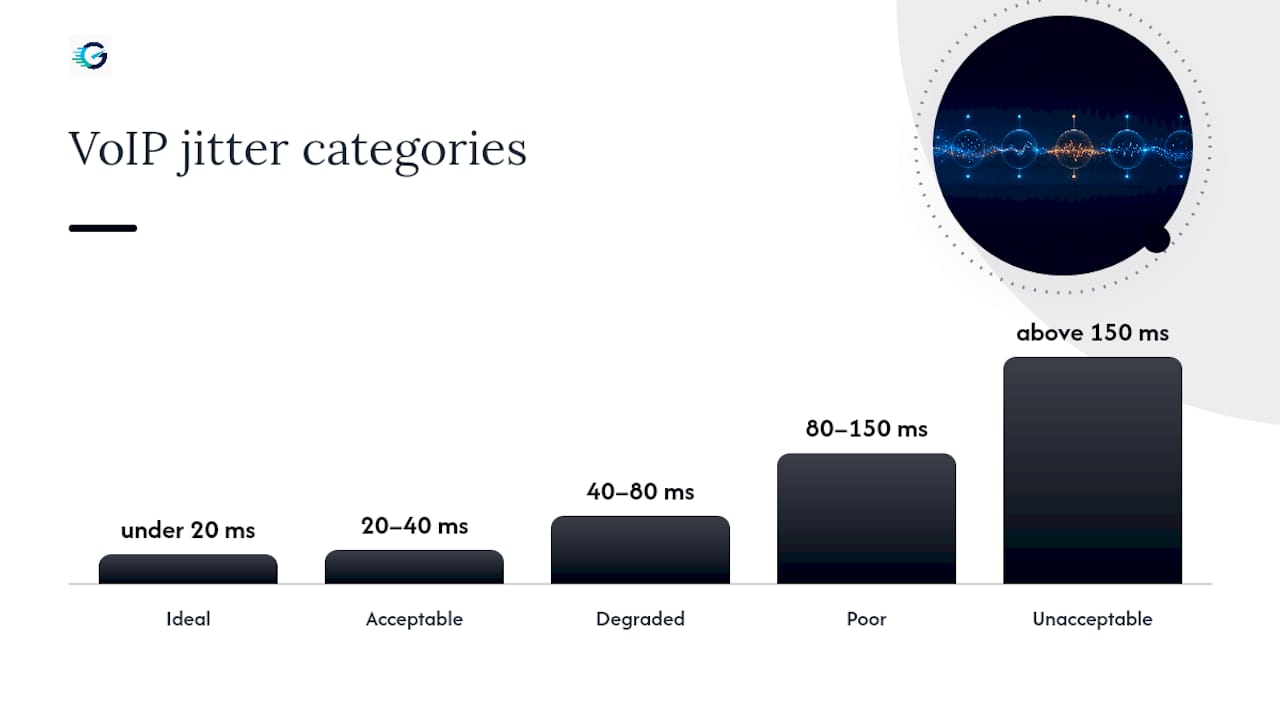
- Ideal: under 20 ms, no audible impact
- Acceptable: 20 to 40 ms, most callers won't notice
- Degraded: 40 to 80 ms, intermittent choppiness likely
- Poor: 80 to 150 ms, regular audio artifacts
- Unacceptable: above 150 ms, calls become difficult to sustain
Treat these as engineering design targets rather than hard legal standards. Real networks vary, and validating performance under actual peak-hour load matters more than chasing a number in isolation.
How Do You Measure and Test for Jitter?
Three metrics matter together, not in isolation: RTCP interarrival jitter, packet loss percentage, and one-way latency (roughly half your round-trip ping, though asymmetric routes can skew that). Looking at jitter alone without packet loss context is how teams misdiagnose a congestion problem as a jitter problem.
Pro Tip: Round-trip time from a ping test isn't one-way latency. Divide by two as a starting estimate, but remember that upload and download paths on asymmetric connections rarely split evenly.
Here's a repeatable test sequence worth running before you escalate anything:
- Capture a baseline on a wired Ethernet connection during a quiet period, then repeat during your busiest call hours.
- Run the same test over Wi-Fi to isolate whether the wireless link itself is the variable.
- Use Wireshark's RTP stream analysis to plot per-packet jitter and spot whether you're looking at a sustained problem or occasional spikes.
- Pull RTCP receiver reports directly from your PBX or session border controller, since these give you the jitter value the endpoint itself calculated in real time.
- Run a browser-based check like GrandSpeed's speed test alongside your RTP capture to confirm the network-level numbers match what your phones are reporting.
- Save timestamped logs and packet captures (PCAPs) from every run, especially the ones that show a problem, since this is exactly what an ISP will ask for.
Run each test for at least several minutes rather than a few seconds. Jitter that shows up as a brief spike during a 10-second sample can look completely different across a 5-minute capture that includes a network burst or a Wi-Fi retransmission storm. AT&T's guidance on VoIP capacity planning notes that a rough starting figure of 100 kbps per call is a reasonable bandwidth baseline, but that raw speed numbers tell you far less than jitter, latency, and loss measured together.
What Causes Jitter on a VoIP Network?
Jitter almost always traces back to something introducing inconsistent delay somewhere along the path, and the usual suspects fall into a handful of categories:
- Congestion and queuing: an oversaturated uplink, a provider's committed information rate (CIR) getting exceeded, or traffic shaping that doesn't prioritize real-time media.
- Wi-Fi contention: channel overlap, legacy 2.4 GHz interference from microwaves and neighboring networks, and retransmissions that reorder packet arrival timing.
- Routing inconsistency: equal-cost multi-path (ECMP) routing that sends packets down different paths with different delay characteristics, so they arrive out of the smooth cadence they left in.
- Deep packet inspection and firewall load: security appliances that add variable processing time per packet, especially under CPU load.
- Overloaded PBX or media servers: a session border controller or softswitch under heavy CPU load can introduce jitter on the send side before packets even leave your network.
- Asymmetric broadband links: upload saturation from backups, video calls, or cloud syncs eating into the thin upload pipe most consumer-grade connections provide.
Business networks running without any quality of service (QoS) configuration and relying on Wi-Fi for phones are consistently flagged as the two highest-impact causes of degraded VoIP call quality. If you're troubleshooting blind, start there before assuming it's an ISP problem.
What Fixes Actually Reduce VoIP Jitter?
Fixes split cleanly into what you can do this afternoon and what requires a change order. Start with the cheap wins.
- Move phones to wired Ethernet. This eliminates Wi-Fi contention entirely and is usually the single highest-impact change available.
- Schedule bandwidth-heavy tasks off-hours. Backups, large file syncs, and software updates competing for upload capacity during business hours are a common, invisible cause of afternoon call quality complaints.
- Cap nonessential uploads at the router level so a single device can't saturate the link during a call.
- Enable QoS with DSCP EF (46) marking on RTP traffic so your router and switches treat voice packets as priority, not best-effort.
- Configure low-latency queuing (LLQ) on your router or firewall to guarantee voice traffic gets processed ahead of bulk data.
- Create a dedicated voice VLAN to separate phone traffic from general office data at the switch level.
- Tune your jitter buffer. Adaptive buffers that adjust dynamically usually outperform fixed buffers, since they absorb short spikes without permanently adding delay when the network is clean. A mix of adaptive buffering and QoS tends to outperform either approach alone.
- Adjust codec packetization time (ptime). Doubling ptime from 20 to 40 milliseconds roughly halves the packet rate per call, which can reduce jitter sensitivity at the cost of a small latency increase.
- Upgrade to 5 GHz Wi-Fi and enterprise-grade access points if wired connections aren't feasible everywhere, since consumer routers handle simultaneous voice streams poorly under load.
- Consider SIP trunking with direct peering, MPLS, or SD-WAN for sites where call quality is business-critical and public internet variability isn't acceptable.
Pro Tip: Before blaming your ISP, run the exact same test on a wired connection during your worst reported call window. If wired is clean and Wi-Fi is noisy, you have a wireless design problem, not a carrier problem, and no amount of ISP escalation will fix it.
If you've worked through QoS, wired connections, and buffer tuning and jitter is still elevated, escalate with timestamped test logs, PCAP captures, and RTCP jitter reports in hand. Vague complaints about "choppy calls" get deprioritized; a packet capture showing 65 millisecond jitter spikes at 2 p.m. daily gets action. A weak upstream connection sometimes needs a genuine upgrade in business internet rather than another round of configuration changes.
How Should You Monitor Jitter Over Time?
One clean test doesn't prove your network is stable. Jitter tends to appear under load, so monitoring needs to happen during the hours that matter, not just whenever someone remembers to check.
- Run synthetic tests automatically during known peak call windows, not just once in the morning when the office is quiet.
- Track rolling averages rather than single data points, since one noisy 30-second sample shouldn't trigger a false alarm.
- Set alert thresholds around sustained jitter above 30 milliseconds or packet loss spikes above 1%, rather than reacting to isolated blips.
- Keep a runbook that specifies what to test first (wired vs. Wi-Fi), who gets notified, and where evidence gets stored.
- Compare trend plots week over week to catch slow degradation before users start complaining.
A runbook turns "the phones sound bad" into a five-minute diagnostic instead of a half-day investigation every time it happens.
How Grandspeed's Tests Help Diagnose Jitter Issues
An advanced internet speed test measures latency, jitter, packet loss, bufferbloat, and DNS resolution time in a single browser-based test, which maps directly onto the metrics this article recommends collecting for VoIP troubleshooting. Because the test runs in any modern browser across phone, tablet, or laptop, you can check the same connection over Wi-Fi and then again over a wired link without installing anything, exactly the wired-versus-wireless comparison that reveals whether a problem is network-wide or Wi-Fi specific.
A test history feature can let you compare a result captured during a quiet morning against one from a congested afternoon, which is precisely the peak-versus-idle contrast that separates a real network fault from a one-off fluke. Some stream-specific testing tools also estimate the maximum resolution a connection supports for live or broadcast video, giving you a secondary read on real-time performance under similar packet timing pressure to VoIP traffic.
Run a test, save the result, and export it as evidence for an ISP ticket instead of describing the problem from memory.
When Does Jitter Point to the Network vs. the Endpoint?
Consistent jitter across multiple wired endpoints usually means a network path problem, congestion, routing, or an ISP link issue. Jitter isolated to one device, or spikes tied to PBX CPU load, points to the endpoint or server side instead. Split your evidence accordingly: hand the ISP wired test results showing the same fault on separate devices, and keep single-device anomalies for your own internal server or application review.
— Peter D
Run a Jitter Test Before You Call Your ISP
There are other ways to check your connection, from carrier-provided diagnostics to standalone ping utilities, but most give you one number and leave you guessing about the rest. Grandspeed is built for exactly the situation this article describes: it reports latency, jitter, packet loss, and bufferbloat in one pass, so you get the full picture instead of a single metric that doesn't explain what's actually happening on your line.

Run the Grandspeed speed test on a wired connection during your next reported problem window, then run it again on Wi-Fi to isolate the variable. If you want to test something closer to real-time streaming behavior, the Video Streaming Quality Test simulates continuous data flow and reports jitter and stability the way an RTP stream would experience it. Save both results to your test history, and attach them directly to your ISP escalation or internal ticket. That single step turns a vague complaint into evidence a network team can actually act on.
Sources
For measurement commands and buffer behavior, Cisco's jitter and packet delay variation engineering notes remain the clearest technical breakdown available. For formal performance objectives, the Austelco G634 guideline documents IPDV targets used across the industry. For troubleshooting walkthroughs and tactical fixes, SIPSymposium's jitter guide covers RTCP interpretation and QoS configuration in practical detail, and AT&T's bandwidth and capacity planning notes are useful for sizing links before problems start.
- VoIP jitter — Acceptable levels, causes & fix | SIPSymposium
- VoIP latency and jitter: acceptable limits | Phoner
- Bandwidth needed for VoIP | AT&T Business
FAQ
Is 30 Milliseconds of Jitter Bad for VoIP?
No, 30 milliseconds sits right at the edge of the generally acceptable range for business VoIP and most callers won't notice a quality issue at that level. Problems tend to show up once jitter climbs consistently above 40 to 80 milliseconds.
Is 2ms of Jitter Considered Bad?
No, 2 milliseconds of jitter is excellent and well below any threshold that would cause audible call quality problems. That level typically indicates a clean, well-managed network path with minimal congestion or routing variability.
What Causes Jitter in a VoIP Network and How Do You Fix It?
The most common causes are network congestion, missing QoS configuration, and Wi-Fi contention on the phone's connection. Moving phones to wired Ethernet and enabling DSCP EF marking to prioritize voice traffic resolves the majority of cases without requiring new hardware.
How Do You Fix Jitter Issues Step by Step?
Start by testing on wired Ethernet to rule out Wi-Fi, then check whether QoS is configured on your router and switches. If jitter persists after cabling and QoS changes, tune your jitter buffer settings and consider a dedicated voice VLAN before escalating to your ISP with packet captures as evidence.
How Much Bandwidth Does VoIP Actually Need?
A single VoIP call typically needs around 100 kbps including protocol overhead, though the exact figure depends on codec choice and packetization settings. Raw bandwidth matters less than consistent jitter and low packet loss, so a fast connection with poor QoS can still produce bad call quality.