
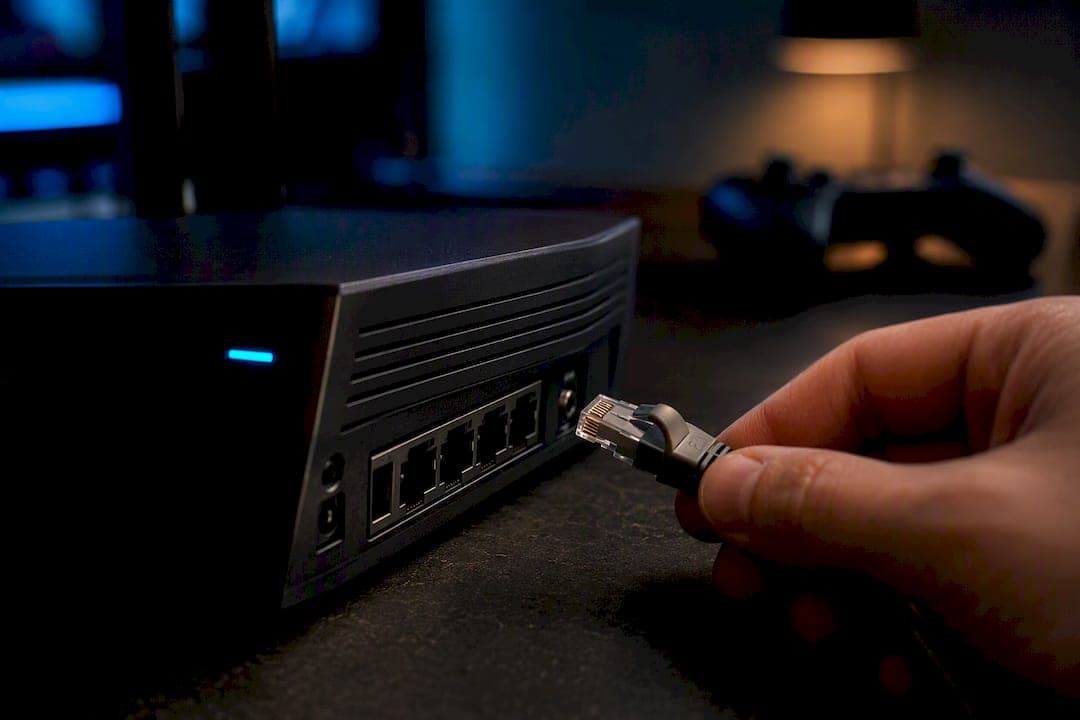
Yes, properly configured router QoS stops local bandwidth usage from spiking your game ping. When someone else on your network starts a big download or a 4K stream begins buffering, QoS holds a lane open for your game's small, time-sensitive packets. It cannot lower the base latency your ISP's routing gives you, and it does nothing for congestion that happens outside your house. Get the settings wrong (bad bandwidth caps, vague priority rules) and it does nothing at all.
TL;DR:
- QoS works best when set to prioritize device-based traffic for gaming and managed with CAKE or fq_codel queue disciplines; legacy QoS performs poorly.
- Accurate measurement of your real wired speeds and setting bandwidth caps at 90 to 95 percent of those speeds are crucial; incorrect caps or untested changes reduce effectiveness.
- Enabling WMM is essential for wireless devices, and static IP assignment ensures device priorities remain consistent across reboots.
- Bufferbloat caused by large router buffers is the main source of ping spikes; active queue management algorithms prevent this by dropping or delaying lower-priority traffic.
- If high ping persists under idle network conditions, the issue likely resides with your ISP routing, not your local QoS settings.
Table of Contents
- What Router QoS Does for Gaming: Queues, Bufferbloat, and Packet Priority
- Which QoS Type Actually Matters for Gaming
- How to Configure QoS Settings for Gaming
- When to Use Custom Firmware for QoS
- How Do You Verify QoS Is Actually Working?
- When QoS Can't Fix Your Ping (and What to Do Instead)
- Tune First, Buy Hardware Second
- Confirm Your QoS Setup With Grandspeed
- Sources
- FAQ
What Router QoS Does for Gaming: Queues, Bufferbloat, and Packet Priority
Quality of Service is just a scheduling rule for your router: which packets get sent first when the connection is busy. Netgear's own documentation describes it as a way to prioritize bandwidth for specific uses, and gaming is the textbook case for why that matters.
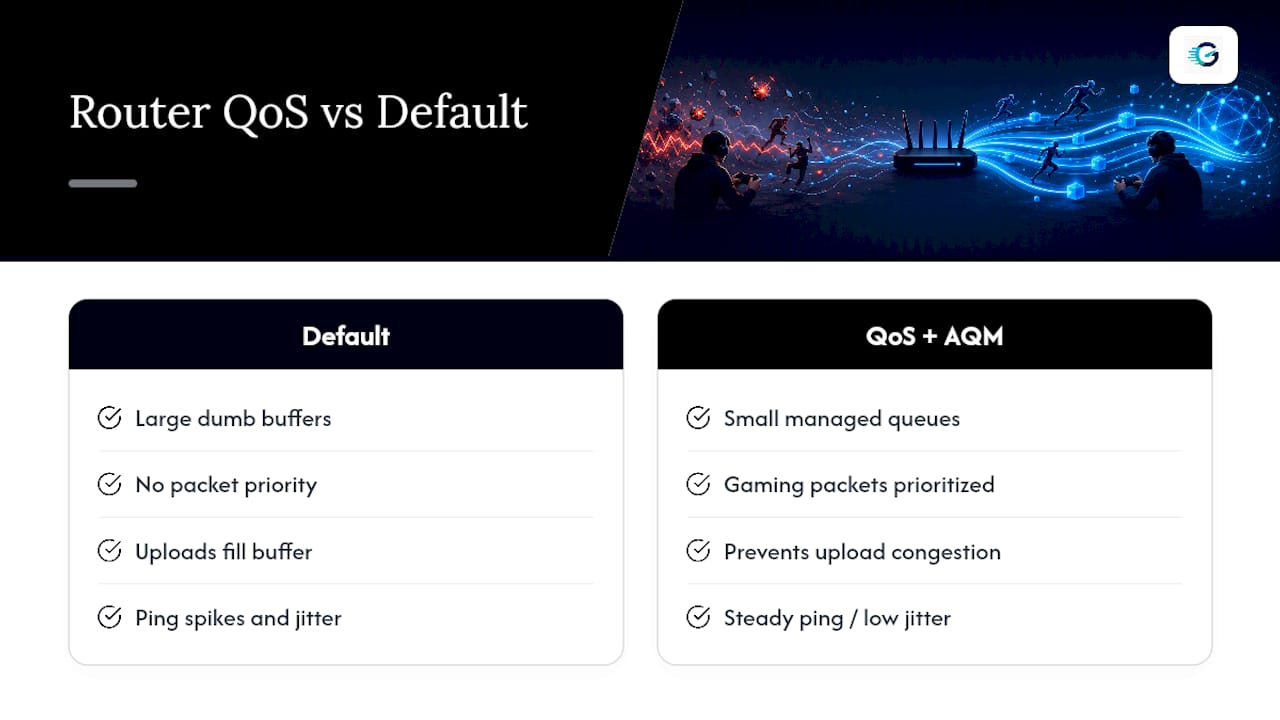
Here's the mechanic most people never learn: download speed is often not the main problem; upload speed and bufferbloat are usually the cause. Every game sends a steady trickle of small packets telling the server where you are, what you pressed, and when. Those packets are tiny, maybe 100 bytes, but they need to leave your router now. If someone in the house is uploading photos to a cloud backup, or your own PC is uploading game footage to a streaming platform, your router's upload buffer fills up. Your gaming packets sit in line behind a queue of much larger cloud sync packets. That queuing delay is what gamers feel as a ping spike or jitter, and networking engineers call the underlying issue bufferbloat.
Bufferbloat happens because most routers, by default, use large "dumb" buffers that try to avoid dropping any packet, even when that means holding packets for hundreds of milliseconds. A Lenovo's glossary explainer on gaming routers frames QoS plainly: it lets you push gaming traffic ahead of other activity so it is not stuck behind everything else.
Modern QoS doesn't just reorder packets, it manages the buffer itself. That's where CAKE (Common Applications Kept Enhanced) and fq_codel (Fair Queuing Controlled Delay) come in. These are active queue management algorithms that actively drop or delay lower-priority traffic before the buffer bloats, instead of letting everything pile up and hoping for the best. They're the difference between "QoS" as a marketing checkbox and QoS that actually keeps your ping steady under load.
Which QoS Type Actually Matters for Gaming
Not every QoS method delivers the same result, and the labels on router settings pages don't always tell you which one you're getting.
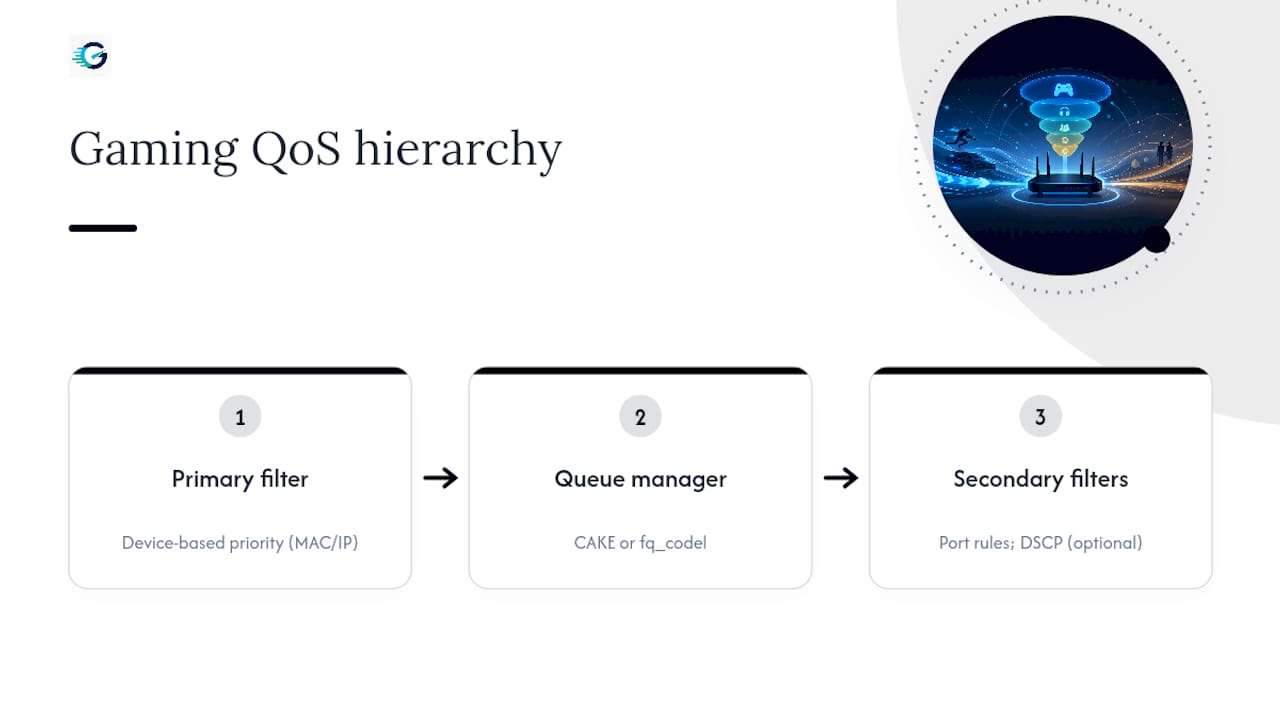
Device-based prioritization (by MAC address or static IP) is generally the most reliable option for gaming. You tell the router "this Xbox, this PC, this PlayStation gets priority," and it applies regardless of which game or app is running. Because many games use dynamic ports or don't mark their traffic with recognizable tags, device rules avoid the guessing game entirely.
Application or port-based rules work when you know the exact ports a game uses, but modern titles often shift ports between sessions or use encrypted, unmarked UDP traffic that looks generic to the router. These rules are a useful supplement, not a foundation.
DSCP (Differentiated Services Code Point) markings let an application flag its own packets as high priority. This works well in theory, but only if the app actually sets the marking and the router honors it consistently. In practice, DSCP alone is unreliable for gaming because so few consumer applications tag their traffic correctly.
Among the queue disciplines, CAKE is the modern favorite for home networks because it adds automatic host fairness (no single device can hog the queue) and compensates for link-layer overhead automatically, something older shapers required you to calculate by hand. fq_codel is CAKE's simpler ancestor and remains a solid alternative on routers or firmware builds that don't support CAKE. Both outperform "traditional" or legacy QoS, which typically just assigns fixed priority tiers without actively managing queue delay.
If you're picking one setup to trust, combine device-based priority for your gaming machine with CAKE or fq_codel as the underlying queue manager. Port rules and DSCP can ride along as secondary filters, but they shouldn't be your only line of defense.
How to Configure QoS Settings for Gaming
Follow this order. Skipping the measurement step is the single most common reason QoS setups fail to do anything noticeable.
- Measure your real wired speeds first. Connect a PC directly via Ethernet and run a Grandspeed to get accurate upload and download numbers, along with baseline jitter and packet loss. Wi-Fi results will lie to you here, so skip it for this step.
- Set your QoS bandwidth caps to 90 to 95 percent of measured speed. This is the number that matters most. Setting the cap too close to 100 percent leaves no headroom, and the router's own queue starts bloating before QoS ever gets a chance to intervene. On DSL or any noticeably congested connection, drop the cap to around 85 percent instead.
- Assign a static IP or DHCP reservation to your gaming device. This keeps device-based priority rules from breaking every time your router reassigns addresses.
- Create a priority rule for that device or IP, setting it to the highest tier your router's QoS interface allows.
- Enable WMM (Wi-Fi Multimedia) if the device is wireless. Most routers, including ASUS models with Adaptive QoS, require WMM to be on for any wireless prioritization to function at all.
- Add supplementary app or port rules for your specific games, and deliberately deprioritize known bandwidth hogs like cloud backups, torrent clients, and automatic game updates.
- Save the settings, reboot the router if it doesn't apply changes live, and move to testing.
A few pitfalls show up constantly in support forums and comment threads:
- Setting the bandwidth cap at 100 percent of measured speed, which defeats the entire purpose of the headroom.
- Prioritizing "gaming" as a generic app category instead of the actual device, which misses traffic the router doesn't recognize.
- Forgetting WMM on Wi-Fi, so wireless prioritization silently does nothing.
- Never retesting after changes, so a broken rule goes unnoticed for months.
Pro Tip: Test your device's actual measured speed, not the number on your ISP bill. Advertised speeds and real-world wired throughput are often different, sometimes by a wide margin, and that gap is exactly what breaks a QoS cap calculated from the wrong baseline.
When to Use Custom Firmware for QoS
Stock firmware handles most home setups fine, especially once device priority and WMM are configured correctly. Custom firmware earns its place when your router's built-in QoS is either missing active queue management entirely or caps out on older, less capable hardware.
OpenWrt with the luci-app-sqm package is the standard route for enabling CAKE or fq_codel on routers that don't ship with it. The setup is short:
- Install luci-app-sqm from the OpenWrt package manager.
- Select your WAN interface as the target.
- Set upload and download to roughly 90 percent of your measured speeds, mirroring the 90 to 95 percent guidance used for stock QoS.
- Choose cake as the queue discipline (fq_codel is the fallback if CAKE isn't listed).
- Apply and reboot.
Asuswrt-Merlin offers similar smart queue management on supported ASUS hardware without a full OpenWrt flash, which is worth checking before you commit to replacing firmware entirely.
One catch worth planning for: CAKE is more CPU-intensive than legacy QoS, and on budget or aging router chipsets it can become the bottleneck itself, especially past a few hundred megabits of throughput. Check your router's CPU usage under load after enabling it.
Pro Tip: If your router's CPU sits above 80 percent with CAKE running and your connection tops several hundred megabits, drop to fq_codel or accept a slightly lower bandwidth cap. A queue manager that's starving for CPU cycles will add latency instead of removing it.
How Do You Verify QoS Is Actually Working?
Skip this step and you're just trusting a settings page. Run a baseline test first: on a wired connection, check ping, jitter, and packet loss with nothing else active on the network. Then start a large upload or download on another device and rerun the same test while that load is running.
What you're watching for:
- Jitter should stay low and stable during the load test, not swing wildly.
- Packet loss should remain at or near zero.
- 95th-percentile ping under load should be close to your baseline, not spiking two or three times higher.
Repeat the test two or three times to confirm the result wasn't a fluke. Testing under simulated load is the actual verification step that separates a QoS setup that works from one that just looks configured.
For tools, a gaming-focused speed test tracks jitter, packet loss, and bufferbloat in one pass and keeps a history so you can compare before-and-after runs directly. jitter.is and command-line tools like iperf3 are useful for generating controlled load during the test itself. If your numbers hold steady under load across repeated tests, your QoS rules are doing their job.
When QoS Can't Fix Your Ping (and What to Do Instead)
QoS only controls what happens inside your home network. If your ping is high even with zero other devices active, the problem lives upstream, and no local setting fixes it.
Run a trace with PingPlotter or MTR to see where delay or packet loss actually appears. If it shows up several hops past your own gateway and stays consistent across tests, that's your ISP's routing or a congested hop somewhere in between, not your router.
From there, contact your ISP with the trace data in hand, try a gaming-focused VPN or private gaming network to route around a bad path, or simply switch to a closer game server or region if the option exists. Advanced fixes like BBR congestion control or custom routing only make sense if you control the server side or have a specific technical need. For most home gamers, they're overkill.
Tune First, Buy Hardware Second
Most ping complaints get solved with correct QoS configuration, not a new router. Spend an evening on the caps and priority rules before spending money. If testing shows your Wi-Fi coverage is the real weak point, or your CPU can't keep up with CAKE, that's when hardware upgrades earn their cost. Confirm every change with a real test, not a feeling that it "seems faster."
— Peter D
Confirm Your QoS Setup With Grandspeed
Grandspeed is the tool for the step every QoS guide skips: proving your settings actually worked. Instead of guessing whether that new priority rule helped, run a real measurement before and after, jitter, packet loss, and bufferbloat included, and let the platform's test history show you the difference side by side.

Start with a wired speed test to get the accurate upload and download numbers your 90 to 95 percent QoS caps depend on. If you also stream while gaming, the streaming quality test shows how much bandwidth that activity actually eats into, which matters when you're deciding what to deprioritize. Run both again after saving your router changes, under the same kind of load, and compare the jitter and packet-loss numbers against your baseline. If they hold steady, your QoS rules are doing their job. If they don't, you'll know exactly which setting to revisit instead of guessing.
Sources
- What is Quality of Service (QoS) on my NETGEAR router?
- Adaptive QoS Introduction and settings of QoS on ASUS Router
FAQ
Should QoS Be Enabled for Gaming?
Yes, in most home setups with more than one active device. QoS keeps other traffic, like streaming or cloud backups, from crowding out your game's small, latency-sensitive packets during busy periods.
Should I Turn QoS On or Off?
Turn it on if multiple people or devices share your connection, since that's when local congestion actually happens. If you live alone with one device online and rarely saturate your upload, the difference will be harder to notice, though it rarely hurts to leave it on with correct bandwidth caps.
Does QoS Reduce My Internet Speed?
No, not your overall speed. QoS reorders which packets go first during busy moments. It doesn't cap your connection below what you actually pay for, though setting the bandwidth limit at 90 to 95 percent of measured speed is intentional, that small margin is what prevents bufferbloat in the first place.
Should I Disable the QoS Packet Scheduler for Gaming?
Only if it's actively misconfigured and causing worse performance than having it off, which does happen with poorly implemented legacy QoS on older routers. A properly set device-based rule with an accurate bandwidth cap almost always helps rather than hurts; test with it on and off using the same load conditions to see the real difference for your setup.
What If QoS Doesn't Fix My Ping?
Check whether the high ping shows up on a trace even when your network is idle. If it does, the delay is coming from your ISP's routing rather than local congestion, and no QoS setting will resolve that. At that point, contacting your ISP or trying a different game server region is the more useful next step.