
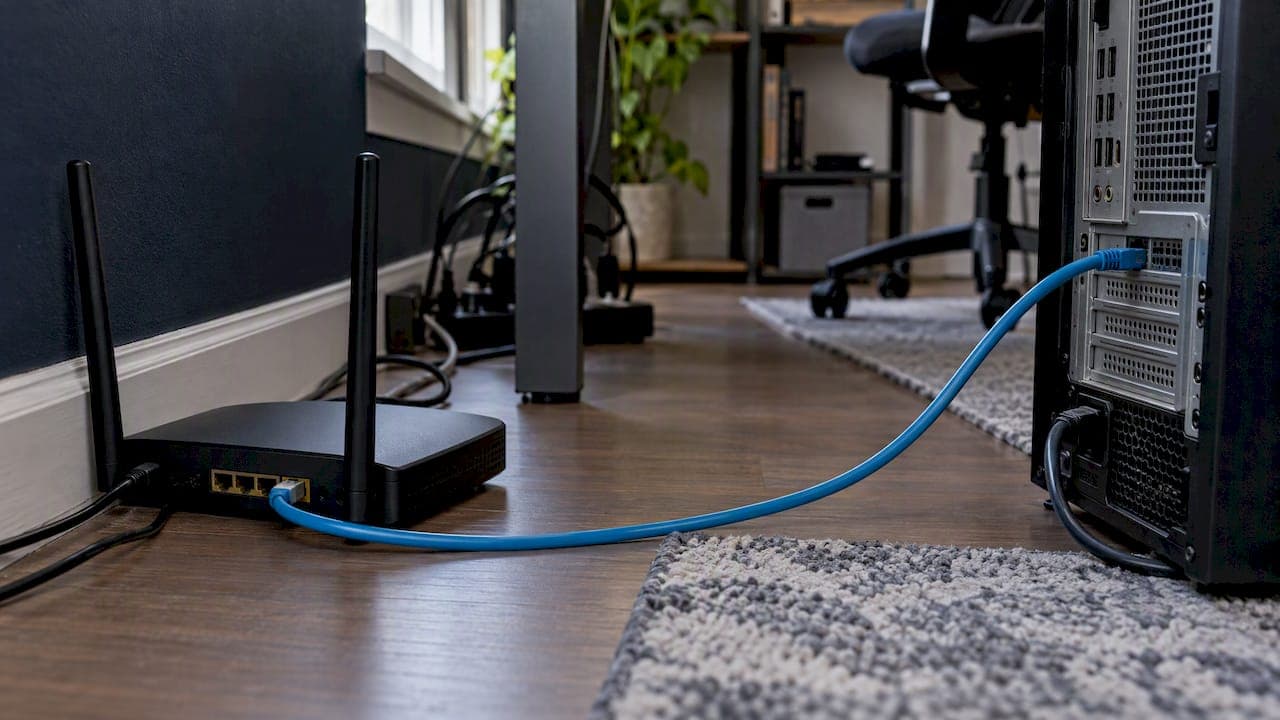
To reduce jitter, first measure it, then remove whatever makes your packets arrive unevenly. In most homes that means three things: get off weak Wi-Fi and onto Ethernet, stop other traffic from filling your connection's queue, and replace or reposition aging equipment. If those fail, the problem is usually upstream and your provider needs the evidence. This guide walks through that order, so you do not waste an evening changing settings that were never the problem.
TL;DR
- Jitter is the variation in how long packets take to arrive. Steady delay is easy for apps to handle. Uneven delay is what breaks calls, games and live streams.
- Run a test that reports jitter, latency, packet loss and bufferbloat, not just speed. Run the GrandSpeed speed test first, so you have a baseline.
- Fix in this order: Ethernet instead of Wi-Fi, then router placement and Wi-Fi band, then competing traffic and bufferbloat, then QoS, then old hardware.
- If a wired test still shows unstable results at different times of day, send your provider a log of when it happens.
Table of Contents
- What jitter is, and what counts as high
- What causes high jitter
- Step 1: Measure before you change anything
- Step 2: Use Ethernet where you can
- Step 3: Clean up your Wi-Fi
- Step 4: Stop competing traffic from creating jitter
- Step 5: Use QoS and smart queue settings carefully
- Fixes by use case
- Our perspective
- Check your connection with GrandSpeed
- When to contact your internet provider
- FAQ
- Sources
What jitter is, and what counts as high
Jitter is the technical shorthand for packet delay variation. RFC 5481, the IETF document on the subject, defines it that way and explains that real-time applications use de-jitter buffers to smooth out the variation. The buffer has to be big enough for the variation you expect, but a buffer that is too large adds delay and hurts conversation.

That tradeoff explains why jitter matters so much for some uses and barely at all for others. Streaming services such as Netflix typically use a large buffer, so a movie hides jitter well. A video call, a voice call, a multiplayer game or your own live broadcast cannot buffer seconds of data. They have almost no room to hide uneven delivery, so you hear robotic audio, see frozen faces or feel your character snap back.
If you want a number to aim for, there is no single universal one. Canada's regulator, the CRTC, set a 5 ms jitter threshold in 2019 to define high-quality fixed broadband. That is a regulatory benchmark for one country, not a rule for every app, but it is a useful yardstick. A reading of 2 ms on a wired connection is excellent by that measure. Single-digit milliseconds is a healthy target for a home connection. Readings that regularly climb well above that during calls or matches are worth chasing.
Two cautions about reading the number:
- One result proves little. Jitter moves with time of day and with what else is running. Test several times, including during the hours you actually have trouble.
- Jitter is not speed. A fast plan can still have high jitter. As The Conversation noted, broadband metrics focused on speed can encourage optimizing for speed over everything else. Paying for more megabits will not necessarily fix a jumpy connection. Our guide on why you may not get the speed you paid for covers that gap in more depth.
What causes high jitter
Knowing the likely cause saves you from trying every fix. The research points to a short list:
- Congestion. Cisco Meraki's documentation names congestion at a switch, router or firewall egress point as the most common cause of jitter. Packets queue up, and each waits a different amount of time.
- Excess buffering. RFC 8033 explains that oversized buffers can keep TCP throughput high while adding queuing latency and latency variation that degrade voice and real-time video. This is what people call bufferbloat.
- Wireless and routing factors. One network testing vendor's white paper lists media access delays, routing changes and firewall inspection among the causes.
- Hardware, software and peak hours. Google Fiber's troubleshooting guidance lists congestion, faulty hardware, poor device performance, software bugs, VPN limitations, peak usage, streaming traffic and the path to the destination. It notes that peak usage on its own network typically falls between 7 PM and 11 PM local time, which is exactly when most people play, stream and take evening calls.
Notice that most of these sit inside your home or office. That is good news: you can fix most of them yourself.
Step 1: Measure before you change anything
A baseline tells you whether a fix worked. Without one, you are guessing.
- Close everything heavy. Pause cloud backups, game downloads and other people's streams for the first test.
- Test on the device that has the problem. Open GrandSpeed in any modern browser on your phone, tablet or laptop. Note download and upload speed, latency, jitter, packet loss and bufferbloat.
- Test again under load. Start the thing that normally causes trouble, such as a video call in the next room or a large upload, and repeat. If jitter or latency jumps only under load, you are looking at congestion or bufferbloat, not a bad line.
- Test at your bad hour. If the problem shows up in the evening, test then. Keep the results. GrandSpeed keeps a history of your tests, so you can see patterns over days instead of relying on memory.
- Test on Wi-Fi, then on a cable. The difference between the two is the single most informative comparison you can make.
If you mainly use voice calls, our VoIP jitter quick-fix guide pairs well with this process.
Step 2: Use Ethernet where you can
The most common advice for a reason: a cable removes radio interference, walls and neighbors from the equation. The UK regulator Ofcom says an Ethernet cable connecting a computer directly to the router should give a faster, more reliable connection than Wi-Fi. Google Fiber's documentation agrees, saying a direct Ethernet connection is faster and more stable than Wi-Fi. It adds that the cable, adapter, router, switch and device must all support the speed you want. For its 8 Gig service it specifies Cat6A or greater.
For typical home plans you do not need anything exotic. A decent, undamaged Ethernet cable of reasonable length is enough. A few practical points:
- Plug the problem device in directly. Gaming console, streaming PC, work laptop. Leave phones and tablets on Wi-Fi.
- Check the cable. Kinked, crushed or very old cables are a common hidden culprit. Swap in a known good one before blaming the provider.
- Mind the other end. If the cable goes through a cheap unmanaged switch that is also feeding several busy devices, the switch can become the bottleneck Meraki describes.
- Keep cables tidy. Ofcom notes that extension leads can cause interference and that tangled or coiled cables can affect speeds.
If running a cable across the house is not realistic, a professional can install permanent cabling. For offices in the UK, firms offering business broadband and wired network setups handle the cabling and connectivity side together. For streamers weighing the tradeoff, our piece on when Ethernet beats Wi-Fi gives a simple headroom rule.
Step 3: Clean up your Wi-Fi
Sometimes a cable is not possible, and phones and laptops will always spend time on Wi-Fi. These changes help.
Move the router. Ofcom advises placing it on a table or shelf, away from electrical and wireless-emitting devices, with as few obstacles as possible between it and your computer. Inside a cabinet, behind the TV or on the floor are the usual bad spots.
Pick the right band. Google Fiber's router documentation explains the tradeoffs:
| Band | Strength | Weakness |
|---|---|---|
| 2.4 GHz | Reaches farthest | Less bandwidth, can mean buffering or inconsistent speeds |
| 5 GHz | Supports many devices | Shorter range |
| 6 GHz (compatible devices) | More bandwidth, less congestion | Smallest coverage area |
Source: Google Fiber router documentation. For a device in the same room or one room away, 5 GHz or 6 GHz is usually the steadier choice. Use 2.4 GHz only when range forces your hand.
Upgrade an old router. Ofcom suggests considering an upgrade if your router is older. Older models struggle with many simultaneous devices, which shows up as jitter before it shows up as slow speed. If your home is large, our router tests from 15 to 75 feet show how routers and mesh systems behave at distance. Also compare Wi-Fi against mobile data if you are unsure which is the culprit: Wi-Fi versus cellular latency explains why a single median number can mislead.
Step 4: Stop competing traffic from creating jitter
If your test looked fine when idle but jitter spiked under load, the fix is about managing what shares the connection.
- Pause the big jobs. Cloud backups, large downloads, game updates and 4K streams on other screens all fill the queue. Schedule them for off-hours.
- Disconnect unused devices. Ofcom's advice includes rebooting broadband devices and disconnecting unused ones before you escalate.
- Watch your uploads. Upload is usually the smaller side of a home connection, so a photo sync can wreck a video call. If your upload is unstable, see why upload speed fluctuates and why upload speed can be so slow.
- Check your VPN and software. Google Fiber lists VPN limitations and software bugs among causes of degraded performance. Disconnect the VPN for one test. If jitter drops, the VPN server or protocol is the issue. Update or restart apps and the operating system too.
If you do all this and bufferbloat still appears, that is where router-level controls come in.
Step 5: Use QoS and smart queue settings carefully
Quality of Service tells your router which traffic gets to go first. Several of the top-ranking pages for this topic call QoS the single most effective fix. The evidence supports it with a caveat: it helps most when the network is actually congested.
What the primary sources say:
- On a congested enterprise network, Google recommends assigning Meet traffic the Expedited Forward class at network edges for low delay and low jitter. The same page advises against using QoS for Meet unless there is a compelling reason, such as congestion, and you can maintain an end-to-end QoS model. In other words, markings that are not honored along the whole path add complexity without benefit.
- For wireless voice, Cisco's guide says QoS controls jitter and latency for real-time voice traffic and that RTP packets should carry proper QoS markings.
- At home, the setting can be simple. Google Nest Wi-Fi lets you prioritize one device at a time, giving it 70% of available bandwidth while the rest share what is left.
A practical approach for households: prioritize the one device that matters during your critical hours, such as the work laptop or the gaming PC. Then rerun the under-load test from Step 1. If jitter does not improve, undo the change rather than layering more rules on top.
For offices, sizing matters before prioritization. A free office bandwidth calculator helps estimate whether your link is simply undersized for the number of users, which no QoS rule can fix. For Microsoft Teams environments, our Teams bandwidth and QoS testing guide goes deeper.
Fixes by use case
Different activities fail in different ways, so prioritize accordingly.
Video calls and remote work
Calls need steady delivery more than raw speed. Wire your work machine, close background sync, and test during the hours of your meetings. If calls still stutter on a decent plan, our guides on why 5 Mbps can still get choppy and boosting video call productivity cover the details.
Gaming
Gamers feel jitter as rubber-banding and delayed hits. A cable to the console or PC is the biggest single win. Then check bufferbloat, since a roommate's upload can spike your ping even when your average latency looks great.
Livestreaming
A stream is the opposite of Netflix: your upload has to be smooth, live, for the whole broadcast. Jitter on the upload path causes dropped frames and encoder warnings in OBS, vMix, XSplit and Wirecast. Wire the streaming PC, leave headroom above your bitrate, and keep other uploads off the network. The GrandSpeed livestream monitor tracks upload stability while you broadcast, and the video bitrate planner helps you choose a bitrate your connection can hold. For deeper setups, see our livestreaming guide.
Watching video
If you only watch on-demand video, large buffers make jitter largely invisible. When a streaming service buffers, check speed and packet loss first, and use the video streaming quality test.
Our perspective
We built GrandSpeed because a single speed number hides most of what people actually experience. The question we hear most is some version of "my plan is fast, so why does my call freeze?" Almost always, the answer is in latency, jitter, packet loss or bufferbloat, not in megabits.
Here is what we would do in your position. Test on a cable first. If jitter is fine there, you have a Wi-Fi problem, and you should fix placement and band before spending money. If jitter is bad even on a cable, test again under load. If it only gets bad under load, the culprit is your own traffic and your router's queue, so QoS or a better router is the answer. If it is bad on a cable, when idle, at certain hours, the evidence points outward to your provider.
That last case is where good records matter. A provider can dismiss "my internet is bad", but it is harder to dismiss a history of tests with timestamps. Keep the history and use it.
— Peter D
Check your connection with GrandSpeed
GrandSpeed is a free browser-based test that goes beyond download and upload speed. It reports latency, jitter, packet loss, bufferbloat and DNS resolution time, and works on a phone, tablet or laptop over Wi-Fi or cellular. That makes it practical for the before-and-after comparisons this guide relies on.
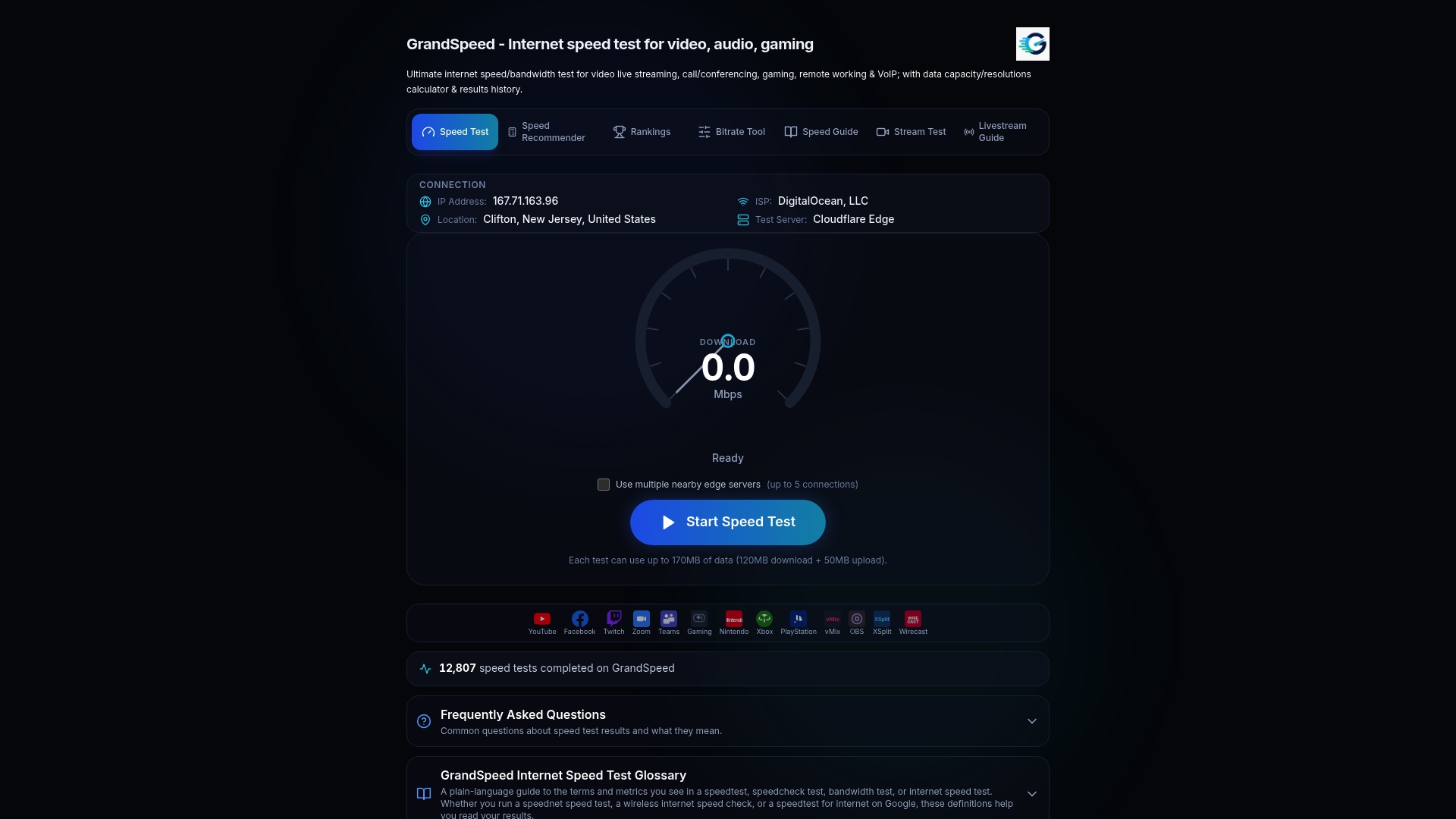
Start with the GrandSpeed speed test on both Wi-Fi and Ethernet. If you are picking or checking a plan, the Internet/ISP speed recommender shows what your household's activities need, and the speed rankings show how providers compare.
When to contact your internet provider
Call your provider when the problem survives a cable connection, a reboot and a quiet network. Ofcom's guidance, written for UK consumers but sensible anywhere, is to check for a listed fault or outage first. If none is listed, report the problem and include details: when it started, whether it is constant or intermittent, and which checks you have already tried. If possible, send a record of interruptions and how long they lasted.
A ready-made report looks like this:
- Wired test results with jitter, latency and packet loss, taken on three or more days.
- The times of day when results get worse, for example evenings.
- Confirmation that you rebooted equipment and tested with other devices unplugged.
Ofcom also notes that a provider may ask you to connect a computer directly to the phone line with Ethernet to help establish whether there is a line fault. Do that test in advance and you save a round of back-and-forth.
FAQ
How much jitter is normal for an internet connection?
There is no universal standard, but lower is better and single digits in milliseconds is a good home target. The CRTC in Canada uses 5 ms as the threshold for high-quality fixed broadband. Wired connections usually beat Wi-Fi on this measure.
Is a jitter of 2 ms good?
Yes. By the 5 ms benchmark above, 2 ms is comfortably within the range for high-quality service, and almost no real-time app will struggle with it. If you still see problems, look at packet loss and latency under load instead.
What causes jitter to be high?
Congestion is the most common cause, according to Cisco Meraki, especially where traffic queues at a router or switch. Oversized buffers, weak Wi-Fi, old hardware, VPNs and peak-hour usage also contribute. A test on a cable, idle and then under load, usually shows which one applies.
Does a faster plan reduce jitter?
Not by itself. More bandwidth can ease congestion if your link was undersized, but jitter from Wi-Fi interference, bufferbloat or a faulty cable stays put. Test first, and only upgrade the plan if your connection saturates under normal use.
How can I test my network jitter?
Use a speed test that reports jitter alongside latency and packet loss, and run it several times at different hours. GrandSpeed does this in the browser and saves your history so you can spot patterns and share them with your provider.
Sources
- RFC 5481: Packet Delay Variation Applicability Statement
- How-To Geek: What Is Jitter, and How Does It Affect Your Internet
- CRTC Telecom Regulatory Policy 2019-42
- The Conversation: Why does my internet connection feel slow and jumpy
- Cisco Meraki: What is Jitter?
- RFC 8033: Proportional Integral Controller Enhanced
- IWL: Causes and Correlation of Network Impairments
- Google Fiber: What affects Internet speeds
- Ofcom: Practical tips for improving your broadband speed
- Google Fiber: GFiber 8 Gig Plan Overview
- Ofcom: Broadband and landline faults and problems
- Google Fiber: GFiber Wi-Fi 6E Router
- Ofcom: Get help with broadband and Wi-Fi problems
- Google Workspace Help: Meet QoS best practices
- Cisco: VoWLAN QoS Troubleshooting Guide
- Google Nest Help: Prioritize a device on your Wi-Fi network