

The best packet loss test to start with is a browser-based one that measures loss alongside jitter, latency and bufferbloat on the connection you actually stream, game or work on. GrandSpeed's speed test does that in one run on a phone, tablet or laptop. Command-line tools such as ping, pathping, MTR and iPerf3 come second: they show where along the route the loss begins once you know it exists.
This guide compares the options by the question each one answers, so you can pick the right one in a few minutes instead of running every tool and getting five different numbers.
TL;DR
- Start with GrandSpeed for a fast, all-in-one check: packet loss, jitter, latency, bufferbloat and DNS resolution in one browser test, with a saved history.
- Use ping for a basic count of lost packets, and repeat it while the problem is happening.
- Use pathping or MTR when you need to see which hop on the route starts dropping packets.
- Use iPerf3 when you control both ends and want to test loss under a controlled load.
- A single clean result does not rule out intermittent loss. Test during the symptom and compare it with a good period.
Table of Contents
- What a packet loss test actually measures
- The tools compared at a glance
- 1. GrandSpeed: the best first test for most people
- 2. Ping: the quickest manual count
- 3. Pathping and MTR: finding where the loss starts
- 4. iPerf3: controlled tests between two machines
- Which tool for which reader
- How to run a packet loss test that means something
- Our view on testing for loss
- Run your first test now
- FAQ
- Sources
What a packet loss test actually measures
Data travels in small units called packets. Packet loss is the share of those packets that never arrive, or arrive too late to be useful. On a web page, a lost packet is quietly resent and you barely notice. On a video call, a game or a live stream, the same loss shows up as frozen faces, rubber-banding, robotic audio or dropped frames.
That is why a download speed figure alone tells you little. A connection can show a high speed result and still lose a few packets out of every hundred. If you want to know how much loss each activity tolerates, our guide to acceptable packet loss for gaming, VoIP and streaming gives the limits.
Two things matter when you read any result:
- The method. Most simple tools send ping packets (ICMP echo requests) and count the replies that do not come back. Cisco's guide to ping and traceroute explains that ping reports reachability, round-trip delay and packet loss by waiting for a reply within a timeout.
- The traffic type. Games and calls mostly use UDP, while web pages use TCP, and a network may treat them differently. Fluxtail's testing guide also says to keep the address family (IPv4 or IPv6) consistent between tests so you compare like with like.
The tools compared at a glance
| Tool | Best for | Where it runs | What you get |
|---|---|---|---|
| GrandSpeed | First check, streamers, gamers, remote workers | Any modern browser, phone, tablet or laptop, Wi-Fi or cellular | Packet loss, jitter, latency, bufferbloat, DNS, download and upload, test history |
| ping | A quick loss percentage to one destination | Windows, macOS, Linux | Packets sent, received and percent lost |
| pathping | Finding the hop where loss starts on Windows | Windows | Per-hop loss over a longer run |
| MTR | Live per-hop loss and latency | Linux, macOS, Windows via WSL | Running statistics for every hop |
| iPerf3 | Controlled tests between two machines you control | Linux, FreeBSD, macOS | Throughput, loss and more, optional JSON output |
The prices of these tools are simple to state: GrandSpeed's speed test has no published price in its listing, and ping, pathping, MTR and iPerf3 ship with, or install onto, ordinary operating systems. iPerf3 and MTR are open-source projects (more below). Paid network monitoring suites exist for IT teams, but they are aimed at monitoring whole networks of devices and are a different job from testing one connection.
1. GrandSpeed: the best first test for most people
If you are a streamer, a gamer, a remote worker or just someone whose video calls keep freezing despite a fast plan, you want one test that tells you whether the connection is healthy for real-time use. GrandSpeed measures download and upload speed, latency, jitter, packet loss, bufferbloat and DNS resolution times in a single run. It works in any modern browser, so you can test from the phone that is on the same Wi-Fi as your console, or from the laptop you take to calls.
Why this beats a ping command as a starting point:
- One run, the whole picture. Loss, jitter and bufferbloat often travel together. Seeing them side by side tells you whether you have a lossy link, a congested one or a connection that falls apart under load. Our explainer on why one ping misses jitter in games and calls shows why a single latency number is not enough.
- No installation. Open the page, run the test. That matters when you are testing from a phone on cellular, or helping a relative on a locked-down work laptop.
- A history you can compare. Intermittent loss is the hardest kind to catch. Saved results let you put a bad evening next to a good morning, which is exactly the comparison that exposes a pattern. See how to track internet speed and save test history.
- Results tied to what you do. For creators, GrandSpeed works out the maximum live stream or broadcast resolution your tested speeds support, and the video bitrate planner helps you turn that into settings for OBS, vMix, XSplit or Wirecast.
If you broadcast, pair the one-off test with the Livestream Upload Speed Monitor, which is built for checking upload bandwidth and stability for YouTube, Facebook or Twitch streams rather than a single moment in time.
For IT staff and ISP support teams, the same readings give a quick, shareable snapshot of a user's connection before you open a ticket or dig into the route.
2. Ping: the quickest manual count
Ping is built into every major operating system, and for a first look at loss it needs no extra software. According to TechTarget's guide, you send many packets and watch for failed replies: on Windows use ping /n 100 <destination>, and on Linux or macOS use ping -c 100 <destination>.
The summary line at the end gives packets sent, received and the loss percentage. Xubuntu's troubleshooting documentation reads the result like this: 0% loss means connected, partial loss points to a poor connection or weak wireless signal, and 100% loss means a very bad connection or an unreachable access point or router.
How to get a useful ping result:
- Send enough packets. Ten is a smoke test; a hundred gives a percentage you can trust a little more. Firewalla's support guide uses ten as a practical example and says consistent loss means a problem worth investigating.
- Start close to you. TechTarget advises checking the nearest connections first and working outward from your default gateway (your router), so you know whether the loss is inside your home or beyond it.
- Repeat during the symptom. Fluxtail points out that one clean, short test does not rule out intermittent loss. Run it again while the call is freezing and compare with a quiet period.
Where ping goes wrong: it tests reachability of one target and nothing about jitter, bufferbloat or your upload under load. Fluxtail also notes that routers may deprioritize ping requests without hurting real application traffic, so a ping blip does not always mean your game or call suffers. That is one reason to cross-check with a test that reflects streaming and gaming conditions, such as GrandSpeed.
3. Pathping and MTR: finding where the loss starts
Once you know packets are going missing, the next question is where. Two tools answer it.
Pathping (Windows). TechTarget describes pathping as recording per-hop performance and packet loss along the route. It takes around 25 seconds per hop, so give it time to finish. A score of 0/100 means none of 100 packets were lost.
MTR (Linux, macOS, Windows via WSL). MTR merges ping and traceroute: it discovers the hops between you and a destination and prints running statistics for each. Its project page states that it is released under GPL version 2, that mtr-packet needs raw-IP access, and that use on Windows requires WSL (Windows Subsystem for Linux).
Reading per-hop output takes care. TechTarget's approach is to confirm the problem with repeated end-to-end tests first, then use a per-hop tool to localize where loss begins. A hop far outside your network may reveal the culprit without being something you can fix. If the loss starts at your router or the first hop past it, look at your Wi-Fi, cabling or modem. If it starts further out and persists to the destination, you have evidence to bring to your provider. Our guide on proving packet loss causes to your ISP walks through how to present 1 to 2% loss in a way support teams act on.

These tools suit IT professionals and confident home users. If you would rather not read hop tables, run GrandSpeed first, and reach for MTR only when the result says the problem is beyond your own network.
4. iPerf3: controlled tests between two machines
The iPerf3 documentation describes it as a tool for active measurements of the maximum achievable bandwidth on IP networks, reporting throughput, loss and other parameters. It has a zero-copy mode and optional JSON output. It is officially supported on Ubuntu Linux, FreeBSD and macOS, released under a three-clause BSD license, and not backward-compatible with the original iperf. The documentation lists version 3.22, released on September 29, 2026.
iPerf3 needs a server on one end and a client on the other, so it is for people who control both: a home lab, an office link, a stream PC and a remote encoder. It is the right choice for IT teams validating a link before a production event. For a home user checking whether Wi-Fi is the issue, it is more setup than the job needs.
Which tool for which reader
| You are | Start with | Then, if needed |
|---|---|---|
| A streamer on OBS, vMix, XSplit or Wirecast | GrandSpeed and the livestream monitor | MTR to locate loss past your router |
| A gamer with lag spikes | GrandSpeed | Ping to your router, then MTR |
| A remote worker with choppy calls | GrandSpeed, saved over a few days | Pathping for evidence for your ISP |
| An IT admin | GrandSpeed for a user snapshot | MTR and iPerf3 for the route and link |
| An ISP support agent | GrandSpeed for a customer's readings | Per-hop tools on your side |
How to run a packet loss test that means something
- Test on a wired connection first. Wi-Fi interference causes loss of its own. If a cable test is clean and Wi-Fi is not, you have found the cause. Our five-minute unstable internet fix follows this exact order.
- Pause other traffic. Downloads, cloud backups and other devices skew results. Then test again with them running, since bufferbloat only shows under load. The bufferbloat test methods page explains how.
- Test at the bad time. Evening congestion and daytime quiet give different answers.
- Repeat and save. Run at least three tests across a few days and keep the results. A pattern is far stronger than one number.
- Escalate with evidence. If loss is steady and beyond your network, bring your saved results and a per-hop trace to your provider.
For a deeper practical routine, see five quick tests to fix packet loss for streamers and gamers, and for a wider tool comparison, best home network diagnostic tools.
Our view on testing for loss
Most people come to us after trusting one speed number that looked fine while their calls and streams fell apart. Our approach is to measure what real-time use depends on: loss, jitter, latency, bufferbloat and DNS together, not download speed alone.
We built GrandSpeed so that this takes one browser run on whatever device you have in your hand, and so that results are saved. Intermittent problems are solved by comparing good and bad moments, and that needs history.
For creators, the number that matters is what your connection can sustain for a live broadcast, which is why we translate results into a maximum stream resolution and a bitrate plan.
Peter D
Run your first test now
GrandSpeed's speed test checks packet loss, jitter, latency, bufferbloat and DNS resolution in one go, and keeps your history so you can see whether the problem is a one-off or a pattern. Streamers can add the Livestream Upload Speed Monitor to watch stability during a broadcast.
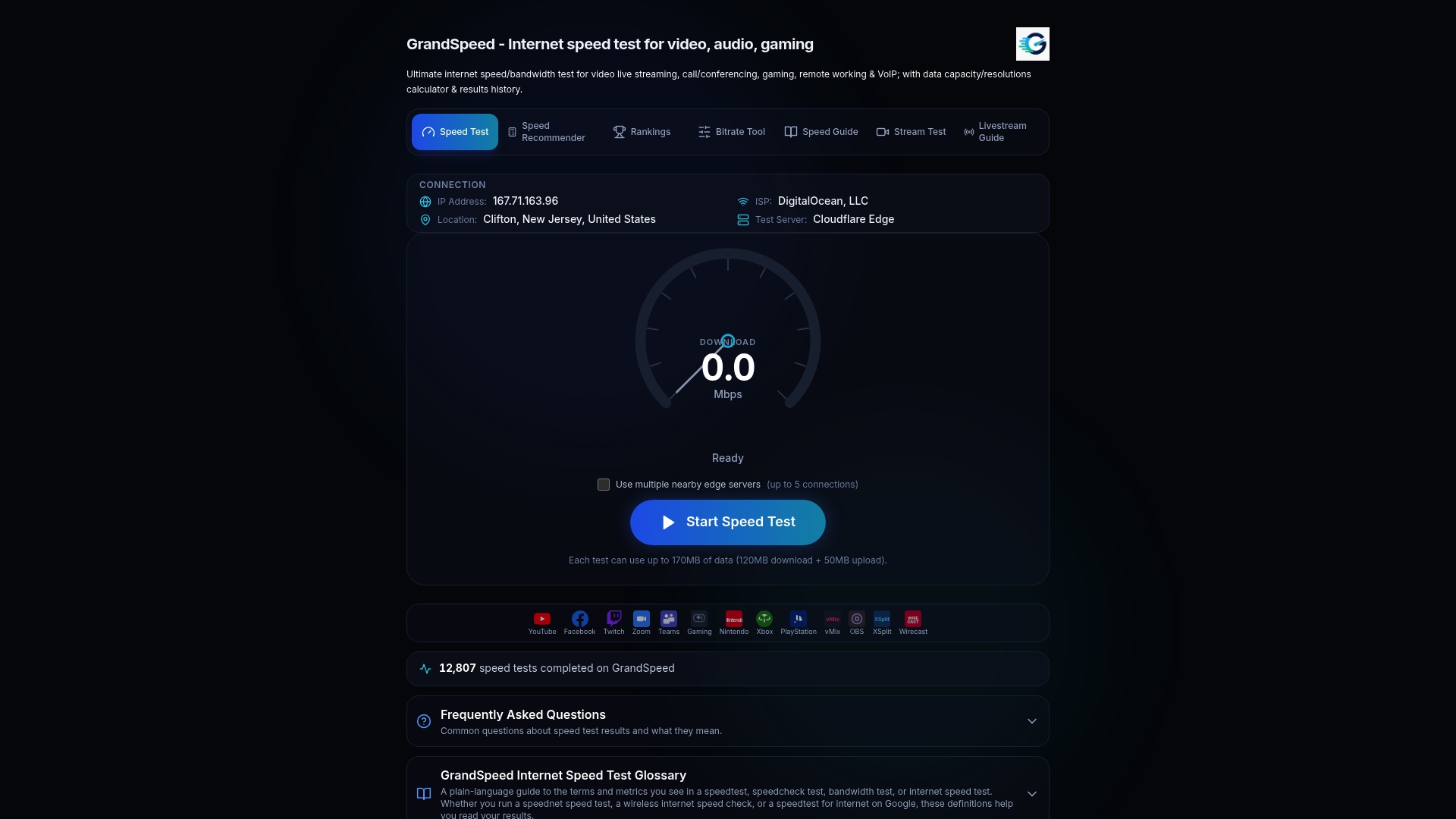
Run the GrandSpeed speed test and, if you stream, use the Video Streaming Quality Test to see which resolution your connection supports.
FAQ
What is a good tool to check packet loss quickly?
A browser test that reports loss alongside jitter and latency is the fastest. GrandSpeed does this in one run on a phone or laptop, with no install. A ping with 100 packets is the quickest manual alternative.
How many packets should a packet loss test send?
More is better. Ten pings is a quick check, while a hundred gives a steadier percentage. Repeat the test during the moment the problem appears, because a single short clean test can miss intermittent loss.
Is any packet loss acceptable?
It depends on the activity. Games, calls and live streams are far less forgiving than web browsing. Our guide to acceptable packet loss limits lists them by use. Consistent loss on a ping test is a sign to investigate, according to Firewalla's guide.
Which tool shows where the loss is happening?
MTR on Linux and macOS, or pathping on Windows. Both report loss hop by hop. Run an end-to-end test first, then a per-hop tool to see whether loss begins in your home or further along the route.
Sources
- How to test packet loss on Windows, macOS and Linux (TechTarget)
- Understand Ping and Traceroute Commands (Cisco)
- Chapter 15. Troubleshooting (Xubuntu documentation)
- Tutorial: Using Ping to Detect Network Problems (Firewalla)
- How to Test Packet Loss with Ping, MTR, and Iperf3 (Fluxtail)
- iperf3 documentation
- traviscross/mtr on GitHub