

Packet loss happens when data packets sent across a network never reach their destination, and the single most common cause is network congestion: buffers overflow when traffic exceeds link capacity, and routers start dropping packets to cope. Other frequent culprits stack up behind it: bad cables or failing network cards, wireless interference, misconfigured MTU or firewall rules, and congestion further upstream at your ISP. Diagnosing which one is hitting you requires a specific workflow, not a guess.
TL;DR:
- Packet loss caused by network congestion shows patterns during peak hours or large uploads, while hardware issues cause constant loss regardless of traffic.
- One ping test cannot reliably diagnose packet loss, as fluctuations occur over time and some routers deprioritize ICMP, masking real problems.
- Diagnosing packet loss involves step-by-step checks including local gateway tests, continuous traceroute (mtr), and physical interface counters, with extended testing recommended.
- Fixes depend on the cause, with congestion improved by QoS, hardware issues by replacing cables or hardware, and wireless issues by changing channels or switching to Ethernet.
- Measuring and documenting loss patterns over time using tools like GrandSpeed helps verify issues before escalation to ISPs or support teams.
Table of Contents
- What Causes Packet Loss and How Do You Measure It?
- Where Does Packet Loss Actually Come From?
- How Do You Diagnose Packet Loss Step by Step?
- How Do You Fix Packet Loss Once You Find the Cause?
- Is 1% Packet Loss Bad, or Is 2.7% the Real Threshold?
- How GrandSpeed Helps You Track and Prove Packet Loss
- What I've Learned Chasing Packet Loss for Years
- Get a Clear Read on Your Connection Right Now
- Sources
What Causes Packet Loss and How Do You Measure It?
Packet loss is measured as a percentage: packets sent minus packets received, divided by packets sent. Running multiple pings can produce a loss rate that indicates the percentage of lost packets. Simple math, but the number alone tells you almost nothing about severity because protocol behavior changes everything downstream.
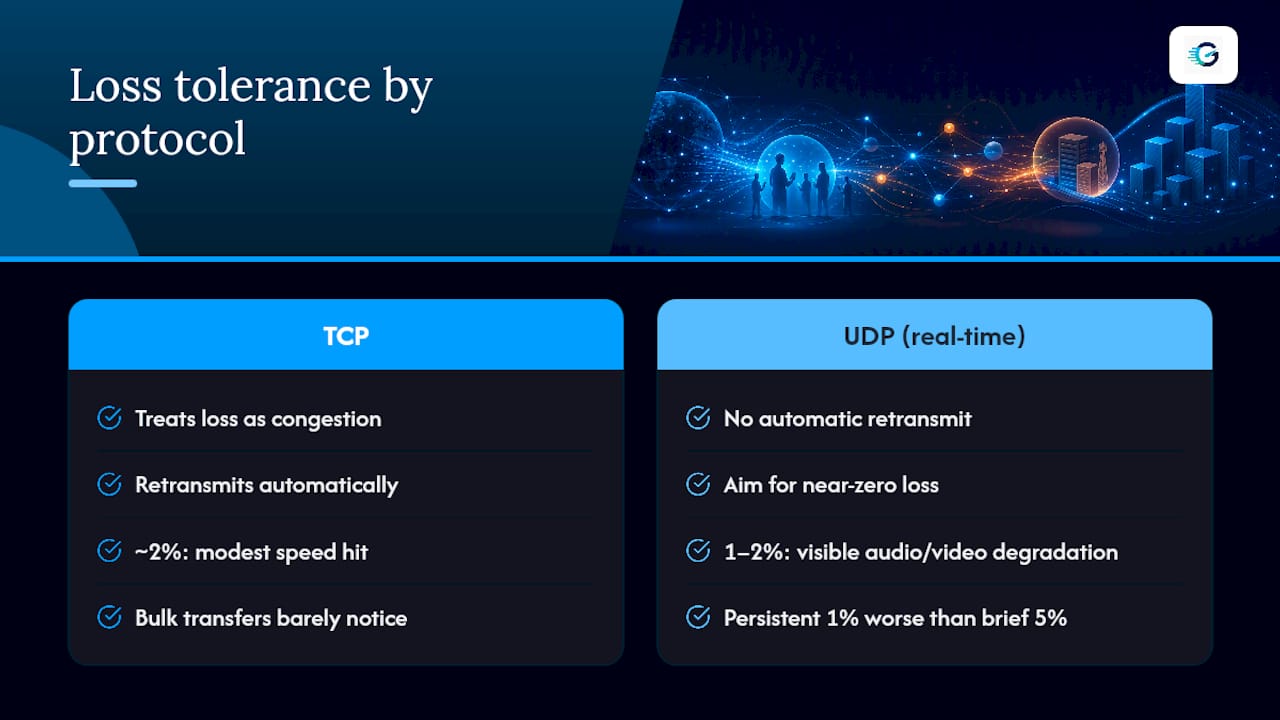
TCP retransmits lost packets automatically, so a file download at 2% loss just gets a little slower. UDP does not retransmit. That's why voice calls, live video, and multiplayer games feel the pain of loss that a file transfer would shrug off. A dropped UDP packet in a VoIP call is a syllable that vanishes; in gaming, it's a rubber-banding character; in streaming, it's a frozen frame or pixelated block.
Watch for these symptom patterns associated with varying levels of loss:
- VoIP calls: choppy audio, dropped syllables, or robotic voice artifacts often begin at low levels of loss
- Online gaming: rubber-banding, hit registration failures, or sudden teleports can occur
- Video streaming: pixelation, frame freezes, or automatic resolution drops may happen
- File transfers: slower speeds as TCP backs off and retransmits, but rarely a total failure
One test is not a diagnosis. A single ping run can show 0% loss while your connection is dropping packets intermittently under load 20 minutes later. Loss also fluctuates by time of day, especially during neighborhood peak hours. And a widely underappreciated trap: many routers deprioritize ICMP (the protocol ping and traceroute use), so a hop showing 40% loss on ping might be carrying real traffic with zero loss. Confirming actual loss requires more than one tool.
Where Does Packet Loss Actually Come From?
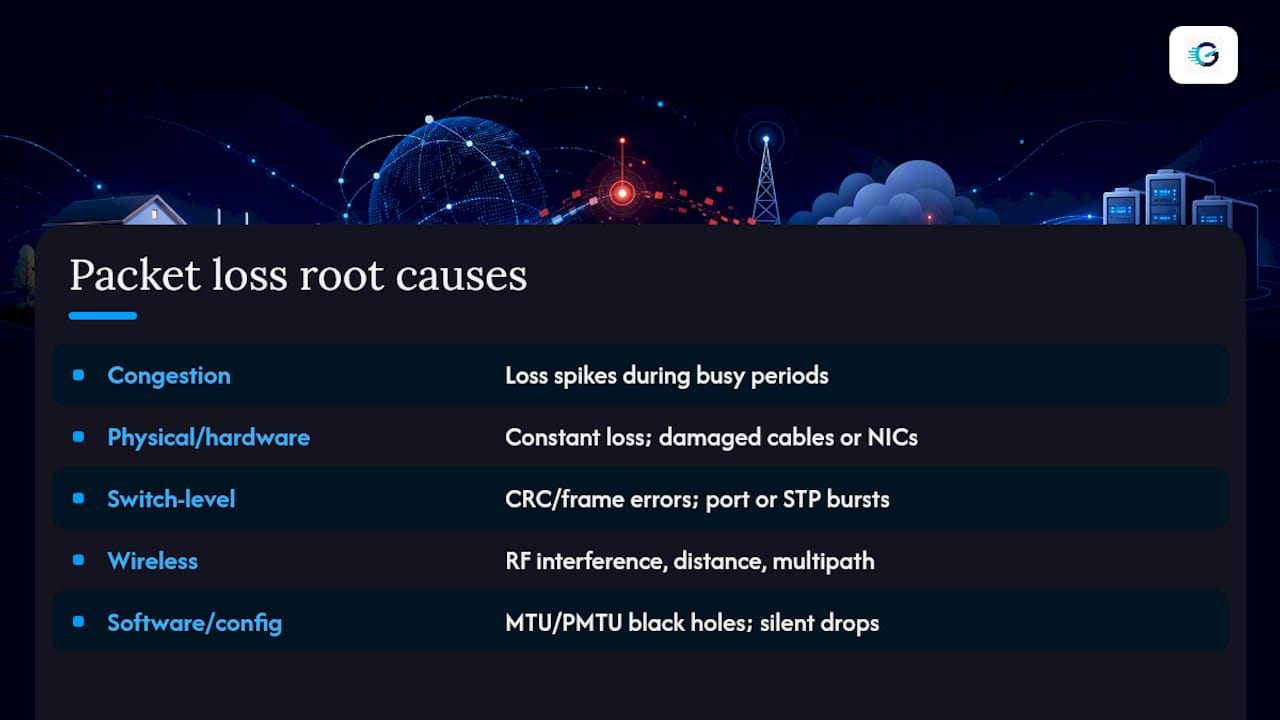
Packet loss rarely has one cause. It's usually one of seven layers failing in a specific, recognizable way, and matching your symptom to the right layer saves hours of guessing.
Network congestion remains the most common cause of all. Routers and switches use buffers to absorb short traffic bursts, but when sustained throughput exceeds what a link or device can handle, those buffers overflow and excess packets get dropped. This shows up predictably: loss that spikes during business hours, evening streaming peaks, or whenever someone on the network starts a large upload. Oversubscribed links, where an ISP or office router promises more bandwidth than its uplink can actually deliver, produce the same pattern on a longer timescale.
Physical and hardware problems sit at the opposite end of the spectrum, causing loss that is constant rather than load-dependent. A damaged Ethernet cable, a failing network interface card, or a degraded SFP transceiver on a switch will drop packets regardless of traffic volume. Duplex mismatch, where one end of a link runs full duplex and the other half duplex, is an old but still common cause: it creates collisions that show up as loss the moment traffic increases even slightly. Overheating switches and routers can intermittently drop packets too, often worse in summer or in poorly ventilated equipment closets.
Data-link and switch-level issues live one layer up. CRC and frame errors, bad switch ports, broadcast storms, and Spanning Tree Protocol reconvergence events all cause loss that looks like hardware trouble but is really a configuration or switching fabric problem. A port stuck negotiating the wrong speed, or a loop triggering STP to block and reopen paths, can produce loss bursts that seem to come from nowhere.
Wireless-specific causes deserve their own category because Wi-Fi behaves nothing like a wired link. Radio frequency interference from microwaves, cordless phones, neighboring networks, and even Bluetooth devices competes for the same spectrum. Distance from the access point degrades signal quality gradually, while multi-path fading, where a signal bounces off walls and furniture and arrives at the receiver as several out-of-phase copies, can cause loss even at close range. Channel overlap in crowded apartment buildings compounds all of it. These factors are cumulative, and the fix usually starts with testing on a wired connection to confirm the wireless link is actually the source.
Software and configuration issues are the ones most often missed because nothing looks physically broken. An MTU setting larger than what the path can carry creates silent packet drops known as PMTU black holes, where small packets sail through fine but large ones vanish without any error message. Overly aggressive firewall rules, misconfigured VPN tunnels, and buggy network drivers or outdated firmware all cause the same kind of loss: consistent, reproducible, and completely invisible until someone looks at the configuration.
ISP and upstream issues happen beyond your control but within your ability to prove. Peering congestion between providers, routing errors, and ICMP rate limiting on intermediate hops all cause loss that no amount of local troubleshooting will fix. This is where a documented, repeatable test matters most, because you need evidence before an ISP will act.
Bufferbloat deserves a category of its own. It is not packet loss in the traditional sense but a related problem: routers and modems with oversized buffers queue packets instead of dropping them, and that queuing adds massive latency spikes under load. A connection with bufferbloat might show near-zero loss but still ruin a video call the moment someone starts a large upload, because packets are arriving too late to be useful rather than not arriving at all.
How Do You Diagnose Packet Loss Step by Step?
Diagnosing packet loss means moving outward from your own machine toward the internet, ruling out each layer before blaming the next one. Skipping steps is how people end up arguing with ISP support over a problem that was sitting in their own switch.
- Ping your local gateway first. If you see loss to a device on your own LAN, the problem is local, full stop; it cannot be your ISP.
- Run mtr to the remote destination. Unlike a single traceroute, mtr continuously samples every hop and shows per-hop loss percentages over time, which is what actually reveals where loss begins.
- Check interface counters with
ip -s linkorethtool -S. These separate physical errors (CRC, frame errors) from kernel-level drops and queuing backpressure, giving you hard evidence instead of a guess. - Probe for MTU black holes using
ping -M do -s <size>with decreasing packet sizes, ortracepath, to find the exact size where large packets stop getting through. - Run tcpdump on both ends of a suspect link to confirm whether frames are actually leaving one interface and arriving at the other. This is the tiebreaker when counters and mtr disagree.
Reading mtr output correctly is the part most people get wrong. Loss that appears at one specific hop but disappears at every hop after it usually means ICMP deprioritization, not real loss. That router is simply deprioritizing the ping replies it generates itself while forwarding your actual traffic just fine. Loss that appears at a hop and persists at every hop beyond it is the real signal: that's where packets are actually dying.
| Pattern observed | Likely cause | Next step |
|---|---|---|
| Loss at hop 1 (your router) | Local hardware or Wi-Fi | Check interface counters, test wired |
| Loss at one hop only, gone beyond it | ICMP deprioritization (not real) | Ignore; test with tcpdump/TCP instead |
| Loss appears and persists at hop 3+ | ISP or upstream routing | Document and escalate with mtr logs |
| Burst loss during busy times | Congestion, buffer overflow | Check time-of-day pattern before acting |
| Small persistent loss everywhere | Line quality or ISP | Baseline over extended period, then escalate |
Pro Tip: Run mtr for at least 100 cycles before drawing conclusions. A 10-second sample can catch a single bad moment and convince you of a permanent problem that was actually a five-second congestion blip.
How Do You Fix Packet Loss Once You Find the Cause?
Fixing packet loss means matching the remedy to the layer you diagnosed, not applying a generic fix and hoping. Here's what actually works for each cause.
For congestion, apply Quality of Service (QoS) rules to prioritize latency-sensitive traffic like voice and video ahead of bulk downloads. Traffic shaping on your router can smooth out bursts before they overflow a buffer. If congestion is constant rather than occasional, the real fix is a bandwidth upgrade, not a smarter queue.
For hardware problems, start by swapping the Ethernet cable, since a bent or damaged cable is the cheapest thing to rule out. Try a different switch port. If you suspect the network card itself, test with a USB Ethernet adapter to isolate whether the fault is the NIC or something else on the motherboard. Overheating equipment needs better airflow or, in stubborn cases, replacement.
For wireless issues, switching to a less congested Wi-Fi channel (5GHz over 2.4GHz where devices support it) often resolves interference-driven loss immediately. Repositioning the access point away from microwaves and thick walls helps with multi-path fading. For anything latency-critical, running an Ethernet cable to that one device beats troubleshooting wireless forever.
For software and configuration issues, lower your MTU value manually if PMTU probing revealed a black hole, audit firewall and VPN rules for overly aggressive drop policies, and update network drivers and router firmware, since a surprising number of loss complaints trace back to a driver bug fixed months earlier in an update nobody installed. Duplex mismatches usually resolve by forcing both ends to auto-negotiate rather than hardcoding a speed.
Escalating to your ISP only works with evidence. Collect mtr logs showing loss persisting beyond your own gateway, note the time of day it happens, and run the same test repeatedly across a day or two before you call. Saved test history with timestamps is often the difference between a support agent taking your ticket seriously and dismissing it as a one-off fluke.
Pro Tip: Treat a temporary fix, like rebooting a router or switching Wi-Fi channels, as a stopgap. If the same loss pattern returns within a week, you fixed a symptom, not the cause.
Is 1% Packet Loss Bad, or Is 2.7% the Real Threshold?
There's no single number that defines "bad" packet loss, because tolerance depends entirely on the protocol and the application running over it. TCP treats loss as a congestion signal and retransmits automatically, so a bulk file transfer barely notices 2% loss beyond a modest speed hit. UDP-based real-time apps have no such safety net.
As general guidance rather than a fixed rule, aim for near-zero loss for high-quality video calls and competitive gaming, since even small, sustained loss in the 1 to 2% range starts to visibly degrade real-time audio and video. A brief spike to 5% for a few seconds matters far less than a persistent 1% that never clears. Baseline your own connection with repeated tests at different times of day, since a pattern that only shows up at 8 p.m. points to neighborhood congestion, not a broken cable.
How GrandSpeed Helps You Track and Prove Packet Loss
Diagnosing loss from memory is guesswork. GrandSpeed measures packet loss alongside jitter, latency, and bufferbloat in a single test, so you see the full real-world picture instead of one isolated number.
Run tests at different times of day and let GrandSpeed's history feature build a pattern you can actually point to, rather than relying on a single result that might catch a lucky or unlucky moment. That saved history becomes your evidence when a support call requires proof rather than a complaint. GrandSpeed also translates your measured loss and jitter into the maximum streaming or broadcast resolution your connection can realistically sustain, turning an abstract percentage into a concrete answer about whether your setup can actually handle a 1080p call or a 4K stream reliably.
What I've Learned Chasing Packet Loss for Years
The biggest mistake I see is treating one ping test as gospel. It tells you nothing about the 6 p.m. congestion spike that's actually ruining someone's video calls. Document the pattern across a full day before you trust any number.
The second mistake is skipping the wired versus wireless split. Half the "mystery" packet loss cases I've watched people chase for hours resolve the moment they plug in an Ethernet cable and the problem disappears. Check interface counters before you ever call your ISP; you'll either find your answer or walk into that call with real proof instead of a hunch.
— Peter D
Get a Clear Read on Your Connection Right Now
Guessing at packet loss wastes time you could spend fixing it. GrandSpeed gives you a repeatable way to measure loss, jitter, latency, and bufferbloat together, which matters because a connection can look fine on one metric while quietly failing on another.

Run a test now, save it to your history, and build the kind of time-stamped record that turns a vague complaint into evidence an ISP has to take seriously. A few concrete next steps:
- Run a stream-focused test that measures packet loss, jitter, and the maximum resolution your connection can sustain
- Save results to your history and compare across different times of day
- Export or screenshot your data before contacting ISP support
If streaming quality is your main concern, GrandSpeed's stream test shows you exactly where your connection stands right now, no downloads or sign-ups required.
Sources
For deeper technical detail: Paessler's diagnostic guide, Microsoft's troubleshooting reference, OneUpTime's hop-interpretation walkthrough, and GoLinuxCloud's command-level guide.
- How to Find the Cause of Packet Loss in Your Network — Paessler blog