
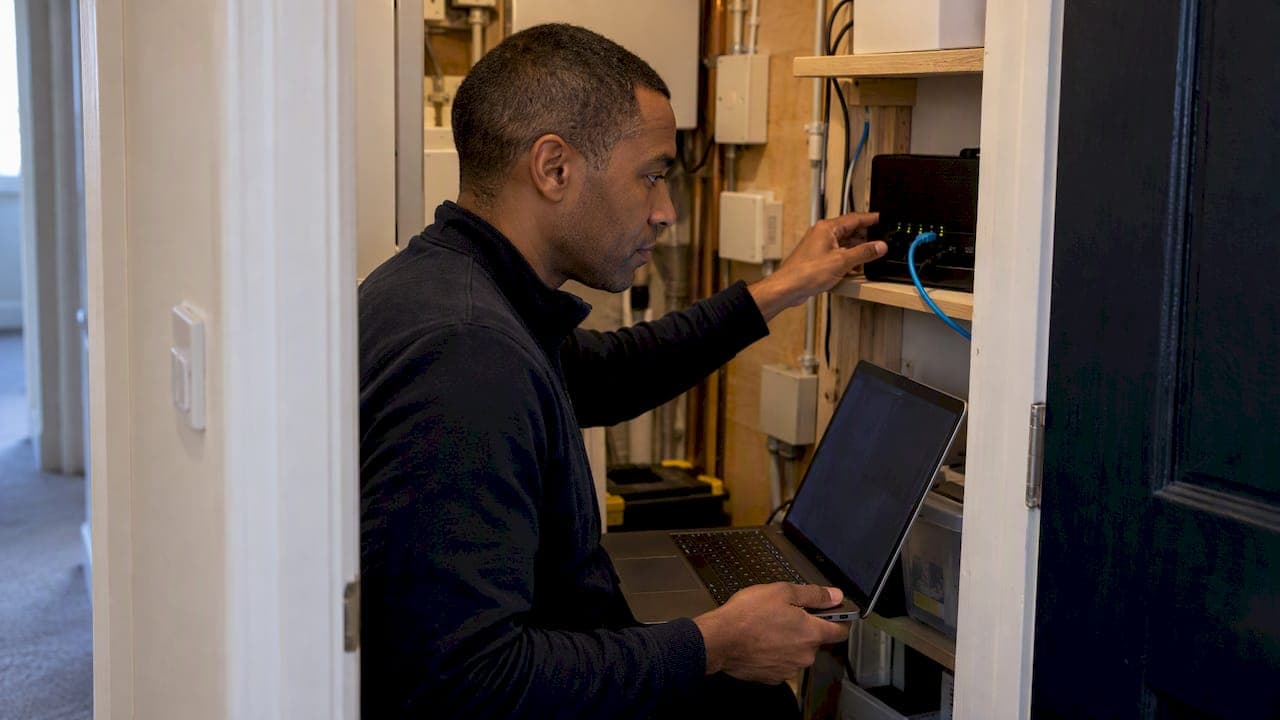
The best home network diagnostic setup is not one app. Start with a browser test that measures more than speed (jitter, packet loss, bufferbloat, DNS). Add ping and traceroute for pinpointing where a problem starts. Then use a long-running monitor for problems that come and go. Save packet analyzers like Wireshark for last. Below, we compare each category, say who it suits, and give an order to work in.
TL;DR
- Run a diagnostic that reports latency, jitter, packet loss and bufferbloat, not just download speed. A single speed number hides most causes of laggy calls and buffering.
- Built-in ping and traceroute are free and already on your computer. They show where delay or loss begins, but they give raw numbers with little explanation.
- Intermittent problems need monitoring over hours or days. A one-time test often misses them.
- Wireshark and Nmap are powerful but a poor first step for most households.
- Streamers should keep their bitrate at or below 75% of tested stable upload, and test upload specifically.
Table of Contents
- What a home network diagnostic tool actually has to answer
- The main categories, compared
- 1. Browser-based diagnostics: the right first step
- 2. Ping and traceroute: free, built in, and good at one thing
- 3. Long-term monitors: for problems that come and go
- 4. Guided home-network checkers
- 5. Wireshark and Nmap: powerful, usually too early
- Which tool for which symptom
- Perspective: why we think speed alone misleads
- Streamers: test upload, not just download
- A practical order of operations
- Try the first step now
- FAQ
- Sources
What a home network diagnostic tool actually has to answer
People search for diagnostic tools when something feels wrong while the speed plan looks fine. A video call freezes. A game rubber-bands. A stream buffers on a connection that tests at hundreds of megabits. Those symptoms rarely come from raw bandwidth. They come from delay, variation in delay, dropped packets, or a congested router queue.
A useful tool should help you answer four questions:
- Is the problem inside my home or outside it? Wi-Fi, router and cabling on one side, your ISP and the wider internet on the other.
- Is it constant or intermittent? Constant problems show up in a quick test. Intermittent ones need time.
- Which metric is failing? Throughput, latency, jitter, packet loss, bufferbloat or DNS lookup time each point to different fixes.
- Can I act on the result? A number is only useful if you know what it means for your use.
That last point separates tools built for network engineers from tools built for households. We judge each option below on those four questions, plus how steep the learning curve is.
The main categories, compared
| Category | Examples | Best for | Learning curve | Weakness |
|---|---|---|---|---|
| Browser-based diagnostic tests | GrandSpeed, other web tests | First check, any device, no install | Low | Snapshot in time |
| Built-in command-line tools | ping, traceroute/tracert, PathPing | Locating where delay or loss starts | Medium | Raw output, no advice |
| Long-term latency monitors | SmokePing, PingPlotter | Intermittent drops and spikes | Medium to high | Setup time |
| Availability and device monitors | Uptime Kuma, LibreNMS, ntopng | Home labs, many devices | High | More than most homes need |
| Packet analyzers and scanners | Wireshark, Nmap | Deep analysis, IT work | Very high | Easy to drown in data |
No single row wins. The order in which you use them matters more than which brand you pick.
1. Browser-based diagnostics: the right first step
If you do one thing, do this. A browser test needs no installation, runs on a phone, tablet or laptop, and tells you within a minute whether the problem is speed or something subtler.
GrandSpeed is our own entry here, so weigh our view accordingly. It measures download and upload speed, latency, jitter, packet loss, bufferbloat and DNS resolution time in one speed test. It is built around what people do online: video streaming, conferencing, live streaming, gaming, VoIP and remote work. The results are tied to those uses, for example the highest live stream resolution your tested speeds can support, and your test history is kept so you can compare a bad evening with a good morning.
Why those extra metrics matter: bufferbloat is a delay that builds when deep buffers in home or last-mile equipment fill up under load. Per the IETF's BBR congestion control draft, newer congestion control approaches aim for high throughput with much lower queuing delay than older loss-based methods like CUBIC. In plain terms, a connection can post a great speed result and still feel sluggish the moment someone uploads a video. A speed-only test will not show that.

If you have used a basic speed test and felt it explained nothing, our write-up on speed test alternatives that catch jitter and packet loss covers what to look for.
Good fit: anyone as a first check, gamers, remote workers on video calls, streamers. Limit: a browser test is a snapshot. It will not catch a router that drops out at 9 p.m. only on Fridays.
2. Ping and traceroute: free, built in, and good at one thing
Every major operating system ships with ping and a route tracer (traceroute on macOS and Linux, tracert on Windows). NetBeez notes that traceroute and ping are the most commonly used command-line troubleshooting tools, and that ping measures whether and how fast another host responds.
Use them to split the problem in half:
- Ping your router (usually 192.168.0.1 or 192.168.1.1; check the label on the device). Slow or lossy replies here point to Wi-Fi or the router itself.
- Ping a public address. If the router is fine but this is slow, the issue is beyond your door.
- Run a trace to see which hop is where the delay jumps.
The catch is interpretation. The output is raw numbers, and a single slow hop in the middle of a trace is not always a problem. For most households ping is a useful second step after a browser test, not a replacement for one.
Good fit: people comfortable with a terminal who want to locate a fault. Limit: no plain-English advice, and short runs miss intermittent faults.
3. Long-term monitors: for problems that come and go
The most common troubleshooting mistake is running one speed test during a problem, or worse, right after it. Tartanleaf's home network guide makes the point that single-moment tests rarely capture transient events like bufferbloat or short outages, and that tools such as SmokePing or PingPlotter, which graph latency, loss and jitter over hours or days, are better suited.
Two options come up most:
- SmokePing is free and open source and tracks latency over time. iTechGuides lists it among free ways to monitor a home network, alongside Uptime Kuma for availability checks, LibreNMS for SNMP devices and ntopng for traffic analysis. Their conclusion is that no single tool is best and most homes need only one or two that complement each other.
- PingPlotter is a commercial tool that plots ping results over time with a visual timeline. We are not linking to it, but it is a reasonable choice if you want a graphical view and are willing to pay for it.
Expect an evening of setup. You will usually run these on an always-on computer, such as a small home server or spare desktop. The payoff is evidence: a graph showing every spike at 8 p.m. is something you can show your ISP.
There is a lighter-weight route. Our test history in GrandSpeed lets you run the same test at different times of day and compare. It will not match a continuous graph, but for many people three or four tests across a day show whether the problem is evening congestion.
Good fit: hard-to-reproduce drops, home lab owners, anyone building a case for their ISP. Limit: time to set up, and more detail than casual users need.
4. Guided home-network checkers
A smaller group of tools sits between a speed test and a professional monitor. They run several checks and explain the findings in plain English. Tartanleaf, for example, offers free, open-source options built on one shared diagnostic engine that explain results in plain language. That approach suits the beginner problem well: you get an interpretation, not a wall of numbers.
We would pair a tool like this with a browser diagnostic. Cross-checking two independent tests is a quick way to rule out a measurement quirk.
5. Wireshark and Nmap: powerful, usually too early
Wireshark is the best-known free, open-source network protocol analyzer, and it lets you inspect traffic in great depth. Nmap is the standard for discovering what is on a network. Both are indispensable for IT professionals.
But they are a poor first move. When the question is "why does my video call freeze," capturing packets produces thousands of lines that need real protocol knowledge to read. Professionals generally steer beginners away from them for basic connectivity issues, toward tools that turn results into actionable advice about router health or ISP performance. Come back to Wireshark if simpler tests show a problem you cannot explain, or if you work in IT.
Good fit: network professionals, advanced hobbyists. Limit: analysis paralysis for everyone else.
Which tool for which symptom
| Symptom | Start with | Then try |
|---|---|---|
| Video calls freeze or sound robotic | Browser test checking jitter and packet loss | Ping your router, then a public address |
| Games lag in the evening | Browser test at peak time, noting latency and bufferbloat | Long-term monitor to catch spikes |
| Streams buffer despite a fast plan | Streaming-focused test | Check Wi-Fi vs wired |
| Live stream drops frames | Upload and stability test | Lower bitrate, review total upload demand |
| Connection drops randomly | Long-term monitor | Router logs, ISP ticket with graphs |
| Unknown device on network | Network scanner | Router admin page |
For gaming specifically, our guide on getting under 20 ms ping for gaming walks through fixes and how to save results. For dropped packets, see five quick tests to fix packet loss. If Wi-Fi is the suspect, try fixing Wi-Fi interference before buying new hardware.
Perspective: why we think speed alone misleads
We build GrandSpeed because we kept seeing the same story: someone pays for a fast plan, runs a basic test, sees a big number, and still has a bad call. The number was not wrong. It was answering the wrong question.
Our view is that diagnosis is mostly about stability under load, not peak throughput. That is why we measure jitter, packet loss, bufferbloat and DNS time in the same run, and why we translate results into what they mean for streaming, calls and games. We also think people should be honest about what a snapshot can and cannot show. If a problem happens only sometimes, you need repeated tests or a long-term monitor, and we say so rather than pretending one run settles it.
For most households, our advice is simple: test first in a browser, test again at the time the problem occurs, compare, then escalate to heavier tools only if the evidence calls for it. Fancy tools do not fix a bad Wi-Fi placement. Evidence does.
— Peter D
Streamers: test upload, not just download
Live streaming flips the usual priority. Your upload capacity and its stability decide whether the stream holds, and upload is usually the smaller number on a home plan.
Requirements differ by platform. According to OBS Versions' bitrate guide, Twitch recommends 6,000 Kbps for 1080p60 H.264 as of 2025, while YouTube recommends 17,000 Kbps for the same output. The same guide advises multiplying by the number of platforms when multistreaming, so three platforms at 6 Mbps each need 18 Mbps of dedicated upload.
Then leave headroom. NVIDIA's broadcasting guide notes that audio typically adds 128 to 160 Kbps, that other traffic competes with your stream, and recommends keeping total streaming bitrate at or below 75% of your tested stable upload.
A worked example: if your tested stable upload is 20 Mbps, 75% is 15 Mbps. Subtract audio and a margin for Discord or game traffic, and a single 6 Mbps stream is comfortable, while three simultaneous 6 Mbps outputs (18 Mbps) would exceed the headroom. Our post on why 20 Mbps is not all yours to stream works through this in more detail.

For streamers, the GrandSpeed livestream monitor tracks upload during a broadcast, and the video bitrate calculator helps you pick a bitrate that fits your result. If upload looks low, check why your upload speed may be so slow.
When OBS reports dropped frames, the same OBS Versions guide separates network drops from encoder lag: network drops point to your connection, ingest route and total upload demand, so compare a lower bitrate before blaming the encoder.
A practical order of operations
- Go wired for one test. Plug a laptop into the router with Ethernet and test. If the wired result is clean and Wi-Fi is not, you have found the area to fix.
- Run a full diagnostic. Use a test that reports latency, jitter, loss and bufferbloat. Note the numbers.
- Repeat at the bad time. Test during the evening or call window when trouble occurs, and compare. Test history makes this easy.
- Split the path. Ping the router, then a public address, then trace the route.
- Monitor if it is intermittent. Set up SmokePing or a similar monitor for a few days.
- Escalate with evidence. Send your ISP the timestamps and graphs. Use Wireshark only when you have a specific question that simpler tests raised.
Want to know if your plan suits your use in the first place? Our ISP speed recommender estimates what speed you need for your activities.
Try the first step now
If you want a quick, plain-English first read on your connection, run our free speed test. It reports speed, latency, jitter, packet loss, bufferbloat and DNS in one pass, and for video use the streaming quality test shows what your connection can sustain. Run it once now and once at the time your problem occurs.
FAQ
What is the best free tool to diagnose home network problems?
Start with a free browser-based test that reports latency, jitter and packet loss, such as GrandSpeed, then use your computer's built-in ping and traceroute. For problems that come and go, add a free monitor like SmokePing. Most homes need only one or two tools, not a full monitoring suite.
Why is my internet slow when the speed test looks fine?
Speed tests measure throughput, but lag and freezing usually come from high latency, jitter, packet loss or bufferbloat. A one-time test can also miss short spikes. Test at the time the problem happens and look at more than the download number.
Should I use Wireshark to troubleshoot my home Wi-Fi?
Usually not first. Wireshark gives deep packet-level detail, but it needs protocol knowledge to interpret. Try a diagnostic that explains results in plain language and the ping and traceroute steps first.
How do I know if my upload speed is enough to stream?
Check your platform's recommended bitrate, multiply by the number of platforms you stream to, add audio, and keep the total at or below 75% of your tested stable upload. Test upload several times, since stability matters as much as the peak figure.
Sources
- Wireshark
- IETF: BBR congestion control draft
- NetBeez: Network Troubleshooting Tools
- Tartanleaf: Home Network Troubleshooter
- iTechGuides: 10 Free and Open-Source Ways to Monitor Your Home Network
- OBS Versions: OBS Bitrate Guide
- NVIDIA: NVENC OBS Guide