

For a video call, keep jitter under about 30 ms and treat anything above 40 ms as a problem. Jitter is how unevenly your call's packets arrive, and it is why a call with plenty of bandwidth can still freeze, stutter or sound robotic. You can measure it in under a minute with our speed test, which reports jitter, latency, packet loss and bufferbloat together, so you can see which one is actually hurting your call.
TL;DR
- Jitter is the variation in the delay between packets. Video calls are sensitive to it because both sides send and receive in real time.
- Aim for jitter below 30 ms. Vendor guidance puts the acceptable range for video at 30 to 50 ms, and above 40 ms call quality can degrade severely.
- A sudden jump in jitter usually comes from congestion on your own connection, most often bufferbloat from an upload or backup running in the background, or from weak Wi-Fi.
- Test while the call problem is happening and again with other devices idle. The difference tells you whether the cause is inside your home or office.
- Fix the cause in order: wired connection, background uploads, router queue settings, then your provider.
Table of Contents
- What jitter is, in plain terms
- What jitter does to a video call
- What is acceptable jitter for video conferencing?
- Why jitter suddenly gets high
- How to diagnose video call jitter, step by step
- How to reduce jitter
- If you livestream, jitter matters even more
- Check your jitter with GrandSpeed
- Our perspective
- FAQ
- Sources
What jitter is, in plain terms
A video call sends small chunks of audio and video, called packets, at regular intervals. Latency is how long each packet takes to arrive. Jitter is how much that travel time changes from one packet to the next. The MDN glossary defines it as packet delay variation: the variance in the rate at which packets arrive.
Think of a conversation where most words arrive on time and every fifth one shows up late. Your average delay is fine, but the speech sounds broken. That is the difference between a connection with high latency (everything is late by the same amount, which you can talk over) and one with high jitter (things arrive unpredictably, which you cannot).
There are a few reasons this happens on the path between you and the other participants. IEEE's Technology Navigator lists variable queuing at routers and switches, packet loss and retransmission, link congestion and routing path changes. It also notes that the encoder itself can contribute, because scenes of different complexity produce frames of different sizes even on a stable network.

What jitter does to a video call
Video calls feel jitter more than watching a movie does. Cisco Meraki's documentation explains that videoconferencing uses bidirectional streaming, unlike one-way streaming such as Netflix, so it cannot hide delay behind a large buffer. Its most notable symptom is frozen or jerky video.
The usual symptoms are:
- Video that freezes, then jumps forward
- Choppy, robotic or clipped audio
- Lip-sync drifting out of alignment
- People talking over one another because replies arrive late
- Pixelation when frames arrive out of order
The jitter buffer: your call's shock absorber
Every calling app uses a jitter buffer. MDN describes it as a buffer that temporarily stores arriving packets and releases them at a steady rate. The trade-off is built into the design.
Research from the IMC 2025 "Athena" study on video conferencing over 5G puts it clearly: a short jitter buffer causes frame-rate drops, audio stuttering and video freezes, while a long buffer smooths playback but adds delay to the conversation. When jitter is larger than the buffer can absorb, late packets are discarded. Cisco's explanation of jitter in packet voice networks describes this: packets outside the buffer range are dropped and you hear dropouts.

That is why high jitter behaves like both latency and packet loss. Cisco's Webex troubleshooting guide says high jitter effectively causes latency and loss, because the buffer waits for out-of-order packets and drops any that arrive too late. Checking jitter alone is rarely enough. Look at latency and packet loss in the same test.
What is acceptable jitter for video conferencing?
The short answer is under 30 ms is good, 30 to 50 ms is tolerable, and above that you should expect trouble. The sources agree closely:
| Source | Guidance |
|---|---|
| Zoom (2025) | Video calls under 30 to 50 ms, VoIP under 30 ms, streaming media under 100 ms. Around 30 ms typically does not cause distortion or disruption. |
| Cisco Meraki | Video jitter ideally 30 to 50 ms, interactive video not above 30 ms, and above 40 ms call quality can be severely degraded. |
| Cisco video QoS tutorial | Transport network target for video of 10 to 50 ms jitter, with 150 to 300 ms latency and 0.5% loss. For audio, 20 to 50 ms jitter and 1% loss. |
Is 30 ms jitter bad?
No. At 30 ms you are at the edge of the comfortable range, not in the problem zone. Zoom says roughly 30 ms typically will not cause distortion or disruption. If you see 30 ms on a single test and your calls are fine, there is nothing to fix. If you see it regularly and calls still stutter, check packet loss and latency next, because they often travel with jitter.
Why enterprise numbers look higher
You may find much larger figures in Cisco's TelePresence documentation: a 50 ms target and thresholds up to 245 ms. That guide, Cisco's IX network requirements, measures jitter at the video frame level, not the packet level. It calculates it from how far each frame arrives from its expected time, so the numbers are not comparable with the packet-level jitter a speed test reports. For a home or office check, use the 30 ms and 50 ms lines above.
Quick reference for your own test
- Under 30 ms: healthy for video and voice.
- 30 to 50 ms: workable, but watch for freezes when the network is busy.
- Above 40 to 50 ms: expect visible and audible problems. Start diagnosing.
- Spikes only under load: a queueing problem, covered next.
Why jitter suddenly gets high
When calls were fine yesterday and are terrible today, the cause is usually something competing for your connection or your wireless signal. These are the most common ones.
Bufferbloat from a background upload
This is the classic cause. Routers have buffers, and when a link saturates, an oversized buffer keeps accepting data into a growing queue. Your call's packets wait behind everything else. APNIC's write-up on bufferbloat shows ping rising from a few milliseconds to almost 300 ms under load, enough to make video calls unusable. It also makes the point that a video call needs less than 10% of a typical home connection, so the problem is delay, not a shortage of speed.
MakeUseOf describes the everyday version: a cloud photo backup fills the upload queue and a Zoom call's audio sits behind it. Its rule of thumb is useful. If ping jumps by hundreds of milliseconds during a large transfer, suspect bufferbloat. If it spikes randomly with nothing transferring, suspect Wi-Fi interference or an underpowered router.
Wi-Fi interference and distance
Wireless adds its own variable delay: neighbors' networks, walls, microwaves and a laptop at the far end of the house all change how long each packet takes. This shows up as jitter that comes and goes as you move or as the neighborhood gets busy.
Mobile and 5G links
The Athena study found that short-term swings in capacity and latency on 5G make video conferencing apps especially sensitive. Rapidly changing delay can fool the app's congestion controller about what the network is doing, so it lowers your outbound video quality. If you call over cellular, expect more variation than on a wired line and test at the spot where you will actually take the call.
Other causes
- Old or overloaded routers and switches
- A VPN adding distance to the path. Cisco's Webex guide notes latency above 300 ms is typically due to network or device issues such as long distances or VPN use
- Someone else on the network streaming or downloading
- Congestion at your provider during busy evening hours
How to diagnose video call jitter, step by step
The goal is to separate "my network is the problem" from "my provider or the meeting platform is the problem". Work through these in order.
1. Test idle, then test under load
Run the GrandSpeed test once with nothing else running, on the device you use for calls. Note jitter, latency and packet loss. It works in any modern browser on a phone, tablet or laptop, over Wi-Fi or cellular. Then start a large upload or download on another device and test again. If jitter or latency balloons only under load, bufferbloat is your answer. Our test measures bufferbloat directly, so you do not have to infer it.
2. Test in the same spot, at the same time
A test at 10 a.m. says little about a 4 p.m. call. Test at the time of day when the problem occurs. The test history in your results lets you compare runs side by side, so you can see whether jitter follows a pattern, such as the evening or one particular room.
3. Compare Wi-Fi with a wired connection
Plug in an Ethernet cable and test again. If jitter drops sharply, the problem is wireless, not your provider. This is the single most useful comparison for remote workers.
4. Check packet loss alongside jitter
Packet loss above about 1% is a problem for voice, and Cisco's video guidance is tighter at 0.5%. If both jitter and loss are elevated, the cause is likely congestion or a bad link. Our guide on fixing packet loss walks through quick tests.
5. Rule out the app
If your numbers are clean but one platform misbehaves, look at the app: close other tabs and heavy programs, update the client, and check its own network diagnostics. We have platform-specific walkthroughs for Teams call lag, Google Meet choppiness and unstable Zoom connections.
6. Measure the call itself (for IT staff)
If you manage a network, you can analyze live RTP streams. Meraki recommends Wireshark's Telephony, RTP, Stream Analysis view to read maximum jitter, and shows a mean of 18.02 ms as an example of a healthy stream. The jitter figure itself comes from the estimator in the RTP standard: a running average that moves one sixteenth of the way toward each new delay difference, as laid out in the Rutgers Wireshark lab notes. That smoothing is why one bad packet does not swing the figure much, and why sustained problems do.
How to reduce jitter
Fix the cheapest, most likely causes first.
- Use a wired connection for important calls. Ethernet removes the wireless variable entirely.
- Pause background transfers. Cloud backups, game downloads, large uploads and software updates are the usual culprits behind a sudden spike. Our upload time calculator shows how long a backup or video upload will occupy your line, so you can schedule it outside call hours.
- Reduce bufferbloat at the router. Look in your router's settings for smart queue management or QoS (quality of service, which prioritizes time-sensitive traffic). Re-test under load afterward to confirm that latency no longer rises when the link is busy.
- Improve Wi-Fi. Move closer to the router, switch to the 5 GHz band where available, and keep the router out of cupboards and away from other electronics.
- Leave headroom. A connection running near its limit queues packets. Our article on why 5 Mbps still gets choppy explains how to size bandwidth for conferencing, and the Internet/ISP Speed Recommender helps you work out what speed your usage needs.
- Check the VPN. If jitter is high only with the VPN on, try a closer server or ask your IT team about split tunneling.
- Take the evidence to your provider. If jitter stays high on a wired connection with everything else idle, your saved test results give your internet provider specific numbers to work with. Our guides on reducing jitter and VoIP jitter tests list the checks in more detail.
One caution on buffers. Calling apps adapt their jitter buffer automatically, and GetStream notes that a video call runs separate buffers for audio and video, and that the target should be the smallest that stays smooth: past about 200 ms of one-way delay people start talking over each other. You cannot set this yourself in most apps, so the practical lever is lowering the jitter that reaches the buffer.
If you livestream, jitter matters even more
Conferencing is two-way, but broadcasting punishes unstable upload just as hard. A stream from OBS, vMix, XSplit or Wirecast to YouTube, Twitch or Facebook needs an upload that stays steady for hours, not one that peaks in a speed test. Jitter and loss on the upload side lead to dropped frames and quality drops.
Our Livestream Upload Speed Monitor is built for checking upload stability during broadcasts, and the video bitrate planner and OBS bitrate calculator help you pick a bitrate your upload can sustain. The Video Streaming Quality Test shows the maximum video resolution your tested speeds support.
Check your jitter with GrandSpeed
Most speed tests stop at download and upload. A call that stutters on a fast plan is rarely a speed problem, so we measure the metrics that explain it: jitter, latency, packet loss, bufferbloat and DNS resolution time, for video conferencing, VoIP, streaming, gaming and remote work.
Run the GrandSpeed speed test on the device and network you use for calls, and compare the results with the thresholds above.
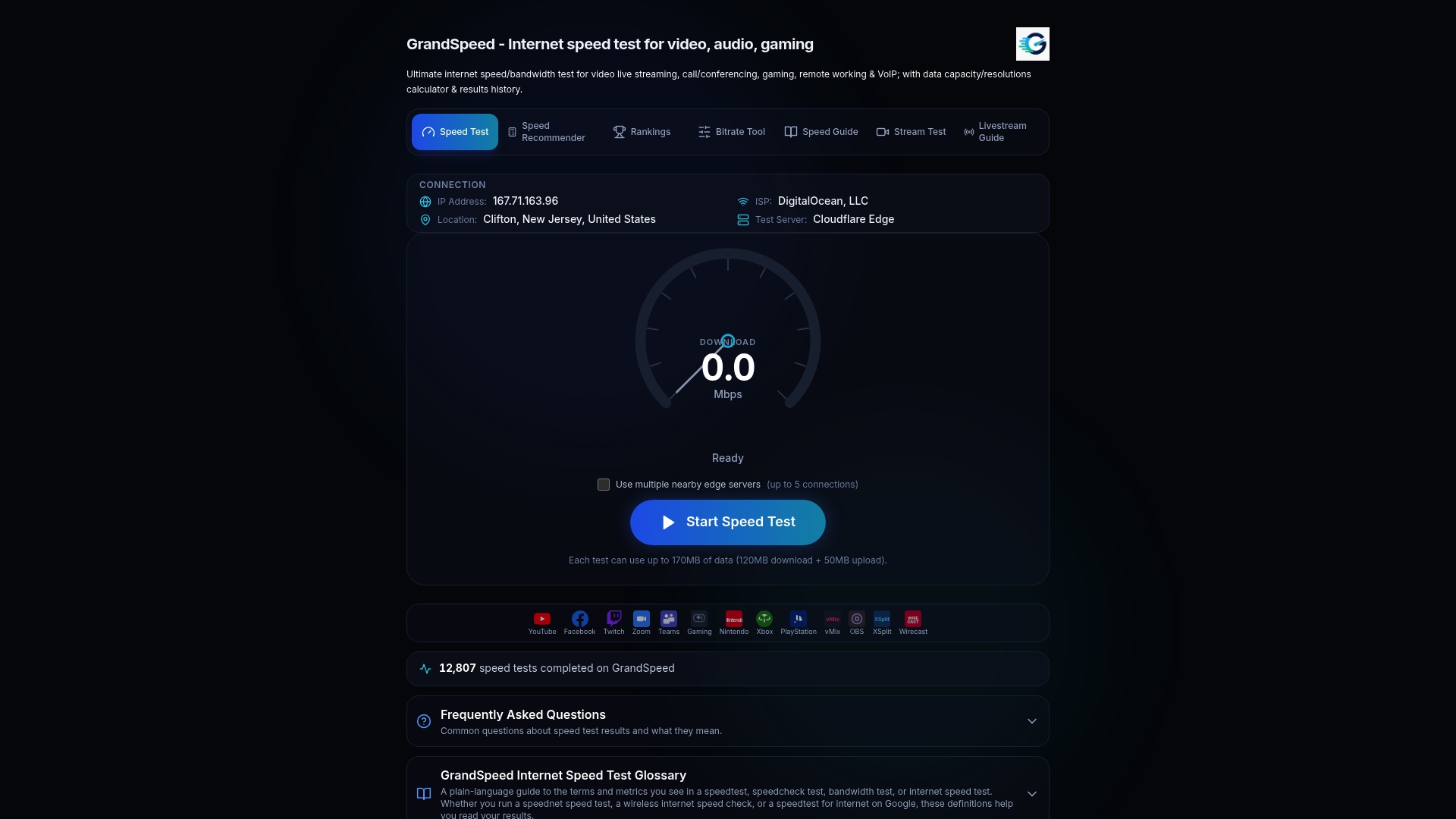
The results are saved in your test history, so you can compare Wi-Fi against Ethernet, or a quiet network against a busy one, and see the pattern over days. For a broader walkthrough, see our internet speed guide.
Our perspective
A speed number tells you how much your connection can carry. It tells you nothing about how steadily it carries it. Calls break on steadiness, which is why people with fast plans still blame their provider for freezing video.
We built GrandSpeed around that gap. Jitter, latency, packet loss and bufferbloat sit next to download and upload speed, because the useful question is rarely "how fast?" but "what happens when I am on a call and someone starts a backup?" Testing both idle and under load answers it in minutes.
For streamers and remote workers alike, we think the right habit is simple: measure, change one thing, measure again. With saved history, you stop guessing and start comparing.
Peter D
FAQ
What is acceptable jitter for video conferencing?
Below 30 ms is good, and 30 to 50 ms is generally acceptable for video calls according to Zoom's guidance. Cisco Meraki says interactive video should not exceed 30 ms and that over 40 ms can severely degrade quality. Use the lower figure as your target.
Why is my jitter suddenly so high?
The most common cause is something using your connection at the same time, such as a cloud backup, a download or someone streaming. That fills the router's queue and delays call packets, which is bufferbloat. Weak Wi-Fi, a VPN and mobile signal changes are the next suspects. Test with other devices idle, then with a transfer running, to tell them apart.
How do I fix jitter in video calls?
Start with Ethernet instead of Wi-Fi, pause background uploads and updates, and enable smart queue management or QoS on your router if it has it. Then re-test under load. If jitter stays high on a wired, idle connection, your test history gives you the evidence to raise it with your internet provider.
Does more bandwidth fix jitter?
Only if your line is saturated. Jitter is about delay variation, not capacity, and APNIC points out that a video call needs less than 10% of a typical home connection. If a fast plan still gives you jitter, look at bufferbloat, Wi-Fi quality and background traffic first.
Sources
- What is Jitter? (Cisco Meraki documentation)
- What is jitter on a speed test and how do you fix it? (Zoom)
- Jitter glossary (MDN)
- Video Jitter (IEEE Technology Navigator)
- Understanding Jitter in Packet Voice Networks (Cisco)
- Troubleshooting Webex Meetings and Calls (Cisco)
- Athena: cross-layer root cause analysis of 5G video conferencing degradation (IMC 2025)
- IX System Network and Bandwidth Requirements (Cisco)
- Video Quality of Service Tutorial (Cisco)
- Unbloating the buffers (APNIC Blog)
- Your internet isn't slow, you probably have bufferbloat (MakeUseOf)
- Computer Networks Wireshark Labs (Rutgers)
- How Does a Jitter Buffer Stop Choppy Video Calls? (GetStream)