
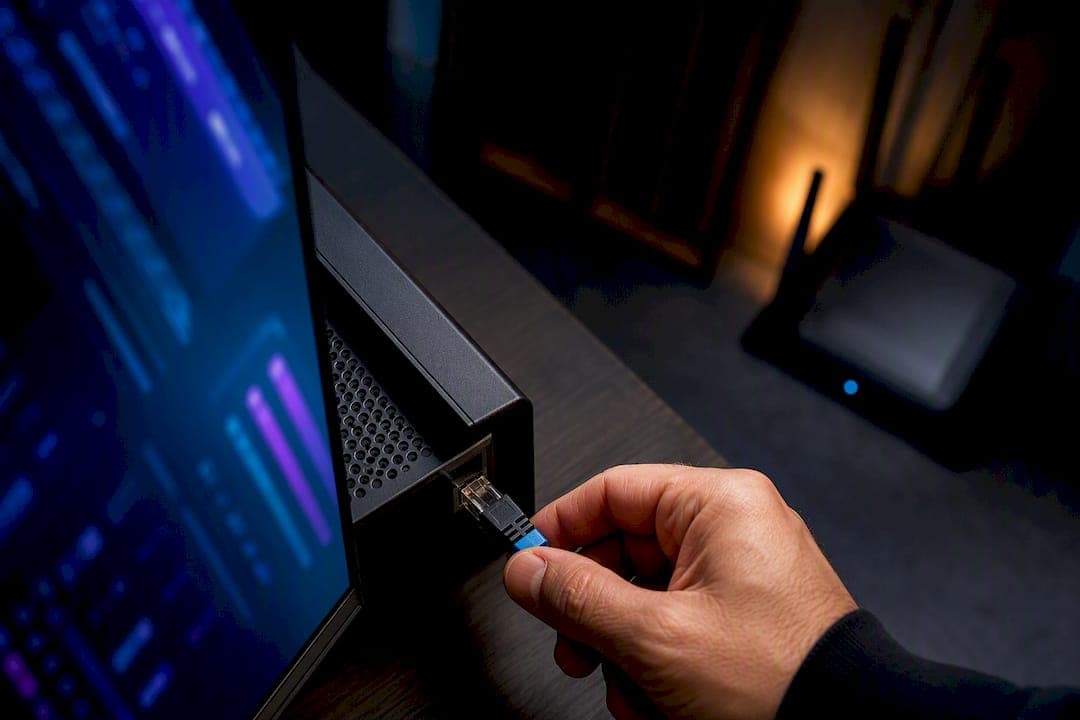
Use Ethernet for anything that can't afford to drop a frame: live streams, multi-hour broadcasts, or a primary TV you watch every night. Wi-Fi works fine for casual on-demand viewing where a device can buffer ahead. The difference comes down to two things: upload stability under load and how much jitter your connection tolerates before a live feed stutters. Run a Grandspeed before you buy any cable or adapter. The numbers settle the argument faster than any forum thread will.
TL;DR:
- Ethernet provides near-constant upload stability and minimal jitter, making it essential for live streams and 24/7 broadcasting.
- Wi-Fi's fluctuating throughput, packet loss, and interference can cause live feed stutters, especially during congestion or in complex environments.
- Testing with real-world stream tests shows wired connections drastically reduce packet loss and jitter compared to Wi-Fi, often approaching advertised speeds.
- Wireless workarounds like USB adapters, powerline, or MoCA can be effective but generally deliver lower and inconsistent speeds than wired Ethernet.
- Streaming devices with built-in Ethernet ports benefit from wired connections, but a thorough test should guide whether to wire or rely on Wi-Fi based on actual network performance.
Table of Contents
- Ethernet vs Wi-Fi Streaming: What the Numbers Actually Show
- How to Test Whether Ethernet Will Actually Help Your Stream
- How to Get Wired-Like Reliability Without Rewiring Your House
- Which Streaming Devices Actually Support a Wired Connection
- Decision Checklist: Ethernet, Wi-Fi, or a Hybrid Setup
- Reading Your Grandspeed Results the Right Way
- What Streamers Who Do This for a Living Actually Do
- Run the Test Before You Buy Anything
- Sources
- FAQ
Ethernet vs Wi-Fi Streaming: What the Numbers Actually Show
The theoretical speed printed on your router's box and the speed your streaming device actually gets are rarely the same number. Wi-Fi's advertised throughput assumes ideal conditions: no walls, no neighboring networks, no microwave running two rooms over. Real homes don't work that way.
Sustained throughput matters more than peak throughput for streaming, especially for live and interactive broadcasts. A speed test that spikes to 200 Mbps for two seconds and then dips to 40 Mbps means nothing to a viewer watching a live feed freeze. What matters is whether your upload stays steady across the full duration of the stream, not what it hits for a brief burst.
This is where jitter and packet loss separate the two connection types. Wi-Fi under congestion can swing to 0.1% to 5% packet loss and 5 to 50 milliseconds of jitter, depending on how many devices are fighting for airtime and how much interference is bouncing around your walls.
- Throughput: Ethernet delivers close to your plan's advertised speed; Wi-Fi loses a meaningful chunk to overhead and interference.
- Jitter: Wired connections rarely vary; wireless connections vary constantly, especially with multiple devices active.
- Packet loss: Near-zero on Ethernet, but Wi-Fi loss climbs sharply once a network gets busy.
- Interference: Neighboring routers, thick walls, microwaves, and Bluetooth devices all compete for the same radio space Wi-Fi depends on.
Why this matters differently depending on what you're streaming: on-demand video services buffer ahead, so a brief Wi-Fi hiccup often goes unnoticed. Live streaming can't do that. Tuneline's analysis makes the point directly: Wi-Fi's real weakness isn't peak speed, it's inconsistency, and inconsistency is exactly what a live feed can't absorb.
Newer standards like Wi-Fi 6 and 6E help. Features such as OFDMA and 1024-QAM improve how efficiently a router handles multiple devices, but they don't eliminate radio interference or contention for airtime. Studio Supplies notes that even with these improvements, wired connections remain the safer bet for anything running 24/7 or carrying a professional workload.
How to Test Whether Ethernet Will Actually Help Your Stream
Guessing wastes money on hardware you might not need. Testing takes ten minutes and tells you exactly where the problem lives.
- Move the device right next to the router and run the same test again. If results improve dramatically, distance and walls are your problem, not your ISP.
- Connect the device to Ethernet and run the test a third time. Compare sustained upload variance and packet loss against both Wi-Fi results.
- Repeat each test two or three times across a 60 to 300 second window. A single result can be a fluke; a pattern across multiple runs is the real signal, a point FCC guidance backs when it recommends sustained, repeated testing over one-off checks.
If Ethernet drops packet loss to near zero and jitter to single digits while Wi-Fi stayed erratic, you've found your fix. If both connections show similar instability, the bottleneck is likely upstream: your ISP, the streaming platform's servers, or your device's own hardware.
Pro Tip: Test at the time of day you actually stream. A network that looks clean at 10 AM can choke at 8 PM when every household on your block is streaming, gaming, and video calling at once.
CNET's home testing found that switching from Wi-Fi to Ethernet often pushed speeds much closer to what the ISP actually advertises, confirming that a lot of "slow internet" complaints are really wireless degradation, not a bad connection from the provider.
How to Get Wired-Like Reliability Without Rewiring Your House
Full Ethernet runs aren't always practical. Renters, multi-story homes, and anyone without access to walls need a workaround that doesn't involve drilling holes.
- USB-to-Ethernet adapters cost around $15 and work with most streaming sticks, laptops, and some smart TVs that lack a built-in port. Check your device's port type first: USB-A and USB-C adapters aren't interchangeable.
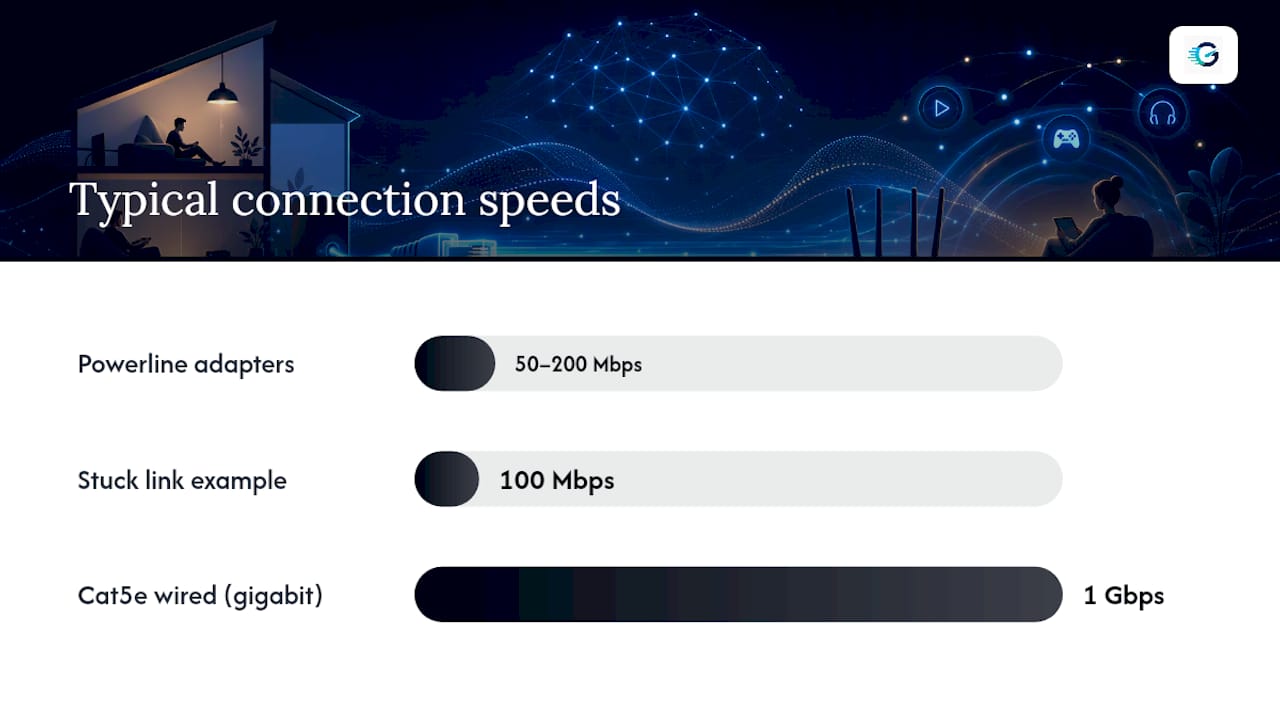
- Powerline adapters send data over your home's electrical wiring. Real-world throughput usually lands between 50 and 200 Mbps, well below marketing claims, and performance depends heavily on your circuit's age and wiring quality.
- MoCA adapters use existing coax cable and can approach cable-grade performance where coax is already run to the room, often outperforming powerline in older homes.
- Mesh systems with Ethernet backhaul let satellite nodes talk to each other over cable instead of over the air, then you plug your streaming device into the nearest satellite's Ethernet port.
For any cable you buy or already have, Cat5e handles gigabit speeds fine for most homes. Cat6 gives you more headroom for future multi-gigabit connections, a direction the Ethernet Alliance's roadmap confirms wired standards are actively moving toward.
Pro Tip: After wiring anything, check the negotiated link speed in your device's network settings. A connection stuck at 100 Mbps instead of 1 Gbps almost always means a bad cable, a damaged crimp, or a port that failed to auto-negotiate correctly.
Which Streaming Devices Actually Support a Wired Connection
Not every device makes this easy. Smart TVs increasingly ship with a built-in Ethernet port, but most streaming sticks don't, since they're built to be small and wireless-first.
- Smart TVs: Most mid-range and higher models include an Ethernet port on the back panel.
- Streaming sticks: Rarely include a port; you'll need a USB-to-Ethernet adapter, and some Roku models require a specific adapter type to work reliably.
- Consoles: Nearly all current-generation consoles include a built-in Ethernet port as standard.
- Streaming boxes and media players: Coverage varies widely by brand and price tier, so check the spec sheet before assuming.
If your stream still stutters after wiring the device, the problem might not be your network at all. Watch for device heat or CPU strain during long sessions; that points to decoding or thermal throttling, not a connection issue. A quick way to isolate it: stream the same content over cellular data on your phone. If it also stutters there, the source or the device is the culprit, not your home network.
Decision Checklist: Ethernet, Wi-Fi, or a Hybrid Setup
Here's the short version you can hand to anyone setting up a home streaming rig:
- Live, multi-hour, or 24/7 streams: wire it. No exceptions worth risking.
- Casual on-demand viewing on a single device: Wi-Fi is fine, especially on Wi-Fi 6 or newer.
- Multiple people streaming simultaneously: wire at least the primary TV or encoder, and let secondary devices share Wi-Fi.
- Uncertain which category you're in: run the A/B test from the methodology section above before spending a dollar on hardware.
A good baseline is the "2x headroom" rule: keep your sustained upload at least double your stream's target bitrate. A 1080p stream at 6 Mbps wants at least 12 Mbps of consistently available upload, not just a number your plan claims to offer.
| Priority Order | Device Type | Why It Comes First |
|---|---|---|
| 1 | Primary streaming PC or console | Highest bandwidth demand, most sensitive to jitter |
| 2 | Main living room smart TV | Heaviest daily use, hardest to troubleshoot mid-show |
| 3 | Secondary TVs or tablets | Lower stakes, Wi-Fi usually sufficient |
| 4 | Mobile and guest devices | Wireless by nature, no wiring needed |
After making any change, rerun your test and confirm packet loss and jitter actually improved before calling the fix complete.
Reading Your Grandspeed Results the Right Way
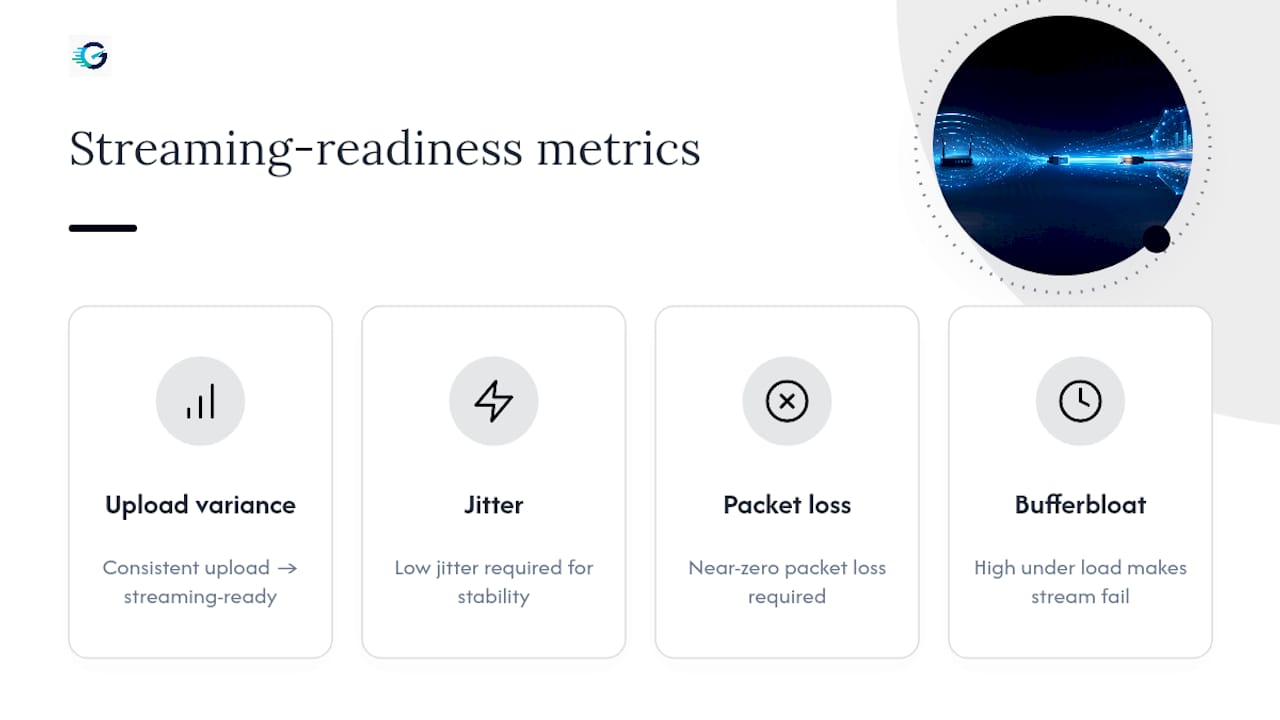
Four numbers matter most: upload variance, jitter, packet loss, and bufferbloat. Consistent upload with low jitter and near-zero packet loss means your connection is streaming-ready. High bufferbloat under load is a common hidden culprit, one that makes a connection feel fine at idle and fall apart the moment you start uploading.
Once you know your real sustained upload, run it through the bitrate calculator to pick a resolution your connection can actually hold, not just what looks good on paper. Grandspeed also tracks test history across devices and browsers, which makes it easy to spot a pattern instead of chasing a one-time fluke.
What Streamers Who Do This for a Living Actually Do
Professionals wire their primary encoder or main viewing device without debate and let Wi-Fi handle laptops, tablets, and anything mobile. It's not caution. It's math: an hour of cable installation is cheaper than a dropped feed during a broadcast that mattered.
The mistake most people make is buying a mesh system or a new router before testing anything. Confirm the bottleneck first. Sometimes the fix is a $15 adapter, not a $300 upgrade.
— Peter D
Run the Test Before You Buy Anything
Skip the guessing and the router upgrades nobody asked for. There are tools available that provide stream testing capturing upload stability, jitter, and packet loss in real time, along with bitrate calculators that help determine the resolution your connection can support.

Start with the stream test on your streaming device exactly where it normally sits, then move it next to the router and test again. If the gap is small, Wi-Fi is doing its job. If it's large, that's your answer, and you'll know before you spend a cent on cable or hardware. From there, feed your sustained upload number into the bitrate calculator to lock in a safe resolution, and wire whichever device showed the worst variance first.
Sources
- Broadband speed guide — FCC
- Ethernet vs. Wi‑Fi: One Crushed the Speed Test, the Other Barely Kept Up — CNET
- Ethernet vs Wi‑Fi for 4K streams: What actually matters (2026) | Tuneline
- 2024 Ethernet roadmap — Ethernet Alliance
FAQ
Does Ethernet Improve Streaming Quality?
Ethernet doesn't increase the speed your ISP delivers, but it removes wireless degradation, so your device actually receives more of the speed you're paying for, with less jitter and packet loss.
Is It Better to Use Wi-Fi or Ethernet for My Smart TV?
If your TV has a built-in Ethernet port, use it for daily viewing and especially for live channels or 24/7 background streaming; reserve Wi-Fi for secondary or mobile devices.
Is Ethernet Outdated Now?
No. Wired standards keep advancing toward multi-gigabit speeds, and wired connections still outperform even Wi-Fi 6 and 6E on consistency, which is the metric that actually determines whether a stream freezes.