
For most live streams, 1080p at 30 fps is the target. It needs a video bitrate of roughly 4,500 to 6,000 kbps and a stable upload speed of about 8 to 10 Mbps. 720p at 30 fps works on far less, and 4K needs 25 Mbps or more of upload. The exact figure depends on frame rate, codec and how steady your connection is. Your upload speed has to sit well above your bitrate, not just match it.
TL;DR
- 720p at 30 fps: about 2,500 to 4,000 kbps of video, so plan on roughly 5 to 6 Mbps of upload.
- 1080p at 30 fps: about 4,500 to 6,000 kbps of video, so plan on 8 to 10 Mbps of upload. 1080p at 60 fps needs more, often 10 Mbps or higher.
- 4K: 20 to 35 Mbps of video on YouTube-class settings, and 25 Mbps or more of upload at the very least.
- Keep your bitrate at or below about 70% of your measured upload speed, and test jitter and packet loss, not only speed.
Table of Contents
- Resolution, bitrate and upload speed are three different numbers
- Requirements by resolution
- How much upload headroom you need
- Is 20 Mbps enough?
- 720p or 1080p: which should you choose?
- Twitch, YouTube and Facebook specifics
- What 4K really takes
- Speed is not the whole requirement: stability
- Test your connection before you go live
- FAQ
- Sources
Resolution, bitrate and upload speed are three different numbers
Resolution is the size of the picture (1280x720, 1920x1080, 3840x2160). Bitrate is how much data per second your encoder sends to carry that picture. Upload speed is how much your connection can actually push out. Clevercast's broadcast guidelines put it simply: resolution and bitrate go hand in hand, and both are limited by encoding resources and upload bandwidth.
That is why a requirement like "1080p needs 5 Mbps" is incomplete. Five megabits might carry the video, but it leaves nothing for audio, protocol overhead, other devices on your network or a bad second. The rest of this guide separates the three numbers so you can work out your own.
Requirements by resolution
The table combines ranges from several encoder and platform guides. Where they differ, the lower figure is a minimum and the higher one is a comfortable target.
| Resolution and frame rate | Typical video bitrate | Upload speed to plan for |
|---|---|---|
| 720p, 30 fps | 2,500 to 4,000 kbps | About 5 to 6 Mbps |
| 720p, 60 fps | About 4,000 to 6,000 kbps | About 6 to 9 Mbps |
| 1080p, 30 fps | 4,500 to 6,000 kbps | 8.5 to 10 Mbps or more |
| 1080p, 60 fps | 6,000 to 9,000 kbps | 10 to 25 Mbps |
| 4K, 30 fps | 20,000 to 34,000 kbps | 25 Mbps or more |
The bitrate ranges for 720p and 1080p at 30 fps come from Ant Media's bitrate chart: 2,500 to 4,000 kbps for 720p and 4,500 to 6,000 kbps for 1080p. The 1080p60 ceiling of 9,000 kbps matches Vimeo's live event network guidance, which pairs it with an upload speed of 25.1 Mbps or above. For 4K, Vimeo's resolution guide lists 20,000 to 34,000 kbps of video and an upload speed of 25 Mbps or more.
The 720p60 row is our own arithmetic from the frame-rate rule below, not a published figure, so treat it as a starting point.

How much upload headroom you need
Every source agrees that your upload speed must exceed your bitrate. They disagree on by how much, and the differences are worth knowing:
- Ant Media says upload bandwidth should be at least 1.4 times the target bitrate.
- Livepush frames the same rule as keeping bitrate at or below about 70% of measured upload. For 1080p30 at 4,500 to 6,000 kbps, that means at least 8.5 Mbps of stable upload.
- NVIDIA's OBS guide suggests targeting around 75% of your upload speed, because a game and apps such as Discord compete for the same bandwidth.
- 3Q's signal guidelines say to use no more than about two-thirds of the upload bandwidth your ISP specifies. They ask for 10 Mbit/s minimum for a 1080p25 stream of around 6 Mbit/s.
- Resi recommends doubling your target bitrate, so a 6 Mbps 1080p stream wants at least 12 Mbps up.
- Vindral goes further and suggests keeping bitrate below half of available bandwidth.
A practical reading: if your connection is wired and steady, 1.4 times is a workable floor. If you share the network, stream over Wi-Fi or play a bandwidth-heavy game at the same time, plan on 2 times.
A worked example
Suppose you want 1080p at 30 fps and choose a 6,000 kbps video bitrate plus 160 kbps of audio, about 6.2 Mbps in total.
- At 1.4 times headroom, you need roughly 8.7 Mbps of reliable upload.
- At 2 times headroom, you need roughly 12.4 Mbps.
- If your plan advertises 20 Mbps up but a test shows 11 Mbps at peak hours, the first option works and the second does not. Drop to a 4,500 kbps bitrate or to 720p.
The reverse calculation is just as useful. Streamlabs suggests converting your upload speed to kbps and subtracting 20% so your bitrate never exceeds it. You can run your own numbers in our video bitrate calculator.
Is 20 Mbps enough?
For 1080p at 30 fps, yes, comfortably. Vimeo puts 1080p30 in the 10.1 to 25 Mbps upload band with a 4 Mbps recommended bitrate, and a maximum of 5 Mbps once you have more than 25 Mbps. For 1080p at 60 fps, Vimeo calls for 25.1 Mbps or higher, so 20 Mbps is tight. Our own breakdown of why 20 Mbps is not all yours to stream with explains how household traffic eats into the figure on your plan.
720p or 1080p: which should you choose?
Higher resolution is not automatically better looking. Pixels need bits, and when the bitrate is capped, a smaller picture can look cleaner.
BoxCast tested this with a quality metric and found that below about 7 Mbps, 720p H.264 scored higher than 1080p. With HEVC, 1080p pulled ahead above roughly 2.2 Mbps. The test is from 2019, so treat it as a principle rather than a precise threshold.
Platform advice points the same way for many creators:
- Lightstream recommends 720p for most users with at least 5 Mb/s upload, and 1080p mainly for partnered Twitch or YouTube streamers with at least 7 Mb/s.
- For fast games such as racing or shooters, NVIDIA notes that many Fortnite streamers use 1280x720 at 60 fps and 6,000 kbps to avoid blocky artifacts.
- Frame rate matters as much as resolution. Ant Media says going from 30 to 60 fps typically needs 50 to 60% more bitrate, while Vindral finds that 10 to 30% can be enough with modern codecs.
A simple rule: choose 1080p30 for talking heads, tutorials, webinars and slower content. Choose 720p60 for fast action when your bitrate is stuck near 6,000 kbps.
Twitch, YouTube and Facebook specifics
Twitch. Output is typically 1920x1080 or 1280x720. MakeUseOf notes that Twitch's maximum is 6,320 kbps, split into 6,000 for video and 320 for audio. At 1080p60 that can cause pixelation, so a middle resolution of 900p (1600x900) may balance sharpness and smoothness. Our Twitch bitrate settings guide walks through 720p, 1080p and 2K choices.
YouTube. YouTube's own encoder page lists much higher ceilings, which is why it is the usual choice for 4K. Its live encoder settings page recommends 35 Mbps for 4K at 60 fps with AV1 or H.265 (14 Mbps minimum with H.264 is 14 Mbps, recommended 50 Mbps), and 30 Mbps for 4K at 30 fps with AV1 or H.265.

Facebook. Settings are similar to the 720p and 1080p ranges above. Our Facebook Live bitrate guide covers the specifics.
OBS base resolution versus output resolution
In OBS, the base (canvas) resolution is the artboard where you arrange your camera, game and alerts. The output (scaled) resolution is what actually goes to the platform. StreamHub explains that separating the two lets you keep a sharp workspace while holding upload bandwidth to a manageable level. A common setup is a 1920x1080 base with a 1280x720 output.
What 4K really takes
4K is more than a bigger number on the settings page.
- Bandwidth. Vimeo recommends a minimum upload of 25 to 40 Mbps for a stable 4K live stream. Dacast says 20 Mbps or higher, and Clare Controls cites around 25 Mbps as a minimum.
- Audio. Add the audio bitrate on top of video. Optimum points out that audio typically adds roughly 128 to 384 kbps.
- Codec. NVIDIA notes that typical upload speeds of 6 to 15 Mbps make H.264 4K60 look blocky and grainy, while AV1 gives significant improvements.
- Platform. Vimeo says 4K live needs an eligible Enterprise account with the 4K add-on and an external encoder using RTMP.
AV1 and H.265 shrink the numbers. Ant Media reports that H.265 can carry a 1080p stream in about 2,250 to 3,000 kbps instead of 4,500 to 6,000 kbps, and that AV1 compresses a further 30 to 50%. Check that your platform and viewers' devices accept the codec first, since H.264 remains the most widely supported. For a deeper look at the high-end numbers, see our piece on 4K streaming bitrate with AV1.
Speed is not the whole requirement: stability
A connection that tests at 40 Mbps once can still ruin a stream. Livepush describes signs of an unstable link: speed varying by more than 30% between tests, ping spikes above 100 ms, and packet loss above 0.5%. Clevercast agrees that it is better to have a stable stream than to push for quality that causes dropped frames.
Before a broadcast:
- Use a wired Ethernet connection if you can.
- Keep the connection as free as possible from other uploads, cloud backups and video calls. 3Q's guidelines stress a stable connection dedicated exclusively to the livestream.
- Use constant bitrate (CBR) in your encoder. Vindral also recommends CBR for live streaming.
- Test at the time of day you will be live, because evening congestion changes results.
- If Wi-Fi keeps cutting out, working through a pattern-based approach to Wi-Fi dropouts can show whether the cause is the router, placement or interference.
If OBS reports dropped frames, our OBS dropped frames checklist and the guide to why upload speed fluctuates cover the usual culprits.
Our perspective
Most streamers pick a resolution first and discover their connection afterwards. We think it should go the other way round. Measure what your line can sustain, including jitter, packet loss and bufferbloat, then let that decide your resolution and bitrate.
A single download figure tells you very little about a live broadcast, because a stream is a long upload that must stay steady for hours. That is why GrandSpeed tests more than speed and works out the maximum live stream resolution your results can support. A 720p stream that never stutters beats a 1080p stream that drops frames every few minutes.
Run the test when you will actually broadcast, keep the results in your history, and set your bitrate from the numbers you see.
Peter D
Test your connection before you go live
The quickest way to turn all of these ranges into a decision is to measure your own line. Run our speed test to see upload speed, latency, jitter and packet loss, and the maximum live stream resolution your results support. The Livestream Upload Speed Monitor tracks your upload while you broadcast, so you can see whether it holds up over a whole session.
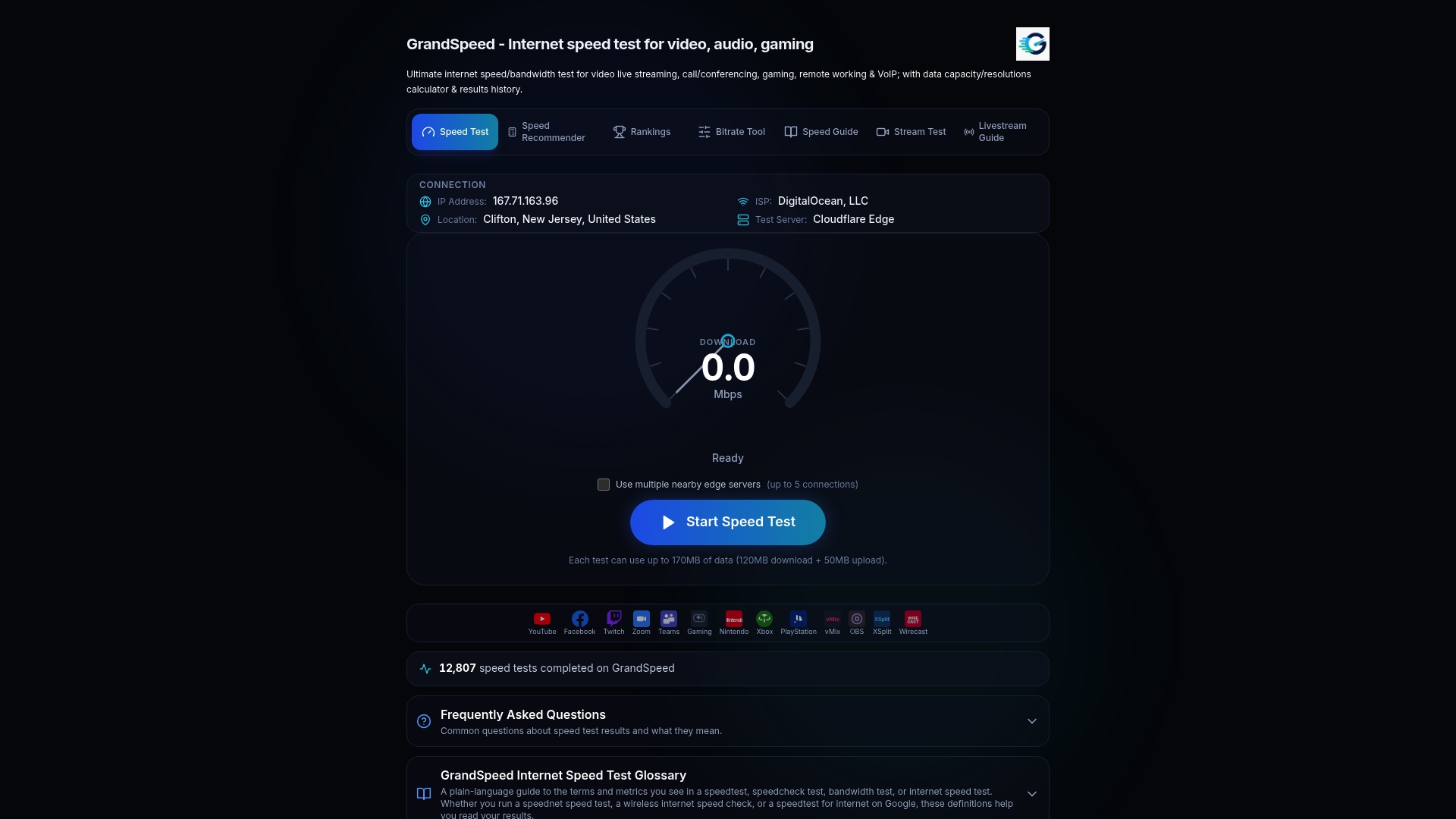
If you are choosing a plan rather than testing one, the Internet/ISP Speed Recommender estimates the speed your streaming setup needs. The Video Streaming Quality Test checks how your connection handles video. For a fuller walkthrough, read our guide on what to look for in internet for streaming.
FAQ
Should I stream in 720p or 1080p?
Choose 1080p30 if you have at least 8 to 10 Mbps of stable upload and your content is not fast-moving. Choose 720p, especially at 60 fps, if your upload is closer to 5 to 7 Mbps or your game has lots of motion. At a capped bitrate, a sharper-looking 720p picture often beats a blocky 1080p one.
What is the minimum bandwidth for 1080p streaming?
Sources give different minimums. Clare Controls says 5 Mbps, Lightstream suggests at least 7 Mb/s, and Livepush says 8.5 Mbps for a 6 Mbps stream. Resi recommends 10 to 16 Mbps. For a reliable broadcast, aim for at least 1.4 times your bitrate.
What resolution can a Twitch stream use?
Twitch streams are commonly sent at 1920x1080 or 1280x720. The maximum bitrate is around 6,000 kbps for video, so 720p60 often looks better than 1080p60 for fast games. Output resolution is set in OBS separately from your base canvas.
Is 1080p or 4K better for live streaming?
4K has four times the pixels of 1080p, so it needs several times the bitrate: 20 to 35 Mbps of video versus 4.5 to 6 Mbps. Unless you have 25 Mbps or more of steady upload, a good encoder and a platform that accepts 4K, 1080p will usually look better and play more reliably for your viewers.
Sources
- Clevercast broadcast guidelines
- Ant Media: video bitrate chart
- Vimeo: recommended network configuration for live events
- Vimeo: the 4 best streaming resolution settings
- Vimeo: upload speed for streaming
- Livepush: live streaming bandwidth guide
- NVIDIA NVENC OBS guide
- 3Q signal guidelines
- Resi: bandwidth requirements for HD live streaming
- Vindral broadcast guidelines
- Streamlabs: good upload speed for live streaming
- BoxCast: 1080p vs 720p
- Lightstream: what resolution should I use
- MakeUseOf: custom resolutions in OBS
- YouTube: live encoder settings, bitrates and resolutions
- StreamHub: OBS canvas resolution
- Dacast: internet speed for streaming
- Clare Controls: bandwidth for live streaming
- Optimum: internet speed for live streaming
- Ant Media: video codecs explained