

DNS over HTTPS (DoH) can add a little delay to each name lookup, but it rarely explains a connection that feels truly slow. Studies of page load times show a small effect on a healthy network. The picture changes on a congested link, with a distant resolver, or with a misconfigured setup. The fix is to measure your DNS response time first, then change one thing at a time.
This guide shows you what the research says about DoH performance, how to time lookups with simple tools, and how to tell a DNS problem from a bandwidth, latency or Wi-Fi problem.
TL;DR
- DoH wraps ordinary DNS queries in encrypted HTTPS traffic. That adds overhead, and a 2019 academic study found the impact on page load times to be limited.
- The slowdown shows up most on poor connections. A 2019 web performance study found pages load fastest with plain DNS as throughput drops and packet loss and latency rise.
- Resolver choice matters as much as protocol choice. Measure lookup times with
digbefore you switch anything. - Many "slow DNS" complaints turn out to be IPv6 timeouts, routing trouble or a bad endpoint, not the protocol itself.
- Run a GrandSpeed speed test to check latency, jitter, packet loss and DNS resolution time in one pass.
Table of Contents
- Is DNS over HTTPS really slower?
- Why encrypted DNS can add delay
- When DNS is not the real problem
- How to measure DNS response time
- How to compare DoH with regular DNS
- Fixes to try, in order
- Does DNS speed matter for streaming, gaming and calls?
- Test your DNS and connection together
- FAQ
- Sources
Is DNS over HTTPS really slower?
On paper, yes. Every encrypted lookup carries extra work: a TCP connection, a TLS handshake and HTTP framing on top of a DNS message that is only a few dozen bytes. In practice, the cost depends on whether your browser or router keeps a connection open, how far away the resolver is and how healthy your network is.
The research gives a mixed but consistent picture:
- A 2019 empirical study of DoH cost suggests DoH overheads have a limited impact on page load times. Its conclusion is that you can get the security gain with only marginal performance impact.
- A 2024 ITU-T study on secured DNS transport reported that moving from legacy DNS to DoH can cut performance by 70% for relatively long-lived TCP connections. It points to TLS key exchange and the HTTP/2 layer as the main reasons. That figure describes resolver throughput under test conditions, not what a single household sees.
- An FCC Measuring Broadband America study, "Can Encrypted DNS Be Fast?", found significant variation in DoH performance across recursive resolvers. The authors noted that DoH implementations were relatively new and may not be optimized.
Take these together and the honest answer is: DoH is not slow by nature, but it has more moving parts, and some resolvers handle them better than others. That is good news. It means a slow setup is usually fixable without giving up encryption.
Why encrypted DNS can add delay
A DNS lookup is a tiny exchange. A 2019 study of DoH overhead points out that the TCP and TLS layers are each at least as large as the DNS message itself. When you download a web page, that overhead disappears into the payload. When you send a 40-byte question, it dominates.
Here is where the time typically goes:
- Connection setup. The first query to a DoH server needs a TCP handshake and a TLS handshake before any DNS data moves. If your client reopens the connection often, you pay this repeatedly.
- Distance to the resolver. A resolver 80 ms away costs 80 ms per round trip, encrypted or not. Encryption multiplies the number of round trips on a fresh connection.
- Resolver load and cache state. A busy or poorly tuned DoH endpoint answers slowly, and a cache miss forces the resolver to query authoritative servers.
- Bad network conditions. On a lossy link, a dropped packet inside a TCP stream stalls the whole connection. The 2019 comparison of DNS, DoT and DoH found that as throughput falls and packet loss and latency climb, pages load fastest over plain DNS and load successfully more often over plain DNS and DNS over TLS than over DoH.
That last point matters if you are on weak Wi-Fi, a congested cellular signal or a flaky hotel network. DoH may feel worse there, and the cause is the network under it. If you suspect packet loss, our guide on how to prove packet loss to your ISP walks through a quick diagnosis.
When DNS is not the real problem
Before you blame DoH, check that DNS is the slow part. A company-blog analysis from OpenMSP on slow DNS lookups warns that changing resolvers without measuring first is guesswork. It also notes that what looks like slow DNS in a browser is often an IPv6 timeout, an ndots misconfiguration or a routing problem rather than a failure of the DNS protocol.
Signs that point away from DNS:
- Pages stall, then load fully at normal speed. That pattern fits a one-time lookup delay, but it also fits a failed IPv6 attempt that falls back to IPv4.
- Everything is slow, including sites you have visited all day. Cached lookups are not the problem. Look at bandwidth, Wi-Fi signal or bufferbloat.
- Video calls or games lag while pages load fine. That is usually latency, jitter or loss under load, not DNS. Our bufferbloat test methods show how to catch it in five minutes.
- Only one site is slow. The site's own servers or its DNS provider may be the cause.
A quick sanity test: load a site by its IP address and by its name. If the IP loads instantly and the name hangs, DNS is a suspect. If both are slow, look elsewhere.
How to measure DNS response time
Measure before you change anything. You need a number for plain DNS and a number for DoH, taken from the same device at the same time of day.
Use dig for a quick lookup time
On macOS or Linux, run:
dig @8.8.8.8 example.com | grep "Query time"
The output gives you the round-trip time in milliseconds. Run it several times, because the first query may miss the cache and later ones will not. Change the server address to test other resolvers. On Windows, nslookup works for a basic check, and PowerShell's Measure-Command { Resolve-DnsName example.com } gives timing.
dig tests plain DNS. To test DoH itself, use a tool that speaks DoH, such as curl with a DoH URL from your provider, or the built-in diagnostics in your browser or router. For a deeper walk-through of testing from client to resolver to authoritative server, see our guide to measuring DNS latency from your network.
What the numbers mean
Thresholds vary by source, but two published guides give a workable scale. The OpenMSP guide says lookups under 50 ms are generally not a bottleneck, 150 to 500 ms point to a congested or distant resolver, and 500 ms or more suggests a timeout or misconfiguration. The 2022 KiNDNS guidelines for public resolver operators advise monitoring availability, correctness and latency, and expect recursive query response times to stay generally under 200 to 300 ms.
| Lookup time | What it usually means | What to do |
|---|---|---|
| Under 50 ms | DNS is not your bottleneck | Look at bandwidth, Wi-Fi or latency under load |
| 50 to 150 ms | Acceptable, may improve with a closer resolver | Test one or two alternatives |
| 150 to 500 ms | Congested or distant resolver | Switch resolver or protocol, check your router |
| 500 ms and above | Timeout or misconfiguration | Check the DoH endpoint, IPv6, firewall and fallback settings |
Use repeated lookups of different domains. A single result tells you very little.
How to compare DoH with regular DNS
The FCC-backed researchers behind "Can Encrypted DNS Be Fast?" recommend that browser-based DNS clients run simple latency tests periodically to pick the protocol and resolver that perform best on the current network. You can do a manual version at home in about 15 minutes:
- Pick three to five domains you visit often, plus two you rarely use, so you see both cached and uncached behavior.
- Time plain DNS against your current resolver with
dig. Run each domain five times and note the median. - Time the same resolver over DoH. Enable DoH in your browser or OS pointing at the same provider, and record page load or lookup time. Using the same provider isolates the protocol from the resolver.
- Try a second provider. Repeat with another well-known public resolver. Our fastest DNS for gaming test compares Cloudflare and Quad9 first and shows a repeatable method you can reuse for any use case.
- Repeat at a busy hour. Evening congestion can change the ranking.
- Keep the winner. If encrypted DNS is within a few milliseconds of plain DNS, keep it. If it is clearly slower on every resolver you try, the problem is likely your network path.
The result is yours alone. A resolver that wins in one city or on one ISP can lose in another.
Fixes to try, in order
Start with the cheapest and most reversible changes.
1. Confirm DoH is working as intended
A misconfigured setup can look like a slow one. Mullvad's help page on DNS over HTTPS and DNS over TLS describes a simple check: open its connection check page, confirm there are no DNS leaks and look for a server with "dns" in its name. If the page shows an unexpected resolver, your settings are not doing what you think.
2. Check the endpoint and fallback behavior
If the DoH URL is wrong, the server is unreachable or your browser cannot fall back cleanly, pages hang before loading. Re-enter the URL from your provider's documentation, and make sure the server is reachable from your network. Some firewalls and school or office networks block DoH traffic, which forces timeouts before fallback.
3. Switch to a closer or better-tuned resolver
Because the FCC study found wide variation among resolvers, changing the provider can change performance more than changing the protocol. Test at least two. If your ISP's resolver is fast and nearby, plain DNS to it may beat a distant encrypted one, though you give up encryption on that hop.
4. Rule out IPv6 and routing problems
If lookups stall and then succeed, test with IPv6 disabled on one device temporarily. If that fixes it, the cause is a broken IPv6 path, not DoH. Our walkthrough of latency troubleshooting with per-hop isolation helps you find where the delay starts.
5. Mind your VPN
Mullvad states that encrypted DNS offers negligible security benefits when you are connected to its VPN and is always slower there, because the VPN already uses the server's own resolver. If you use a VPN, check what DNS it expects before layering your own DoH settings on top.
6. Fix the network underneath
If jitter, loss or bufferbloat is the real issue, no DNS tweak will help. Reduce Wi-Fi interference, move closer to the router or use Ethernet, and test again. For a fuller reference on what counts as good and bad, read our piece on DNS resolution time.
Does DNS speed matter for streaming, gaming and calls?
DNS happens at the start of a connection, not during it. Once your device has the address, a game session or a video call does not depend on DNS speed until it needs a new name. That is why a slow resolver makes browsing feel sluggish but rarely changes in-game ping.

The delay is still real when you open many new sites, app screens or services. Browsers try to hide it: Chromium's design notes on DNS prefetching say prefetching can save an average of about 200 ms in navigation when you have not recently visited the domain. If you run a site yourself, there are faster website navigation tips that pair lookup delay with prefetching and page speed.
For calls, streams and games, the numbers that decide quality are latency, jitter and packet loss. If you do voice or video work, see our VoIP latency tests for what to measure. If you broadcast, the Livestream Upload Speed Monitor tracks your upload stability while you stream, which a DNS tweak cannot fix.
Our view: measure the whole path, not one setting
We built GrandSpeed because a single download number hides most of what makes a connection feel good or bad. DNS is a perfect example. People hear that encrypted DNS is slow, change a setting, and never learn whether DNS was the problem in the first place.
Our approach is to look at DNS resolution time next to latency, jitter, packet loss and bufferbloat, all from the same device and the same moment. If DNS is 30 ms and everything else is clean, you can leave your privacy settings alone. If DNS is 400 ms while latency is low, you have a resolver problem you can fix in minutes. If loss is the culprit, no resolver will help.
We designed the tests to show those differences, so you spend your time on the right fix. Run them on Wi-Fi and again on a cable, and run them at the hour when the problem actually appears. Patterns beat single readings.
Peter D
Test your DNS and connection together
If you want to know whether DNS is the slow part of your connection, run our GrandSpeed speed test. It measures download and upload speed, latency, jitter, packet loss, bufferbloat and DNS resolution time in your browser, on a phone, tablet or laptop, over Wi-Fi or cellular. It also keeps a history of your results, so you can compare a test before and after you change a DNS setting.
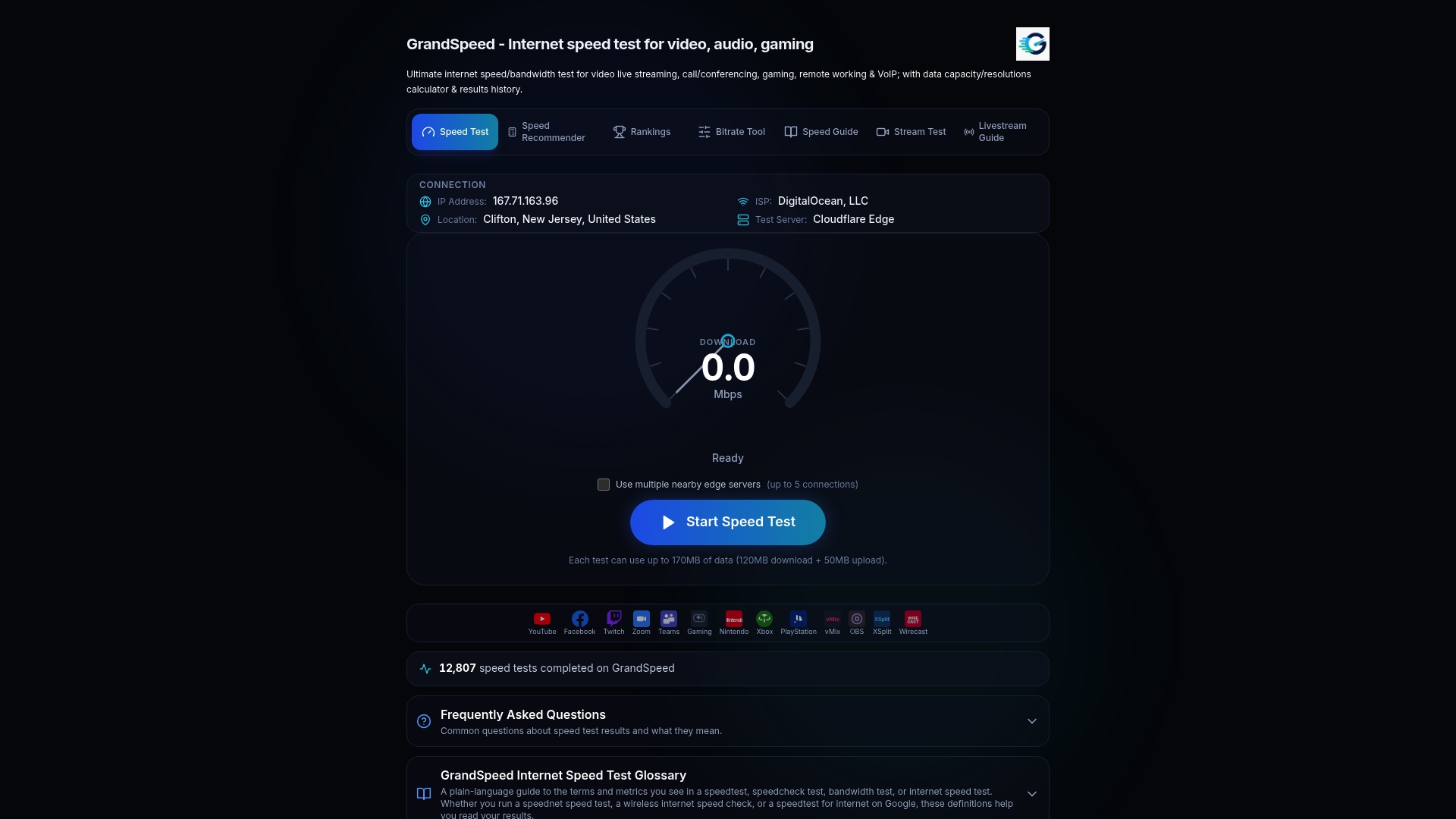
If you stream or game and want to know what your connection can sustain, the Video Streaming Quality Test shows which resolutions your measured speeds support. The Internet/ISP Speed Recommender helps you judge what plan your activities need.
FAQ
How do I check if DNS over HTTPS is working?
Open a connection check page from your DNS or VPN provider and look at which resolver it reports. Mullvad's check page guidance says it should show no DNS leaks and list a server with "dns" in its name. Browser settings pages also show whether secure DNS is on and which provider it uses.
Is DNS affecting my internet speed?
DNS affects how quickly a connection starts, not how fast data flows once it is running. A slow resolver delays the first byte of each new site, so browsing feels slow even when a speed test shows high download numbers. If lookups take over 150 ms, it is worth testing another resolver.
How do I check DNS response time?
Run dig @8.8.8.8 example.com and read the "Query time" line, then repeat with other servers and domains. Take the median of several runs. Our guide on how to measure latency covers the commands and how to read the results.
Should I turn off DoH if it is slow?
Not as a first step. Measure plain DNS and DoH against the same resolver. If the gap is small, keep encryption and fix the network or switch resolvers. If DoH is consistently much slower on every provider you test, consider plain DNS or DNS over TLS for that network, and weigh the privacy trade-off yourself.
Sources
- An Empirical Study of the Cost of DNS-over-HTTPS (ACM, 2019)
- An Empirical Study of the Cost of DNS-over-HTTPS (arXiv, 2019)
- Effects of Secured DNS Transport on Resolver Performance (ITU, 2024)
- Can Encrypted DNS Be Fast? (arXiv, 2020)
- Comparing the Effects of DNS, DoT, and DoH on Web Performance (ACM, 2019)
- DNS over HTTPS and DNS over TLS (Mullvad)
- How to Fix Slow DNS Lookup: Hidden Causes (OpenMSP)
- Public Resolver Operators' Implementation Guidelines (KiNDNS, 2022)
- DNS Prefetching (Chromium)