

The best speed test for remote work is the one that measures what a workday actually needs: upload speed, latency, jitter, packet loss and bufferbloat, not just a single download number. GrandSpeed's speed test covers all of those, plus DNS resolution time, and keeps a history of your results so you can see whether the 2 p.m. video call problem is a pattern or a one-off. Below is how the main options compare, what numbers to aim for, and how to run a test that tells you something.
TL;DR
- Remote work fails on upload, latency, jitter and packet loss far more often than on download speed. Pick a test that reports them.
- GrandSpeed measures download, upload, latency, jitter, packet loss, bufferbloat and DNS time, and stores your test history.
- Fast.com, Cloudflare, Ookla and OpenSpeedTest are fine for a quick check, but each answers a narrower question.
- Run tests three or four times across the day, on the device and spot where you work, and compare against what your calls and tools need.
- A single test never proves a connection is good. A pattern across several does.
Table of Contents
- Why a download number is not enough for remote work
- How the main speed tests compare
- Why the numbers differ between tools
- What numbers remote work actually needs
- How to run a remote work speed test that means something
- When the result does not match your plan
- If you stream or broadcast as part of your job
- Our perspective
- Run your first test
- FAQ
- Sources
Why a download number is not enough for remote work
Most speed tests were built to answer one question: how fast can this connection pull data? That matters for a big file or a movie. A video meeting is different. You send video and audio up as much as you receive them, and the call breaks when delivery turns uneven, not only when it is slow.
Four measurements explain most bad calls:
- Upload speed: how fast your video, screen share and files leave your machine. Many home plans give far less upload than download.
- Latency: the round-trip time for a small packet, in milliseconds. High latency makes people talk over each other.
- Jitter: how much latency varies from packet to packet. A connection with a decent average can still stutter if jitter is high. Our guide to video conferencing jitter shows what is acceptable and how to fix it.
- Packet loss: the share of packets that never arrive. HowToGeek notes that packet loss should sit at 0% for comfortable streaming, gaming and calls.
Add bufferbloat, the delay that builds up when your connection is busy (a cloud backup, a family member's download), and you have the usual explanation for a call that freezes only when someone else is online. A test that checks latency only on an idle line will miss it. Our piece on the best ping test and latency under load goes deeper on that.
If the strain of constant call glitches sounds familiar, you are not alone: an unreliable line adds to remote work burnout, and it is one of the easier causes to fix.
How the main speed tests compare
The table puts GrandSpeed first, then the tools most often recommended in reviews. Descriptions of the other tools come from independent reviews and research, not from the tools' own pitches.
| Test | Best for | What you get | Worth knowing |
|---|---|---|---|
| GrandSpeed | Remote work, calls, streaming, gaming | Download, upload, latency, jitter, packet loss, bufferbloat, DNS resolution time, test history | Free to use in any modern browser on phone, tablet or laptop, over Wi-Fi or cellular. Also reports the maximum live stream resolution your results support |
| Cloudflare | A quick, accurate check with use-case ratings | Speeds plus a Network Quality Score | Rates how activities such as streaming perform on your line |
| Fast.com | The simplest possible check | Download speed, with settings for test duration and parallel connections | Run by Netflix, handy if streaming is your main concern |
| Ookla Speedtest | Widely recognized results | Download, upload, idle, download and upload latency | Has native apps for Windows, Mac and Apple TV plus a browser version |
| OpenSpeedTest | Any device without installs | Download, upload, latency | Open source, HTML5, works on all operating systems |
The Cloudflare, Fast.com, OpenSpeedTest and Ookla details above come from USA Today's speed test review, which also notes that Ookla users report 100 to 200 MB of data used per run at around 100 Mbps. That adds up if you test often on a capped plan or a phone hotspot.
Why GrandSpeed is the pick for remote work
A remote worker's problem is rarely "my line is slow." It is "my call froze while my plan says I should be fine." GrandSpeed was built for that situation: it tests for video conferencing, VoIP and remote working specifically, and reads the quality metrics that decide whether those tasks hold up. Jitter, packet loss, bufferbloat and DNS resolution sit next to the speed figures instead of being left out.
The history feature matters just as much. One reading tells you little. A series of readings, morning and afternoon, Wi-Fi and cable, shows you where the connection actually degrades and gives you something concrete to show your internet provider or your IT team.
Why the numbers differ between tools
Run three tests back to back and you will often get three answers. That is normal, and the reasons are well documented.
Different infrastructure. A Caida study of web-based speed tests describes how differently the major platforms are built: Ookla runs more than 12,000 servers across many ISPs and uses 6 TCP flows, Fast.com runs on Netflix's network with 11 flows, and Cloudflare uses its anycast network with a single flow. Different server choices and connection counts produce different results on the same line.
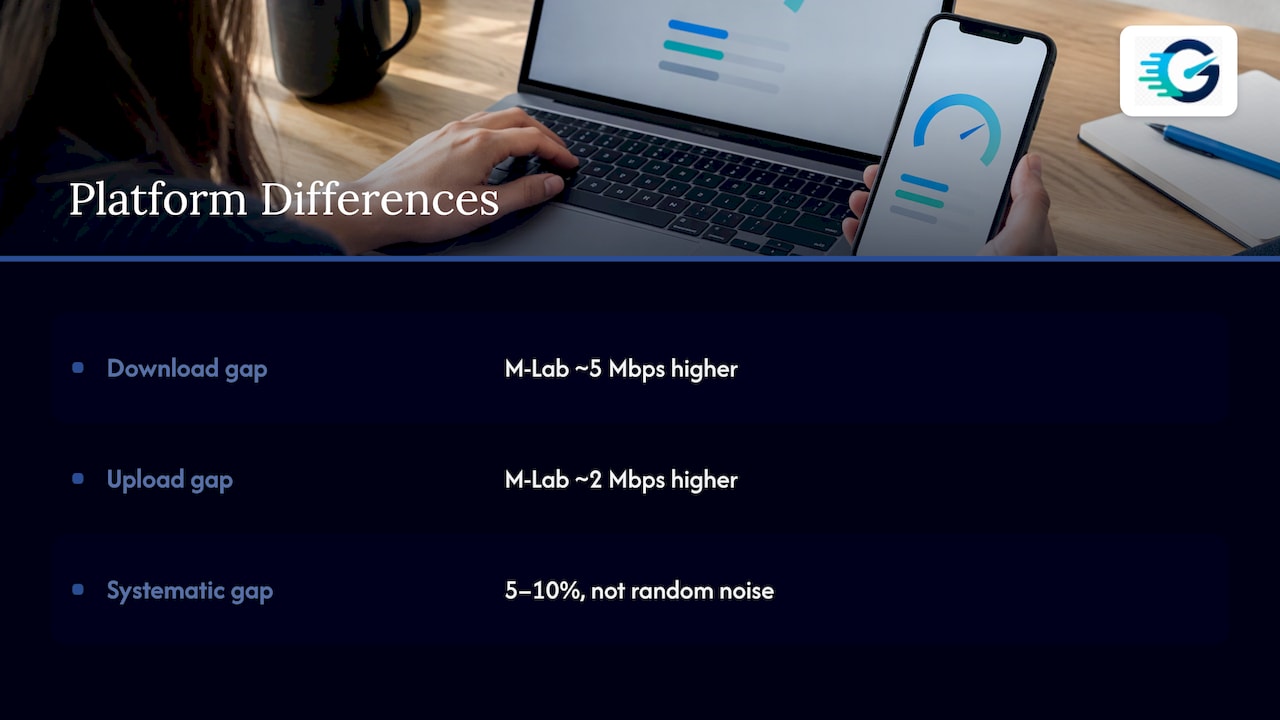
Systematic differences between platforms. A 2025 AINTEC paper that analyzed a full year of M-Lab and Cloudflare results found M-Lab reported roughly 5 Mbps more on downloads and 2 Mbps more on uploads, a 5 to 10% systematic gap rather than random noise. The lesson is to compare results from the same tool over time, not across tools.
Browser overhead on latency. A peer-reviewed study of browser-based delay measurement found that HTTP-based latency methods add overhead that is too large to ignore, and that results can vary by browser. Use one browser for your routine tests and treat latency as a trend, not an exact figure.
Protocol behavior. Research comparing Ookla and M-Lab's NDT7 found no significant accuracy difference between NDT7's browser and native clients, within 1% under induced packet loss and latency. In other words, a browser test is a sound way to measure.
The practical takeaway: pick one tool for your routine checks, keep conditions the same, and watch the trend. GrandSpeed's saved history is built for exactly that.
What numbers remote work actually needs
Targets depend on how many people share the line and what you do on calls. These are published guidelines, not guarantees.
Baseline bandwidth. CenturyLink's speed test FAQ recommends 25 Mbps for remote work with one or two users and 45 Mbps for three or four users. It lists 3 Mbps for an HD video chat and 4 Mbps for multiplayer gaming.
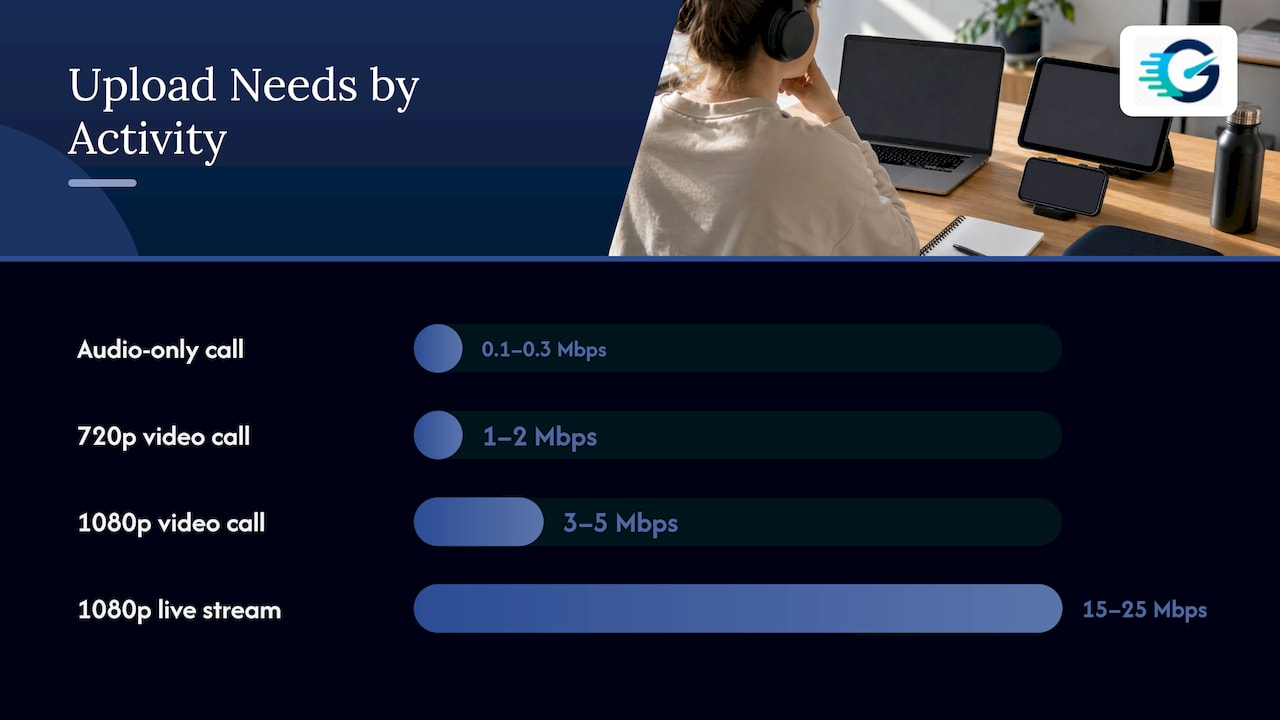
Upload per caller. Midsouth Fiber's 2026 guidance gives per-caller upload needs of 0.1 to 0.3 Mbps for audio only, 1 to 2 Mbps for 720p and 3 to 5 Mbps for 1080p, plus 30 to 50% headroom. It also notes Zoom's own 1080p guidance is about 3.8 Mbps up.
Streaming from your desk. If your job includes webinars or live broadcasts, the same source suggests 15 to 25 Mbps of upload capacity for 1080p at 30 to 60 frames per second, and more for 1440p and 4K.
| Activity | Rough upload need | Source |
|---|---|---|
| Audio-only call | 0.1 to 0.3 Mbps | Midsouth Fiber |
| 720p video call | 1 to 2 Mbps | Midsouth Fiber |
| 1080p video call | 3 to 5 Mbps | Midsouth Fiber |
| 1080p live stream | 15 to 25 Mbps capacity | Midsouth Fiber |
Household load matters as much as your own work. If a partner is on a call and a teenager is gaming, those needs stack. Our household bandwidth calculator adds them up, and the Internet/ISP Speed Recommender turns the total into a plan size to look for.
How to run a remote work speed test that means something
A good test follows a routine. Here is how to do it and where each step tends to go wrong.
- Test where you work. Run it on the laptop you use for calls, in the spot where you sit. Testing next to the router and then working two rooms away hides the Wi-Fi problem. GrandSpeed works in the browser on phone, tablet or laptop, so you can test from several spots in a few minutes.
- Test during your real hours. Evening congestion and a busy morning in a shared home both change results. Run the test at the times your calls happen, not only when it is convenient.
- Run it more than once. Do three or four runs across a day. Single results swing, as the research above shows.
- Read the quality metrics first. Check upload, then jitter, packet loss and bufferbloat, before you look at download. Anything above 0% packet loss deserves attention.
- Test while the line is busy. Start a large upload or let a backup run, then test again. A big jump in latency points to bufferbloat, which a router's smart queue settings can often ease.
- Save and compare. Keep the results. A history that shows the same dip every afternoon is a far stronger starting point for a conversation with your provider than one bad number. GrandSpeed keeps that history for you.
- Test wired once. Plug in with Ethernet and repeat. If the wired result is clean and Wi-Fi is not, the line is fine and the wireless link is the issue.
If your upload is the weak spot, the guide on why your upload speed is so slow lists causes and fixes, and the free upload bandwidth test walkthrough shows the measurement step by step.
When the result does not match your plan
A result below your plan's advertised speed is common and usually has a cause you can find:
- Wi-Fi, not the line. Distance, walls and crowded channels cut speed before the signal reaches your laptop. A wired test settles it.
- Other devices. Cloud sync, updates and streaming on other devices share the same pipe.
- Test server. A distant server inflates latency. Choose a nearby one, as HowToGeek advises for gaming, which depends more on latency than raw speed.
- Old hardware. A router or network adapter that cannot keep up caps the result regardless of plan.
- Latency and jitter hidden by averages. If the speed is fine and the calls are not, look at jitter and bufferbloat. Our guide to how to measure latency and the explainer on ping versus latency show how to read those figures.
If wired tests at several times of day still fall well short of the plan, your saved history is the record to take to your provider.
If you stream or broadcast as part of your job
Webinars, product demos, town halls and training sessions are live streams, and they stress upload harder than any call. You need steady upload with room to spare, not only a good peak. Our streaming upload calculator explains why a 20 Mbps upload is not all yours to stream with, and the best internet for streaming guide covers headroom and latency targets.
For a live session, watch the connection while you broadcast with the Livestream Upload Speed Monitor. Before going live, the Video Streaming Quality Test shows the maximum resolution your tested speeds support, and the video bitrate planner and OBS bitrate calculator help you set an encoder bitrate that fits your upload. Streaming with several cameras or platforms needs more still: see the multi-streaming guide.
Our perspective
We built GrandSpeed around a simple observation: people rarely contact us because a number is low. They come because a call froze, a stream buffered or a game lagged while the plan said they should be fine. A single download figure cannot explain that.
That is why we measure jitter, packet loss, bufferbloat and DNS resolution time alongside speed, and why we keep your test history. Remote work is a pattern problem. The connection that fails at 3 p.m. on Wi-Fi when the house is busy will look perfect at 7 a.m. next to the router, and only repeated, comparable tests show the difference.
Our advice is to choose the test that answers your actual question. If you work on video, speak on calls or stream, you want upload, latency and stability in the same result, tied to what your tasks need. That is what we designed GrandSpeed to give you.
Peter D
Run your first test
Open GrandSpeed in the browser on the device you use for work, run a test from your usual desk, and save the result. Repeat during a busy hour and compare. If you also stream, add the Video Streaming Quality Test to see which resolution your connection supports.
For a broader walkthrough of reading results, the Internet Speed Guide explains each metric, and the high-speed bandwidth test guide covers testing fast connections.
FAQ
What is a good internet speed for remote jobs?
For one or two people working from home, CenturyLink's guidance is 25 Mbps, rising to 45 Mbps for three or four users. Upload deserves a separate check: 1080p video calls need roughly 3 to 5 Mbps up per caller, with extra headroom. Quality metrics such as jitter and packet loss matter as much as the headline figure.
Which speed test should I use for video calls?
Use one that reports upload, latency, jitter and packet loss, not only download. GrandSpeed reports all of these along with bufferbloat and DNS time, and it is built for conferencing, VoIP and remote work. Keep using the same tool so your results stay comparable.
Why do two speed tests give different results?
Tools use different servers, numbers of connections and methods. Research on web-based speed test platforms shows server counts and flow counts vary widely between them. Compare readings from the same tool over time rather than across tools.
How often should I test my connection?
Run several tests across a day when you first investigate a problem: morning, midday and your busiest hour. After that, a quick check when problems appear is enough. Saved history in GrandSpeed lets you spot patterns without keeping notes.
Sources
- Best Internet Speed Tests, USA Today
- Does It Matter Which Internet Speed Test You Use?, HowToGeek
- Design and Implementation of Web-based Speed Tests, Caida
- You wanna see some real speed? Comparative Analysis of M-Lab and Cloudflare, ACM
- Appraising the delay accuracy in browser-based network measurement, ACM
- A Comparative Analysis of Ookla Speedtest and Measurement Lab NDT7, arXiv
- Speed test FAQs, CenturyLink
- Why Upload Speed Matters For Content, Midsouth Fiber