

Most remote desktop sessions need far less bandwidth than your internet plan provides. Office work often runs on a few hundred Kbps, and Microsoft's own guidance puts a standard 1080p session at about 5 Mbps. When a session feels slow, the cause is usually latency, jitter, packet loss or a congested upload link, not a lack of raw download speed. This guide gives you the numbers, shows how to match them to your work, and explains how to test the parts that actually matter.
TL;DR
- Idle or text-heavy remote desktop work uses well under 1 Mbps. Rich web pages and fullscreen video can push a session to 6 to 8 Mbps or more.
- Microsoft's planning figures are 1.5 Mbps for light, 3 Mbps for medium, 5 Mbps for heavy and 15 Mbps for power users, per session.
- Latency decides how "local" the desktop feels. Under roughly 60 to 80 ms feels local, and above 200 ms is poor for productivity.
- A laggy session on a fast plan usually points to jitter, packet loss or bufferbloat. Test those, not only download speed.
Table of Contents
- How much bandwidth does remote desktop use?
- How much bandwidth do you need for remote desktop?
- Does a faster plan fix a slow remote desktop?
- How to check your connection for remote desktop
- Why is RDP slow, and what helps?
- When remote desktop carries creative and video work
- Our perspective
- Test your connection before your next session
- Quick sizing guide
- FAQ
- Sources
How much bandwidth does remote desktop use?
There is no single number, because the Remote Desktop Protocol (RDP) sends what changes on the screen. If nothing moves, almost nothing is sent. If the screen is full of motion, the session sends a lot.
Microsoft's RDP bandwidth documentation measures this at 1920×1080 in default mode. It estimates about 0.3 Kbps for an idle session, 100 to 150 Kbps for active Word use, and 150 to 200 Kbps for active Excel use. Rich web browsing climbs to 6 to 6.5 Mbps, and fullscreen video to 7.5 to 8.5 Mbps.
| Activity (1920×1080, default mode) | Approximate bandwidth |
|---|---|
| Idle session | About 0.3 Kbps |
| Active Word | 100 to 150 Kbps |
| Active Excel | 150 to 200 Kbps |
| Rich web browsing | 6 to 6.5 Mbps |
| Fullscreen video | 7.5 to 8.5 Mbps |
The same Microsoft page notes that plain text uses minimal bandwidth, while print jobs can use a lot and rich graphics and video use more. A separate Microsoft session host tuning guide says text processing and data entry typically consume about 10 to 100 Kbps per session, and that rich graphics and video playback raise that significantly.
Why RDP can run well on modest links
RDP is built to avoid resending the same pixels. Microsoft's protocol documentation describes compression, persistent bitmap caching and glyph caching as ways to reduce transmitted data. Persistent bitmap caching in particular helps low-bandwidth connections and bitmap-heavy applications. That is why a spreadsheet session can feel fine on a connection that would struggle with a video call.
How much bandwidth do you need for remote desktop?
For planning, use Microsoft's workload tiers from its network guidelines. Microsoft recommends the following, regardless of how many sessions share a virtual machine:
| Workload | Recommended bandwidth per user |
|---|---|
| Light (documents, email, basic apps) | 1.5 Mbps |
| Medium | 3 Mbps |
| Heavy | 5 Mbps |
| Power (graphics, large displays) | 15 Mbps |
The same page ties bandwidth to screen resolution at 30 frames per second:
| Resolution | Baseline at 30 FPS |
|---|---|
| About 1024×768 | 1.5 Mbps |
| About 1280×720 | 3 Mbps |
| About 1920×1080 | 5 Mbps |
| About 3840×2160 (4K) | 15 Mbps |
Two practical takeaways follow. First, resolution and motion are what raise the number, so a single 4K monitor with video on it costs more than three monitors of spreadsheets. Second, these are per-user figures. A household with two people each running a 1080p session needs about 10 Mbps of dependable capacity for the sessions alone, before anyone streams or downloads.
Download versus upload
With remote desktop, most of the heavy traffic (the screen image) flows from the remote machine to you. If the remote machine is in an office or data center, your download speed carries the picture. If the remote machine is your home PC and you connect from elsewhere, your home upload speed becomes the limit, and home plans are often much slower on upload than download. That is the case to check first when someone says remote access to their own computer is choppy.
Several users on one connection
If you are sizing a small office, multiply by people. The TruGrid guide offers a rough rule for basic use of 100 Kbps per user, so 10 users is about 1 Mbps, but that is only for light office tasks. Use the Microsoft tiers above for anything with graphics, video or high-resolution displays, and leave headroom for everything else on the network.
Does a faster plan fix a slow remote desktop?
Often it does not. Bandwidth is how much data fits through the pipe. Latency is how long a keystroke takes to make the round trip. A session can have plenty of the first and still feel awful because of the second.
Workspot's connection measurement documentation gives a useful scale for round-trip time (RTT):
| Round-trip time | How it feels |
|---|---|
| Below about 60 to 80 ms | Feels local |
| 80 to 150 ms | Sluggish but usable |
| 150 to 200 ms | Error-prone for interactive work |
| Above 200 ms | Poor for productivity |
The IETF's L4S architecture draft makes the same point from the network side: queuing delay and packet loss are major causes of poor performance for interactive applications, remote desktop included, and adding link capacity has diminishing returns when latency is not addressed.
The four numbers behind a laggy session
- Latency: the round trip between you and the remote machine. High latency makes typing and mouse movement feel delayed.
- Jitter: variation in that delay. A steady 60 ms feels better than a connection that swings between 20 and 150 ms.
- Packet loss: dropped packets force retransmission, which shows up as stutter and freezes. Workspot notes that loss can make retransmitted measurements several times larger than the true RTT.
- Bufferbloat: delay that builds up when your router queues too much data during a busy upload or download. It is the usual reason a remote session degrades when someone else starts a video call or a cloud backup.
A plain download test shows none of these. That is the gap a test built for real-time use is meant to fill.
How to check your connection for remote desktop
A short routine tells you whether your network is the problem.
- Test with the remote session closed. Run a speed test on the same device and network you use for remote desktop, ideally on Wi-Fi and again wired if you can. Note download, upload, latency, jitter and packet loss.
- Compare to your workload. Use the tiers above. A 1080p heavy user wants about 5 Mbps of steady capacity, plus headroom.
- Look at latency first. If it is above 80 ms to the region where your remote machine lives, no plan upgrade will make the desktop feel local.
- Check bufferbloat. If latency jumps during the upload or download phase of a test, your router is queuing too much. Enabling smart queue management on the router, where it is available, is the usual fix.
- Repeat at the bad time. Run the test when the session actually lags, such as evening hours or when others are online. A connection that tests well at 10 a.m. may not at 8 p.m.
- Save the results. A short history shows whether the problem is constant or tied to certain times, which is the first thing your provider or IT team will ask.
The test history on GrandSpeed is built for exactly this kind of pattern-spotting, and the Internet Speed Guide explains how to read each metric.
If you manage Azure Virtual Desktop
Administrators have a measurement route too. Microsoft's connection quality documentation explains that Azure Log Analytics records estimated available bandwidth and estimated RTT at regular intervals for each connection, with a correlation ID that ties the metrics to a user session. One nuance from Workspot: the protocol's bandwidth estimator reports available, unused bandwidth for that single connection, not the total capacity of your link, and it shows the latest measurement rather than an average. A low number in a monitoring panel therefore does not always mean a slow line. Check it against an independent test.

Why is RDP slow, and what helps?
Work from the cheapest fix to the most involved.

Close competing traffic. Cloud backups, game downloads and 4K streams share your uplink and downlink. Pause them during critical sessions, or set router quality-of-service rules to prioritize the remote desktop device.
Lower the display load. Microsoft's figures show that resolution and frame rate drive bandwidth. Dropping color depth or the remote resolution, and turning off animations and wallpaper in the remote session, trims traffic without changing what you do.
Use a wired connection. Ethernet removes the jitter and loss that crowded Wi-Fi adds. If you must use Wi-Fi, a 5 GHz or 6 GHz band close to the router is steadier than 2.4 GHz.
Get the transport right. Microsoft says RDP Shortpath uses a UDP-based transport that can deliver higher throughput and more consistent, lower latency by removing relay points. On managed networks it also supports QoS marking and per-session outbound throttling. TCP remains the compatibility fallback when network devices block Shortpath, so if you administer the environment, confirm which transport sessions actually use.
Put the host closer. Microsoft's Azure Architecture Center guidance recommends placing session hosts closer to users and running production-like performance tests that include the remote users' network path. Distance sets a floor on latency that no bandwidth can lower.
Throttle on purpose. If one user's session hogs a shared link, Microsoft documents a throttle rate in its RDP bandwidth guidance that limits network use per session, which protects other traffic on a tight office connection.
When remote desktop carries creative and video work
Some remote desktop use is far from spreadsheets: editors working on a cloud workstation, colorists reviewing footage, or producers monitoring a shoot. Teams doing remote video production lean hardest on the 15 Mbps power tier and on low, stable latency, because color-accurate previews and scrubbing are unforgiving of jitter. For those setups, size the connection for the top of Microsoft's range, wire everything, and test upload as carefully as download, since you may also be sending footage or a live feed from the same line. If you stream or broadcast from the same network, the Video Bitrate Calculator shows what a given resolution needs so the stream and the remote session do not fight for capacity.
Our perspective
We built GrandSpeed because a single download number answers the wrong question. People call us after paying for a fast plan and still seeing a frozen remote desktop, a stuttering call or a buffering stream. In nearly every case the plan was fine and the missing piece was a measurement nobody had taken: jitter, packet loss, bufferbloat or upload stability.
Remote desktop is the clearest example. The protocol is frugal, and Microsoft's own figures show light work needing well under 1 Mbps. That means the experience is decided by how steady the connection is, not how large. We think the right approach is to test the connection the way you use it, over time, at the hours when problems appear, and to read latency and loss alongside speed.
That is what our tools are designed to do: measure the real-world metrics that decide whether a session feels local, keep a history so patterns show up, and translate results into what your workload can support.
Peter D
Test your connection before your next session
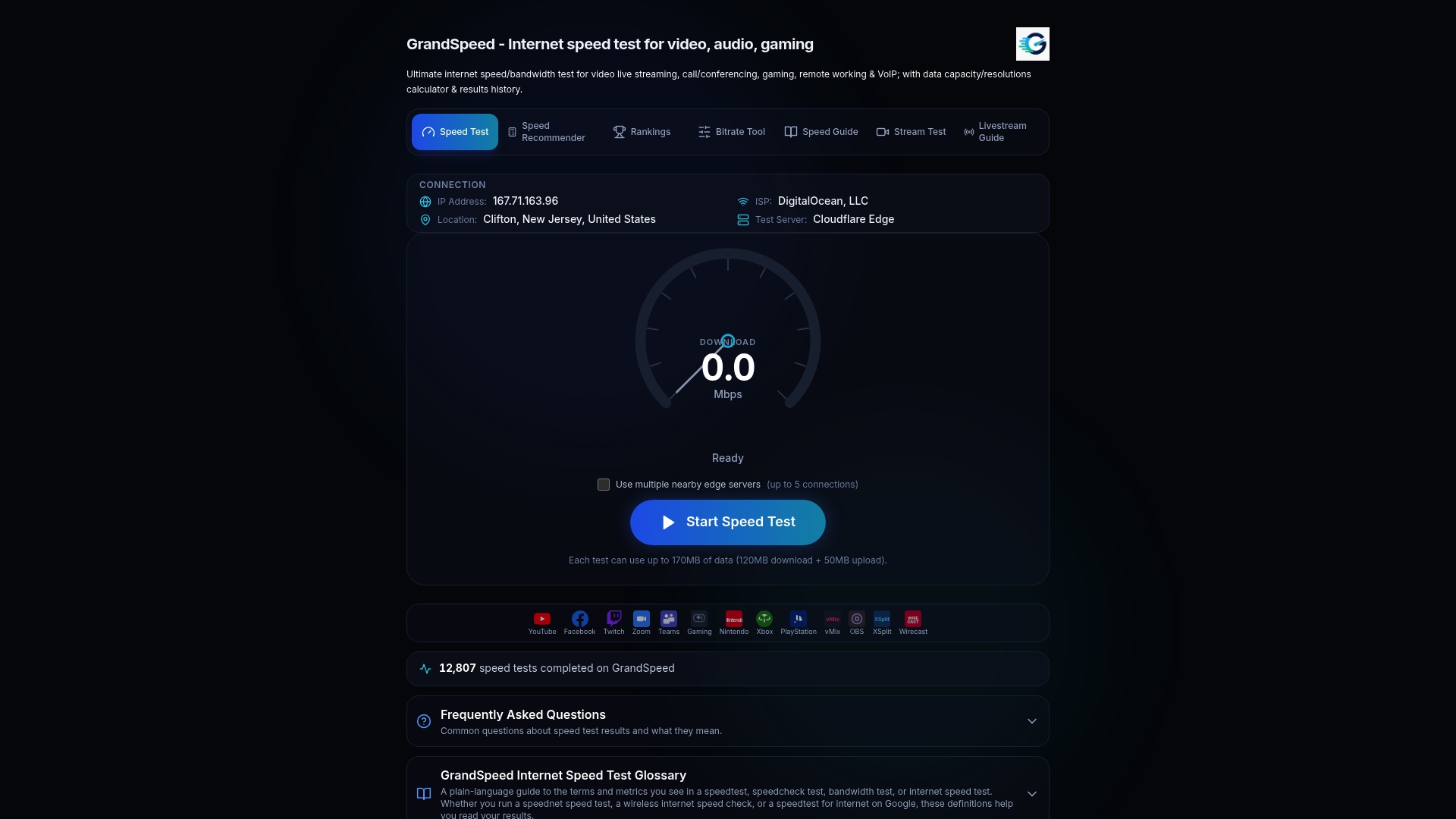
GrandSpeed's speed test measures download and upload speed along with latency, jitter, packet loss, bufferbloat and DNS resolution time, and it runs in any modern browser on a phone, tablet or laptop, over Wi-Fi or cellular. Results are saved to a history so you can compare a good morning to a bad evening. If you are deciding whether your plan is enough for several people working remotely, the Internet/ISP Speed Recommender helps match a plan to your use.
For home offices that also do video calls all day, the guide on video call productivity covers how to keep a remote desktop and a meeting running together without one degrading the other.
Quick sizing guide
Use this as a starting checklist, then confirm with a test on your own line.
- One person, documents and email, one 1080p screen: plan on the 1.5 to 3 Mbps tiers, but aim for steady latency below 80 ms.
- One person, browser-heavy work with some video: plan on 5 Mbps per session and expect bursts toward 8 Mbps with fullscreen video.
- One person, design, CAD or 4K displays: plan on 15 Mbps, wired, with attention to jitter.
- A team of ten on light office tasks: use 1.5 Mbps each as a conservative floor, so 15 Mbps of dedicated capacity, plus room for everything else the office does.
- Remote access to a home PC from outside: check your home upload speed, because it caps what the remote screen can send.
In every case, leave headroom. A connection running at its limit has no space for the bursts that rich pages and video create, and that is when sessions stutter.
FAQ
Does remote desktop use a lot of bandwidth?
Usually not. Microsoft estimates an idle session at about 0.3 Kbps and active Word or Excel at roughly 100 to 200 Kbps in default mode at 1080p. Rich web browsing and fullscreen video are the exceptions, at around 6 to 8.5 Mbps.
What are the RDP bandwidth requirements?
Microsoft recommends 1.5 Mbps for light, 3 Mbps for medium, 5 Mbps for heavy and 15 Mbps for power workloads per user. Its resolution baselines at 30 FPS run from 1.5 Mbps at about 1024×768 to 15 Mbps at 4K.
What latency is good for remote desktop?
Workspot characterizes RTT below about 60 to 80 ms as feeling local and 80 to 150 ms as sluggish but usable. Above 200 ms is poor for productivity. Test latency to the region where your remote machine sits, not only to the nearest server.
Why is my remote desktop slow with a fast internet plan?
The usual causes are high latency, jitter, packet loss or bufferbloat rather than low download speed. Run a test that measures those metrics, repeat it when the lag appears, and try a wired connection and a pause on background uploads.
Is 30 Mbps enough for remote work?
For one person using remote desktop, yes. Even Microsoft's heaviest per-user tier is 15 Mbps. Whether 30 Mbps feels good depends on how many people share the line, upload speed and latency, so test those too.
Sources
- Remote Desktop Protocol (RDP) bandwidth requirements, Microsoft Learn
- Network guidelines, Microsoft Learn
- Performance Tuning Remote Desktop Session Hosts, Microsoft Learn
- Remote Desktop Protocol, Win32 apps, Microsoft Learn
- How connection bandwidth and RTT measurement work, Workspot documentation
- Analyze connection quality in Azure Virtual Desktop, Microsoft Learn
- RDP Shortpath, Azure Virtual Desktop, Microsoft Learn
- Azure Virtual Desktop for Azure Local, Azure Architecture Center
- IETF L4S architecture draft