
If your Twitch stream is lagging, the fault sits on one of two sides: the broadcaster's upload and encoder, or the viewer's download and device. Streamers should check for dropped frames and encoder warnings first; viewers should test their download stability and hardware acceleration settings. Either way, run a network stability test through GrandSpeed and cross-check with Twitch Inspector before changing any settings.
TL;DR:
- Dropped frames and network warnings during streaming indicate an upload bottleneck, requiring bitrate adjustments or server switching to fix.
- Viewers experiencing stuttering should disable hardware acceleration, switch to auto quality, and test on different networks to identify if the issue is local or server-related.
- Using constant bitrate (CBR) instead of variable bitrate (VBR) helps prevent spikes that can cause lag, especially during high-motion scenes or streams near upload capacity.
- Running a GrandSpeed test provides real-time data on upload stability, jitter, and packet loss, offering concrete guidance for optimal stream settings.
- Peak Twitch server load during evening hours often causes lag, making off-peak testing essential before suspecting personal connection issues.
Table of Contents
- What Causes Twitch Stream Lag: A Quick Diagnostic
- Streamer Fixes: Stop Dropped Frames Immediately
- Viewer Fixes: Stop Buffering and Stuttering
- Encoder and Bitrate Checklist for Stable Broadcasts
- When to Contact Your ISP or Twitch Support
- Use GrandSpeed to Set Safe Streaming Parameters
- Do VPNs or Proxies Affect Twitch Stream Lag?
- Does Time of Day Affect Twitch Stream Quality?
- Why Stability Beats Chasing Maximum Bitrate
- Run a GrandSpeed Stream Test Before You Change Another Setting
- Sources
- FAQ
What Causes Twitch Stream Lag: A Quick Diagnostic
Before touching a single setting, figure out which side of the connection is actually broken. Twitch stream lag almost always traces back to one of three points: the broadcaster's setup, the ingest path to Twitch's servers, or the viewer's own network and device. Mixing these up wastes time, because a bitrate change won't fix a viewer's GPU driver problem, and clearing a browser cache won't fix a broadcaster's upload saturation.
Start with these checks, in order:
- Open OBS or Streamlabs and look at the stats dock for dropped frames or "network congested" warnings. Any consistent drop rate above 0% during a stream points to an upload bottleneck.
- Ask two or three viewers, ideally on different ISPs, whether they're all seeing the same buffering. If only one person is affected, the problem is almost certainly on their end, not yours.
- Run GrandSpeed's stream test to check upload stability if you're the broadcaster, or download stability, jitter, and packet loss if you're the viewer.
- Watch for Twitch player error codes. Error Code 2000 specifically flags a network delivery problem, while codes in the 3000 range usually point to decoding or hardware issues on the viewer's device.
This sequence takes under five minutes and tells you which of the sections below actually applies to your situation.
Streamer Fixes: Stop Dropped Frames Immediately
If you're the one broadcasting and OBS is showing dropped frames, work through these steps in order rather than changing five settings at once.
- Lower your bitrate slightly right away. This is the fastest fix for active dropped frames and buys you breathing room while you diagnose further.
- Switch to CBR (constant bitrate), not VBR. Variable bitrate lets your encoder spike during action scenes, and those spikes are a leading cause of buffering on viewers with less forgiving connections. Pair CBR with a fixed keyframe interval and a consistent encoder preset rather than one that adjusts on the fly.
- Switch ingest servers. Twitch routes your stream through a specific regional server, and a congested or misrouted path causes lag that has nothing to do with your local settings. Twitch Inspector session logs will show you whether packets are dropping on that path.
- Go wired. Ethernet removes Wi-Fi's variable latency and interference entirely, and close any app quietly uploading in the background, cloud backups, game update downloads, a second monitoring tool, since they all compete for your limited upload bandwidth.
- Double-check GPU encoder compatibility if you're pushing 2K or higher. Not every OBS version and GPU pairing handles high-resolution NVENC or QuickSync cleanly, and a mismatch here produces the same symptoms as a bandwidth problem.
Pro Tip: Dropped frames that appear only during intense gameplay moments, not the whole stream, almost always mean your bitrate is too close to your upload ceiling. Give yourself more headroom rather than chasing a marginally sharper picture.
Viewer Fixes: Stop Buffering and Stuttering
Watching a stream stutter is its own kind of frustrating, especially when your internet seems fine for everything else. A few quick changes usually clear it up.
- Set stream quality to Auto instead of a fixed resolution. Auto lets the player adjust to your real-time bandwidth instead of forcing a bitrate your connection can't sustain.
- Turn off Low Latency mode in the player settings. Low Latency shortens the buffer to cut delay, but that same short buffer makes stuttering worse on any connection with jitter. Disabling it locally gives the player more cushion to absorb network hiccups.
- Disable hardware acceleration in your browser, clear the cache, or try playback in an incognito window. Hardware acceleration conflicts and GPU overload are common causes of playback stutter that have nothing to do with your internet speed at all.
- Test on a different network entirely, a phone hotspot works fine for this, to see if the stutter follows you. If it disappears, the problem is your home connection's last mile, not your device.
- Move to a wired connection if you're on Wi-Fi, and check for local packet loss with a network test before assuming Twitch itself is at fault.
Encoder and Bitrate Checklist for Stable Broadcasts
Bitrate spikes are the single most common self-inflicted cause of Twitch stream lag, and most of them trace back to VBR encoding pushed too close to a streamer's upload ceiling.
- Use CBR, not VBR. A constant bitrate never spikes past what your upload can handle, while VBR can double or triple during high-motion scenes and starve the broadcast.
- Keep your set bitrate safely below your tested stable upload speed, allowing a margin to avoid instability.
- Stay within Twitch's broadcasting guidelines, which cap standard setups around 6,000 kbps. Going higher rarely improves viewer experience and often triggers throttling further down the delivery chain, with 6,000 kbps generally recognized as a recommended cap.
- Set a 2 second keyframe interval, choose a standard encoder profile, and pick one preset (avoid presets that auto-tune mid-stream).
- If bitrate management alone isn't stabilizing things, drop resolution or framerate before you drop quality further with a lower bitrate.
- If you have access to Enhanced Broadcasting with multiple encodes, turn it on. Server-side transcodes generate multiple viewer-facing renditions automatically, which reduces buffering for viewers on weaker connections without forcing you to compromise your main encode.
Twitch's own broadcasting guidance is explicit that lowering bitrate slightly or switching ingest servers, combined with Twitch Inspector data, resolves the majority of dropped-frame cases without any hardware upgrade.
When to Contact Your ISP or Twitch Support
Escalate only after you've lowered bitrate, switched ingest servers, and confirmed the problem persists across multiple viewers or multiple sessions.
- Confirm the pattern is real. Persistent packet loss or dropped frames that survive a bitrate cut and a server switch point to a network path issue, not a settings issue.
- Gather evidence before you call anyone. Export your Twitch Inspector logs and take screenshots of GrandSpeed's jitter and packet-loss graphs from a couple of different times of day.
- Bring specifics to the conversation. Ask your ISP to run a line and route test, and include your Inspector logs plus GrandSpeed results in any Twitch support ticket so the first response isn't just "have you tried restarting your router."
Use GrandSpeed to Set Safe Streaming Parameters
Three GrandSpeed metrics matter more than raw speed for stream stability: upload consistency, jitter, and packet loss. A fast connection with high jitter will still stutter, while a slower but rock-steady one often streams cleanly.
- Upload stability tells you your realistic bitrate ceiling, not your advertised speed.
- Jitter and packet loss flag the kind of instability that causes buffering even when average speed looks fine.
- Bufferbloat reveals whether your router queues traffic badly under load, a common hidden cause of stutter during busy household hours.
GrandSpeed also estimates the maximum live-stream resolution your tested speeds can support, which you can feed directly into the bitrate calculator to get a specific kbps target instead of guessing.
Pro Tip: Run the test three times across a stream's typical duration, not once. A single clean result can hide instability that only shows up after twenty minutes of sustained upload.
Do VPNs or Proxies Affect Twitch Stream Lag?
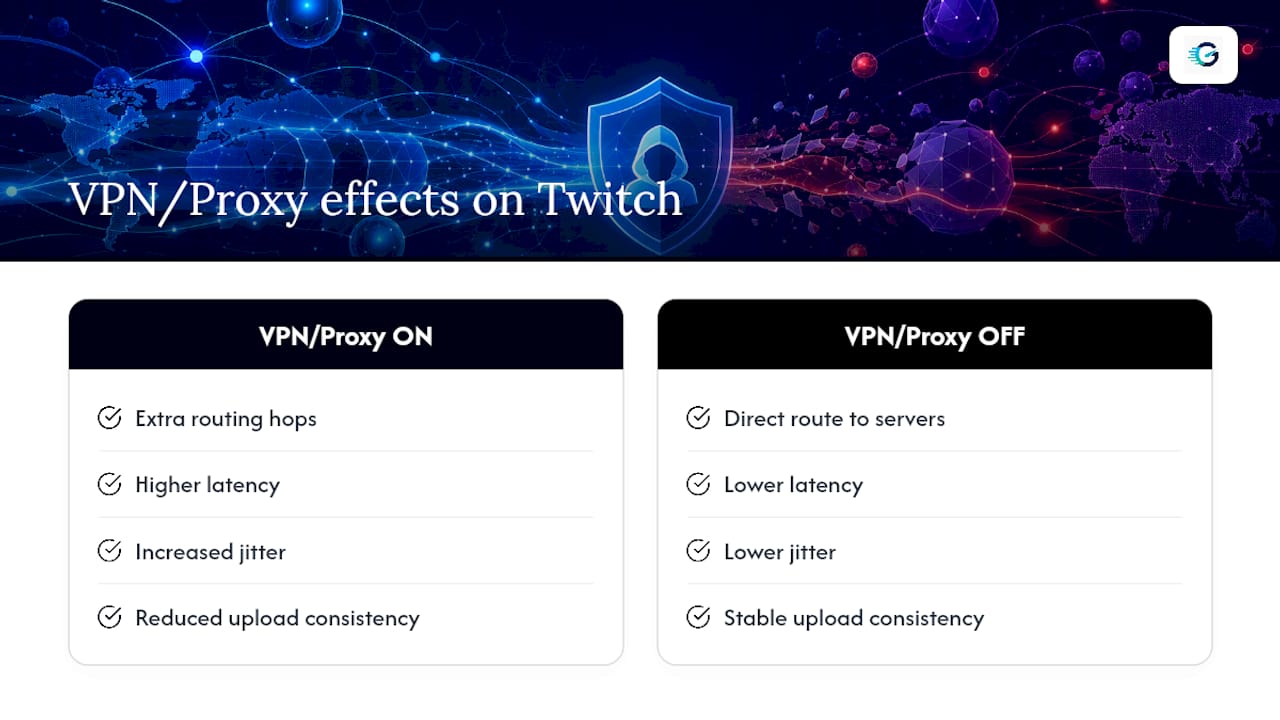
Running a VPN or proxy while streaming or watching Twitch usually adds latency rather than removing it. A VPN routes your traffic through an intermediate server, often in a different region, which adds extra hops and processing overhead before your data ever reaches Twitch's ingest servers or, for viewers, before video reaches your device.
For streamers, this matters a lot. Your upload already has limited headroom, and encrypting and rerouting that traffic through a VPN tunnel eats into both bandwidth and consistency. If you're already close to your bitrate ceiling, a VPN can push you into dropped-frame territory that has nothing to do with your actual internet plan.
For viewers, a VPN can occasionally help if your ISP is throttling streaming traffic specifically, some ISPs do this during peak hours, but for most people it simply adds an unnecessary layer of latency and jitter. If you're troubleshooting Twitch buffering problems and you have a VPN running, turn it off and retest before assuming your base connection is the problem.
Proxies carry similar risk with less benefit. Unless you have a specific reason to route through one (bypassing a regional restriction, for instance), it's an easy variable to eliminate early in your diagnostic process. If you suspect ISP throttling is the real issue, a cleaner test is running GrandSpeed with and without the VPN active and comparing jitter and packet-loss numbers directly.
Does Time of Day Affect Twitch Stream Quality?
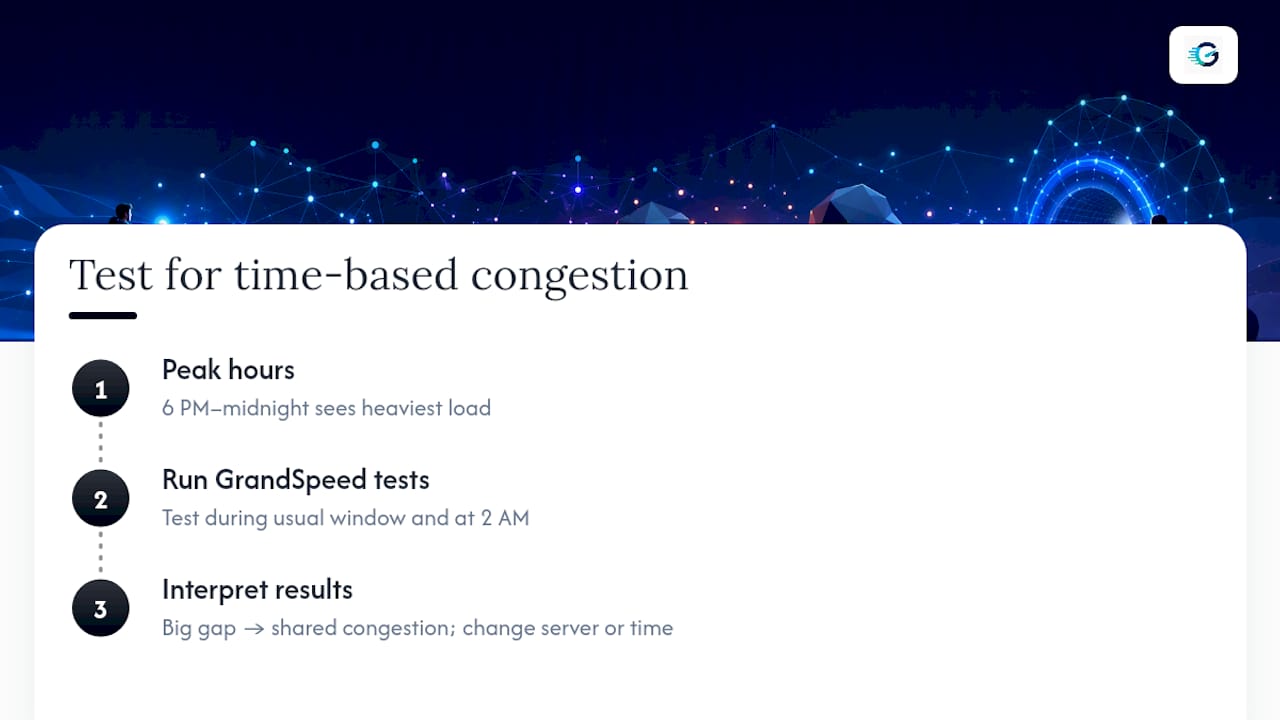
Twitch server load isn't constant, and neither is your home network's traffic. Evening hours, roughly 6 PM to midnight in any given time zone, see the heaviest concurrent viewership on Twitch, which can strain ingest servers in high-traffic regions and occasionally introduce lag that has nothing to do with your setup.
Your own ISP adds a second layer to this. Neighborhood-level congestion peaks during the same evening hours, since everyone in your area is streaming, gaming, and video calling simultaneously. If your stream or viewing experience gets noticeably worse specifically between dinner and bedtime, that's a strong signal the bottleneck is shared infrastructure rather than your personal connection.
The practical response is testing at different times to isolate the variable. Run a GrandSpeed test during your normal streaming window and again at 2 AM. A big gap in jitter or packet loss between those two results tells you congestion, either Twitch's or your ISP's, is a real factor, and no amount of encoder tweaking on your end will fully solve it. In that case, switching ingest servers or adjusting your schedule slightly can matter more than any bitrate change.
Why Stability Beats Chasing Maximum Bitrate
Most streamers optimize for peak visual quality when they should optimize for consistency. A slightly softer image that never buffers keeps viewers watching; a sharp one that stutters every few minutes drives them off. Test conservatively, then push up gradually.
*— Peter D
Run a GrandSpeed Stream Test Before You Change Another Setting
Guessing at bitrate numbers is how most streamers end up chasing dropped frames for weeks. Grandspeed is the practical alternative to trial-and-error encoder tweaking: it measures your actual upload stability, jitter, packet loss, and bufferbloat, then tells you the maximum resolution your connection can realistically support.

Run the GrandSpeed stream test before your next broadcast, and feed the results straight into the bitrate calculator to get a specific kbps recommendation instead of a rough guess. If you want the fuller picture of how your home setup handles sustained upload during long sessions, the livestreaming connection guide walks through what stable numbers actually look like. Test it once tonight, adjust your bitrate to match what GrandSpeed shows, and see whether tomorrow's stream drops fewer frames.
Sources
FAQ
How Can I Reduce Lag on Twitch?
Lower your bitrate by 200 to 500 kbps if you see dropped frames, switch to CBR encoding, and use a wired connection. Streamers should also try switching ingest servers, while viewers should set quality to Auto and disable Low Latency mode locally.
Is Twitch Laggy Right Now?
Lag that affects many viewers at once, especially during evening peak hours, often points to Twitch server load or regional ingest congestion rather than your personal connection. Testing at a different time of day is the fastest way to confirm this.
How Do I Fix a Laggy Stream?
Check OBS or Streamlabs for dropped frames first, then lower your bitrate and switch to CBR if frames are dropping. Run a GrandSpeed test to confirm your upload is stable enough for your current settings.
Why Is My Twitch Stream Buffering Even With a Good Internet Connection?
Fast download speed doesn't guarantee smooth playback if your connection has high jitter or packet loss, both of which cause buffering independent of raw speed. Hardware acceleration conflicts in your browser can produce the same symptoms and are worth ruling out first.