
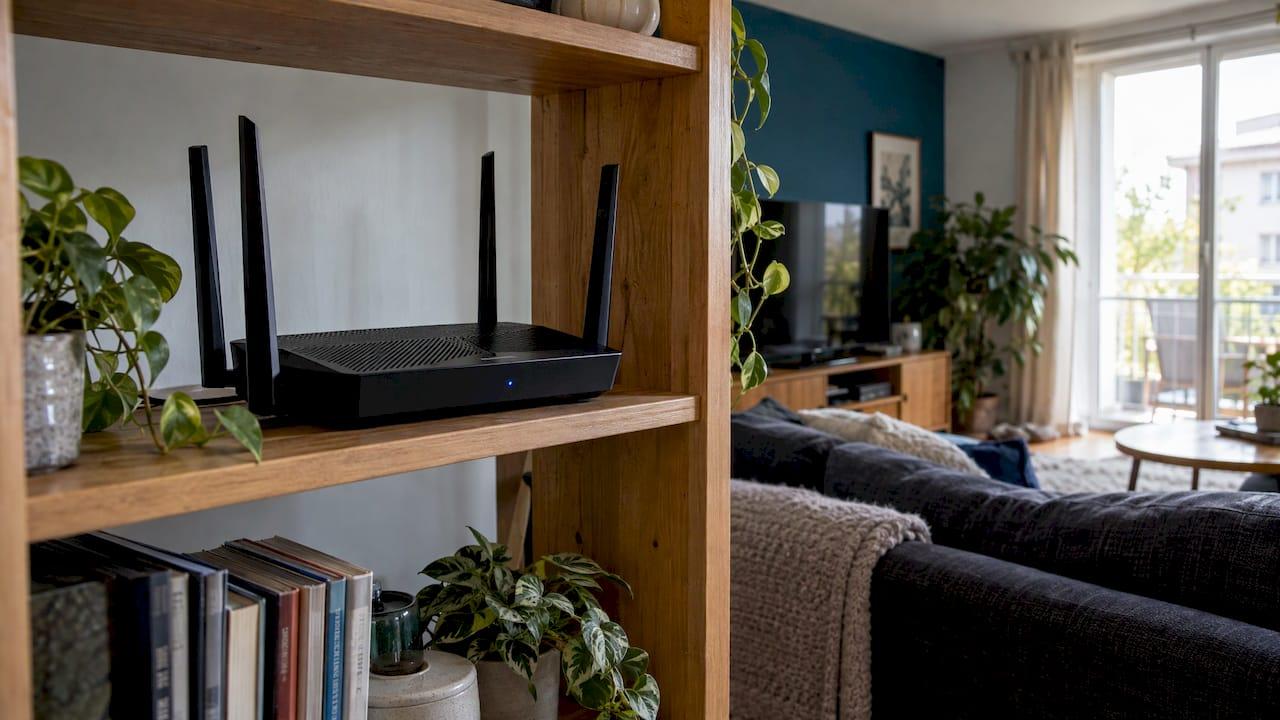
Put your router in the middle of the area you use most, up off the floor, in the open, and away from metal, water and appliances. Then measure before and after, because the only way to know a move helped is to compare numbers. Run a GrandSpeed speed test from your streaming spot first, move the router, and run it again. It reports jitter, packet loss and bufferbloat alongside download and upload speed, which are the numbers that decide whether a stream buffers or a video call freezes.
This guide covers the placement rules that matter, why they work, and how to check the result. It is written for people who pay for a fast plan and still get buffering, laggy calls or unstable livestreams.
TL;DR
- Choose a central, open, elevated spot. A shelf or the top of a tall bookcase beats the floor, a closet or a TV cabinet.
- Keep the router away from metal, mirrors, aquariums, microwaves, cordless phones and baby monitors.
- Angle the antennas: vertical for one floor, a mix of vertical and angled for several floors.
- If one device matters most (a gaming PC, a streaming PC, a TV), a cable to it beats any Wi-Fi position.
- Test before and after from the same spot, looking at latency, jitter and packet loss as well as Mbps.
Table of Contents
- Why placement changes streaming quality
- Where to put the router
- What weakens the signal most
- Antenna position
- When a cable beats any Wi-Fi position
- How much speed do you actually need?
- How to test whether the move worked
- A quick placement checklist
- Our view
- Check your setup with GrandSpeed
- FAQ
- Sources
Why placement changes streaming quality
A router broadcasts in all directions. Every wall, person, mirror or cabinet between it and your device takes a bite out of the signal, and a weaker signal forces the connection to slow down and retransmit data. For a video stream that shows up as lower resolution or buffering. For a livestream or a call it shows up as stutter, because lost and delayed packets cannot be waited for.
Placement can matter as much as hardware. In a test published in October 2026 by XDA Developers, moving a Wi-Fi 6 router out of a TV cabinet and onto a bookshelf about four feet higher beat a $330 Wi-Fi 7 upgrade in a bedroom two walls away: 512 Mbps on the older router against 547 Mbps on the newer one in its old position. A new router is not always the fix. A better spot often is.
Where to put the router
Go central
Netgear's guidance is that the best location is central, open and elevated, so the signal takes a shorter, more direct path to every room. Ars Technica puts numbers on it: in a 30 m living space, a router in the middle only has to cover 15 m to each side, versus 30 m from one end, as explained in its guide to access point placement.
That guide also gives a rule of thumb: every doubling of distance costs about 6 dBm of signal, and each extra wall or significant obstruction costs about 3 dBm. (dBm is the unit routers and apps use for signal strength. Values closer to zero are stronger, so -55 is better than -75.) Its practical limit is no more than two rooms and two interior walls between router and device.
Central does not mean dead center if your internet line enters in a corner. Move the router as far toward the middle as the cable allows, and read the section on wiring below for what to do when it cannot go further.
Unless you have a main media room
Sony's home-networking advice splits into two cases. If Wi-Fi is used equally across the house, put the equipment as close to the middle as possible. If there is a primary media room, put the router there, so bandwidth-hungry streaming and gaming devices can connect by Ethernet cable (Cat 5e or better). Signal strength for other devices drops the farther they are from the router.
This matters for streamers. If your gaming PC, capture machine and TV all sit in one room, the router belongs near them and wired to the ones that matter, with Wi-Fi covering phones and laptops elsewhere.
Get it off the floor
Height helps the signal clear furniture and people. Ars Technica recommends mounting above head height, noting that a single human body attenuates the signal roughly as much as an interior wall. Ceiling center is ideal and a tall bookshelf is nearly as good. Microsoft's support guide similarly says to place the access point toward the middle of the home or room and higher if possible, since a corner or the space under a desk reduces signal strength.
Ofcom explains why the floor is a poor choice: routers send Wi-Fi in all directions, so a router low down wastes signal into the ground and outside the house. TP-Link suggests a more modest 1 to 1.5 feet so the router sits level with most devices, which is a reasonable minimum if a shelf is not an option. A shelf or tall cabinet top is the usual sweet spot.
Keep it in the open
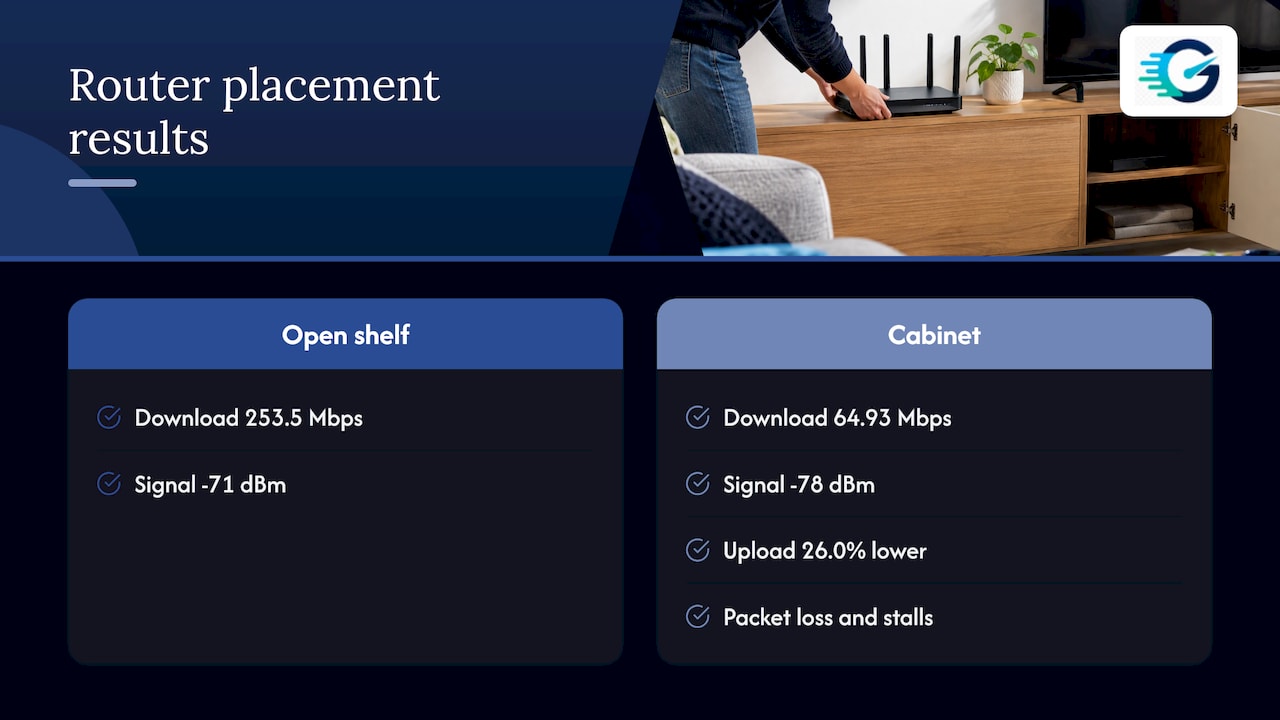
A router inside a cabinet, drawer or media console is the most common placement mistake. How-To Geek measured it: putting a Wi-Fi 7 router inside a particle-board cabinet cut bedroom download speed by 74.4% (253.5 Mbps down to 64.93 Mbps) and upload by 26.0%. Signal fell from -71 dBm to -78 dBm, and the test also saw occasional packet loss and multi-second stalls. For a livestream, packet loss and stalls are the damaging part, not the lower peak speed.
If the router is stuck behind the TV, behind a soundbar or inside a cabinet, getting it onto an open shelf is the cheapest improvement you can make.
What weakens the signal most
Not all obstacles are equal. Sony rates metal as very high interference and concrete as high, with water, brick and marble medium, tinted glass low to medium, and wood, plaster and synthetic materials low. RACE's materials guide agrees that metal dampens Wi-Fi the most, followed by concrete, then glass and mirrors, whose thin metal layer reflects radio waves, and water, which absorbs the energy.
In practice, this gives a short list of things to keep away from the router:
| Thing | Why it hurts | What to do |
|---|---|---|
| Metal filing cabinet, metal shelving, appliances | Reflects and absorbs signal | Move the router off and away from it |
| Mirrors and large windows | Reflect Wi-Fi unpredictably | Keep the router off the mirror wall and away from windows |
| Fish tank, water heater, radiators | Water absorbs radio energy | Keep them out of the direct path |
| Concrete and brick walls | Dense, so strong attenuation | Keep these walls out of the line to your streaming spot |
| Microwave ovens, cordless phones, baby monitors | Share the 2.4 GHz band | Keep them at a distance from the router |
On the last row: AT&T notes that microwave ovens have been known to cut Wi-Fi speeds in half because they emit on the same 2.4 GHz frequency, and that 2.4 GHz devices are more exposed to interference than 5 GHz ones. If your streaming device supports 5 GHz, it is usually the better band for a nearby room.
For metal, the effect is dramatic. Digital Trends found that no antenna angle could overcome a router sitting on top of a metal filing cabinet. Moving it off was essential first.
A note on 6 GHz
If you have a Wi-Fi 6E or Wi-Fi 7 router, the 6 GHz band is fast but has shorter range. Netgear's support article says 6 GHz routers must be positioned close to where the high-speed connection is needed. Placement matters more with a newer router, not less, so a console or streaming PC in the next room is a good candidate for that band.
Antenna position
Antennas do not radiate evenly. Netgear explains that they project signal perpendicular to where they point: a vertical antenna sends it horizontally, a horizontal one sends it vertically. A single-story home may do best with vertical antennas, while a multi-story home may benefit from a mix of vertical, angled and horizontal. TP-Link's guidance for angled antennas is about 30° for multi-floor coverage. Ofcom likewise suggests pointing multiple aerials in different directions.
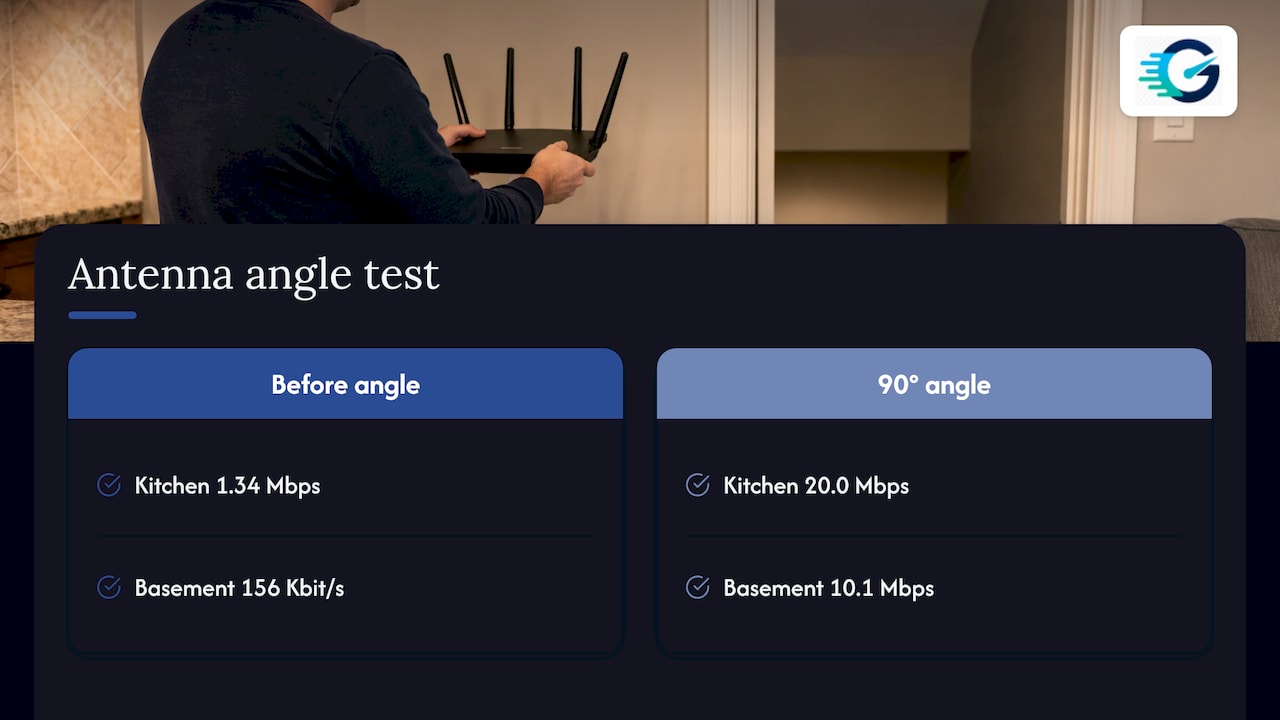
RF expert Whelan, quoted by Digital Trends, describes the pattern as a donut around the antenna: tilt the antenna 45° and the donut tilts, and point it parallel to the ground and the donut stands upright. In Digital Trends' updated test, angling the side antennas to 90 degrees raised a kitchen from 1.34 Mbps to 20.0 Mbps and a basement from 156 Kbit/s to 10.1 Mbps.
Those are extreme cases from weak starting points, so do not expect the same jump in a house that already works. The lesson is that if your router has external antennas and one floor gets poor coverage, adjusting them is free and takes a minute. Routers with internal antennas have nothing to adjust, so position matters even more.
When a cable beats any Wi-Fi position
Wi-Fi is shared, half-duplex airtime, and every wall is a toll. When a device does not move, a cable removes the variable altogether. Rogers notes that a wired connection to the modem offers the best connection for devices on the same floor.
That is why we suggest a simple rule for streamers: if the device is stationary and important (streaming PC, console, TV box), run Ethernet to it. Our guide on when Ethernet beats Wi-Fi for streaming explains the headroom rule for deciding, and the Wi-Fi vs Ethernet speed test lets you compare the two on your own network.
When a stationary device sits far from where the router can reasonably go, the usual answer is to wire the extra coverage back to the router with Ethernet and place an access point or mesh node there, rather than stretching one signal across the whole house. If you are weighing hardware for that, our router tests for streaming cover distances from 15 to 75 feet, including mesh picks.
How much speed do you actually need?
Placement fixes consistency, not your plan limits, so know what the stream requires. BroadbandNow says 100 Mbps is more than enough for livestreaming in most cases. Twitch and YouTube Live typically recommend 3 to 9 Mbps for HD and up to 20 Mbps for 4K, and its table lists Twitch 1080p60 at 4.5 to 9 Mbps. It also stresses that livestreaming leans on upload speed, not only download.
So if your tests show plenty of download but your stream drops frames, check three things in order: upload speed at the streaming spot, packet loss and jitter over Wi-Fi, and whether upload is at least well above your encoder bitrate. Our bitrate planner and OBS bitrate calculator turn your measured upload into settings that leave headroom.
How to test whether the move worked
Guessing from "it feels faster" is how people end up moving a router five times. Use a repeatable method instead. How-To Geek's test method is a good template: establish a baseline with other devices idle, mark a fixed test position, keep the router's height and orientation constant, then take repeated short measurements and average them.
Here is a version that fits a home setup:
- Pick your worst spot and your main spot. The worst spot is the room with buffering or call drops. The main spot is where you stream or stream from.
- Baseline first. Before you move anything, run the GrandSpeed speed test at each spot, three times, on the same device, with other devices idle. Write down download, upload, latency, jitter and packet loss.
- Move one thing at a time. Change position or antenna angle, not both. Keep the new height and angle the same between runs.
- Retest at the same spots. Same device, same place on the desk, same number of runs. Average the runs.
- Read the right numbers. A small gain in Mbps matters less than lower jitter, no packet loss and steady latency. Test history on the site lets you compare runs over time.
- Check the stream itself. Run the video streaming quality test to see the highest resolution your measured speeds support, and use the livestream upload speed monitor to watch upload stability while you broadcast.
One trap from Ars Technica's guide: raw signal strength matters less than people think. Once you pass roughly -67 dBm there is little performance difference, and a signal that is too hot, with the device right next to the router, can produce poor speed test results. Test from where you actually sit, not hugging the router, and if a test beside it looks odd, step a meter or two back.
If results are poor at every position and your wired test is also well below your plan, the issue is not placement. Our guide to why you are not getting the speed you paid for walks through the next steps.
A quick placement checklist
- Router on a shelf or tall furniture, about chest height or above, in the open.
- Not in a cabinet, closet, basement, attic or corner.
- At least a few feet from microwaves, cordless phones, baby monitors and metal objects.
- No more than two walls and two rooms between router and your main streaming device.
- Antennas vertical for one floor, a mix of vertical and angled for multiple floors.
- Wired Ethernet to anything stationary that streams, games or broadcasts.
- Before-and-after tests at the same spots with the same device.
Our view
Most of the streaming complaints we think about come down to this: people measure a single number, usually download speed, from one spot, and conclude the plan or the router is at fault. A stream does not fail because the peak speed is low. It fails because latency spikes, jitter climbs or packets drop for a few seconds at the wrong time.
That is why we built GrandSpeed to measure more than speed: download and upload, latency, jitter, packet loss, bufferbloat and DNS resolution, from any modern browser on a phone, tablet or laptop. Placement is the perfect example. A router moved out of a cabinet can look similar on a speed-only test and very different once you look at packet loss and stalls.
Our advice is to treat every placement change as an experiment. Test from the spot you stream from, move one thing, test again, and keep the history. If the numbers get steadier, the move worked. If they do not, you have saved yourself from buying hardware you did not need.
Peter D
Check your setup with GrandSpeed
Once the router is in its new spot, a single test tells you more than a week of guessing. The GrandSpeed speed test measures download and upload speed, latency, jitter, packet loss, bufferbloat and DNS resolution, and keeps a history of results so you can compare before and after.
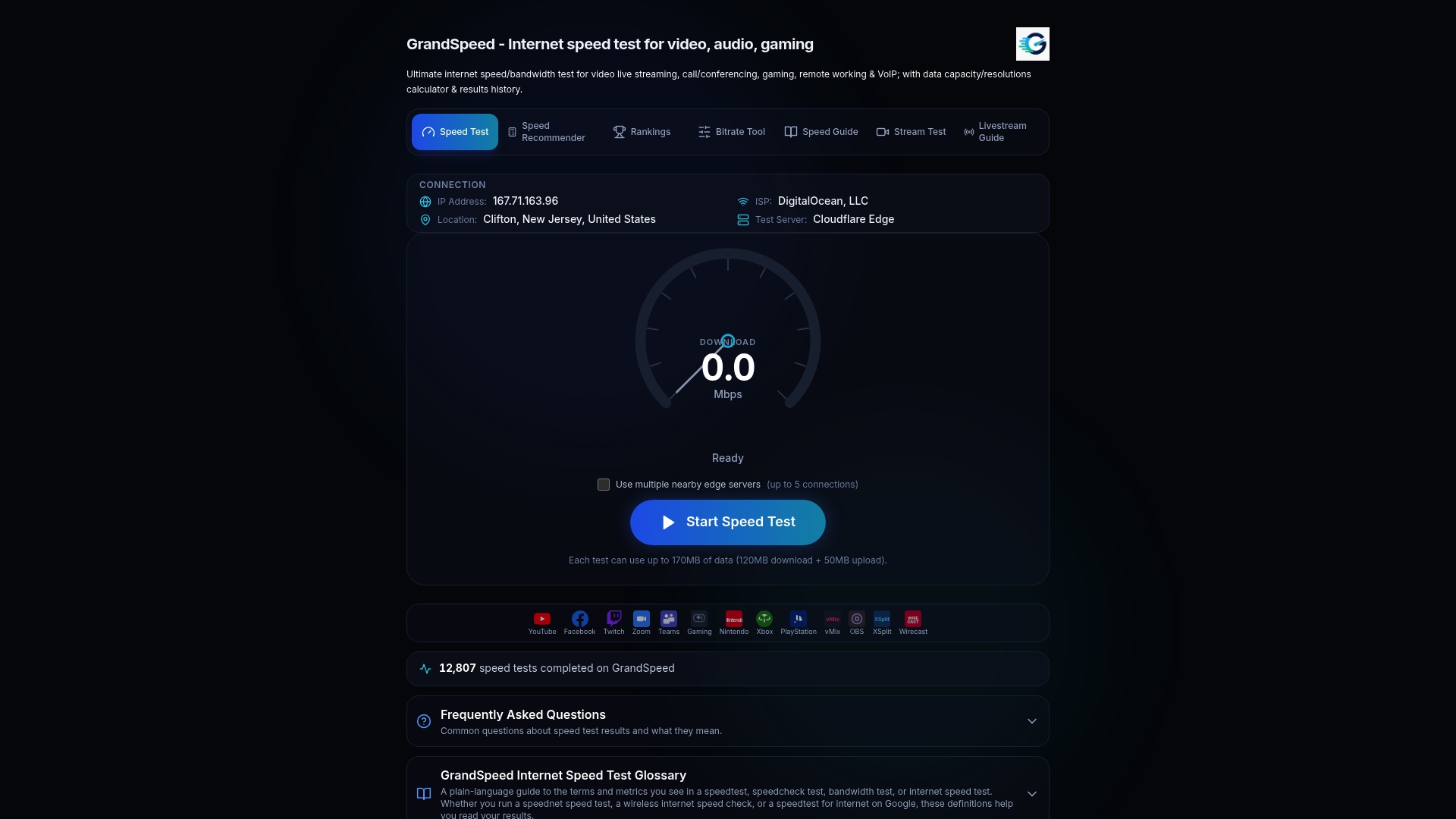
For streaming specifically, the video streaming quality test shows the maximum resolution your tested speeds support, and the Internet/ISP speed recommender helps you match a plan to what you do online. If you broadcast, the livestream upload speed monitor tracks upload while you are live.
FAQ
Where is the best place to put a Wi-Fi router for streaming?
A central, open, elevated spot: on a shelf or tall furniture in the middle of the area you use, away from metal, mirrors and water. If one room holds your main streaming or gaming gear, put the router there and connect those devices by Ethernet.
Is 100 Mbps too slow for streaming?
Usually not. BroadbandNow says 100 Mbps is more than enough for livestreaming in most cases, with HD typically needing 3 to 9 Mbps and 4K up to 20 Mbps. Upload speed matters most for broadcasting, so test it from where you stream.
What blocks Wi-Fi the most?
Metal is the worst, followed by concrete, then mirrors and glass, and water such as aquariums. Appliances like microwave ovens can also interfere on the 2.4 GHz band, so keep the router away from them.
Does router antenna position matter?
Yes. Antennas radiate perpendicular to their direction, so vertical antennas spread signal horizontally and angled or horizontal ones reach other floors. Vertical suits a single story, and a mix of vertical and angled suits a multi-story home.
Sources
- Boost WiFi Signal: Router Placement Tips, Netgear
- How do I resolve poor wireless range or a weak WiFi signal, Netgear Support
- Tips to maximize network and internet performance, Sony
- The Ars Technica semi-scientific guide to Wi-Fi Access Point placement
- Moving my Wi-Fi 6 router to a shelf beat my $330 Wi-Fi 7 upgrade, XDA Developers
- Wi-Fi and your home layout, Microsoft Support
- Improving your wifi experience, Ofcom
- I put my router in a cabinet and lost 74% of my Wi-Fi speed, How-To Geek
- Key Takeaways: Materials Can Block WiFi Signal, RACE
- Wi-Fi Interference: 7 Things That Block Wi-Fi Signal, AT&T
- Awful home Wi-Fi? Don't get a new router before trying this, Digital Trends
- Learning about WiFi Interference, Rogers
- What Streaming Bandwidth Do You Need? BroadbandNow