

OBS needs an upload speed of roughly 1.3 to 2 times your stream bitrate. In practice that means about 5 Mbps for 720p, 10 to 15 Mbps for 1080p and 40 Mbps or more for 4K. The number on your ISP plan is not the number to plan around. Measure the upload you actually get, including how stable it is, then set your OBS bitrate from that result. We built GrandSpeed's speed test for exactly this check: it measures upload together with latency, jitter, packet loss and bufferbloat, the things that decide whether a stream holds together.
TL;DR
- Keep your total stream bitrate (video plus audio) at about 70 to 80% of your measured upload speed, and never at 100%.
- Typical targets: 1080p30 needs roughly 8 to 10 Mbps of stable upload, 1080p60 roughly 9 to 15 Mbps, and every extra platform you send to directly multiplies that.
- Test upload at the time you normally stream, on Ethernet, and watch latency, jitter and packet loss as well as the headline speed.
- If OBS drops frames, lower the bitrate first, then change the server, then work through OBS's network settings.
Table of Contents
- What upload speed OBS actually needs
- Is 20 Mbps or 40 Mbps enough?
- Multistreaming multiplies the requirement
- How to test whether your upload is good enough
- Set your OBS bitrate from the result
- OBS network settings that help
- Our perspective
- Test before you go live
- FAQ
- Sources
What upload speed OBS actually needs
OBS sends your finished video to a streaming service, so what matters is upload, not download. Upload is measured in megabits per second (Mbps). Your OBS bitrate is set in kilobits per second (kbps), and 1 Mbps is 1,000 kbps, so a 6,000 kbps stream uses 6 Mbps. Some documentation counts 1 Mbit/s as 1,024 Kbps, which is a small difference but worth knowing when you compare numbers (Yandex Cloud's OBS guide).
The core rule appears in nearly every serious guide: your bitrate has to sit well below your upload speed. OBS's own troubleshooting article recommends lowering your video bitrate to 75% of your total upload speed (OBS Project). Dacast gives the same range, 70 to 80% of tested upload, with a worked example: a 12 Mbps upload supports no more than 8 to 9 Mbps of combined audio and video (Dacast).
Why not use all of it? Your upload also carries Discord or VoIP audio, game traffic, cloud backups and other devices in the house. On top of that, the streaming protocol adds its own overhead, and every connection has dips. Livepush turns this into a formula: required upload equals bitrate times 1.4, which is the same as keeping bitrate at or below 70% of upload.
Upload needed by resolution
The table below pulls together published guidance. Different sources use different safety margins, which is why you see ranges.
| Stream | Typical bitrate | Upload to plan for |
|---|---|---|
| 720p30 | 2,500 to 5,000 kbps | About 5 Mbps; 3 Mbps is the floor for smooth streaming |
| 1080p30 | 4,500 to 6,000 kbps | 8.5 to 10 Mbps stable |
| 1080p60 | 6,000 to 9,000 kbps | 10 to 15 Mbps stable |
| 4K | Much higher; platform dependent | 40 Mbps or more |
Bitrate ranges come from Dacast. The 720p floor comes from an Illinois Library Association OBS guide, which recommends 5 Mbps for streaming from 720p30 up to 1080p60 and treats 3 Mbps as the minimum. The 1080p figures reflect Livepush, which says 1080p30 needs at least 8.5 Mbps and 1080p60 about 11 Mbps. OBSBOT puts 1080p at 10 to 15 Mbps and 4K at 40 Mbps or more. If you are weighing 4K specifically, this overview of how many Mbps you need for 4K helps frame the download side, while for streaming out of OBS the upload figures above are the ones that apply.
A worked example
Say you stream 1080p60 to Twitch. Twitch's video cap is 6,000 kbps, and you add 160 kbps of audio. CastMany divides the total by 0.75, which gives about 8.2 Mbps of upload. Other guides add more margin: Eklipse uses 20% headroom, so 6,000 kbps needs 7.2 Mbps, and StreamerSize recommends a 1.5 times buffer, which means 9 to 10 Mbps for the same stream.
So the honest answer is a range: 7 to 10 Mbps of stable upload for a 6,000 kbps stream, with the upper end safer if you share your connection. Our streaming upload calculator guide walks through the same arithmetic for a 20 Mbps plan.

Is 20 Mbps or 40 Mbps enough?
For a single 1080p stream, yes, comfortably. At 20 Mbps, using 75% as the ceiling gives you about 15 Mbps of usable bitrate, far above what Twitch accepts at 1080p. NVIDIA's broadcasting guide pairs 10 Mbps of upload with an 8 Mbps H.264 bitrate at 1080p, and 15 Mbps with a 12 Mbps bitrate at 1440p or 4K. At 40 Mbps you have the room to stream YouTube at higher bitrates, or to run a second destination.
The caveat is the platform, not your line. Twitch caps video at 6,000 kbps for most broadcasters, while YouTube allows much more (Kudos). That is why OBS can seem to use only a slice of a fast connection: it sends what you tell it to send. If you have 15 Mbps up and OBS is pushing 5,000 kbps, that is the bitrate you set, not a fault. Raise it within the 75% rule and the platform's limit.
Multistreaming multiplies the requirement
When OBS sends a separate stream to each platform, each one needs its own upload. Meld Studio multiplies the target bitrate by the number of destinations and adds 50% headroom. Its figures for 1080p60 at 6,000 kbps are about 18 to 20 Mbps for two platforms and 27 to 28 Mbps for three. CastMany arrives at 8.2 Mbps for one platform, 16.4 for two, 24.6 for three and 32.9 for four.

A relay service that re-broadcasts from its own servers keeps your upload at the single-stream number. Both Meld and CastMany describe this. Our multistreaming guide covers how to size your connection for more than one destination.
How to test whether your upload is good enough
A single speed test run at noon tells you little about an evening stream. Here is a routine that matches how OBS actually behaves.
- Connect with Ethernet. OBS's guidance is that Wi-Fi may be unstable for streaming, as MyStreamSetup summarizes. Test on the same wired connection you will stream from.
- Close other traffic. Pause cloud sync, game downloads and other devices so you see your baseline.
- Run the test at streaming time. Evening congestion on shared cable networks can lower upload. Run it twice, an hour apart.
- Read more than the upload number. Look at latency, jitter (how much latency varies from moment to moment) and packet loss (data that never arrives). Our speed test reports all of these, plus bufferbloat, which is the delay that builds when your upload is saturated.
- Apply the rule. Take the lower of your two results and multiply by 0.75. That is your maximum total bitrate.
- Check what resolution it supports. Our video streaming quality test works out the maximum livestream resolution your tested speeds can carry, and the video bitrate calculator helps you pick a bitrate for it.
Speed tests show peak speed, not sustained speed, so the Multistreaming Platform guide advises never planning to use all of your measured upload. For a step-by-step on the upload test itself, see our free bandwidth test for upload speed walkthrough.
Reading the other numbers
Dropped frames in OBS are frames it could not send in time. OBS's maintainers state it is extremely unlikely OBS itself causes them: they come from an unstable connection or a bitrate the connection cannot keep up with (OBS Project). That makes the other metrics useful clues:
- Packet loss means data is lost on the way. Even small amounts can show up as dropped frames in a live stream, because there is no time to resend.
- Jitter means uneven delivery. Your average upload may look fine while the connection stutters.
- High latency under load (bufferbloat) means your own upload is clogging the line. Lowering bitrate usually fixes it.
If you want to monitor these while you broadcast rather than test once, the livestream upload speed monitor is built for that. We also wrote a five-test routine for OBS dropped frames.
Set your OBS bitrate from the result
Once you know your stable upload, the settings follow.
- Open Settings → Output and choose CBR (constant bitrate) as the rate control. Dacast and Yandex Cloud both recommend it for consistent quality, and Dacast adds a 2-second keyframe interval.
- Set the video bitrate so that video plus audio stays within 75% of your measured upload. If you use 160 kbps audio, subtract it first.
- Match resolution and frame rate to what that bitrate can carry. Livepush suggests sticking to 30 fps if upload tests below about 9 Mbps.
- Check the platform's ceiling: our guides cover Twitch bitrate settings, YouTube Live bitrate and Facebook Live bitrate.
If your upload is low
Under about 5 Mbps, drop to 720p. Eklipse gives 3 Mbps as the minimum viable upload for 720p30 at 2,500 to 3,000 kbps, and says if your upload tests at 5 Mbps, cap bitrate at 3,500 to 4,000 kbps. A clean 720p stream looks better than a 1080p stream that stalls.
OBS network settings that help
When the bitrate is right and frames still drop, OBS's official troubleshooting guide lists these steps, in this order of usefulness (OBS Project):
- Lower the video bitrate to 75% of total upload speed in Settings → Output.
- Stream to a different server, or a different service, to see whether the problem follows the route. On Windows, the TwitchTest tool can find the server with the best quality score.
- On Windows, enable Network Optimizations and TCP pacing under Settings → Advanced → Network.
- Keep Bind to IP on Default, and try setting IP Family to IPv4 Only.
- As a last resort, enable Dynamic Bitrate Adjustment (Beta), which lowers bitrate during congestion instead of dropping frames.
If none of that works, OBS's maintainers advise contacting your ISP with detailed logs, since much of the network path is outside your control. Our Livestreaming guide on internet connection explains what to bring to that conversation.
Our perspective
We see the same pattern in streaming questions: people ask what upload speed they have, when the better question is what upload speed they can rely on for the next two hours.
A plan labeled 20 Mbps can test at 20 Mbps at noon and wobble in the evening. That is why GrandSpeed measures jitter, packet loss, bufferbloat and DNS resolution alongside download and upload. Those are the numbers that explain a stream that stutters on a fast plan.
Our approach is simple: test on Ethernet, take the stable figure, keep your bitrate within 75% of it, and let a resolution check tell you what that connection can carry. Then watch the connection during the stream, because that is when problems appear.
Peter D
Test before you go live
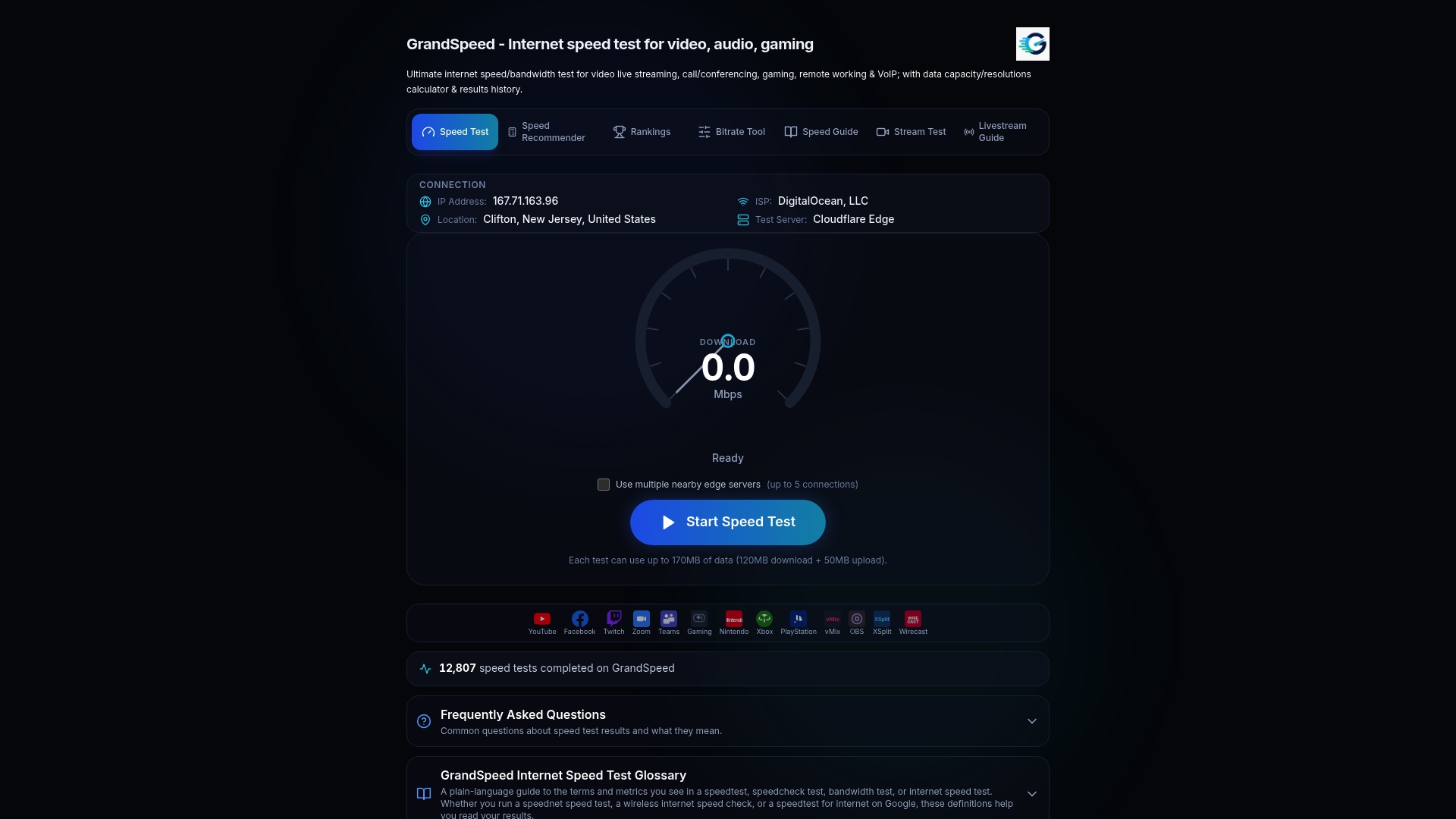
Run the GrandSpeed speed test on the machine you stream from, and you get upload, latency, jitter, packet loss and bufferbloat in one pass, with a history of results so you can spot the evening dips. Then use the video bitrate planner to turn your result into an OBS bitrate, and the livestream monitor to keep an eye on upload during the broadcast.
If you are choosing or upgrading a plan, the Internet/ISP speed recommender shows what speed suits your kind of streaming, and our guide to the best internet for streaming explains why 1.5 to 2 times headroom matters.
FAQ
How much upload speed do I need for 1080p streaming in OBS?
Plan for 10 to 15 Mbps of stable upload for 1080p, depending on frame rate and bitrate. At 1080p30 with 4,500 to 6,000 kbps, about 8.5 to 10 Mbps is enough. For 1080p60 at 6,000 kbps, plan on 9 to 10 Mbps.
Is 10,000 kbps a good bitrate for 1080p?
It suits YouTube, which publishes 10,000 kbps for 1080p30 and 12,000 kbps for 1080p60 as encoder recommendations. It is too high for Twitch, which caps most broadcasters at 6,000 kbps. At 10,000 kbps you want roughly 17 Mbps or more of stable upload to keep the 75% margin.
Why does OBS use less than my full upload speed?
OBS only sends the bitrate you set in Settings → Output, and platforms cap what they accept. A 15 Mbps connection streaming at 5,000 kbps is working as configured. Raise the bitrate within the platform limit and keep it under 75% of your measured upload.
Does OBS need Ethernet?
Wired is strongly preferred. OBS's guidance is that Wi-Fi can be unstable, and jitter and packet loss on wireless show up as dropped frames. If you must use Wi-Fi, test it at streaming time and lower your bitrate for extra margin.
Sources
- OBS Project: Stream Connection Troubleshooting
- Dacast: Best OBS Studio Settings for Streaming 2026
- Yandex Cloud: OBS Studio setup recommendations
- Livepush: How Much Upload Speed Do You Need to Live Stream?
- Livepush: Best OBS Settings for 1080p Live Streaming
- Illinois Library Association: Introduction to OBS, Part Two
- OBSBOT: Streaming Speed: How Much Internet Do You Need?
- CastMany: How much upload speed do you need to stream?
- Eklipse: Streaming With Low Upload Speed
- StreamerSize: Best OBS Bitrate for 1080p 60fps Streaming
- NVIDIA: NVENC OBS Guide
- Meld Studio: How Much Upload Speed Do You Need to Multistream?
- Multistreaming Platform: Multistreaming Bandwidth
- MyStreamSetup: Network setup for streaming
- Internet Speed for 4K: How Many Mbps You Need