
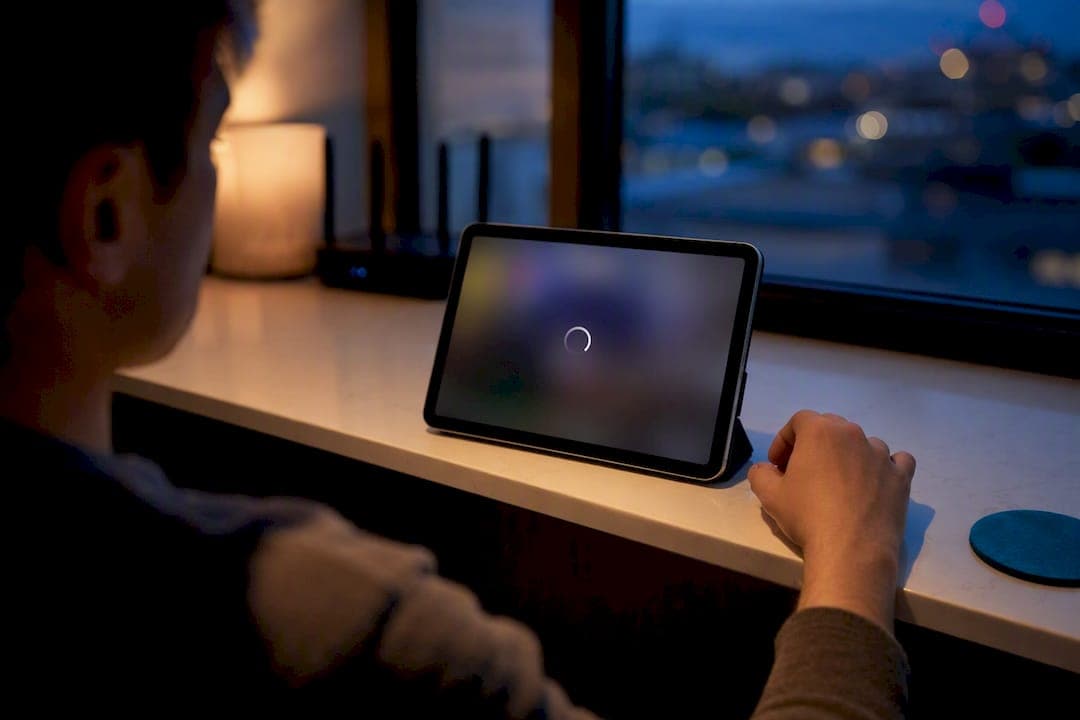
YouTube live buffering usually comes down to one of three things: an unstable network connection, a device or app glitch, or, if you're the one broadcasting, encoder settings that outpace your upload speed. Start with the fast fixes: drop the playback quality a notch, restart the app or your router, and run a quick speed test to rule out your connection. If you're the streamer and your viewers are the ones buffering, check your latency mode and confirm your bitrate matches what your upload can actually handle.
TL;DR:
- Buffering often results from high jitter, packet loss, or bufferbloat, which degrade streaming stability despite good download speeds.
- Running a full diagnostic test can identify these issues and help set realistic encoder bitrate and resolution targets.
- Viewers should lower playback quality, close bandwidth-consuming apps, and restart devices or routers to resolve local buffering problems quickly.
- Broadcasters need to match upload speed with encoder settings, use constant bitrate, and maintain keyframe intervals within recommended ranges for stability.
- Using wired Ethernet connections and avoiding Ultra-low latency modes can improve overall streaming reliability, especially on unstable networks.
Table of Contents
- What Causes YouTube Live Buffering, and How Do You Fix It Fast?
- Quick Fixes Viewers Can Try Now
- Diagnose Your Network: What to Test and How
- Broadcaster-Side Causes and Fixes
- Device- and App-Specific Troubleshooting
- When to Contact Your ISP or the Broadcaster
- How GrandSpeed Helps Diagnose Live Buffering
- The Checklist Nobody Follows, and Why That's the Problem
- Try the GrandSpeed Stream Test Before You Blame Your Wi-Fi
- Authoritative Troubleshooting and Encoder Docs
- Sources
- FAQ
What Causes YouTube Live Buffering, and How Do You Fix It Fast?
Every live stream relies on a small stockpile of video called the read-ahead buffer. When your device can't keep that stockpile full, faster than you're burning through it, playback stalls and you get the spinning wheel. That gap opens up for a handful of predictable reasons: a shaky Wi-Fi signal, a router juggling too many devices, an outdated app, or, on the broadcaster's end, a stream pushed out faster than the upload connection can carry it.
None of that requires a network engineering degree to diagnose. Most YouTube live streaming issues trace back to something you can check in under two minutes.
Quick Fixes Viewers Can Try Now
Work through these in order. Most buffering problems clear up in the first three steps.
- Lower the playback quality manually. Tap the gear icon, drop from 1080p to 480p or Auto, and let YouTube match quality to your real-time connection speed.
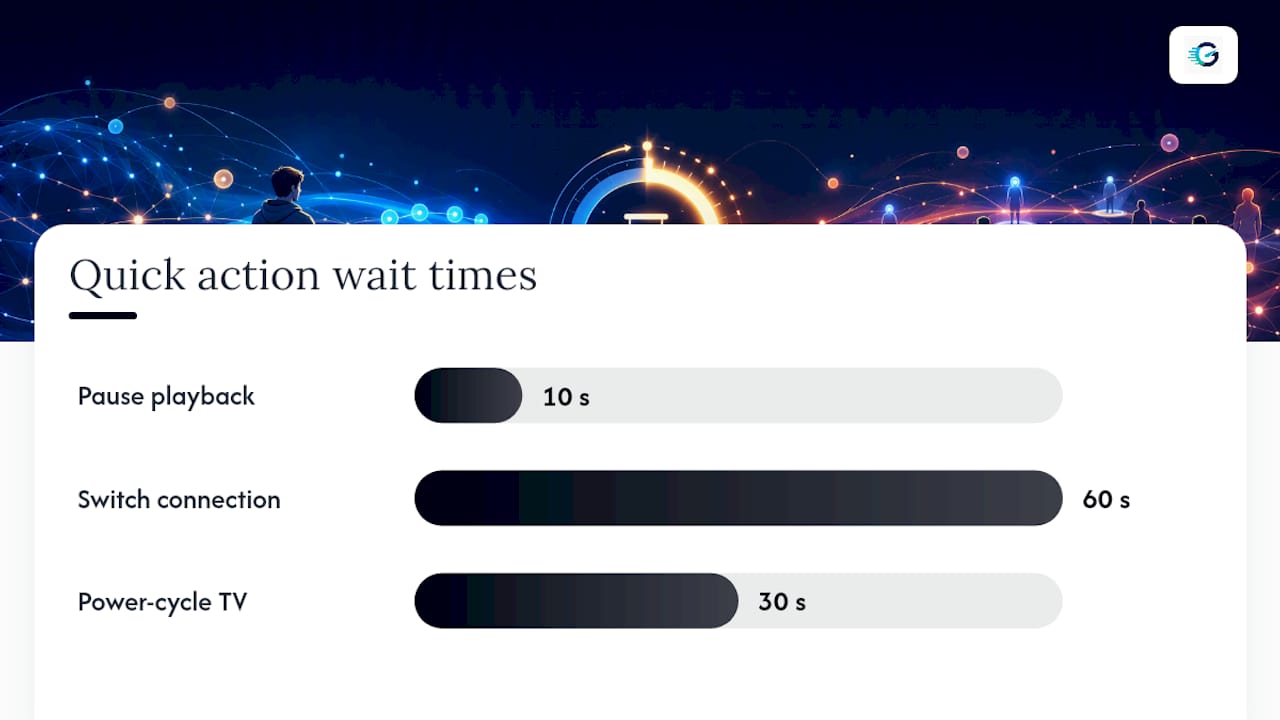
- Pause for ten seconds. This lets the buffer refill before you resume, which often smooths out a stream that was fine a minute ago.
- Close other apps and devices hogging bandwidth. A phone backing up photos or a roommate's 4K stream in another room eats into your available bandwidth without you noticing.
- Restart the YouTube app and clear its cache. A stuck cache is one of the most common, and most overlooked, causes of why is YouTube buffering when your speed test looks fine.
- Switch connection types. Toggle from Wi-Fi to mobile data (or vice versa) for sixty seconds. If buffering stops, your home network is the culprit, not YouTube.
If you're watching on a smart TV, power-cycle it by unplugging for thirty seconds. Smart TVs run older, weaker processors than phones or laptops, so an app that's been running for days can choke on live video specifically. An Ethernet cable, even a cheap one, usually beats Wi-Fi for consistency on a TV parked far from the router.
Pro Tip: Keep a second device nearby (a phone works fine) and load the same stream on it. If the second device plays smoothly, the problem is almost always your first device or its local network, not the live stream itself.
Diagnose Your Network: What to Test and How
A "fast" internet plan and a stable live stream are not the same thing. Download speed matters, but jitter, packet loss, and bufferbloat decide whether that speed actually holds steady long enough to keep a live buffer full.
- Download and upload speed — determines the ceiling for playback quality.
- Latency — the delay before data starts moving; high latency slows how fast the buffer refills after a dip.
- Jitter — inconsistency in that delay; even a "fast" connection buffers constantly if jitter is high.
- Packet loss — dropped data that forces retransmission, which is what actually causes the stutter you see.
- Bufferbloat — congestion that piles up when your router is overloaded, spiking latency under load even though idle speed looks fine.
Run a full diagnostic on the device sitting right next to your viewing screen, not a different room, using a stream-quality test built to measure all five metrics at once instead of just download speed. YouTube Help recommends at least 7 Mbps of sustained download speed for reliable HD playback, and its own troubleshooting guidance points out that a connection can look "excellent" on paper while transient packet loss and network path congestion still cause intermittent stalls.
As a rule of thumb: packet loss above 1% during a test is worth treating as a red flag, not noise. If your numbers look clean but buffering persists, try three things next: a wired Ethernet connection instead of Wi-Fi, a retest at a different time of day (evening congestion is real), and a check of how many devices your router is juggling at once. Community reports on YouTube's own support forums back this up: plenty of people with "excellent" internet still get stuck buffering because of Wi-Fi interference or shared household bandwidth, not their ISP's advertised speed.
Broadcaster-Side Causes and Fixes
If your viewers are the ones buffering and your own connection tests fine, the problem usually sits in your encoder, not the network. Live latency mode is the first thing to check. YouTube documents three latency settings: Ultra-low, Low, and Normal. Ultra-low shrinks the player's read-ahead buffer to almost nothing for near-instant interaction, which also means far less cushion for viewers on shaky connections. Normal mode gives viewers the biggest buffer and the most stable experience, at the cost of a few extra seconds of delay.
Bitrate and keyframe settings matter just as much:
- Match your outgoing bitrate to your resolution and actual measured upload speed, not your plan's advertised number.
- Use constant bitrate (CBR) instead of variable, since it's what YouTube's ingestion pipeline expects.
- Set keyframe frequency to 2 seconds, and never exceed 4 seconds, since wider spacing confuses YouTube's transcoding process.
- Stick with closed GOP encoding. YouTube's pipeline prefers strict, predictable keyframe cadence, and open GOP settings can cause buffering after transcoding even when your local encoder preview looks perfect.
Your YouTube Live dashboard will usually tell you what's wrong before viewers even complain.
Health messages like "bad" or dropped frame warnings in the stream health panel almost always point to a bitrate that exceeds available upload, or a keyframe/GOP mismatch, not a problem on YouTube's end.
If you see those warnings, drop your bitrate or resolution one step, confirm you're using RTMPS for ingestion, and re-test your upload before going live again.
Device- and App-Specific Troubleshooting
Sometimes the fix has nothing to do with your internet plan at all.
- Clear the YouTube app's cache, then check for a pending update. Outdated app versions are a frequent, boring cause of youtube live lag that a full reinstall usually clears up.
- Test in an incognito browser window or a different browser entirely. If the stream runs clean there, a browser extension or corrupted cache is the actual problem.
- Turn off VPNs and ad-blocking extensions temporarily. Some throttle or reroute video traffic in ways that create exactly the buffering pattern you're trying to fix.
- On a smart TV, unplug it for thirty seconds, check for a firmware update, and use YouTube's native app instead of a casted stream where possible.
- Check your router, restart it, move closer if you're on Wi-Fi, and switch from the 2.4 GHz to the 5 GHz band, since 2.4 GHz is far more prone to interference from other devices.
When to Contact Your ISP or the Broadcaster
Before you call anyone, gather the evidence that actually helps them fix it.
- Screenshots of a speed test that includes jitter and packet loss, not just download speed.
- Exact timestamps of when the buffering happened.
- Your device model, app version, and whether anyone else on your network hit the same issue.
- If you're the broadcaster: encoder logs, your outgoing bitrate, keyframe frequency, and any stream health error text.
| Symptom | Contact |
|---|---|
| Sustained packet loss or consistently low upload on tests | Your ISP |
| Ingest errors or stream health warnings in YouTube dashboard | Broadcaster's encoder settings |
| Many viewers reporting buffering on the same stream | YouTube Help / platform-side check |
How GrandSpeed Helps Diagnose Live Buffering
GrandSpeed's stream test measures upload, latency, jitter, packet loss, and bufferbloat in one pass, then estimates the maximum live resolution your connection can actually support. Save your test history before you contact an ISP or file a YouTube support ticket. Broadcasters can pair those upload numbers with the bitrate calculator to pick encoder settings that match reality instead of guesswork.
The Checklist Nobody Follows, and Why That's the Problem
Most buffering advice online treats viewers and broadcasters as separate problems with separate audiences. That's backwards. If you stream even occasionally, you're both, and the fix that matters most is usually the one furthest from where people look first.
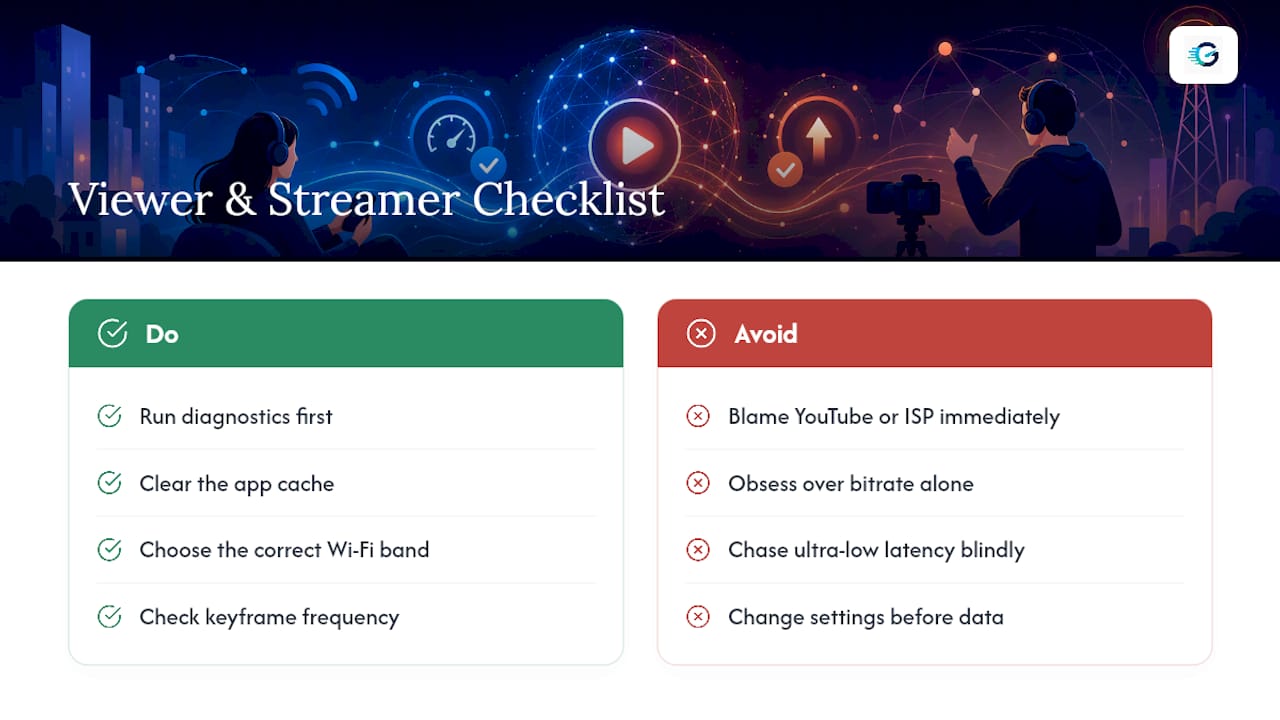
Viewers jump straight to blaming YouTube or their ISP. In reality, the app cache and Wi-Fi band selection fix more buffering than either of those ever will. Broadcasters, meanwhile, obsess over bitrate numbers while ignoring keyframe frequency, which causes just as much viewer-side stuttering and gets almost no attention in forum threads.
The one piece of conventional wisdom I'd push back on hardest: chasing Ultra-low latency mode because it "feels more professional." For most streams, that trade-off isn't worth it. You're trading a stable buffer for a few seconds of immediacy your audience won't notice, but they will notice the stuttering. Run the diagnostics first, in order, before touching any setting. The data tells you which problem you actually have instead of the one you assumed.
— Peter D
Try the GrandSpeed Stream Test Before You Blame Your Wi-Fi
Guessing which fix to try wastes more time than testing does. GrandSpeed's stream test checks jitter, packet loss, and bufferbloat in one pass and tells you the maximum live resolution your current connection can actually support, so you stop troubleshooting blind. If you're broadcasting and your upload comes back lower than your encoder's bitrate, the fix is simple: drop the bitrate or resolution until the numbers match. Run the stream test now, then plug your upload number into the bitrate calculator to get a safe encoder setting before your next broadcast.
Authoritative Troubleshooting and Encoder Docs
Check YouTube's streaming troubleshooting guide, latency documentation, and live stream health messages for platform-specific detail beyond this article.
FAQ
Why is YouTube buffering but my internet is fine?
A clean download-speed result doesn't rule out jitter, packet loss, or bufferbloat, all of which cause buffering independently of your headline speed. Run a full stream test that checks those metrics specifically, not just download speed.
Why is YouTube Live so laggy?
Lag is usually latency mode, not buffering. YouTube's Ultra-low and Low latency modes shrink the player's read-ahead buffer to cut delay, which trades stability for speed and can make stalls more likely on inconsistent connections.
Why is YouTube buffering today specifically?
Sudden buffering that wasn't there yesterday usually points to a new network condition: more devices online, evening congestion, a router that needs a restart, or an app update that changed how the cache behaves.
How do I get YouTube to stop buffering for good?
Clear the app cache, lower playback quality when the connection is under strain, and use a wired connection where possible. If it persists, run a full network diagnostic to see whether jitter or packet loss is the real cause before assuming it's your speed.