

A VPN almost always costs you some speed, and the part that hurts most is usually not the headline download number. It is latency, jitter and upload stability, the things that decide whether a call freezes, a game rubber-bands or a livestream drops frames. The only way to know your own cost is a before-and-after test on the same connection, with a tool that shows more than download speed. GrandSpeed's speed test reports download, upload, latency, jitter, packet loss, bufferbloat and DNS resolution time, so you can run it with the VPN off and then on and see exactly what changed.
TL;DR
- A VPN adds an extra stop on your route and encrypts your traffic, so it cannot normally make a connection faster. The exception is an ISP that throttles certain traffic.
- Distance to the VPN server matters most, server load comes second and encryption third, according to How-To Geek's analysis.
- Latency, jitter and packet loss decide how calls, games and streams feel. Test them, not just download speed.
- Measure with the VPN off, then on, several times each, at the same time of day and on the same connection.
- Most slowdowns can be reduced: choose a nearby server, switch protocol, use Ethernet, close background transfers and try split tunneling.
Table of Contents
- Why a VPN slows your connection
- Can a VPN ever make your internet faster?
- What slows down: download, upload, latency, jitter and loss
- How to measure a VPN's impact accurately
- What each activity needs from a VPN connection
- How to reduce the slowdown
- Promo: see your VPN's real cost in one test
- Our perspective
- FAQ
- Sources
Why a VPN slows your connection
Without a VPN, your data takes the most direct route it can to the site or server you are talking to. With a VPN, it first travels to the VPN provider's server, gets encrypted on your device, is decrypted and forwarded, and then the reply makes the same trip back. Every step adds a little time and a little processing.
Proton VPN's support documentation lists the factors that cap VPN speed: the base speed of your ISP connection (the ceiling nothing can exceed), the distance to the VPN server, infrastructure problems such as damaged undersea cables, ISP throttling of VPN traffic, and server load at peak times.
How-To Geek's Fergus O'Sullivan ranks them in a useful order: distance first, server load second, encryption third. That order tells you where to look first when your VPN feels slow.
Distance and routing
Data travels fast, but not instantly. Connecting to a server on another continent adds round-trip time you cannot configure away. In a December 2025 hands-on measurement, How-To Geek's Patrick Campanale recorded 4 ms of ping without a VPN, 17 ms through Atlanta and 43 ms through Toronto, with a 96% speed drop through the Toronto server. That is one writer's test on one connection, so treat it as an illustration of how widely results can vary by server, not as a number to expect.
Server load
A VPN server is shared. When many people connect to the same one at the same hour, each gets a smaller slice of its capacity. Peak evening hours are the most common time for this to show up, and it is the reason the same VPN can feel fast at 10 a.m. and sluggish at 8 p.m.
Encryption overhead
Encryption takes processing power on your device and on the server. An academic study of IPsec tunnels published in 2018 found that secured networks showed lower bandwidth, higher latency and higher jitter than unsecured ones. It also found that the choice of hash function had no measurable effect and that AES key length (128, 192 or 256 bit) made only small differences because hardware supports these operations. In plain terms: the protocol and server you pick usually matter more than the strength of the cipher.
Your own base connection
A VPN can never exceed the speed your ISP delivers. If you pay for a 500 Mbps plan but only receive 150 Mbps at your device because of Wi-Fi or a congested router, the VPN works from that lower number. Check the baseline first. Our guide on why you may not be getting the speed you paid for walks through the usual causes.
Can a VPN ever make your internet faster?
Under normal conditions, no. How-To Geek's explanation is that distance, server load and encryption all add overhead, so no VPN can beat the unprotected baseline except in one situation: when your ISP throttles specific traffic, such as video streaming or file transfers. A VPN hides what kind of traffic you are sending, which can sometimes sidestep that throttle. Proton VPN's documentation also notes that a VPN can occasionally route around a problem, so some sites load faster with it.
This is why the line between a fast VPN and a slow one is mostly how little it slows you down. If you suspect throttling, the way to confirm it is to test with the VPN off and on and compare. If the VPN run is clearly better for one kind of traffic, throttling is a likely cause, and that is a conversation to have with your ISP.

What slows down: download, upload, latency, jitter and loss
A VPN does not affect every number equally, and the number that matters depends on what you do.
| What you do | What matters most | What a VPN slowdown looks like |
|---|---|---|
| Gaming | Latency, jitter, packet loss | Delayed controls, rubber-banding, freezes |
| Streaming video | Sustained download speed | Lower quality, buffering |
| Video meetings | Upload and download, low jitter and loss | Robotic audio, frozen video |
| Remote work | Latency, DNS response, consistency | Slow logins, sluggish web apps |
| Livestreaming | Stable upload, low packet loss | Dropped frames, forced bitrate cuts |
The first four rows follow VPNCF's 2026 speed-test guide, which explains that gaming cares more about latency, jitter and packet loss than peak download, that video meetings need both upload and download, and that testing download only while ignoring upload is a common misreading.
Latency
Latency is the time a small packet takes to make a round trip, measured in milliseconds. Even a fast VPN raises it, because your traffic takes a detour. A nearby server might add a handful of milliseconds. A distant one can add dozens, as the Atlanta and Toronto numbers above show. For browsing you will barely notice. For competitive gaming or live conversation you will.
Jitter
Jitter is how much latency varies from one packet to the next. Steady 40 ms is fine. A latency that bounces between 20 ms and 120 ms is not, even if the average looks acceptable. VPNCF explains that high jitter causes robotic audio, delayed controls and uneven cursor movement. The 2018 IPsec study also found higher jitter on secured networks.
Packet loss
Packet loss is the share of data that never arrives and has to be resent or skipped. It shows up as freezes, missed actions and voice interruptions. A little loss on a VPN can hurt a live call far more than a lower download number would.
Bufferbloat
Bufferbloat is the latency spike that happens when your connection is busy, for example when an upload saturates your line and everything else slows. A VPN does not cause it, but a VPN plus a big upload (a backup, a stream) can make it obvious. A test that only reports download and upload speeds will miss it. Ours measures it.
DNS resolution time
DNS is the lookup that turns a site name into an address. Many VPNs use their own DNS servers, which can be faster or slower than your ISP's. If pages feel slow to start but load quickly once they begin, DNS time is worth checking.
How to measure a VPN's impact accurately
A single speed test with the VPN on tells you nothing, because you have nothing to compare it to. The method that works is a controlled before-and-after comparison. Security.org's VPN speed tests use this approach: each VPN is tested 10 times, the results are averaged, the VPN is disconnected and reconnected after the fifth test, and the result is expressed as a percentage difference from the no-VPN baseline.
You can do the same at home in about ten minutes.
- Prepare the connection. Close cloud backups, game downloads and streaming on every device. If you can, plug in with Ethernet so Wi-Fi noise does not blur the result. Our Wi-Fi vs Ethernet test shows how much difference the link alone can make.
- Run the baseline with the VPN off. Open GrandSpeed in your browser and run the test. Note download, upload, latency, jitter, packet loss and bufferbloat. Repeat it at least three times and take the average.
- Connect the VPN. Choose the server you actually use day to day, not the closest one just for the test. Wait for the connection to settle.
- Repeat the same test the same number of times. Keep everything else identical: same device, same place, same time of day.
- Compare averages and ranges. The average difference tells you the overhead. The spread between runs tells you the stability. A VPN with a small average cost but wildly different results from run to run is a poor fit for calls and streams.
- Try a second server or protocol. Disconnect, reconnect to a different location or protocol and test again. The best setting is often not the default one.
- Save the results. GrandSpeed keeps a history of your tests, so you can see whether the VPN is worse at peak hours or on certain days. Our piece on tracking internet speed over time explains how to use that history.
For a deeper walkthrough, see our VPN bandwidth test guide and the VPN speed comparison, which shows how much speed is typically lost.
A worked example
Suppose your baseline over Ethernet averages 300 Mbps down, 25 ms latency and 3 ms jitter. With the VPN on a nearby server, you get 240 Mbps, 38 ms and 4 ms. That is a 20% drop in download and 13 ms more latency: fine for video calls, streaming and most games. Now switch to a server across the country and you see 150 Mbps, 95 ms and 15 ms jitter. Download is still plenty for 4K streaming, but a fast-paced game or a live call will feel worse. The same VPN produced two very different answers, and only the extra metrics revealed why.

These figures are an illustration of how to read a comparison, not a prediction for your line.
What each activity needs from a VPN connection
Livestreaming and broadcasting
Streamers care about upload. Your encoder, whether OBS, vMix, XSplit or Wirecast, sends video to YouTube, Twitch or Facebook at a fixed bitrate. If your VPN cuts upload throughput or makes it erratic, the platform sees a connection that cannot keep up, and you get dropped frames or forced quality reductions. If you stream through a VPN, test upload and packet loss with the VPN on, and keep a margin above your bitrate. Our Livestream Upload Speed Monitor is built for checking upload bandwidth and connection stability while you broadcast, and the bitrate planner helps you pick a bitrate your tested upload can carry. Our guide to why upload speed fluctuates covers how to stabilize it.
Gaming
Gamers should judge a VPN by latency and jitter first, not download. A 5% download drop is invisible in a game. A 40 ms jump in ping is not. Choose the nearest server to the game server, not the nearest to you, and compare latency with the VPN off and on.
Video calls and remote work
For meetings, upload speed and jitter are what keep your video and voice smooth. If colleagues say you sound robotic, check jitter and packet loss with the VPN on. Remote workers who must use a company VPN can still test how the connection behaves at different hours and bring that evidence to their IT team.
Streaming and downloads
Watching video needs sustained download, and most streaming quality levels need far less than a modern home connection delivers. Our Video Streaming Quality Test shows what quality your tested speeds support. If a VPN pushes you below that, switch servers before you give up on the quality.
How to reduce the slowdown
The fixes below come from VPN providers' own troubleshooting guides and are listed roughly in order of how often they help.
- Pick a closer server, or another one in the same area. Proton VPN's guide suggests changing server and choosing one with low load. Private Internet Access recommends starting with a nearby server and trying another location in the same region.
- Switch protocol. Proton notes that WireGuard is usually the fastest and that UDP is faster than TCP. PIA says OpenVPN UDP generally has less overhead than OpenVPN TCP, while TCP can help on restrictive networks.
- Turn off extra routing layers. Proton says its Secure Core feature routes traffic through an additional server and adds latency. Mullvad's help page says to try switching off DAITA, Multihop and anti-censorship obfuscation, the last of which can significantly increase latency. Turn these back on when you need their protection.
- Change the port. If your ISP limits certain ports, Mullvad suggests trying a different WireGuard port such as 51820, 53 or 123.
- Pause heavy background transfers before you test or stream.
- Check antivirus and firewall settings and update the VPN app. Both providers list these.
- Use Ethernet. Norton recommends a wired connection for faster, more stable speeds that offset much of the VPN slowdown, and restarting your device and router to clear background processes.
- Use split tunneling. Norton and PIA both describe sending only chosen apps through the VPN while other traffic, such as streaming, goes directly to the internet. This works well when your game launcher or encoder does not need the VPN.
Change one setting at a time and retest after each. If you change three things at once you will not know which one helped.
Promo: see your VPN's real cost in one test
If you want to know what your VPN costs you, run the same GrandSpeed test twice, once with the VPN off and once with it on. You get download, upload, latency, jitter, packet loss, bufferbloat and DNS time side by side, on a phone, tablet or laptop, over Wi-Fi or cellular, with no price and nothing to install.
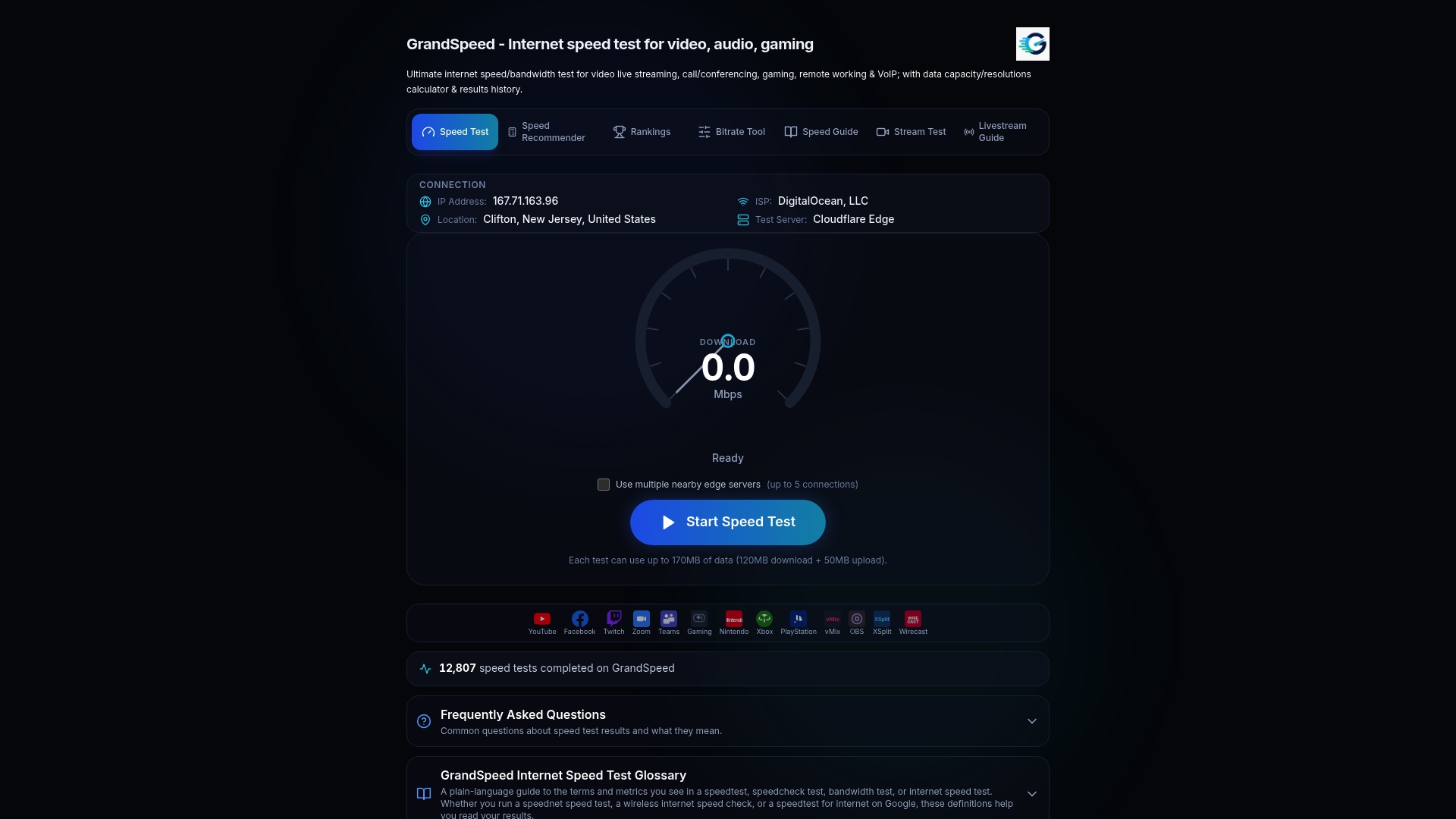
Start with the GrandSpeed speed test. If you broadcast, add the Livestream Upload Speed Monitor to see whether your upload holds steady through the VPN, and use the Internet/ISP Speed Recommender to see what plan your use actually calls for.
Our perspective
Most advice about VPN speed stops at download numbers. A VPN rarely wrecks a big download, but it can quietly wreck a call, a match or a stream, because those depend on latency, jitter, packet loss and upload stability.
That is why we built GrandSpeed to measure beyond a single Mbps figure: jitter, packet loss, bufferbloat and DNS resolution sit next to download and upload, and the results history lets you see patterns instead of one lucky run. For streamers, it also works out the maximum live stream resolution your tested speeds support, so you can set up before you go live.
Our advice is simple. Test without the VPN, test with it, repeat, and compare. Then change one setting at a time. You will usually find a server and protocol that give you privacy with a cost you will never notice.
Peter D
FAQ
Does a VPN reduce internet speed?
Yes, usually. The VPN adds an extra stop and encryption to your traffic, so speeds are normally lower than without it. How much lower depends on the server distance, server load, protocol and your base connection. A nearby server on a modern protocol often costs little, while a distant one can cost a lot.
Why is my VPN slow all of a sudden?
The common causes are a busy server at peak hours, a change in your base connection, a protocol your ISP treats differently or a background transfer eating bandwidth. Run a test with the VPN off first. If the unprotected speed is also down, the problem is your connection, not the VPN. If only the VPN run is slow, switch to another server.
Does a VPN help if my ISP throttles my connection?
Sometimes. A VPN hides the type of traffic you are sending, so it can bypass a throttle aimed at one kind of content. Compare tests with the VPN off and on to see whether it applies to you. If the VPN is consistently faster for one service, throttling is a likely cause.
Does the encryption setting matter for speed?
Less than most people think. A 2018 study of IPsec tunnels found AES key length made only small differences because of hardware support. The server you pick and the protocol you use usually have a larger effect.
Is it safe to livestream through a VPN?
Yes, as long as your upload stays stable. Test upload, jitter and packet loss with the VPN on, keep your encoder bitrate comfortably below your tested upload, and use split tunneling if the encoder does not need the VPN.
Sources
- Can a VPN Boost Your Internet Speed? (How-To Geek)
- Does a VPN really slow down your internet? I measured it (How-To Geek)
- Understanding and increasing VPN connection speeds (Proton VPN)
- A research on the impact of encryption algorithms (ITM Web of Conferences, 2018)
- Speed Test Results From the Top VPNs (Security.org)
- VPN Speed Test Guide: Check Latency, Bandwidth, And Loss (VPNCF)
- How to Improve VPN Speed: 10 Practical Fixes (Private Internet Access)
- Connection speed, why is it so slow? (Mullvad)
- Does a VPN slow down your internet? (Norton)