
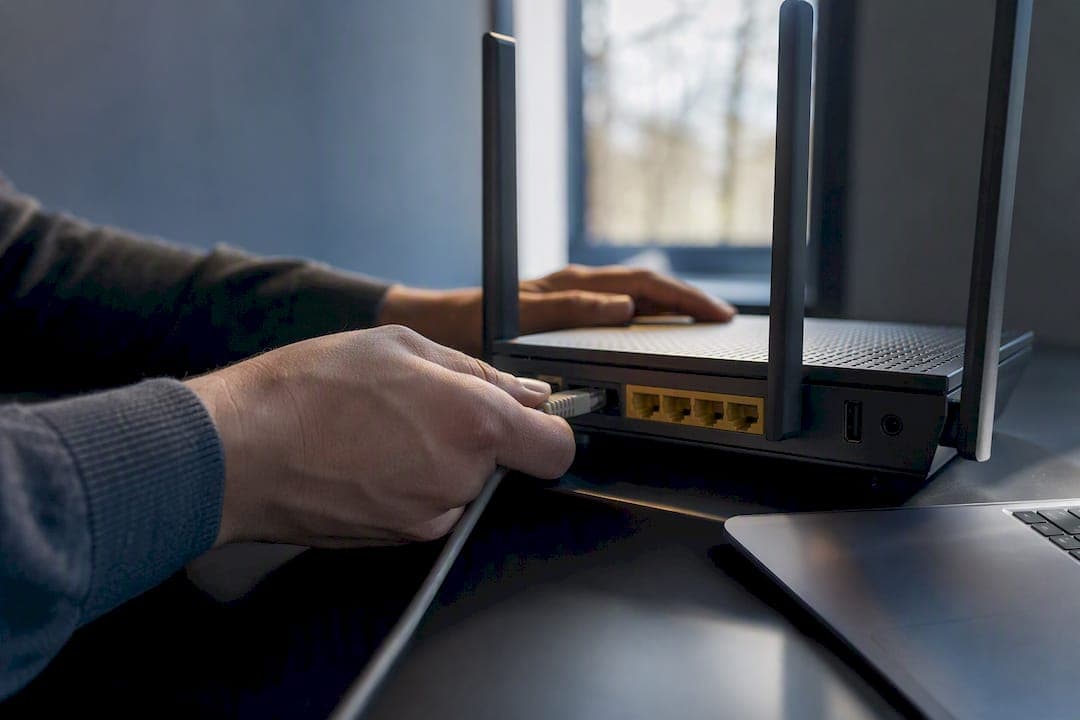
Aim for at least 6–9 Mbps of usable upload for 1080p30, 10–15 Mbps for 1080p60, and 35–75 Mbps for a stable 4K60 broadcast. The math behind every number here is the same: take your target bitrate and multiply it by a factor between one and one and a half to include headroom for network fluctuations, then confirm the result with a wired test run at the actual time you stream. A tool like GrandSpeed's Stream Test will tell you exactly where your connection's ceiling sits.
TL;DR:
- A wired connection is essential for accurate testing, and running multiple tests at your actual streaming time offers the most reliable measurement of usable upload speed.
- Effective upload speed calculations use a multiplier of 1.3 to 1.5 times the target bitrate to include protocol overhead and network fluctuations.
- Streaming at the maximum allowed bitrate for each platform without exceeding its caps prevents unnecessary quality loss, especially when multistreaming across multiple services.
- Household background activities like backups or downloads significantly impact streaming stability, so scheduling them after streaming or pausing them helps maintain connection quality.
- Prioritizing your streaming device via router QoS or using a dedicated network segment can substantially improve stream reliability without changing your internet plan.
Table of Contents
- Upload Speed Requirements for Streaming by Resolution and Frame Rate
- How to Calculate the Upload Speed Your Stream Actually Needs
- Testing Your Real Upload Speed Before You Go Live
- Platform Caps and Multistreaming Change the Math
- Fixing a Weak Upload Without Changing Your Internet Plan
- Why Reliability Beats Resolution
- Confirm Your Numbers Before You Go Live
- Sources
Upload Speed Requirements for Streaming by Resolution and Frame Rate
Every resolution and frame rate combination has a target video bitrate, and that bitrate only translates into a safe upload speed once you add breathing room. Streaming guides consistently recommend reserving 25–30% of your measured upload as headroom, which is why the "comfortable" column below always runs higher than the raw bitrate.
"Minimum" is the floor where your stream survives but has zero margin for a Wi-Fi hiccup or a background app deciding to sync photos. "Comfortable" is where you can actually forget about your connection while you're live.
Here's how that maps to real-world tiers. On a 10 Mbps upload plan, you're realistically capped at 1080p30 or a conservative 1080p60. On 25 Mbps, 1440p60 becomes viable with real headroom to spare. On 50 Mbps, you're in 4K60 territory, assuming nobody else in the house is uploading a video backup at the same time. Xfinity's own streaming guidance lands in the same range, which is a useful gut check if your ISP's marketed speed feels too good to be true. Platform bitrate caps and household bandwidth sharing will often push your practical choice lower than what the table technically allows, so treat these numbers as a ceiling, not a guarantee.
How to Calculate the Upload Speed Your Stream Actually Needs
The formula is simple: required upload = target bitrate × 1.3 to 1.5. Switcher Studio's engineering guidance settles on a 1.4× multiplier as a practical default, which accounts for protocol overhead and the small fluctuations every real network experiences. Pick the lower end of that range (1.3×) on a rock-solid fiber line, and the higher end (1.5×) on cable or anything with occasional jitter.
Two quick examples. Streaming 1080p60 at a 6,000 Kbps bitrate: 6,000 × 1.4 = 8,400 Kbps, so you need roughly 8.4 Mbps of sustained upload just for that one stream. Streaming 4K60 at 30,000 Kbps: 30,000 × 1.4 = 42,000 Kbps, or about 42 Mbps.
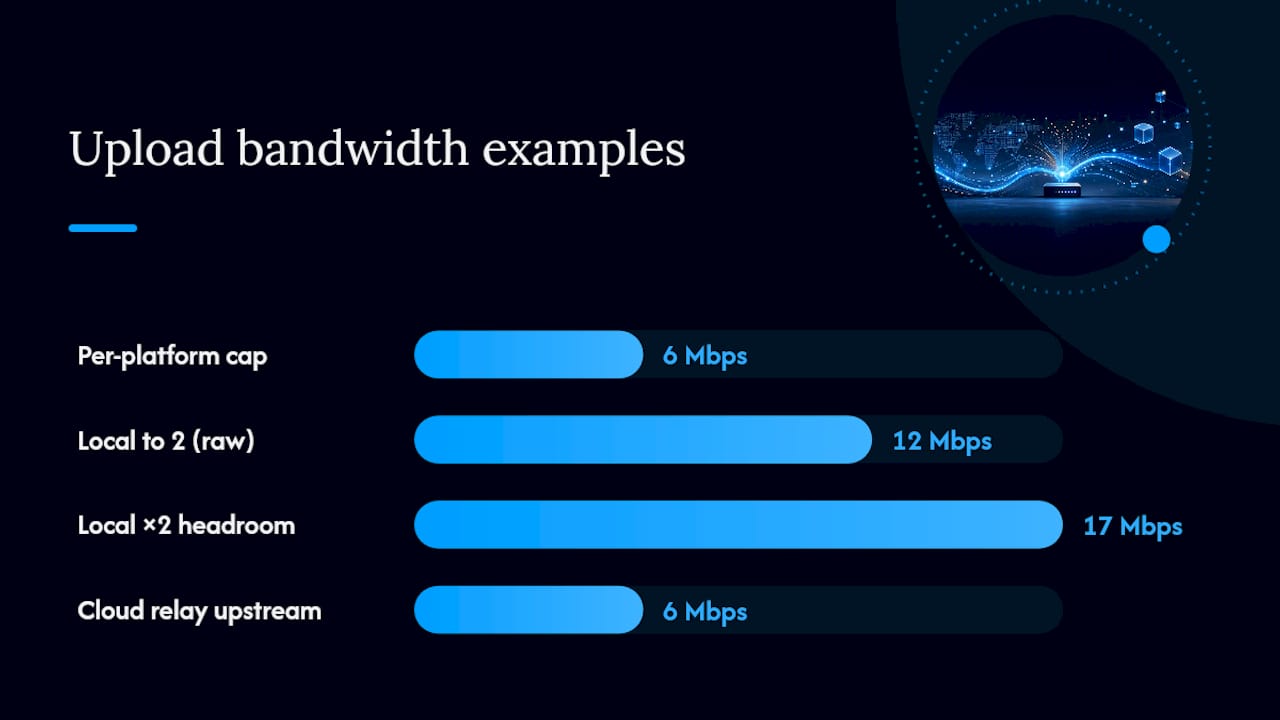
That math changes fast if you're multistreaming locally, since OBS or a similar encoder sends a full separate copy of your stream to each platform. Sending one stream to two platforms at once effectively doubles the required upload. Routing through a cloud relay instead means you only upload once, and the relay service handles distribution from its own servers.
Testing Your Real Upload Speed Before You Go Live
A standard speed test taken at noon on a quiet network will almost always overstate what you can actually push during a live broadcast. Real-time protocols like RTMP and SRT are far less forgiving of jitter and packet loss than a quick speed test measurement, which is why monitoring sustained throughput matters more than chasing a peak number.
Run this checklist before every important stream:
- Plug into Ethernet. Wi-Fi introduces variable latency and packet loss that wired connections avoid.
- Test at your actual streaming time, not whenever is convenient.
- Run at least three tests, 15 to 30 minutes apart, and log the lowest number, not the average.
- Check jitter and packet loss alongside raw speed. A stable 15 Mbps beats a spiky 25 Mbps every time.
- Treat that lowest logged number as your true "usable upload" for all bitrate math.
Pro Tip: Run GrandSpeed's Stream Test while a large file is syncing in the background, then again with everything closed. The gap between those two results is usually the reason a stream that tested fine at 2 p.m. buffers at 8 p.m.
Platform Caps and Multistreaming Change the Math
Twitch caps non-partner streams at roughly 6,000 Kbps, and YouTube and Kick allow higher variable ceilings depending on resolution. Pushing more bitrate than a platform accepts does nothing for viewers. Google's own encoder guidance for YouTube makes the same point: match your settings to what the destination actually supports, not to what your connection could theoretically handle.
Say you're sending one 1080p60 stream to two platforms locally at 6,000 Kbps each. That's 12,000 Kbps of raw output before headroom, and closer to 17 Mbps once you apply the 1.4× multiplier. A cloud relay avoids that multiplication entirely by only requiring your single upstream connection to feed one destination.
Fixing a Weak Upload Without Changing Your Internet Plan
Most stream instability isn't an ISP problem. It's a background app quietly eating bandwidth you assumed was free.
- Use Ethernet, always, for anything beyond casual 720p streaming.
- Pause cloud backup tools (Dropbox, Google Drive, OneDrive) before you go live.
- Schedule large uploads or downloads for after your stream ends.
- Set your encoder to CBR and cap total bitrate below both the platform limit and roughly 70–75% of your tested usable upload.
- Watch OBS's dropped-frame counter during the stream, and drop resolution before it climbs, not after.
Pro Tip: If your router supports QoS, prioritize the device you're streaming from over every other device on the network. It costs nothing and it's often the single biggest stability fix available. A dedicated SSID for your streaming rig, or even a temporary mobile hotspot test, can also help isolate whether the problem is your ISP or your home network.
Why Reliability Beats Resolution
Streamers chase resolution when they should chase consistency. A stable 1080p30 stream keeps viewers; a 4K60 stream that buffers every four minutes loses them, regardless of how sharp the picture looks in the moment it holds together. I'd rather see someone drop a tier and never think about their connection again than chase a number their upload can't sustain. Symmetric fiber is worth the switch once you need headroom above your target bitrate as a permanent baseline, not a workaround.
— Olutope
Confirm Your Numbers Before You Go Live
Every calculation in this guide assumes you know your real, sustained upload speed, not the number on your ISP's marketing page. GrandSpeed's Stream Test measures that directly, including jitter and packet loss, and estimates the maximum resolution your connection can realistically hold during a broadcast.

Once you have that number, run it through the Video Bitrate Calculator to see exactly what bitrate keeps you under the 70–75% safety threshold this article recommends. Pair both tools with the Livestreaming Guide if you're setting up a new streaming rig from scratch. Test your connection now, apply the headroom multiplier, and lock in settings you won't have to second-guess mid-stream.
Sources
- Livestreaming Bandwidth: How Much Upload Speed Do You Really Need? | Switcher Studio
- How Much Upload Speed Do You Need for Streaming? | StreamerSize
- What Is a Good Upload Speed for Streaming? - Xfinity