

Buffering happens when your player empties its data buffer faster than your connection can refill it, and the fix depends on where the bottleneck sits. Plug in an Ethernet cable or restart your router for a full 60 seconds first. If wired playback runs clean, your problem is Wi-Fi. If it still stutters, work through the diagnostic checklist below before blaming your ISP.
TL;DR:
- Buffering is caused by issues at any point in the delivery chain, including your device, network, broadcaster, or platform, so diagnostics are essential.
- Running a continuous upload test for five minutes helps identify sustained performance problems like packet loss, jitter, or dips that short tests may miss.
- Connecting devices via Ethernet, reducing streaming quality, and pausing competing traffic are quick fixes that resolve most buffering issues.
- For broadcasters, keeping the upload bitrate at 70 to 80% of your actual upload speed, using constant bitrate, and monitoring encoder stats prevent stalls.
- Isolating whether wired or Wi-Fi connections are problematic guides whether to fix local setup or escalate the issue to your ISP or streaming platform.
Table of Contents
- What Causes a Stream to Keep Buffering?
- Quick Fixes You Can Try Right Now
- Diagnostic Checklist: Find the Failing Link
- Streamer-Specific Fixes: Bitrate, Encoder, and Network Settings
- Fixing Buffering on TVs, Streaming Sticks, and Phones
- When to Contact Your ISP or the Platform
- A Practical Habit Worth Building
- Run the Numbers Before You Call Anyone
- Sources
What Causes a Stream to Keep Buffering?
Buffering is a delivery-chain failure, and that chain has five separate weak points: the broadcaster's upload, the platform's servers, your ISP's routing, your home network, and your device itself. Nearly two-thirds of streaming viewers call buffering one of the most frustrating problems they encounter watching video, and most never figure out which link actually broke.
The failure can originate at any point in that chain, which is why guessing wastes time. Common culprits include:
- Wi-Fi signal weakness, physical interference, or a crowded 2.4 GHz channel shared with neighbors
- Household bandwidth contention: someone else streaming, gaming, or backing up photos to the cloud
- ISP-side congestion, especially during peak evening hours, or a bad routing path
- A stale app cache, outdated firmware, or a weak Wi-Fi radio on the playback device
- Broadcaster-side mismatches between upload speed and bitrate, encoder overload, or packet loss
- Platform or CDN transcoding delays, which are rarer but do happen during major live events
Each cause needs a different fix, so treating buffering as one generic problem is exactly why so many people never solve it.
Quick Fixes You Can Try Right Now
Before running any diagnostics, burn through these five steps. They take fifteen minutes combined and solve most buffering complaints outright.
- Power-cycle everything. Unplug both your modem and router, wait a full 60 seconds, then plug them back in. This clears stuck cache and forces a fresh IP lease, and it fixes more buffering than any other single action.
- Go wired. Connect the affected device directly to your router with an Ethernet cable, or at minimum move it closer to the router if wired isn't an option.
- Kill competing traffic. Pause downloads, cloud backups, and other streams running on the network, and temporarily switch off any VPN or proxy.
- Drop the quality tier manually. Pin 1080p instead of letting an app auto-select 4K, especially if you're nowhere near the 25 Mbps Netflix and Disney+ recommend for 4K (Amazon Prime's threshold sits closer to 15 Mbps).
- Restart the playback device. If one app on one device is the only thing struggling, reinstall it. That isolates the problem to software rather than network.
Diagnostic Checklist: Find the Failing Link
Run these tests in order. Each one rules out a link in the chain, so don't skip ahead.
- Compare Ethernet against Wi-Fi. If wired is clean and Wi-Fi isn't, the problem lives in your wireless setup, not your ISP plan, so stop shopping for a faster tier and start fixing placement and interference.
- Broadcasters, run a continuous test. A one-shot speed test tells you almost nothing about sustained performance. Run a five-minute continuous upload test with iperf or a similar tool to catch dips that only show up under load.
- Check your encoder logs. Look for "buffer filling" warnings, dropped frame counts, and CPU or GPU saturation in OBS or your encoding software.
- Look at the timing pattern. If multiple viewers report stalls at the same moments while your ingest stats stay healthy, suspect platform or CDN congestion rather than your own setup.
Streamer-Specific Fixes: Bitrate, Encoder, and Network Settings
If you're the one broadcasting, buffering usually traces back to one of three things: bitrate mismatch, encoder saturation, or an unstable uplink. Fix the settings, and most stalls disappear.
- Keep your output bitrate at 70 to 80% of your sustained upload speed, never your advertised speed. That headroom absorbs overhead and short dips without dropping frames. GrandSpeed's bitrate calculator does this math for you against your actual measured upload.
- Use CBR (constant bitrate) rather than VBR for live streams, and set your keyframe interval to two seconds. VBR spikes are exactly what overwhelm a marginal connection.
- Continuous upload tests catch problems one-shot tests miss. A five-minute sustained test reveals packet loss and jitter that a ten-second speed test simply won't show.
- Watch your encoder's stats panel for queue or buffer errors alongside CPU and GPU usage; for detailed calibration and troubleshooting techniques, see Calibrate and GPU fisheye dewarping for security pros. Persistent "encoding overloaded" warnings mean it's time to drop resolution or frame rate, not push through.
- Go wired, configure Quality of Service (QoS) on your router to prioritize the streaming device, and manually pin the closest ingest server if your platform allows it. When local hardware is maxed out, cloud encoding takes the load off your machine entirely.
Pro Tip: Log every test with a timestamp. When you eventually need to escalate to your ISP or platform support, "it buffered around 8 PM three nights in a row, upload dropped to 2.1 Mbps each time" gets resolved faster than "it keeps buffering."
Fixing Buffering on TVs, Streaming Sticks, and Phones
Single-device buffering is almost always a device problem, not a network one. Clear the app's cache or reinstall it outright, then fully power-cycle the device rather than just closing the app. Try a different title or a different app on the same device. If only one app misbehaves, that's your answer.
For smart TVs, check for firmware updates and inspect HDMI or AV cable connections if the stutter looks more like a picture glitch than a network stall. On Wi-Fi, force the 5 GHz band for short-range, high-bandwidth needs, or 2.4 GHz for range through walls, and use Ethernet whenever the device supports it. Be cautious with extenders. A poorly placed extender can cut effective throughput in half because it has to receive and retransmit on the same radio, so a wired access point or a mesh system with wired backhaul performs far better for dead zones.
When to Contact Your ISP or the Platform
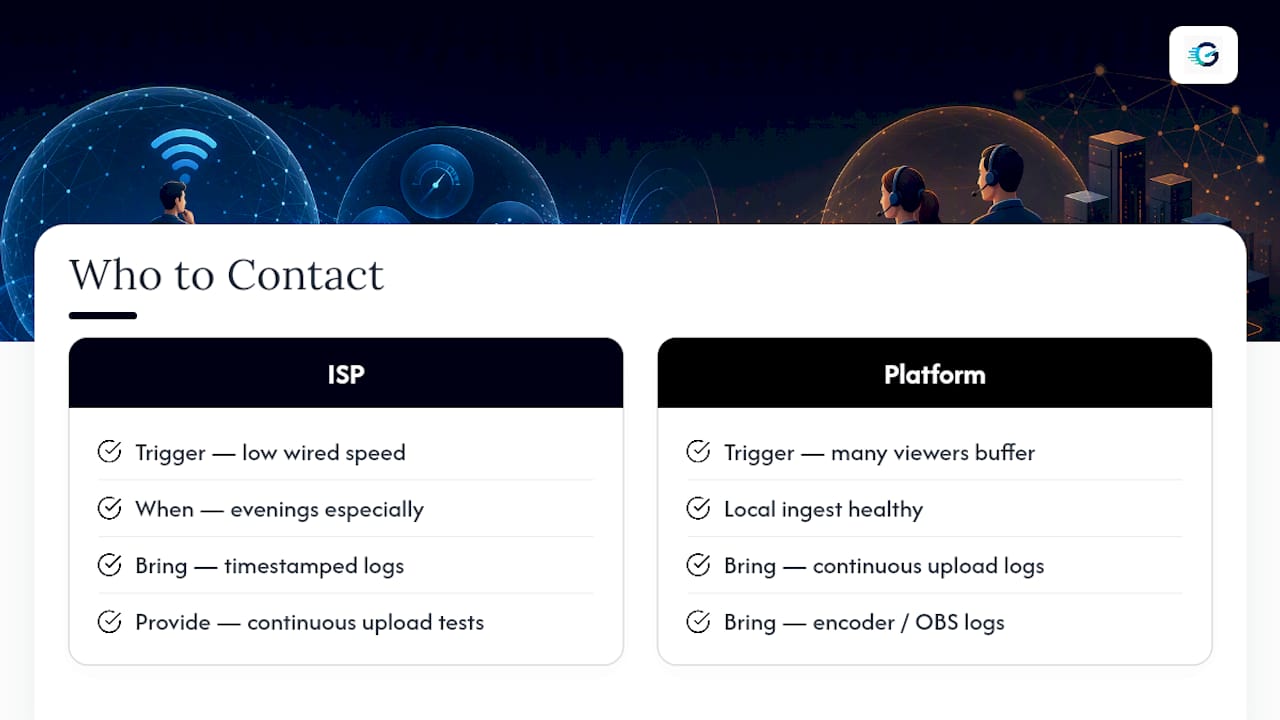
Call your ISP when wired speed tests consistently show results below your plan, particularly during evenings, and bring timestamped logs as proof. Contact the streaming platform's support team when many viewers report simultaneous buffering while your own ingest stats look completely healthy, since that pattern points to their servers, not your setup. Either way, hand over continuous upload test logs, encoder or OBS logs, and a wired-versus-Wi-Fi comparison. Vague complaints get vague answers; data gets escalated.
A Practical Habit Worth Building
Most people chase the wrong fix because they never isolate where the failure actually happened. Start every troubleshooting session with the Ethernet test, then work the checklist in order instead of jumping straight to "call the ISP" or "buy a new router." Keep a simple log: date, time, test result. That habit alone saves hours over a year of intermittent problems. Running a continuous upload test before you contact anyone turns a vague complaint into evidence they have to act on.
— Peter D
Run the Numbers Before You Call Anyone
Guessing at bitrate settings or assuming your ISP is throttling you wastes hours that a five-minute test would save. GrandSpeed's Stream Test measures continuous upload stability, jitter, and packet loss on the exact device having trouble, and it tells you the maximum stream or broadcast resolution your current connection actually supports, not the number your ISP advertises.

If you broadcast, run your sustained upload through the bitrate calculator to find the setting that keeps your encoder inside safe headroom instead of guessing and hoping. And when a problem does need escalating, a GrandSpeed test log with timestamps gives your ISP or platform support something concrete to act on instead of a complaint they can wave away. Run a test now at GrandSpeed's rankings page and see exactly where your connection stands before your next stream.
Sources
- What causes buffering? Top 7 issues causing video buffering
- Good internet speed for streaming
- How to stop buffering
- What is buffering
- Why live streams buffer: creator-side vs viewer-side causes and fixes