
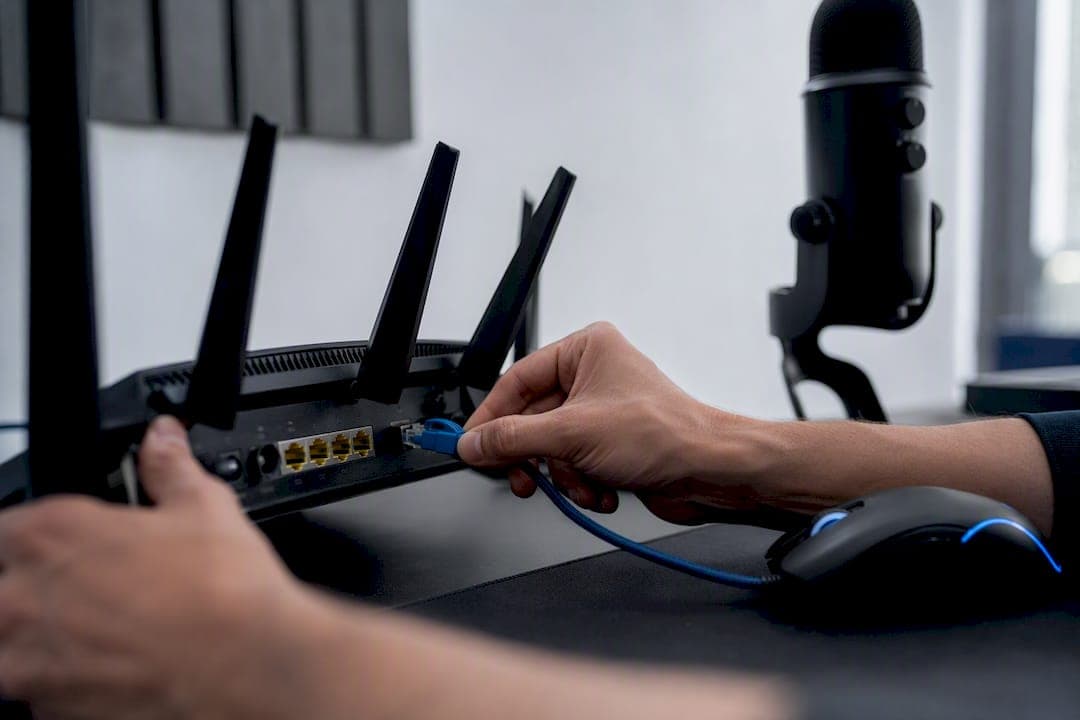
Ping measures the round-trip time in milliseconds between your device and a server, and high ping in games almost always traces back to one of three things: your local connection, your ISP's routing, or the game server itself. The fastest fix to try first is plugging into Ethernet, pausing every background download, and picking the closest server region. If that doesn't fix it, the problem is upstream and needs real diagnostics, not more guessing.
TL;DR:
- Running a continuous ping to 8.8.8.8 helps distinguish between local issues and ISP routing problems that affect gaming latency.
- Changing one setting at a time and testing each change ensures accurate identification of the actual cause of high ping spikes or jitter.
- Ethernet connections typically reduce latency by 5 to 20 milliseconds and lower jitter compared to Wi-Fi, even on advanced networks like Wi-Fi 6E or 7.
- High jitter and packet loss often cause game discomfort even when average ping appears fine; monitoring all three metrics provides a complete diagnosis.
- Distance from the server and network congestion during peak hours can set persistent latency floors that are difficult to reduce through configuration changes.
Table of Contents
- What Counts as High Ping in Games?
- Quick Fixes to Try Right Now
- How Do You Diagnose Where Ping Is Added?
- Home Network Fixes That Actually Reduce Ping
- Device and OS Settings That Stop Ping Spikes
- When Is Your ISP or the Game Server the Real Problem?
- Does High Ping Hit Every Game Genre the Same Way?
- Jitter and Packet Loss: The Other Half of the Ping Story
- How Does Distance From the Server Affect Your Ping?
- Do Gaming Routers and Advanced QoS Settings Actually Help?
- What Do People Get Wrong About Ping Spikes?
- When Should You Keep Troubleshooting vs. Call It In?
- Get the Exact Latency Numbers Before You Call Your ISP
- Where to Dig Deeper
- Sources
What Counts as High Ping in Games?
Ping under 30ms is ideal for competitive play. Between 30ms and 60ms is still acceptable for most genres. Once you cross 60ms to 100ms, games become playable but noticeably disadvantaged, and anything past 100ms starts causing rubber-banding, delayed hit registration, and input lag that fast-paced games can't hide.
Those numbers aren't arbitrary. They map to how much time your inputs spend traveling to the server and back before the game world updates. A shooter running at 100ms effectively shows you the world as it existed a tenth of a second ago, which is why headshots that felt clean on your screen register as misses on the server.
Quick Fixes to Try Right Now
Before touching routers or registry settings, run through the fast wins. These solve the majority of everyday ping complaints because most high ping in games comes from local congestion, not exotic network failures.
- Switch to Ethernet and retest. Wireless interference and signal drops account for a big share of random spikes.
- Kill background bandwidth hogs. Windows Update, Steam downloads, and OneDrive syncs quietly eat your upload and download headroom mid-match.
- Pick the nearest server region. A game defaulting to a server 2,000 miles away will always add latency no setting can undo.
- Power cycle your modem and router. This clears stale NAT and connection-tracking states that can cause new ping spikes to appear out of nowhere.
- Test a VPN temporarily. Sometimes a VPN's route to the game server is genuinely shorter than your ISP's default path, and it's worth ruling in or out.
Run each change one at a time and check your in-game ping counter after each step. Stacking five fixes at once tells you nothing about which one actually worked.
How Do You Diagnose Where Ping Is Added?
Diagnostics separate guessing from knowing. The goal is to figure out which segment of the path from your PC to the game server is adding the delay, so you stop wasting time fixing parts that were already fine.
- Run a continuous ping to 8.8.8.8 while gaming. If it spikes even when you're not in a match, the problem is local, not the game.
- Run traceroute, WinMTR, or PingPlotter to the game server's IP. Both WinMTR and PingPlotter are the standard tools for tracing exactly where latency and packet loss enter the route.
- Read the hop pattern carefully. Spikes at the first one or two hops point to your router or Wi-Fi. Spikes in the middle hops usually mean ISP or transit congestion. Spikes only at the final hop point to the game server itself.
- Let PingPlotter run for 15 to 30 minutes during peak hours to catch intermittent spikes a single traceroute would miss.
- Save screenshots or exported logs showing timestamps, hop latency, and packet loss before you contact your ISP. Vague complaints get vague support responses.
A baseline ping to a public IP followed by an MTR to the actual server gives you a clean before-and-after comparison you can trust.
Home Network Fixes That Actually Reduce Ping
Wired Ethernet remains the single highest-impact change you can make. Switching from Wi-Fi to a wired connection typically cuts latency by 5 to 20 milliseconds and sharply reduces jitter and packet loss caused by interference. Wi-Fi 6E and Wi-Fi 7 have narrowed the gap, especially on 5GHz or 6GHz bands with a clean channel, but a cable still wins for consistency, not just average speed.
Bufferbloat is the quiet killer most gamers never diagnose. It happens when your router's buffer fills up under load and starts queuing packets instead of dropping them, which spikes latency for everyone using the connection at once.
- Enable SQM (fq_codel or CAKE) in your router's settings if it supports it.
- Set the SQM bandwidth limit to about 80% to 90% of your actual measured speed, not your plan's advertised speed. This prevents the queue from saturating in the first place.
- Update your router's firmware and reboot it monthly at minimum.
- Set up basic QoS by prioritizing your gaming device's IP or MAC address, or by tagging traffic with DSCP if your router supports it.
- Consider MoCA over coax if running Ethernet isn't practical. It beats cheap powerline adapters, which often introduce their own latency and jitter depending on your home's wiring.
Pro Tip: Test your bufferbloat grade with an internet speed test built for real-world conditions before and after enabling SQM. A bad grade under load, even on a fast connection, is the clearest sign your router is choking under its own buffer.
Device and OS Settings That Stop Ping Spikes
Your PC or console can generate latency spikes that have nothing to do with your network. Start with the free checks before touching anything technical.
- Open Resource Monitor or Task Manager and sort by network usage. Kill anything downloading or syncing that you don't need mid-game.
- Switch your DNS to Cloudflare's 1.1.1.1 or Google's 8.8.8.8 for faster lookups. Just know this speeds up connection setup and matchmaking, not your in-match round-trip time once you're already in a session.
- Update your network adapter drivers through the manufacturer's site, not just Windows Update.
- Disable Energy Efficient Ethernet and Interrupt Moderation on your adapter if you're chasing rare, unpredictable spikes. These power-saving features can introduce micro-delays that only show up occasionally.
- Adjust Nagle's algorithm settings (TcpAckFrequency and TCPNoDelay registry values) only if you're comfortable editing the registry, and only one value at a time.
Pro Tip: Change exactly one setting, then run the same test again before touching anything else. If you flip five switches at once and ping improves, you'll never know which one actually mattered, and you won't know which one to revert if something breaks.
When Is Your ISP or the Game Server the Real Problem?
Some ping problems have nothing to do with your setup. If diagnostics point past your home router, the fix lives outside your control, though you can still push for it.
- Consistent spikes only during peak evening hours point to ISP congestion, not a one-off glitch.
- High ping in a single game while everything else runs fine usually means a peering or routing issue between your ISP and that specific game's network, not a problem with your connection generally.
- A VPN can sometimes lower ping if it routes through a more direct path than your ISP's default, though it just as often adds overhead from encryption and extra hops. Test it, don't assume.
- Bring PingPlotter or MTR logs showing hop-by-hop latency when you contact support. Screenshots with timestamps carry far more weight than "my ping is bad."
- If the pattern repeats for weeks, switching ISPs may be the only real fix, especially if your provider has a known peering problem with a major game publisher's network.
Does High Ping Hit Every Game Genre the Same Way?
No, and this is where a lot of players misjudge their own situation. The genre you play determines how much a given ping actually costs you.
First-person shooters are the least forgiving. Hit registration, peek timing, and flick shots all depend on sub-50ms round trips, and anything past 80ms to 100ms turns gunfights into a coin flip against equally skilled opponents on better connections.
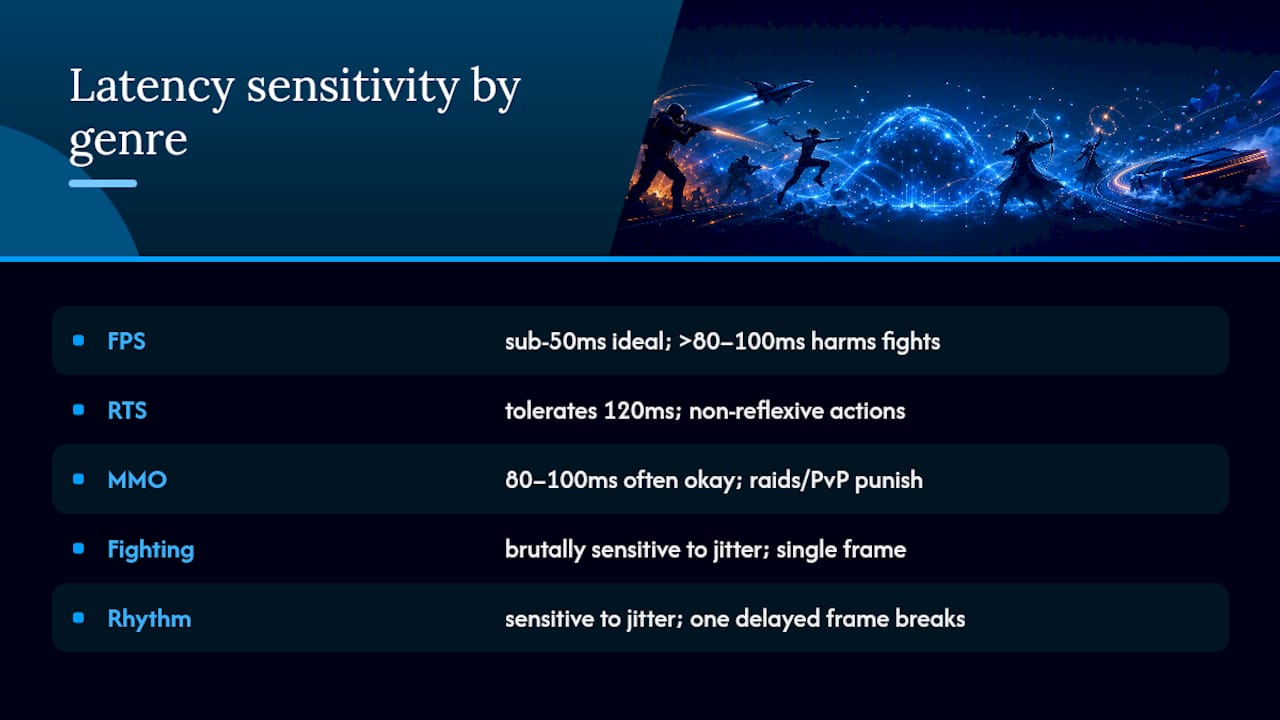
Real-time strategy games tolerate more ping because most actions aren't reflex-based. Ordering a unit to move at 120ms instead of 40ms rarely changes the outcome, though it can matter in high-level competitive play where micro-timing wins engagements.
MMOs sit in the middle. Casual questing and crafting barely notice 100ms ping. Raid bosses with tight mechanic timers, PvP arenas, and any content requiring precise ability sequencing punish high ping almost as hard as a shooter does.
Fighting games and rhythm-based titles deserve a mention too, even outside the three main categories: they're brutally sensitive to jitter specifically, since a single delayed frame can throw off an entire input string.
The practical takeaway is that your acceptable ping ceiling isn't universal. A competitive shooter player chasing sub-30ms has a very different bar than someone running dungeons in an MMO at 80ms without issue. Match your troubleshooting effort to what you actually play.
Jitter and Packet Loss: The Other Half of the Ping Story
Ping alone doesn't tell the whole story. A connection can average a perfectly respectable 40ms and still feel terrible to play on if jitter or packet loss is high.
Jitter is the variation in ping from one packet to the next. A connection bouncing between 20ms and 90ms every few seconds feels far worse than a steady 60ms, even though the average might look similar on paper. Games rely on predictable timing to smooth movement and interpolate positions, and jitter breaks that prediction, causing the rubber-banding and stutter that make a game feel broken even when your raw ping number looks fine.
Packet loss is worse. It means data never arrives at all, forcing the game to either freeze briefly while it waits for a retransmission or guess at what should have happened. Even 1% to 2% packet loss during a firefight can cause missed hits, teleporting enemies, or disconnects. Zero percent packet loss is the realistic target, and anything consistently above 1% during normal play points to a real network problem worth chasing down.
This is why chasing a single ping number in isolation misses half the picture. A good diagnostic session tracks all three together: latency, jitter, and packet loss. A router struggling with bufferbloat, for example, often shows normal average ping but ugly jitter under load, which is exactly the kind of problem a simple ping test won't catch but a sustained trace will.
How Does Distance From the Server Affect Your Ping?
Physical distance sets a hard floor on your ping that no amount of tweaking can beat. Data traveling through fiber moves at roughly two-thirds the speed of light, and every few hundred miles adds real, unavoidable milliseconds.
That's why a player in Denver connecting to a server in Los Angeles will always have lower ping than one connecting to a server in London, all else being equal. Game publishers deal with this by running regional server clusters, but the region you're assigned by default isn't always the closest one, especially if matchmaking is prioritizing population over proximity.
A few practical moves help. Manually selecting your server region instead of trusting auto-select is the biggest one. Some games hide this setting in network or region options rather than the main menu, so it's worth digging for. If you regularly play with friends overseas, accept that one of you will always carry more ping, and decide together whose region to prioritize based on who's more latency-sensitive to the genre you're playing.
Rural and satellite internet users face a separate distance problem entirely: even before reaching the game server, satellite connections add 500ms to 600ms just getting the signal to and from orbit, which no local fix resolves.
Do Gaming Routers and Advanced QoS Settings Actually Help?
Dedicated gaming routers earn their price tag through software, not magic hardware. The core feature that matters is built-in QoS with game-detection profiles that automatically prioritize gaming traffic over a laptop's background update or a roommate's video stream, without you manually configuring DSCP tags every time a new device joins the network.
Mesh systems marketed for gaming vary widely in whether they expose real QoS controls or just relabel basic bandwidth throttling as a "gaming mode." Before paying a premium, check whether the router actually supports SQM implementations like CAKE, since that's the setting doing the real bufferbloat prevention work, not a marketing badge on the box.
Wired backhaul matters more than the gaming label itself if you're running a mesh system. A mesh node connected by Ethernet to your main router performs dramatically better than one relying on a wireless hop to relay traffic, regardless of what's printed on the packaging.
For most households, a well-configured standard router running SQM correctly outperforms an expensive "gaming" router left on default settings. The premium hardware helps most when you've already fixed the basics and are chasing the last few milliseconds.
What Do People Get Wrong About Ping Spikes?
The biggest misconception is treating every ping spike the same way. A single spike to 200ms for half a second, then back to normal, is a completely different problem than sustained 150ms ping that never drops.
Occasional spikes usually come from momentary congestion: a Windows Update kicking off, a Netflix stream starting elsewhere on your network, or Wi-Fi briefly negotiating a new channel. These resolve on their own and rarely need a router replacement or an ISP call.
Sustained high ping that never improves points to a structural issue instead, such as a genuinely distant server, a persistent ISP routing problem, or a router stuck in a bufferbloat state under any real load. Chasing a router firmware update to fix what's actually a distance problem wastes time, and calling your ISP about a single spike that happened once during a Windows Update is unlikely to get anywhere either.
Another common misread: assuming a fast internet plan guarantees low ping. Bandwidth and latency are different things entirely. A 1-gig fiber connection can still deliver terrible ping if the route to the server is congested or badly peered, while a modest 100 Mbps connection with a clean route can outperform it on responsiveness. Match the fix to the actual pattern you're seeing, not the symptom that's easiest to blame.
When Should You Keep Troubleshooting vs. Call It In?
Higher download speed doesn't mean lower ping. Throughput and latency are separate metrics, and confusing them wastes hours on upgrades that never touch the real problem.
Change one variable at a time, then play several matches before judging the result. A single round tells you nothing; ping variance across a session tells you everything. Once you've logged consistent traceroute or PingPlotter results across multiple sessions showing the same problem hop, that's persuasive evidence worth bringing to your ISP. A single screenshot rarely is.
— Olutope
Get the Exact Latency Numbers Before You Call Your ISP
Guessing at ping problems wastes evenings you could spend actually playing. Grandspeed measures the specific numbers this article keeps referencing: latency, jitter, packet loss, and bufferbloat, all in one test, with results saved to a history so you can prove whether a fix actually worked instead of relying on memory.

Run a test before you touch your router, make one change, then test again. That before-and-after record is exactly what a traceroute or PingPlotter log needs alongside it if you end up escalating to your ISP. Grandspeed's diagnostics go beyond a basic download number to show you the bufferbloat grade and jitter that a plain speed test skips entirely, which is often where the real answer to your ping problem is hiding. Head to Grandspeed's latency and bufferbloat test and run your first check now, then compare it against your next session.
Where to Dig Deeper
For a longer walk-through of registry tweaks and traceroute basics, GamersDignity's complete high ping fix guide covers threshold ranges in more detail. UptyBots has a solid breakdown of reading MTR hop patterns. For router-side SQM setup, GameGuide's lag troubleshooting piece walks through bufferbloat prevention step by step.
Sources
- How to Fix High Ping in Any Online Game — Complete Guide (2026) - GamersDignity
- High Ping in Online Games: Causes, Monitoring, and Fixing | UptyBots
- How to fix lag in online games: packet loss, high ping, Wi‑Fi, DNS, router settings explained - GameGuide
- Newegg Insider: WiFi 6E vs Ethernet gaming which is better 2026