
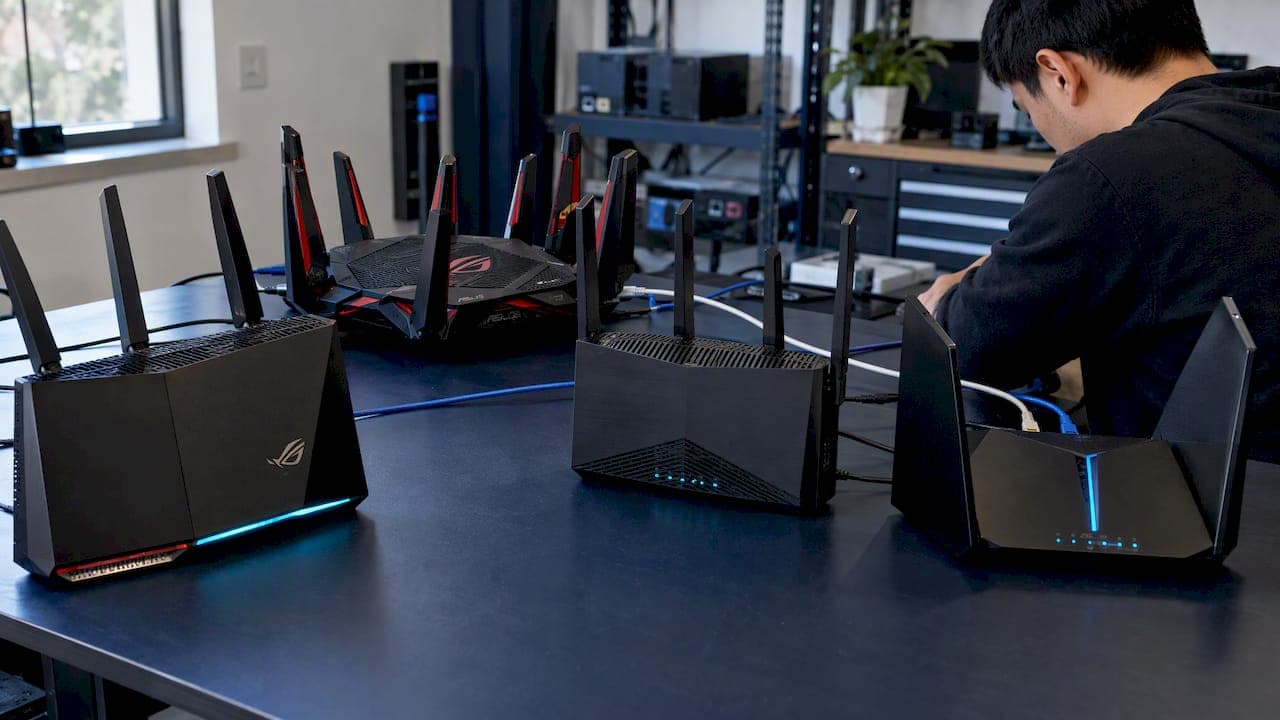
For most gamers, the ASUS RT-AX86U remains the best all-around pick because it pairs reliable QoS with strong wired throughput. Competitive players on a wired setup do well with the TP-Link Archer A7 or Archer AX10 for the price, while streamers and larger homes get more out of the ASUS ROG Rapture GT-AX11000 or a Wi-Fi 7 model like the ASUS RT-BE58U. Whatever you pick, latency and packet loss matter more than top speed, and running a GrandSpeed test before and after the swap tells you if it actually worked.
TL;DR:
- The ASUS RT-AX86U offers the best balance of wired performance and game-aware QoS for most households, especially when latency and packet loss are priorities.
- Wi-Fi 7 routers like the ASUS RT-BE58U and TP-Link Archer GE400 excel with higher bandwidth and mesh backhaul, but only benefit devices that support Wi-Fi 7.
- Wired ports such as 2.5G or 10G significantly reduce bottlenecks, offering better real-world stability for gaming and streaming regardless of wireless standards.
- Testing connectivity with tools like Grandspeed before and after upgrades provides measurable proof of improved latency and stability.
- For competitive play, prioritizing wired connections and low-latency tuning outweigh the benefits of the fastest Wi-Fi standards or high-end features.
Table of Contents
- Shortlist: Finalist Routers and What Each One Gets Right
- How the Seven Routers Compare on the Metrics That Matter
- A Step-by-Step Checklist for Picking Your Router
- Confirming the Upgrade Actually Worked
- Router Security Settings That Actually Matter for Gamers
- Will It Work With Your Console or PC Setup
- Getting It Set Up Without Fighting the Interface
- Firmware Updates and Manufacturer Support Over Time
- What We Think Actually Matters When You Choose
- Run a Test Before You Buy, Then Run It Again
- FAQ
- Sources
Shortlist: Finalist Routers and What Each One Gets Right
Each of these seven routers solves a different problem. None of them is a universal answer, so match the device to your home, your budget, and whether you play competitively or just want fewer dropped frames while streaming.
ASUS RT-BE58U
- A Wi-Fi 7 router with wide bandwidth and multi-band configuration, built for households ready to use the newer standard.
- Standout feature is Wi-Fi 7 throughput, though the gain only shows up with Wi-Fi 7 client devices or as mesh backhaul.
- Best for gamers who want to future-proof their wireless setup and don't mind paying for headroom they'll grow into.
TP-Link Archer GE400
- A Wi-Fi 7 gaming router positioned as the value entry into the standard, with solid close-range 5 GHz performance.
- Standout feature is getting Wi-Fi 7 bands into a smaller apartment setup without the flagship price.
- Best for apartment or small-home gamers who want newer Wi-Fi without committing to a premium tri-band unit.
ASUS RT-AX86U
- A Wi-Fi 6 router widely recommended for its game-aware QoS and software tuning.
- Standout feature is dependable game-priority traffic shaping that actually holds up under mixed household use.
- Best for single-player gamers and small households that want a strong balance of wired and wireless performance.
TP-Link Archer AX50
- A midrange Wi-Fi 6 router that covers most gaming needs without the Wi-Fi 6 flagship markup.
- Standout feature is price-to-performance, since it delivers Wi-Fi 6 basics without extra software bloat.
- Best for budget-minded gamers who still want a current wireless standard rather than an aging Wi-Fi 5 unit.
TP-Link Archer A7
- An entry-level router built around wired reliability rather than wireless speed.
- Standout feature is low cost paired with simple setup, which matters if you're running Ethernet to a console anyway.
- Best for budget wired gamers or console players who don't need advanced QoS software.
TP-Link Archer AX10
- A lower-cost Wi-Fi 6 router aimed at people upgrading from much older hardware.
- Standout feature is affordable access to Wi-Fi 6, even if it lacks the tri-band range of pricier models.
- Best for gamers replacing a worn-out router on a tight budget rather than chasing peak performance.
ASUS ROG Rapture GT-AX11000
- An established high-end tri-band Wi-Fi 6 router with extensive QoS controls and gamer-focused extras.
- Standout feature is the combination of rich gaming software and multiple high-speed wired ports.
- Best for competitive gamers and streamers who need advanced QoS and enough ports for a full gaming desk setup.
None of these require a subscription to function as a router, though some gaming models bundle optional extras like parental control suites or trial periods for third-party server acceleration services. Price tiers run from budget (Archer A7, AX10) through midrange (AX50, GE400, RT-AX86U) to premium (RT-BE58U, GT-AX11000).
How the Seven Routers Compare on the Metrics That Matter
A few tradeoffs stand out once you look at the full set side by side. Wi-Fi 7 on the RT-BE58U and Archer GE400 adds real bandwidth through the extra 6 GHz band and MLO, but that only matters once your phone, PC, or console actually supports the standard, or when you're using the extra band as mesh backhaul, as Wired's testing notes. Wired ports tell a different story: a 2.5G port on the RT-AX86U or GT-AX11000 removes a bottleneck that Wi-Fi alone can't fix, especially if multiple devices are gaming or streaming from the same household.
Packet loss does more damage to online play than most people realize. Wired's hands-on testing found that gaming routers which actively reduce packet loss and prioritize game traffic improve stability even when they don't raise your top-line speed, which is the real reason a "faster" router sometimes feels no different.
A Step-by-Step Checklist for Picking Your Router
Work through these in order rather than jumping straight to a flagship purchase.
- Check your devices first. Confirm which Wi-Fi standard your console, PC, or handheld actually supports, and figure out whether you can run an Ethernet cable to your main gaming setup at all.
- Prioritize wired ports for competitive play. A 2.5G or 10G LAN port cuts out a bottleneck that no Wi-Fi upgrade can fully replace, so weigh port speed before chasing wireless bandwidth.
- Test QoS and game acceleration claims yourself. Turn on game-priority settings for a week and watch for fewer stutters during peak household hours; ignore marketing terms that don't translate into a setting you can actually toggle.
- Decide between mesh and a single high-end router based on house size. A tri-band flagship like the GT-AX11000 often beats a cheap mesh kit in a mid-size home, while larger or multi-floor homes benefit more from mesh backhaul.
Pro Tip: Before spending on a flagship router, rule out your ISP or home wiring as the real problem by running a Grandspeed first.
Confirming the Upgrade Actually Worked
A new router is only worth the money if you can measure the difference, so run tests before and after the swap rather than trusting the box.
- Run an internet speed test wired first, then wirelessly from the same room, using the same test server and roughly the same time of day for both runs.
- Record ping, jitter, and packet loss alongside download and upload speed, since those three numbers affect gaming far more than raw bandwidth.
- Watch for ping under about 30 milliseconds for most competitive online games, jitter under 10 milliseconds, and packet loss close to zero.
- If you stream while you play, run the Stream Test to see the maximum resolution your connection reliably supports.
- Follow a simple loop: baseline test, one hardware or config change, retest, then compare the saved results before making a second change.
Router Security Settings That Actually Matter for Gamers
Most gaming routers now ship with some form of DDoS mitigation, and it's worth leaving it on rather than disabling it for a marginal performance claim. A firewall set to its default or moderate setting blocks unsolicited inbound traffic without interfering with the outbound connections your game client needs.
Open NAT and UPnP help some multiplayer games connect faster, but leaving UPnP on permanently opens more ports than most households need. A better approach is enabling it only for the specific console or PC that needs it, then checking your router's connected-device list periodically for anything unfamiliar.
Guest networks are worth using if friends visit with their own devices, since it keeps their traffic off your main gaming network without any real setup effort. None of these settings require advanced networking knowledge: the defaults on the RT-AX86U, GT-AX11000, and similar models are reasonable for most homes, and the main job is making sure firmware stays current so known vulnerabilities get patched.
Will It Work With Your Console or PC Setup
Every router on this list works with current PlayStation, Xbox, and Nintendo consoles, as well as PC gaming over Wi-Fi or Ethernet, since they all support standard NAT types and port forwarding. The practical differences show up in details rather than basic compatibility.
Consoles plugged in by Ethernet get the most consistent benefit from a 2.5G LAN port on routers like the RT-AX86U or GT-AX11000, since the wired connection removes most of the variability Wi-Fi introduces. Handhelds and older consoles that only support Wi-Fi 5 or Wi-Fi 6 won't see any gain from a Wi-Fi 7 router's newer band, so buying the RT-BE58U or Archer GE400 specifically for console gaming often outpaces what your hardware can use.
PC gamers with Wi-Fi 6E or Wi-Fi 7 cards are the main group who benefit directly from the newer standards, and even then, the gain depends on distance from the router and how much other traffic is competing on the same band. If your household runs a mix of old and new devices, dual-band or tri-band routers that serve both 5 GHz and 6 GHz clients tend to cause fewer compatibility headaches than forcing everything onto one band.

Getting It Set Up Without Fighting the Interface
Setup across this group ranges from a guided app experience to a more traditional browser-based admin panel, and neither one guarantees you'll actually turn on the gaming features that matter. The ASUS models, including the RT-AX86U and GT-AX11000, use a browser dashboard with a dedicated gaming tab that groups QoS, port forwarding, and game-priority settings in one place, which makes it easier to find the controls that affect latency.
TP-Link's Archer line, including the AX50, A7, and AX10, leans on its Tether app for basic setup and then a web interface for deeper QoS tuning. The Archer GE400 adds a gaming-specific view similar to ASUS's approach, grouping device prioritization settings together rather than burying them in advanced menus.
The setup step most people skip is actually enabling game-priority QoS after the initial wizard finishes, since most routers ship with it off by default. Spend ten minutes in the gaming tab or app after setup, assign priority to your console or PC, and recheck it after any firmware update, since some updates reset custom priority lists.

Firmware Updates and Manufacturer Support Over Time
Firmware updates matter more for gaming routers than most buyers expect, since they patch security flaws and often improve the QoS algorithms that reduce lag. ASUS and TP-Link both publish firmware updates for their current gaming lines, though update frequency tends to drop off once a model ages past a few years on the market.
Check the manufacturer's support page for your specific model before buying if long-term updates matter to you, since older budget models like the Archer A7 get less frequent attention than flagship units like the GT-AX11000 or RT-BE58U. Enabling automatic firmware updates where the router offers that option is the simplest way to stay patched without having to remember to check manually.
What We Think Actually Matters When You Choose
Competitive players should favor wired ports and low-latency tuning over wireless bragging rights, full stop. Casual and streaming households get more value from multi-band or mesh coverage. If your budget is tight, try an Ethernet cable and QoS tuning before spending on a flagship.
— Peter D
Run a Test Before You Buy, Then Run It Again
A new router only proves its worth when you can measure the difference, so we built our tools to make that comparison simple. Run a baseline Grandspeed before you buy anything, and save the results so you have a real number to compare against once the new router is installed.

- Our speed test measures latency, jitter, and packet loss alongside download and upload speed, which tells you whether a router swap actually fixed anything.
- Our Stream Test estimates the maximum live stream resolution your connection supports, useful if you game and stream at the same time.
- Save your baseline results first, then rerun both tests after setup to confirm the upgrade was worth the money.
FAQ
Which Wi-Fi router is best for gaming?
For most households, the ASUS RT-AX86U offers the best mix of QoS, wired port speed, and price among current Wi-Fi 6 routers. Gamers ready for newer wireless standards may prefer the ASUS RT-BE58U for its Wi-Fi 7 bandwidth, though the gain depends on having compatible client devices.
Is 2.4GHz or 5GHz better for gaming?
5GHz generally offers lower interference and more consistent speeds for gaming, since fewer household devices compete for that band. The 2.4 GHz band covers a longer range through walls but tends to suffer more congestion in apartments or multi-device homes
Are gaming routers worth it?
Gaming routers are worth it mainly for their QoS and traffic-prioritization features, which can reduce packet loss and keep game traffic stable even when overall speed doesn't change. A plain router with a wired connection can match that stability for many single-device setups.
Does it matter what router you use for gaming?
Yes, the router affects latency, packet loss, and how traffic is prioritized when multiple devices share the connection, all of which show up as lag or stutter during play. For the single biggest latency improvement, a wired Ethernet connection usually matters more than which router you buy.